How to Compare Metadata Between Two SharePoint Lists
Published:
Last updated: 2026-11-05
Compare column values and list columns between two SharePoint lists or libraries with the Content Comparison report.
This article shows you how to compare the metadata of two SharePoint lists or libraries, on the same or different sites, with the Content Comparison report.
Step-by-Step Guide
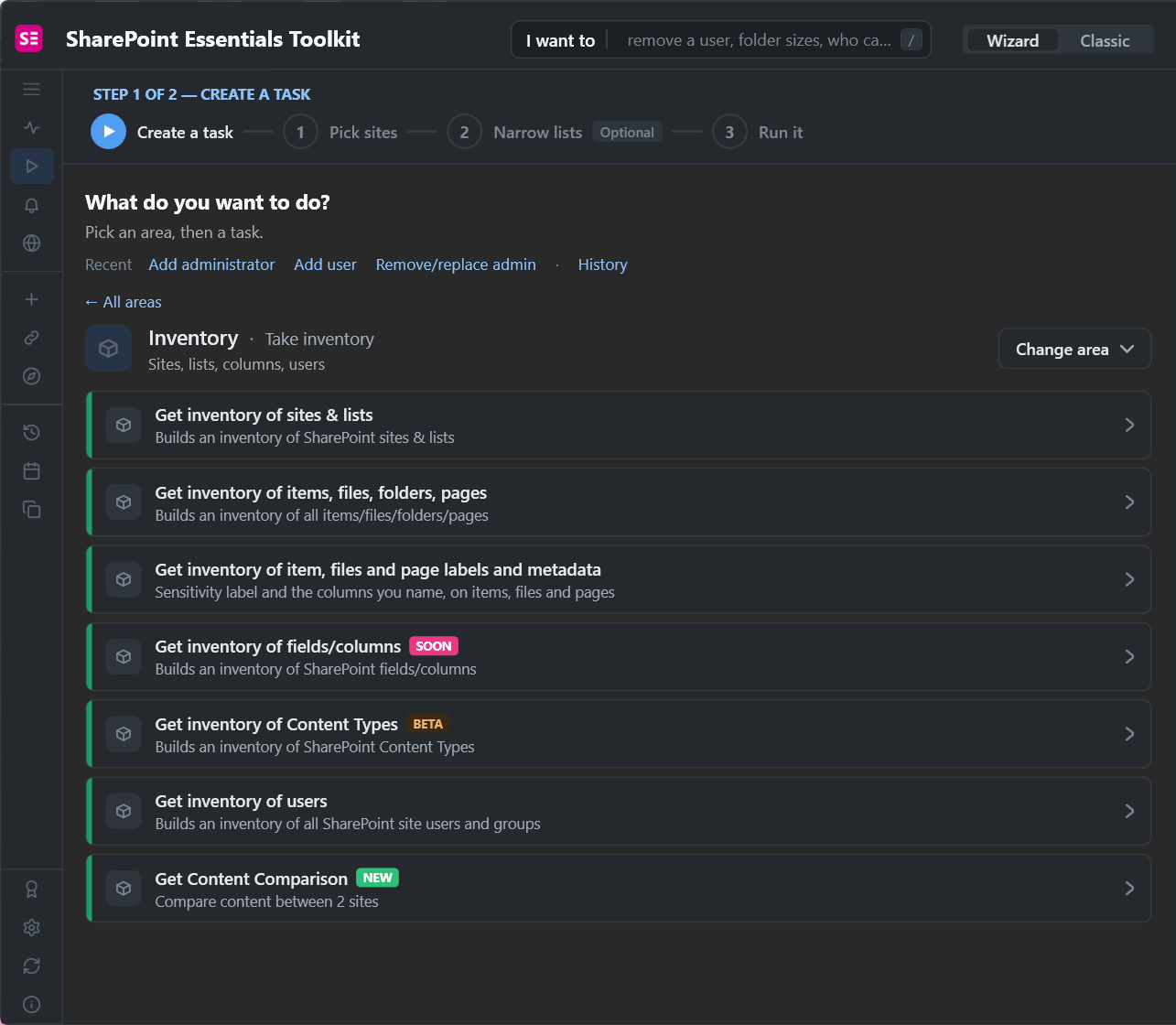
Open the SharePoint Essentials Toolkit, select Tasks, choose the Inventory area and pick Get Content Comparison.
Tick the source site and narrow it to the list or library to compare, then select Next: Pick target.
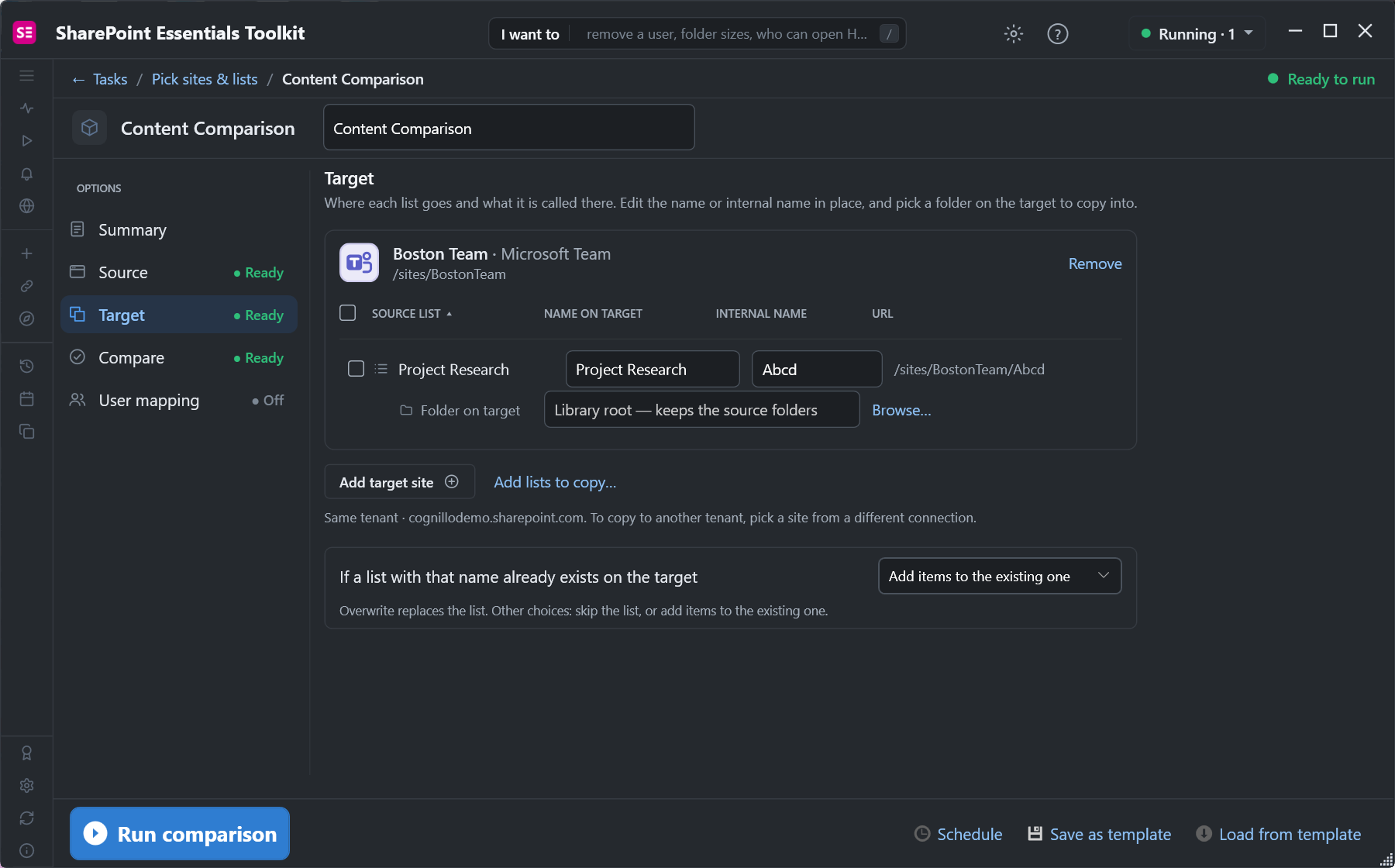
Under Target, add the target site. The toolkit matches each source list to the target list with the same internal name. You can edit the match. The target can be in another site collection or tenant.
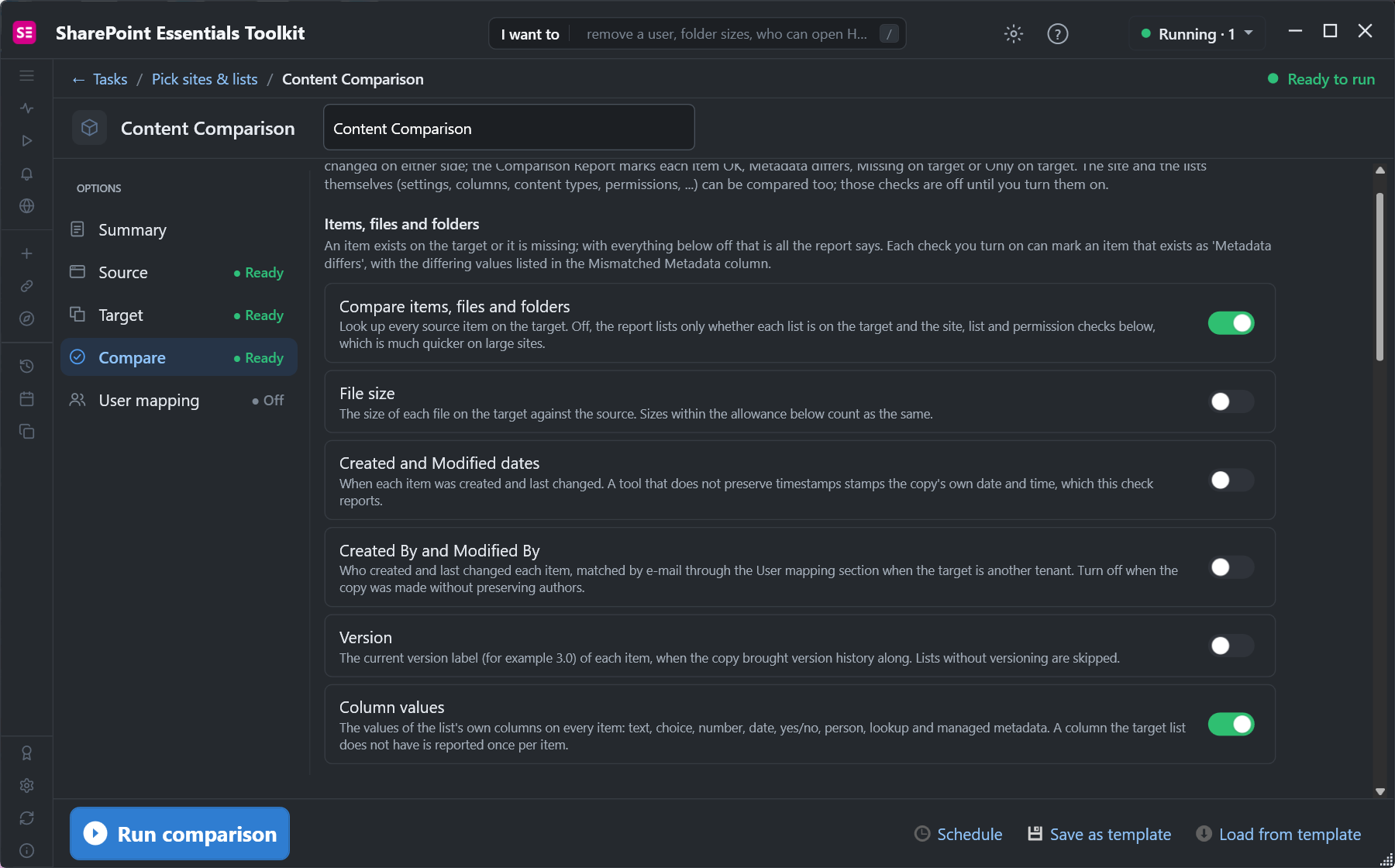
Under Compare, keep Column values on. It covers text, choice, number, date, yes/no, person, lookup and managed metadata columns. Turn off file size, dates, authors and version to see metadata differences only.
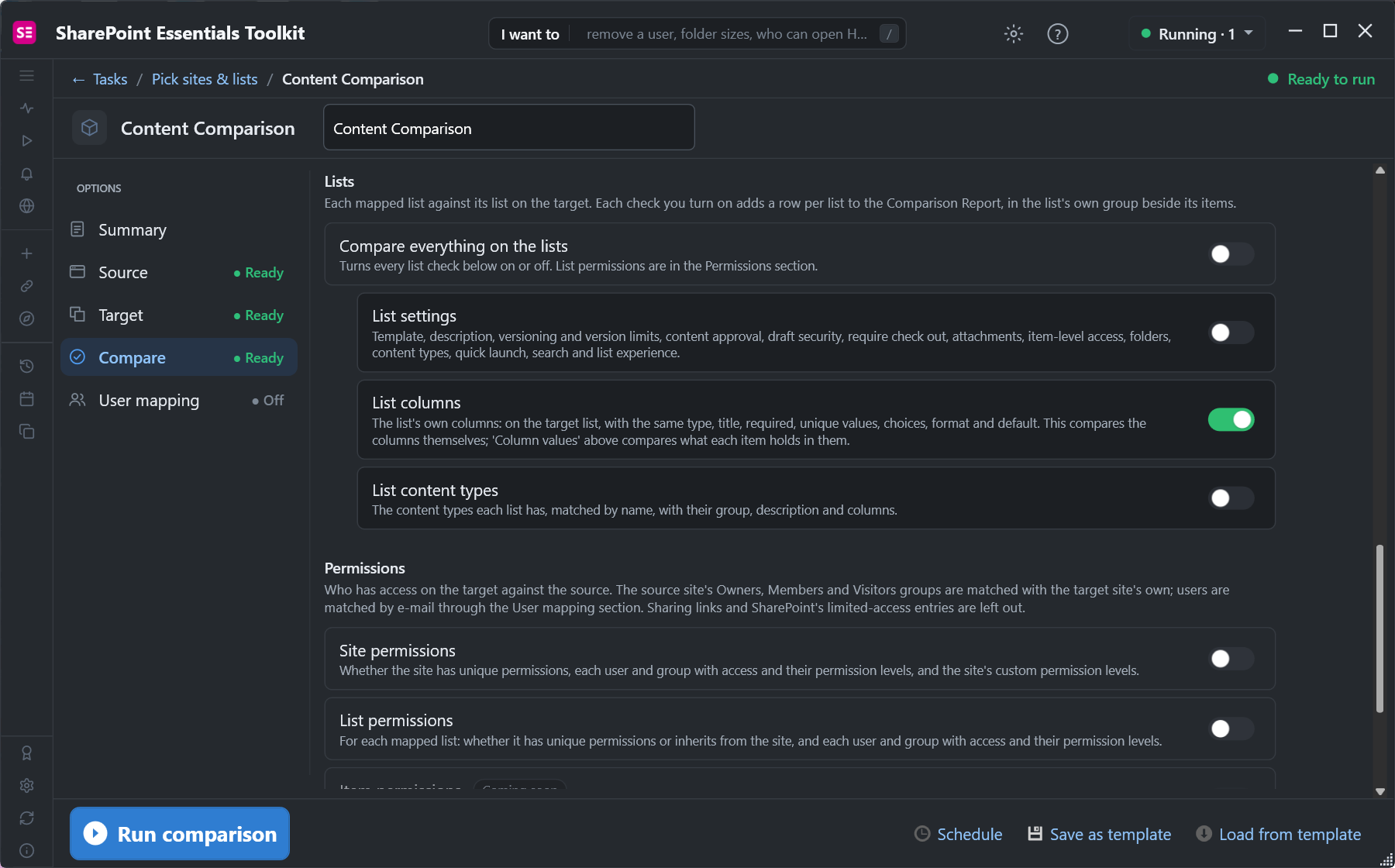
Optionally, under Lists, turn on List columns to compare the columns themselves: type, title, required setting, choices, format and default.
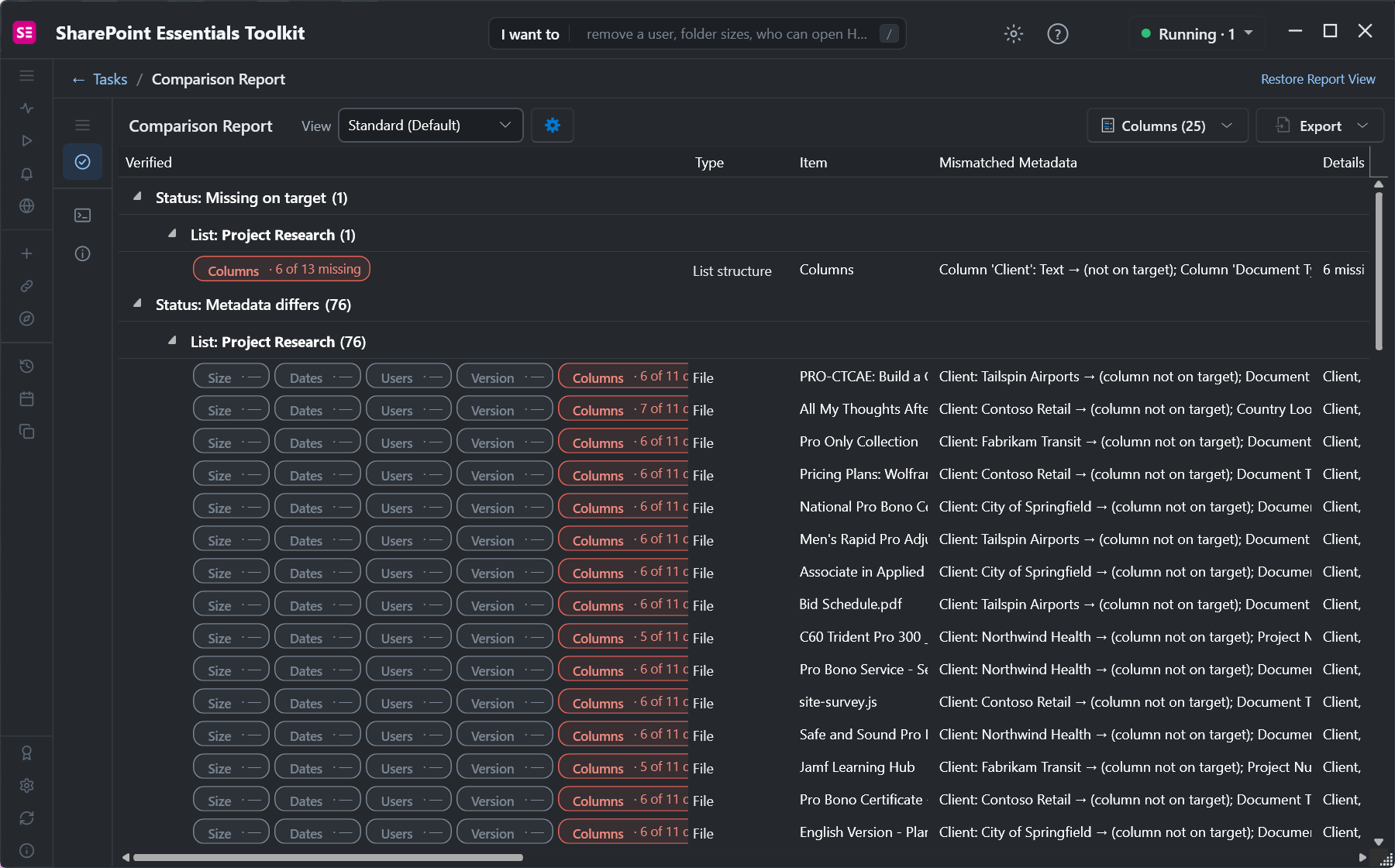
Select Run comparison. Each item is marked OK, Metadata differs, Missing on target or Only on target. The Mismatched Metadata column shows each difference, and the list row shows any columns missing on the target.
Notes
The comparison only reads; nothing is changed on either site.
To report the metadata of one or many lists, see How to Create a SharePoint Metadata Report.
For a longer walkthrough, see SharePoint metadata report.