How to Create a SharePoint Metadata Report
Published:
Last updated: 2026-11-05
Report custom SharePoint metadata columns across sites and libraries with Item Inventory, then export to Excel or CSV.
This article shows you how to build a SharePoint metadata report with the Item Inventory, including your own custom columns, across sites and site collections, and export it to Excel or CSV.
Step-by-Step Guide
Open the SharePoint Essentials Toolkit, select Tasks and choose the Inventory area.
Pick Get inventory of item, files and page labels and metadata. (Get inventory of items, files, folders, pages is the same report with more presets, such as documents only.)

Under Pick sites to work with, tick the sites to report on. Sites can be in different site collections.
Optionally, under Narrow it to specific lists, tick the libraries and lists to include. Leave it empty to report on all of them.
In SharePoint columns to include, type your custom columns separated by semicolons, for example Project Number; Document Type; Client; Review Date. Display names and internal names both work.
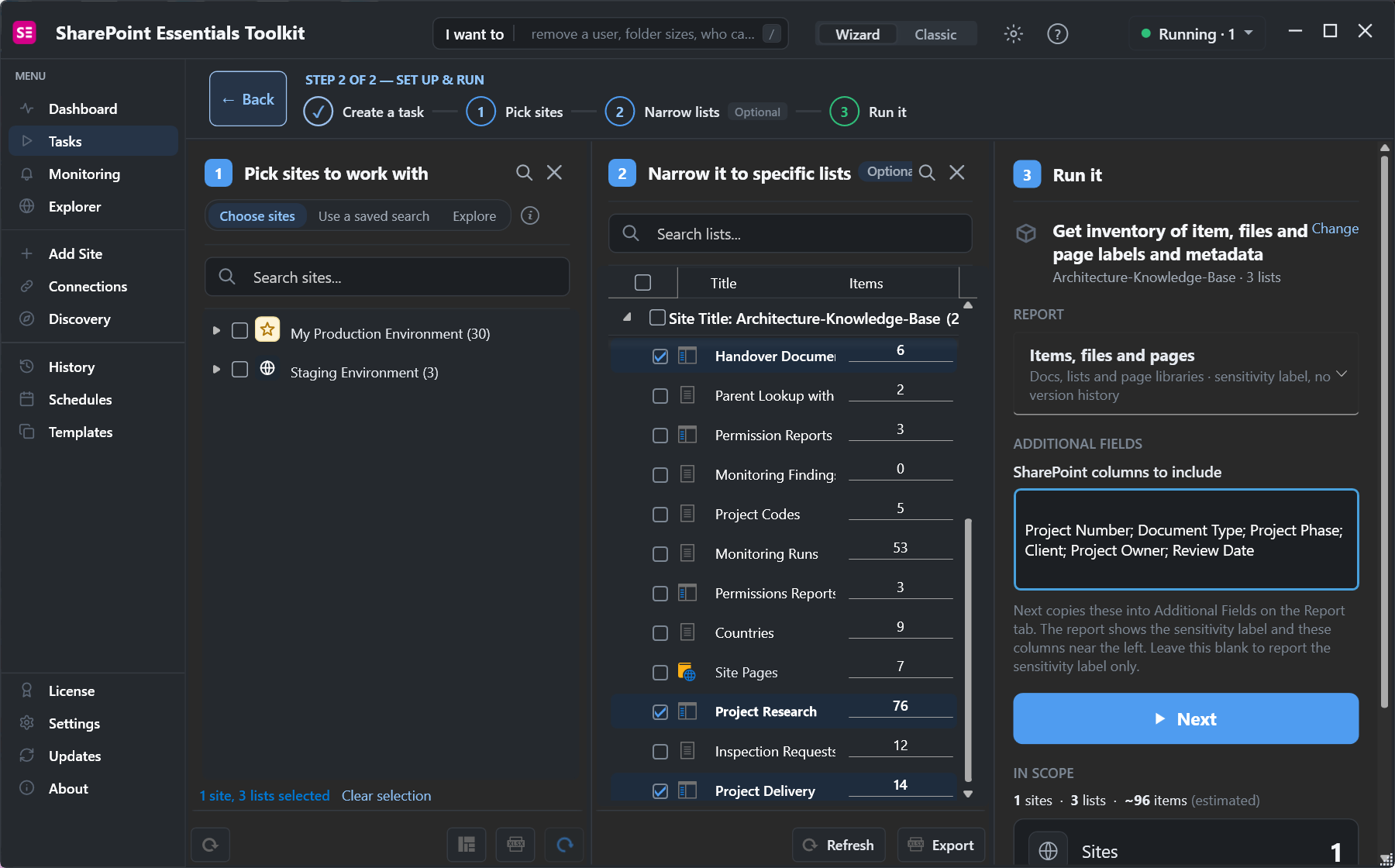
Select Next. On the Report tab, your columns appear under Additional Fields, where you can change them. To include every custom column without typing names, turn on Automatically Add SharePoint Custom Fields.
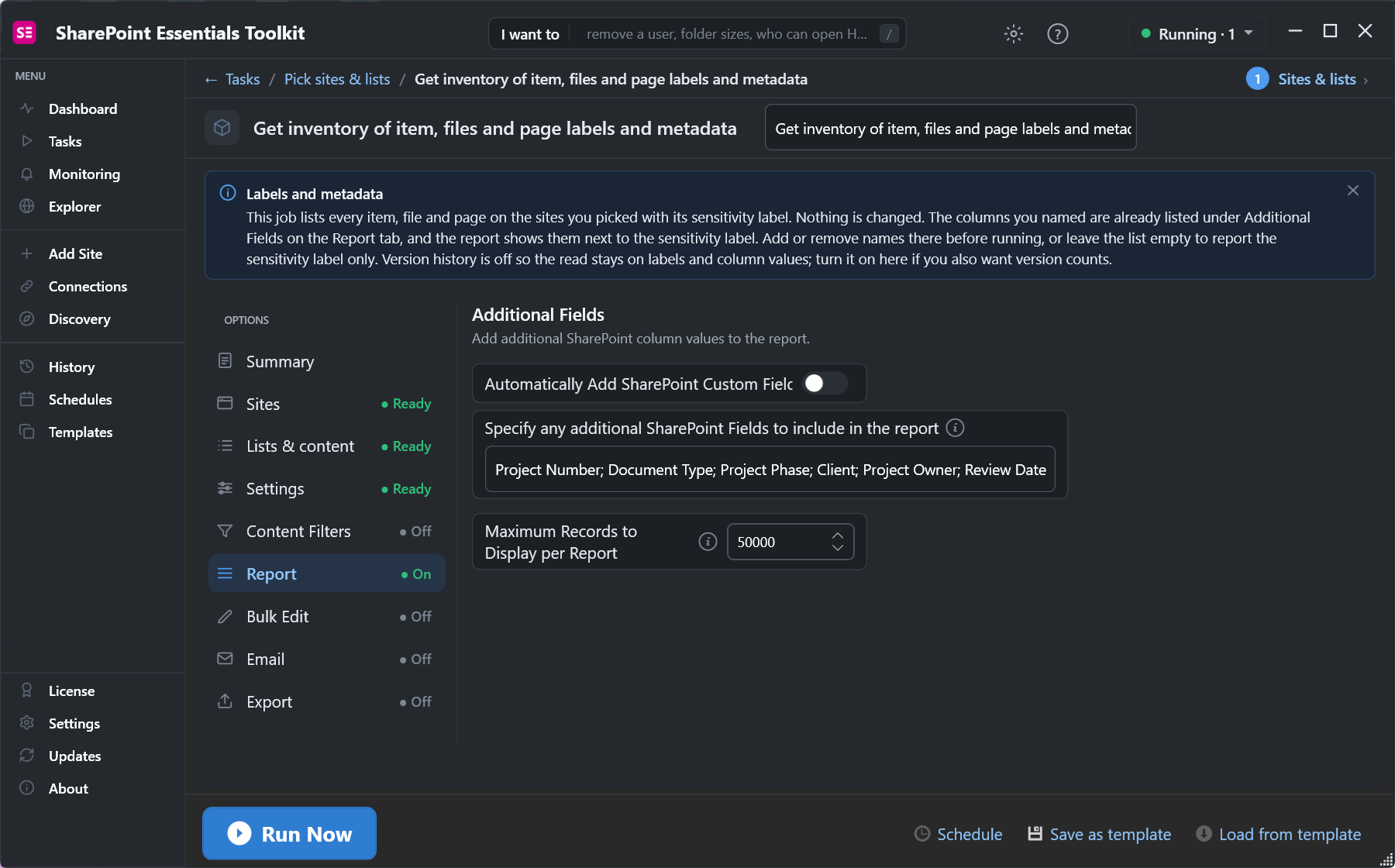
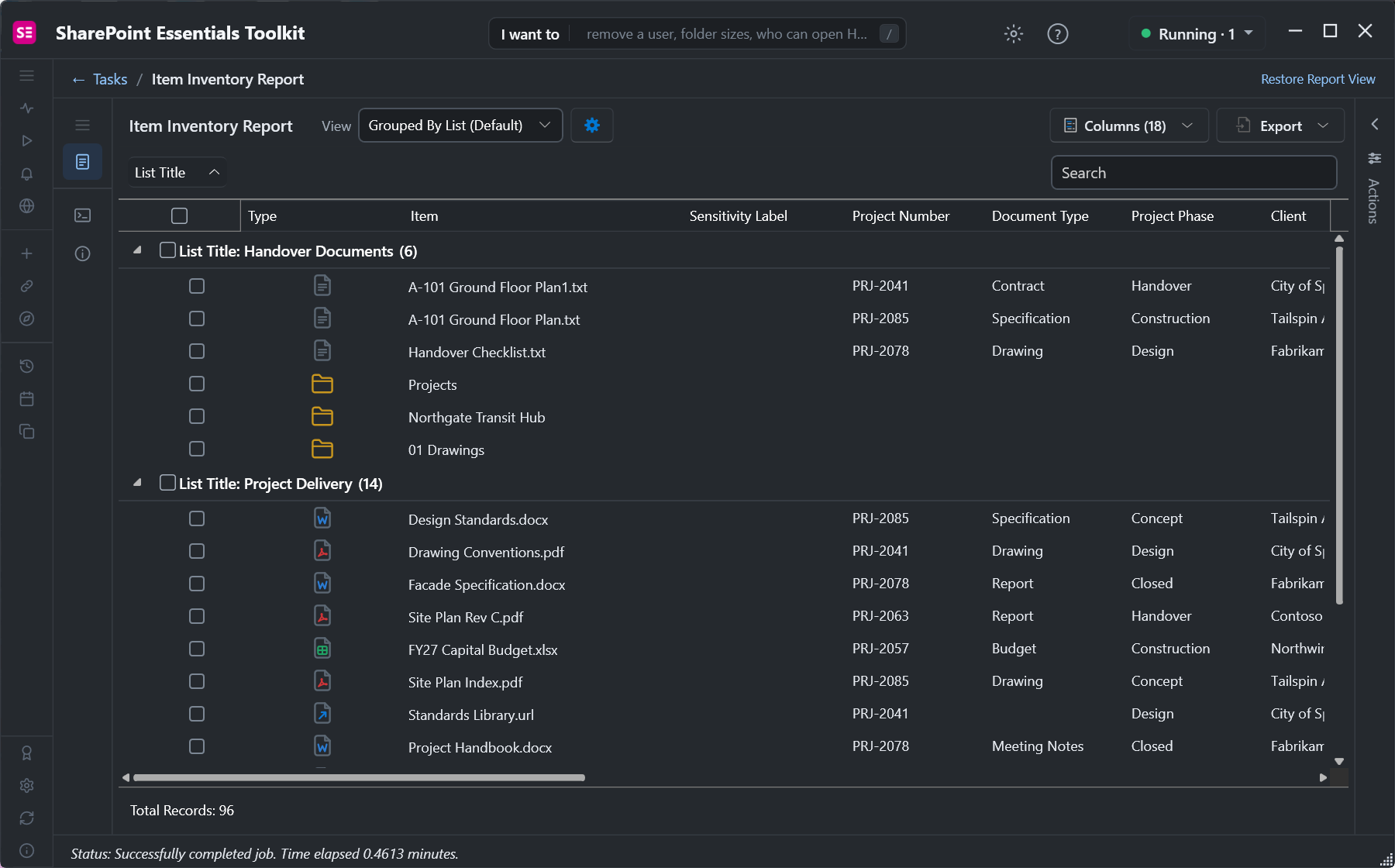
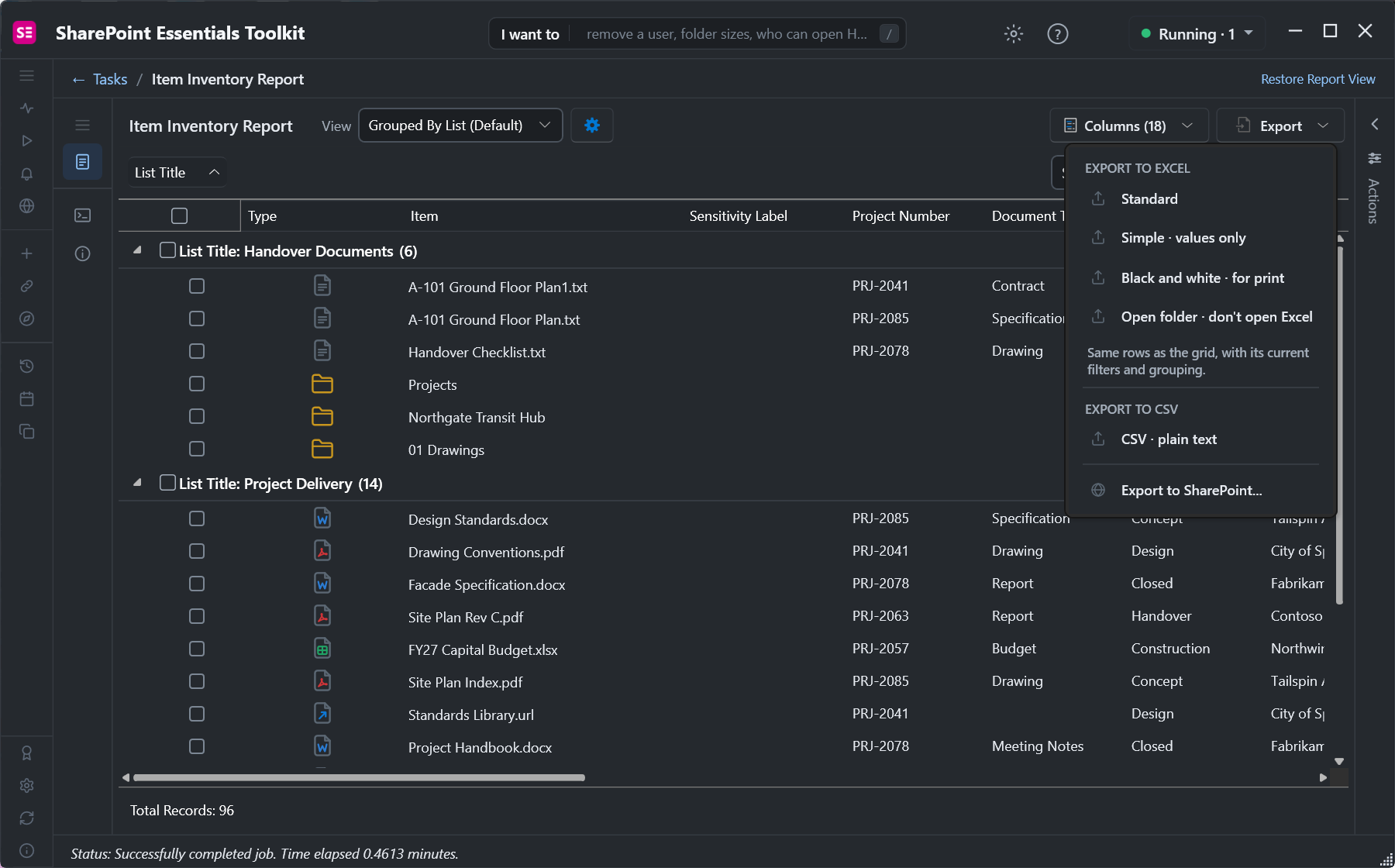
Select Run Now. Every file, item and folder is listed with your custom columns near the left. Drag the List Title or Site Title header to the grouping bar to group the results.
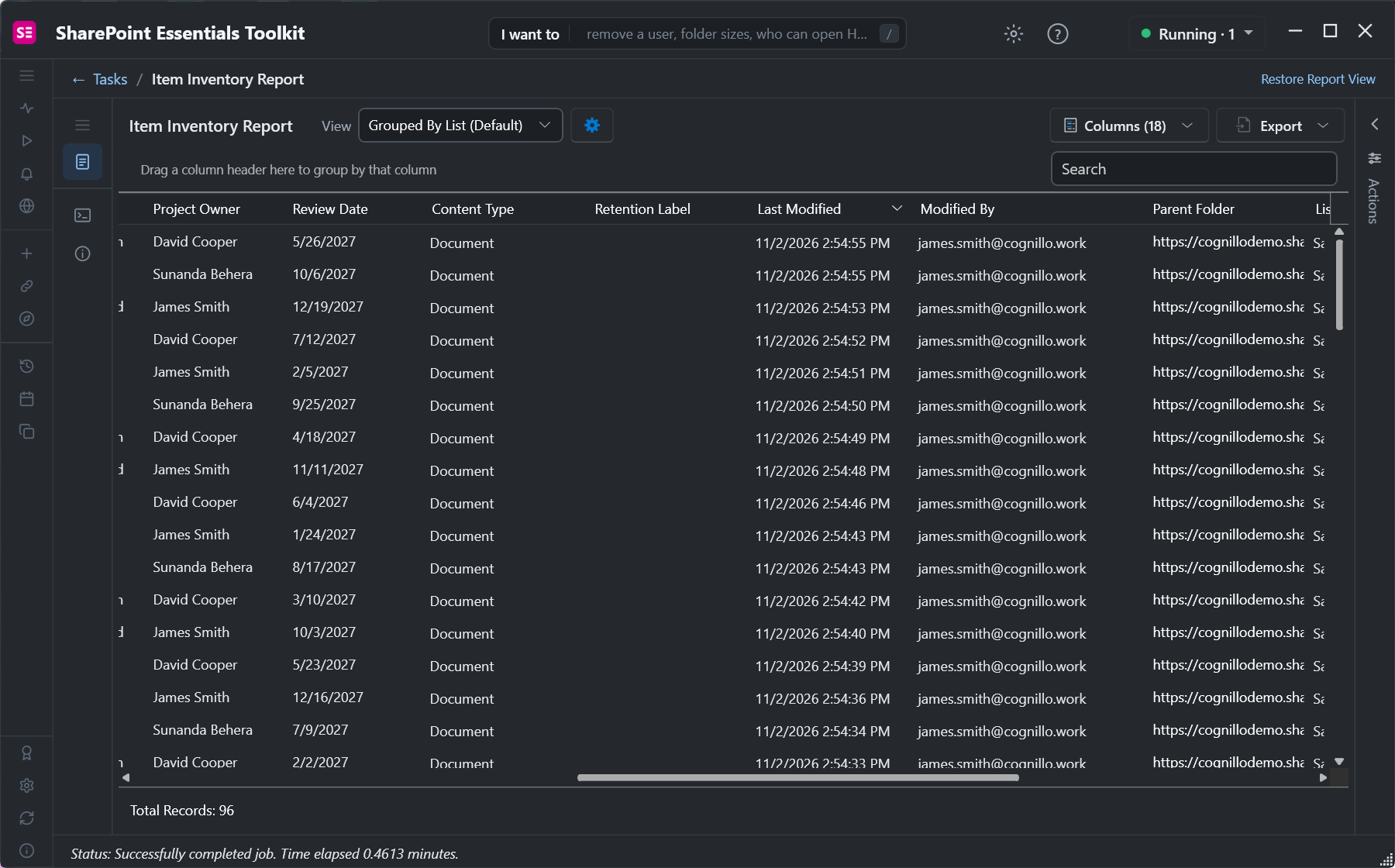
Scroll right for more columns, such as Content Type, Retention Label, Modified and Modified By. Person and date columns show as names and dates. Blank cells show missing metadata.
Select Export to save the report as Excel or CSV, or Export to SharePoint to share it with others. The export keeps your filters and grouping.
Notes
The report only reads; nothing in SharePoint is changed.
To compare metadata between two lists, see How to Compare Metadata Between Two SharePoint Lists.
For a longer walkthrough, see SharePoint metadata report.