Free SharePoint Permissions Reporting Tools Compared: Admin Center, PowerShell and SharePoint Essentials Toolkit Community Edition
Last updated: 2026-10-21
The free ways to report on SharePoint permissions are SharePoint's site permissions pages, the per-site sharing report, PowerShell (PnP or Microsoft Graph), and SharePoint Essentials Toolkit Community Edition. The admin center's tenant-wide reports mostly need SharePoint Advanced Management. The options differ in depth, setup time and export. For file-level reports with sharing links and an Excel export, Community Edition is free on up to 20 sites.
The free ways to report on SharePoint permissions are SharePoint's site permissions pages, the per-site sharing report, PowerShell (PnP or Microsoft Graph), and SharePoint Essentials Toolkit Community Edition. The admin center's tenant-wide reports mostly need SharePoint Advanced Management. The options differ in depth, setup time and export. For file-level reports with sharing links and an Excel export, Community Edition is free on up to 20 sites.
Why compare free permissions tools?
Most permissions questions do not come with a budget. An auditor wants evidence next week. A manager asks who can see a folder. IT wants a baseline before Microsoft 365 Copilot. The first question is always "can we do this with what we have?"
Often you can. The trade-off is time: the free options range from instant but shallow to deep but slow to build. This page compares them honestly so you can pick.
The comparison table
| Site permissions pages | Site sharing report | Admin center reports | PowerShell (PnP / Graph) | SharePoint Essentials Toolkit Community | |
|---|---|---|---|---|---|
| Scope | One site at a time | One site per run | Tenant | Whatever you script | Up to 20 site collections per tenant |
| Depth | Site and list; one item at a time | Files and folders shared | Site level; item level for Everyone groups | Down to items if you loop them | Site, list, folder and file |
| Sharing links | Per item, in Manage access | Yes, except Anyone links | 28-day activity counts | Hidden groups, or per-file calls | Every link, plus a dedicated report |
| Nested group members | One group at a time | No | Counted in user reports | With Graph code | Optional expansion |
| Export | No | CSV | CSV | CSV | Excel, CSV, SharePoint library |
| Setup time | None | None | None; snapshots need a first baseline run | Hours: app registration, modules, script | Minutes: install, free key, connect |
| On-premises 2016/2019 | Yes | No | No | Yes, with a different module | Yes |
| Licensing | Included | Included | Snapshot reports need SharePoint Advanced Management | Free, open source | Free, no trial period |
| Fix from the report | Manual | Manual | Some actions with SAM | More scripting | Small fixes free; bulk fixes paid |
Option 1: SharePoint's site permissions pages
Every site and file has built-in permission pages. Microsoft explains the levels they show in Understanding permission levels.
- Site: Settings > Site permissions > Advanced permissions settings lists every group and person with access and their level. Select a group to see its members.
- Unique permissions: if a yellow bar says some content has different permissions, select Show these items to list the lists and libraries that break inheritance.
- One person: Check Permissions on the ribbon shows what a named person can do on the site and through which group.
- One file or folder: select it, open the Details pane and select Manage access to see people, groups and links.
Best for: a quick answer about one site or one file. Limits: no cross-site view, no list of folders and files with unique permissions, no export.
Option 2: The site sharing report
Site admins can open Settings > Site usage and select Run report under Shared with external users. SharePoint saves a CSV to a library you choose and emails you when it is ready. Per Microsoft Learn, it has a row for each unique file, user, permission and link on the site.
Best for: a free, file-level CSV of one site's sharing. Limits: one site per run; SharePoint groups are listed but not their members; Anyone links are not included.
Option 3: SharePoint admin center reports
In the SharePoint admin center, Reports > Data access governance has several reports, documented in Data access governance reports:
- Site permissions across your organization: which sites have the broadest access.
- Site permissions for users: every site a named person can reach, with counts of items shared with them.
- Sites and files shared via special SharePoint groups: every item open to Everyone or Everyone except external users.
- Sharing links and Shared with 'Everyone except external users': activity in the last 28 days.
Best for: a tenant-wide view and deciding which sites to look at first. Limits: the snapshot reports need SharePoint Advanced Management; Microsoft notes that E5 admins without it get the activity reports only. Snapshot data can be up to 48 hours old, and most reports can be rerun every 30 days. SharePoint Online only.
Option 4: PowerShell
PnP PowerShell reads role assignments at site, list and item level, and Microsoft Graph PowerShell expands Entra ID groups. A minimal site-level report looks like this:
Connect-PnPOnline -Url "https://contoso.sharepoint.com/sites/Finance" -Interactive -ClientId "<your-app-id>"
$web = Get-PnPWeb
Get-PnPProperty -ClientObject $web -Property RoleAssignments | Out-Null
foreach ($ra in $web.RoleAssignments) {
    Get-PnPProperty -ClientObject $ra -Property RoleDefinitionBindings, Member | Out-Null
    [pscustomobject]@{
        Principal = $ra.Member.Title
        Type      = $ra.Member.PrincipalType
        Levels    = $ra.RoleDefinitionBindings.Name -join "; "
    }
}
Our SharePoint permissions report article has a full tenant-wide version with site admins and unique list permissions.
Best for: teams who already maintain scripts and want full control. Limits: PnP PowerShell needs your own Entra ID app registration and admin consent. Item-level loops are slow and throttled on large libraries, sharing links need decoding, and a CSV has no drill-down. Scripts break when modules change and need someone to own them.
Option 5: SharePoint Essentials Toolkit Community Edition
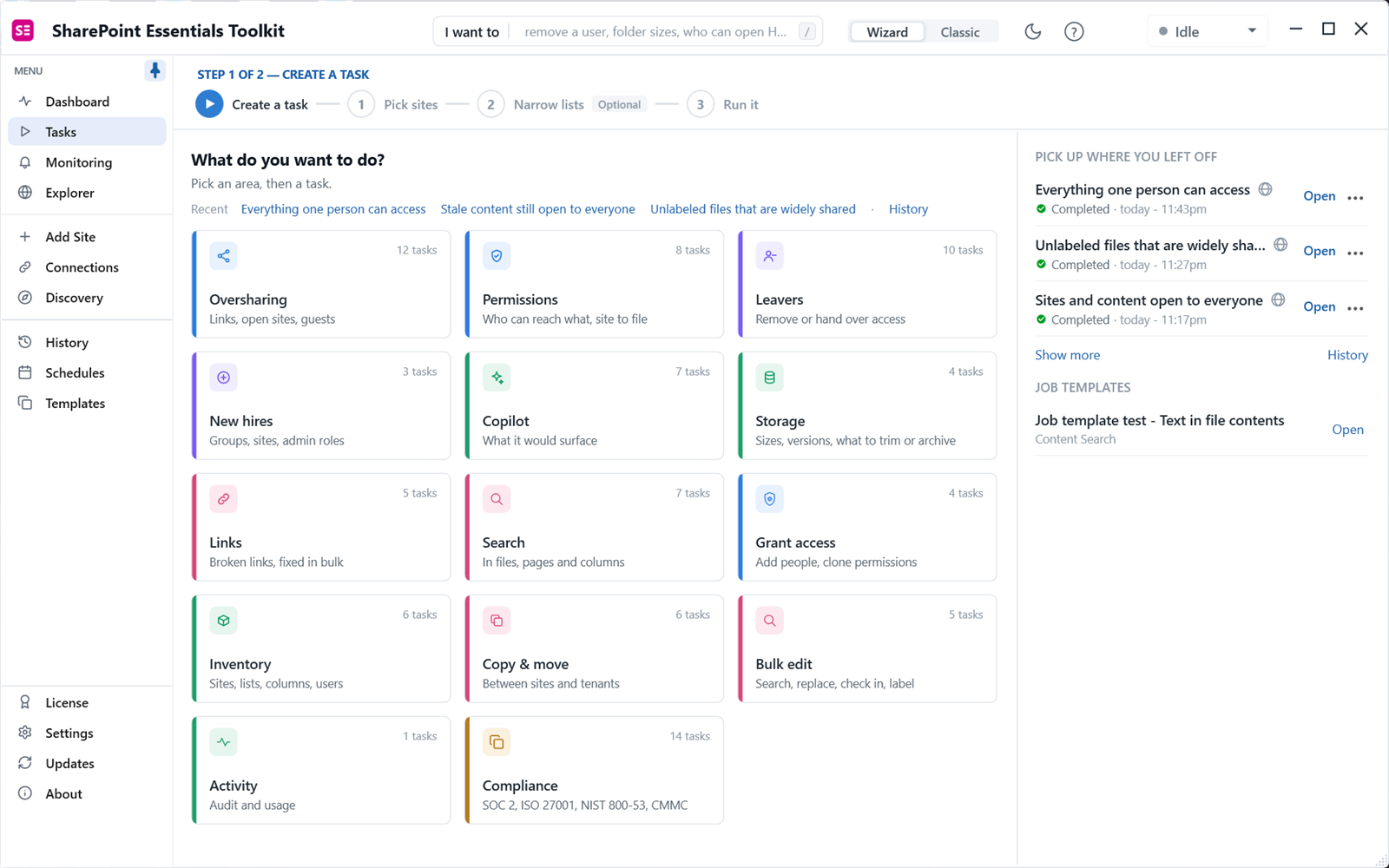
A Windows desktop app for SharePoint Online and SharePoint on-premises (2016/2019). You install it, get a free license key, connect, and pick a task such as Permissions report, Everything one person can access, Who has Full Control or Sharing links report.
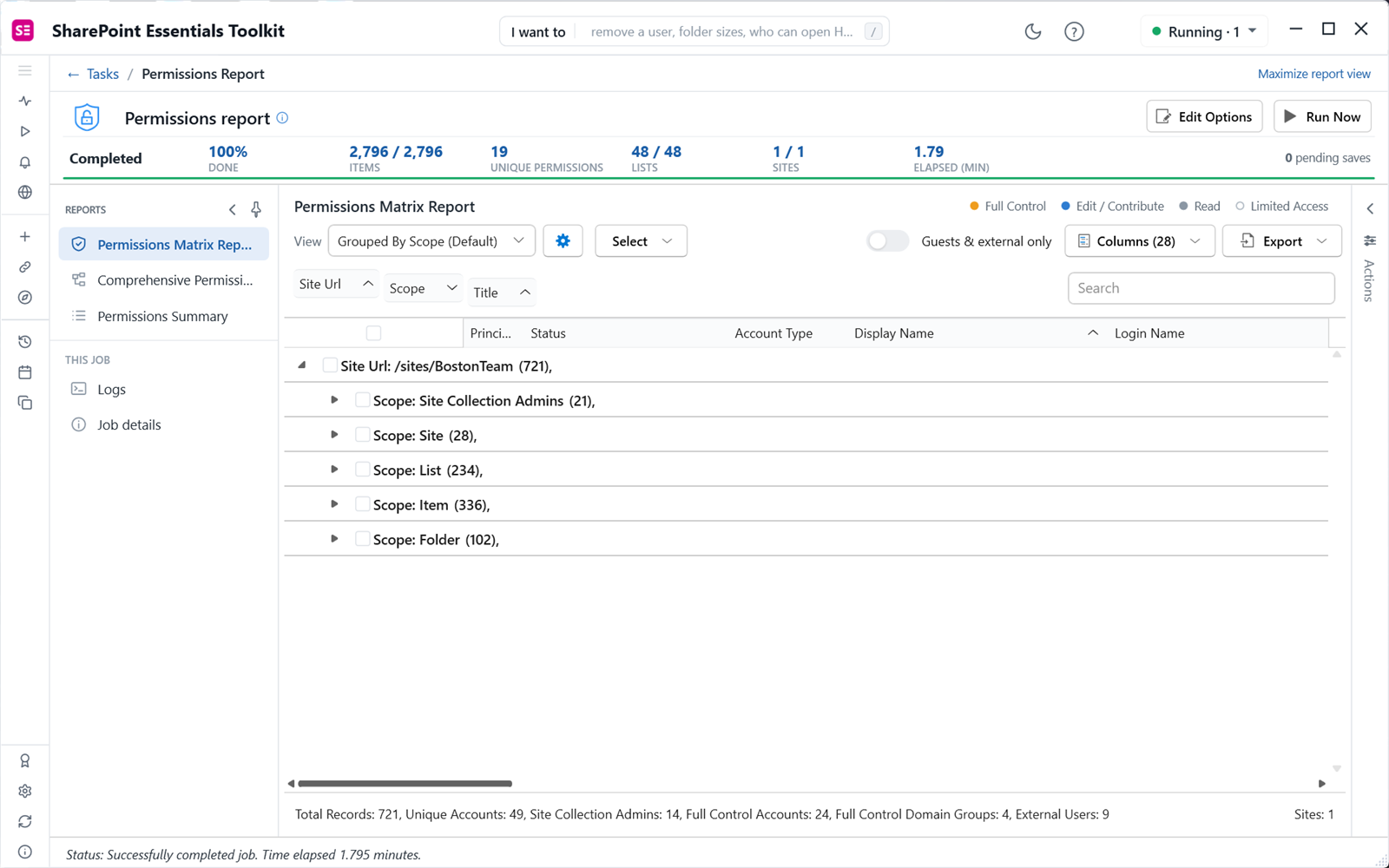
On one test site, the permissions report covered 48 lists and 2,796 items in 1.8 minutes and found 721 grants, 24 Full Control accounts and 9 external users. The grid can be grouped, filtered and exported to Excel.
Best for: file-level audits, sharing links, external users and one-person access checks without scripting. Limits: 20 site collections per tenant, shared by everyone in the organization who uses Community Edition, and up to 20 sites per job. Bulk edits need a paid edition. Requires Windows and an online license check.
Which free tool should you use?
- "Who can see this one file?" Use Manage access on the file.
- "Which sites are riskiest?" Use the admin center reports, if you have the licensing.
- "I need a file-level report for an audit, by Friday." Use Community Edition. See the SharePoint permissions report guide.
- "What can this leaver open?" Use Community Edition's everything one person can access.
- "Find every Anyone link." Use the sharing links report.
- "We need this every month, across hundreds of sites." Either maintain a script or move to a paid edition with more sites.
Frequently asked questions
Is there a free SharePoint permissions report tool?
Yes, several. SharePoint's own site permissions pages and Check Permissions are free on every site. PnP PowerShell is free and open source. SharePoint Essentials Toolkit Community Edition is a free desktop app that runs a full permissions report, down to the file, on up to 20 sites per Microsoft 365 tenant with no item caps.
Are the SharePoint admin center permissions reports free?
Partly. The snapshot reports in Data access governance, such as site permissions, permissions for users and items shared with Everyone groups, need SharePoint Advanced Management. Microsoft notes that Microsoft 365 E5 admins without it can use the 28-day activity reports. The per-site sharing report under Site usage is included. Check Microsoft Learn for current licensing.
Which free option is best for a one-off audit?
For one or two sites with simple permissions, SharePoint's site permissions page may be enough. For an audit that needs file-level detail, sharing links and an Excel export across up to 20 sites, a desktop tool such as SharePoint Essentials Toolkit Community Edition saves the most time. PowerShell suits teams who already maintain scripts.
What does the free Community Edition not include?
Community Edition runs every read-only report at full depth on up to 20 site collections per tenant. Paid editions add more sites and bulk edits, for example removing sharing links or resetting permissions across many libraries at once. Community Edition can apply small fixes from a report so you can see how they work.
Can free tools report on SharePoint on-premises?
SharePoint Server has its own site permissions pages and Check Permissions. The SharePoint Server PowerShell module and PnP PowerShell can script reports. The admin center Data Access Governance reports are SharePoint Online only. SharePoint Essentials Toolkit Community Edition reports on SharePoint on-premises (2016/2019) and SharePoint Online.
Run a permissions report free on up to 20 sites
SharePoint Essentials Toolkit Community Edition is free. Run permissions, sharing links and one-person access reports on up to 20 sites per Microsoft 365 tenant, with no item caps and no trial period. Get your free Community Edition license key.