Free SharePoint Migration Tools Compared: SPMT, Migration Manager and SharePoint Essentials Toolkit
There are three free SharePoint migration tools worth knowing. Microsoft's SharePoint Migration Tool (SPMT) moves SharePoint Server sites and file shares to SharePoint Online. Migration Manager moves file shares and cloud drives at scale. SharePoint Essentials Toolkit Community Edition copies SharePoint Online to SharePoint Online, and SharePoint Server 2019 or Subscription Edition to on-premises or SharePoint Online, free on up to 20 sites, with audit reports before and after the move.
Published:
Last updated: 2026-10-27
In short: use SPMT for SharePoint Server farms, Migration Manager for file shares and cloud drives, and SharePoint Essentials Toolkit when the source is SharePoint Online, SharePoint Server 2019 or Subscription Edition, or when you want audit and verification reports around any copy. Below is what each one carries over, where each one stops, and what happened when we copied a 48-list team site, with every version and permission, using ours.
What does "free" usually hide?
Most "free migration tool" offers have a catch. Check for these before you commit a weekend:
- A trial clock or a data cap. Thirty days, or a few gigabytes, then a quote.
- Files only. Documents arrive, but versions, metadata and permissions don't. Every file shows the migration account as its author and today as its date.
- No lists. Libraries move, but custom lists and lookups stay behind.
- No way to check the result. You find out what went missing when users tell you.
Ask every tool, including ours, which sources it accepts, whether it keeps versions, authors, dates, column values and unique permissions, whether it can rerun for changes, what its limits are, and how you prove the result matches the source.
Microsoft SharePoint Migration Tool (SPMT)
SPMT is Microsoft's free desktop migration tool. It moves content from SharePoint Server 2010, 2013, 2016 and 2019, SharePoint Foundation 2010 and 2013, and file shares into SharePoint Online, OneDrive and Teams. It uses the SharePoint Migration API and has PowerShell cmdlets for bulk runs.
What SPMT does well
Per What does SPMT support? and the SPMT settings page:
- Files, folders and list items, with SharePoint permissions and inheritance preserved when those settings are on.
- Version history (every version, or a number you choose), content types and managed metadata, including term store migration.
- Out-of-the-box navigation, supported web parts and pages, and lists with their lookup columns.
- Incremental reruns and subsites, with an option to promote level-one subsites to sites and associate a hub.
- SharePoint 2010 out-of-the-box and SharePoint Designer workflows, migrated to Power Automate.
- Files up to 250 GB, per Microsoft's file size limits.
Where SPMT stops
- No SharePoint Online source. The SPMT FAQ says it can't migrate from one Microsoft 365 tenant to another. It doesn't copy from one SharePoint Online site to another, either.
- Microsoft lists structure-only migration, choosing the destination site template, master pages, InfoPath forms and custom New, Edit and View forms as not supported.
- Its scan reports blocking issues such as long paths. It doesn't report who has access or which links are broken.
If your source is a SharePoint Server farm with mostly out-of-the-box sites, SPMT is a strong free choice.
Microsoft Migration Manager
Migration Manager lives in the SharePoint admin center. You install lightweight agents on servers near your source, and Migration Manager spreads tasks across them. Adding agents scales throughput, and it's free.
What Migration Manager does well
- File shares, Google Workspace, Box, Dropbox and Egnyte to SharePoint, OneDrive and Teams, across many agents from one dashboard.
- File share permissions, with users mapped through Microsoft Entra ID or a mapping file (Migration Manager settings).
- Incremental reruns, prescans and files up to 250 GB.
Where Migration Manager stops
- No SharePoint sources. The Migration Manager FAQ says it doesn't migrate content from SharePoint Server and points to SPMT. It doesn't take SharePoint Online as a source either.
- Files land with the default Document content type, and there are no lists, pages or navigation to move.
For a large file server or cloud drive move, Migration Manager is the free tool to use.
And for SharePoint Online to SharePoint Online?
This is the gap. Reorganizing sites, splitting a site into several, consolidating after a merger and moving to a new tenant all start in SharePoint Online. Neither SPMT nor Migration Manager accepts SharePoint Online as a source. Microsoft's options are:
- Move to and Copy to in the document library. Free and built in, for files only. Per Microsoft Support, Copy to brings only the latest version, and managed metadata values are not retained. It doesn't move lists, permissions or site settings.
- Cross-tenant SharePoint migration, for moving whole sites between tenants. It's licensed per 100 GB moved, available to Enterprise Agreement customers, and runs once with no incremental passes. The target site must not exist yet.
SharePoint Essentials Toolkit Community Edition
SharePoint Essentials Toolkit is a Windows desktop app for SharePoint administrators. Community Edition is free: every read-only report at full depth, plus Copy sites and Copy lists, on up to 20 site collections per Microsoft 365 tenant and 20 sites per job. There's no item cap and no trial period.
Two copy engines
- High-fidelity bulk copy (the default) uses the Microsoft Migration API. The toolkit stages each list in encrypted Azure storage and SharePoint Online imports it in one pass. Created, Modified, authors, version history and item IDs are kept, so lookup columns still point at the right items, and no alerts or workflows fire. In our tests it copies about 30 GB an hour. It needs SharePoint Online and a site collection administrator account on both sides.
- Standard copies through the SharePoint client API on multiple threads in parallel, managing sessions and throttling so it runs at high speed without tripping SharePoint's limits. It handles SharePoint Server 2019 and Subscription Edition sources, copying them to another on-premises farm or to SharePoint Online, and supports content filters and Skip, Update or Overwrite for items that already exist.
On-premises sites and content filters use the standard engine, and the job tells you which engine runs before it starts. A site where you aren't site collection administrator is skipped, unless you turn on Fall back to the standard engine automatically.
Pages, and the custom script option
New SharePoint Online sites have custom script turned off, and the Migration API won't import pages (.aspx files) into a site like that. So the toolkit has a setting, Turn on custom script on the target while pages are imported, on by default. When a pages library such as Site Pages is in the copy, the job turns custom script on for the target site collection, imports the pages with their version history, and turns it off again when the copy ends. If anything interrupts the job, SharePoint turns it off by itself within 24 hours.
Changing that setting needs the SharePoint Administrator or Global Administrator role; a site collection administrator can't do it. Without the role, or with the option off, the job copies pages libraries with the standard engine instead, and each page arrives as its latest version only.
What it carries over, and what it doesn't
Version history (all, the latest N, or major only, including minor versions), authors and dates, item IDs, columns, content types and views, lookups, permission levels, groups and their members, unique permissions on lists, folders and items, navigation, site features, managed metadata, pages and web parts, and subsites. To bring a site's own term sets too, run Copy term store first, also free, so managed metadata values link to terms on the target.
It doesn't copy workflows or Power Automate flows, sharing links, comments, alerts, the recycle bin or classic publishing layouts. The target site must already exist, and you set hub associations on it yourself. Files up to SharePoint Online's 250 GB limit can be copied; the default setting skips files over 4 GB, and you can raise it. The bulk engine imports each list whole rather than as a delta.
Around the copy, Community Edition includes the inventory, permissions report, sharing links and broken links reports, plus Check before you copy and Copy verification. The test below ends with Copy verification.
Free SharePoint migration tools compared
Checked October 25, 2026, against Microsoft Learn and Microsoft Support for SPMT and Migration Manager, and against our test migration below for SharePoint Essentials Toolkit 12.3.4.
| Item | SPMT | Migration Manager | SharePoint Essentials Toolkit (Community) |
|---|---|---|---|
| Price | Free | Free | Free on up to 20 site collections per tenant |
| Sources | SharePoint Server 2010 to 2019, SharePoint Foundation 2010 and 2013, file shares | File shares, Google Workspace, Box, Dropbox, Egnyte | SharePoint Online; SharePoint Server 2019 and Subscription Edition |
| Targets | SharePoint Online, OneDrive, Teams | SharePoint Online, OneDrive, Teams | SharePoint Online; SharePoint on-premises (from 2019 or Subscription Edition) |
| SharePoint Online to SharePoint Online, or tenant to tenant | No | No | Yes, through the Migration API |
| Document versions | Yes: every version, or a set number | Not applicable: file shares have no versions | Yes: every version, or the latest N, or major only |
| Created, Modified and authors | Users mapped to Entra ID automatically or with a mapping file | File share owners mapped to Entra ID | Yes, with item IDs kept |
| Column values and content types | Yes | No: files land as the Document content type | Yes |
| Managed metadata | Yes, including the term store (off by default) | No | Yes, included in the copy |
| Item and folder permissions, with inheritance | Yes (settings) | File share permissions (setting) | Yes (settings): permission levels, groups and members, list, folder and item permissions; built-in groups can map to the target's Owners, Members and Visitors |
| Lists, lookups, calculated columns | Lists and lookups: yes | No | Yes: lookups re-pointed, calculated formulas recreated |
| Pages and web parts | Supported web parts and pages; no master pages, InfoPath or custom list forms | No | Yes, pages and web parts, with version history when a SharePoint admin runs the copy. Classic publishing layouts: no |
| Navigation | Yes, for out-of-the-box sites | No | Yes: quick launch, top navigation and header layout (Copy sites) |
| Workflows | Partial: SharePoint 2010 out-of-the-box and SharePoint Designer workflows to Power Automate | No | No |
| Subsites and hubs | Subsites yes; can promote subsites to sites and associate a hub | No | Yes: subsites are copied; hub association is set manually on the target |
| Incremental reruns | Yes | Yes | Partial: Skip, Update or Overwrite per item on the standard engine; the bulk engine imports each list whole |
| Largest file | 250 GB | 250 GB | 250 GB; a default setting skips files over 4 GB, which you can raise |
| Scale and throttling | Run several instances in parallel; throttling per Microsoft's migration guidance | Add agents; up to 10 tasks per agent | About 30 GB an hour with the bulk engine in our tests; the standard engine copies in parallel. 20 sites per job in Community; honors SharePoint's Retry-After and backs off |
| Pre-migration audit | Scan for blocking issues (SMAT for 2010 to 2016 farms) | Prescan | Inventory, permissions, sharing links, broken links and Check before you copy |
| Post-migration check | Task reports | Task reports | Copy verification item by item, then permissions and broken links on the target |
Microsoft changes its tools often. Check the linked Learn pages before you plan, and test any tool on one representative site first.
Step by step: copying a team site free
On October 26, 2026, we copied a demo team site, Boston Team (/sites/BostonTeam), into an existing site, Architecture-Studio, in the same tenant with SharePoint Essentials Toolkit 12.3.4 and Copy sites. The site has 48 lists and libraries, about 2,800 items and files and about 2.6 GB of content with versions. It also has long version histories with minor versions, lookups between lists, broken inheritance, custom groups and some accounts that no longer exist. Its subsites, such as Accounting and Human Resources, hold most of the site collection's 31 GB and weren't part of this copy. For the planning side, see the migration checklist.
1. Pick the source site
In Tasks, open Copy & move and choose Copy sites. Search for the site, tick it, and the panel shows what's in scope: one site, 49 lists and about 2,796 items. You can narrow the copy to specific lists here; we took them all.
2. Find the target with Explore
On the Copy sites page, add a target site and switch from Choose sites to Explore. Explore lists every site your account can see in the tenant, 4,202 in ours, and its search box filters them by name or address as you type. Tick Architecture-Studio and click Use this target site. The target must already exist; ours was a new team site with its own home page.
3. Review the summary
The summary holds the choices that shape a site copy most. We left Full copy and Copy permissions on, turned on Copy versions and turned off Major versions only, so every earlier version comes along, major and minor. The copy engine shows High-fidelity bulk copy, because both sites are in SharePoint Online and the account is site collection administrator on both.
4. Set the permission options
Under Permissions, Site permissions is the master switch: it creates the source's custom permission levels on the target and copies the site's role assignments. Below it:
- SharePoint groups copies the site's groups with their descriptions and owners.
- Group members adds each group's members, matching people through user mapping first, then by account.
- List permissions and Item permissions copy unique permissions on lists, folders, files, items and pages.
- Use the target site's Owners, Members and Visitors maps the source's built-in groups to the target's own groups instead of creating copies of them.
In our run, Boston Team Owners, Members and Visitors mapped to Architecture-Studio Owners, Members and Visitors, keeping Full Control, Edit and Read. The job created 20 other groups, found 3 already there and added 55 members. Sharing links are never copied.
5. Check the custom script setting
Under Settings, leave Turn on custom script on the target while pages are imported on if you want Site Pages copied with their version history. We ran the job as a SharePoint Administrator, and the log confirmed custom script was turned on for Architecture-Studio for the time of the copy. After the job, we checked the target: custom script was off again.
6. Run it
Click Run Now. Before it starts, the job checks the target against your choices. Two of our source libraries keep minor versions, while the matching target libraries kept major versions only, so it asked whether to turn on minor versions there. Without them, each draft would become the next major version, and version 2.1 would become 3.0. We chose Turn on minor versions in 2 libraries and copy.
7. Watch the logs
Open Logs while the job runs. You see the target being built, then staging progress, such as "Staged 1,237 of 1,882 file(s) (65%), 139 per minute", and SharePoint's import queue for each list. Search the log for "custom script" to see when it was turned on.
8. Read the result
The job took 63.9 minutes. All 2,794 items and files were copied, across 48 of 48 lists, with no errors and 29 warnings. Files were mostly staged at 130 to 200 per minute; SharePoint's import queue took most of the rest. Speed depends on file count, versions and throttling more than size: this site is small files with long version histories across 48 lists, well below the roughly 30 GB an hour we see on larger content. The target's own Home page already existed, so the source's Home page was skipped rather than overwritten.
Each warning says what happened and what to do about it. Ours fell into a few groups:
- People who aren't in the directory. A deleted Microsoft 365 group and one former employee couldn't be added to groups or permissions. Four system accounts were written as text. Add a user mapping or a fallback account to place them.
- Classic publishing. Microsoft is retiring classic publishing and blocks the feature on most tenants, so it wasn't activated on the target.
- Managed metadata. The site's own term set wasn't on the target. Run Copy term store first so values link to terms on the target.
- Small settings. One list's versioning setting was refused, a missing built-in column was created on two lists instead, and a content type that already existed on the target was reused.
- Throttling. SharePoint asked the job to wait 39 seconds once. It lowered its request rate and carried on.
9. Run Copy verification
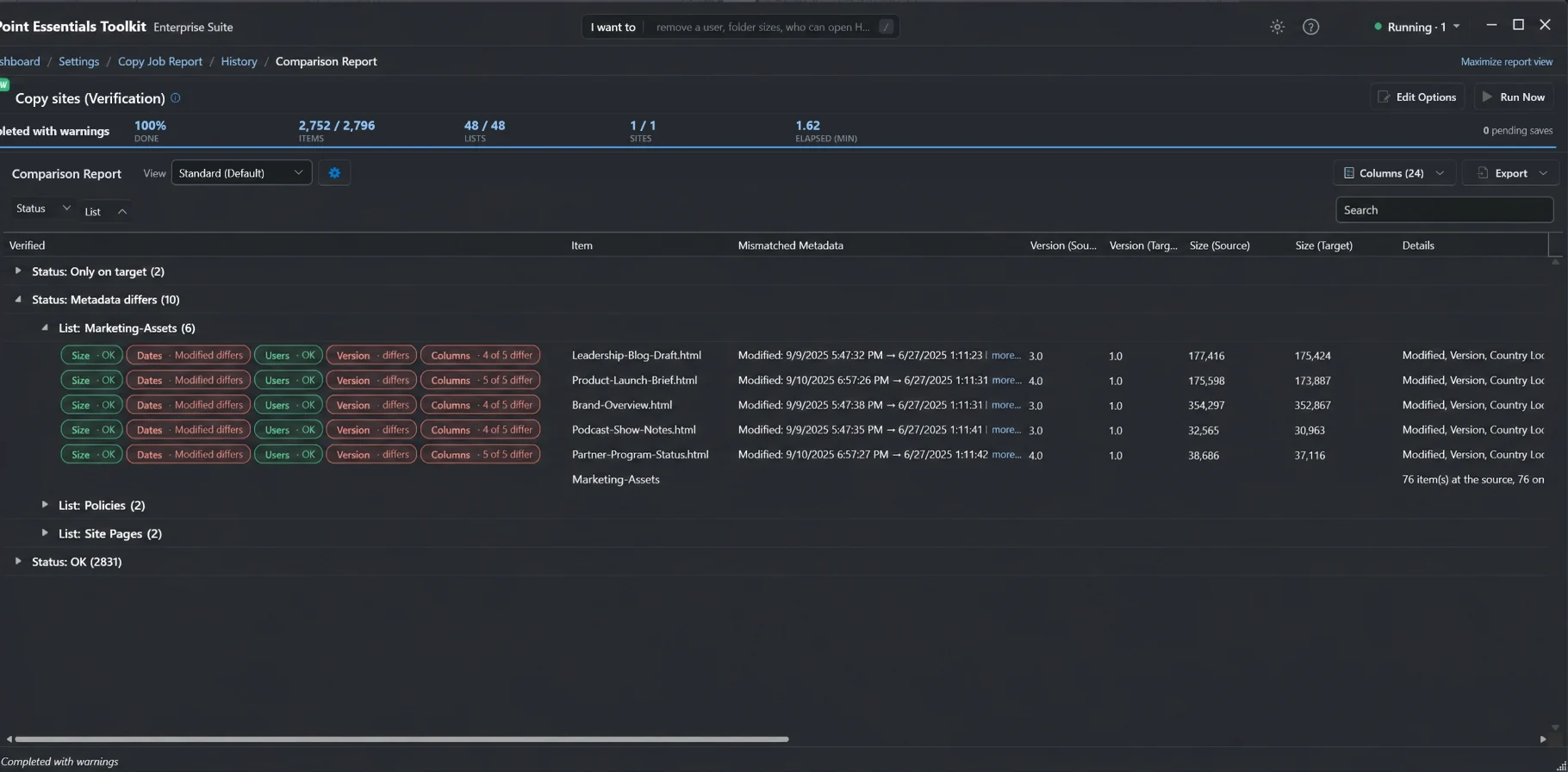
Click Run Verification on the result. It compares source and target item by item on size, dates, people, version and column values, lookups to other lists included. Ours took 1.8 minutes: 2,839 OK, none missing on the target, one page with metadata differences and 2 items that exist only on the target.
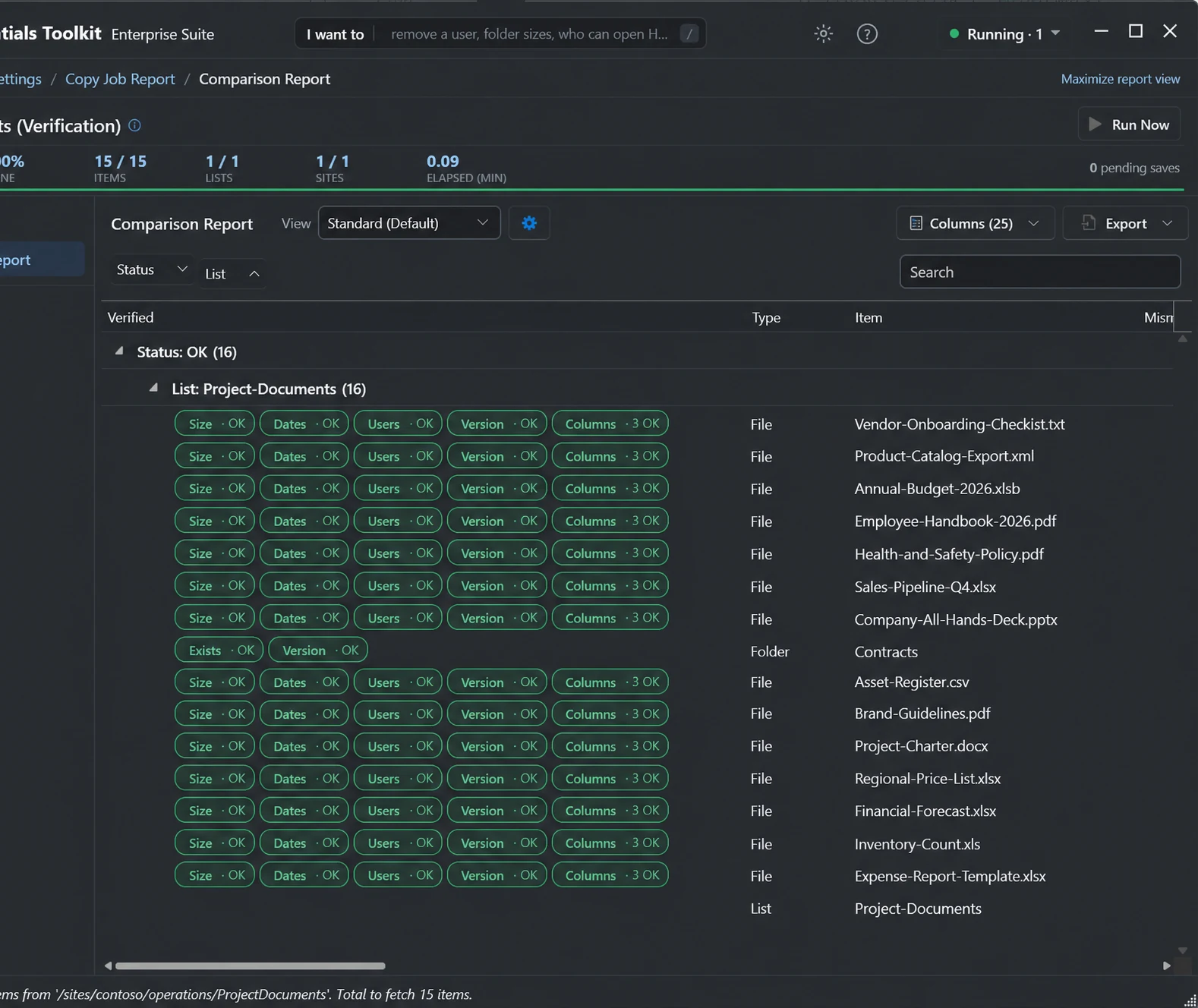
Search the report for "differs" to see the exceptions. The page is the target's own Home page, which the copy skipped, so its dates and authors are the target's. A CSV file that someone had checked out on the source shows as OK with a note: changes in a checked-out file aren't part of the copy until they're checked in, so the report notes it instead of flagging it.
10. Compare source and target in SharePoint
Open both sites in a browser. In the Abasca library, every file shows the same Modified date, Modified By, Project Lead and Project Status on both sites, so the people columns and choice columns came across with the files.
Then open the version history of a file. A 2018 report in Documents has versions up to 2.20 on the source, minor versions included. The target has the same version numbers, timestamps, sizes and column values on each version. We opened both pages with the same item ID, 77, because item IDs are kept. The top navigation came across too.
When should you pay?
Free covers a lot of projects. Pay when one of these applies:
- More than 20 sites. Community Edition stops at 20 site collections per tenant. Professional and Enterprise raise the site count, so the same jobs run across the whole migration.
- Bulk cleanup after the move. Fixing links across many lists with find and replace, removing users, adding administrators and applying report actions in bulk are Enterprise tasks. Community lets you try them on a small scale.
- Several source lists in one job, for consolidating libraries, needs Professional.
- Someone else to run it. A migration partner or a commercial suite with services is worth the money if you don't have the hours. Run the free reports first, so any quote rests on an accurate inventory.
For a farm move, how to migrate SharePoint on-premises to Online walks through it phase by phase.
Frequently asked questions
Is there a free SharePoint migration tool from Microsoft?
Yes, two. The SharePoint Migration Tool (SPMT) is a free download that moves SharePoint Server 2010 to 2019 sites and file shares to SharePoint Online, OneDrive and Teams. Migration Manager is free in the SharePoint admin center and moves file shares, Google Drive, Box, Dropbox and Egnyte at scale using agents. Neither accepts SharePoint Online as a source.
Does the free SharePoint Migration Tool keep permissions and versions?
Yes, for SharePoint Server sources. SPMT has settings to preserve SharePoint permissions and permission inheritance, and to migrate file version history, either every version or a set number. Users are mapped to Microsoft Entra ID automatically or with a mapping file. Microsoft lists master pages, InfoPath forms and custom list forms as not supported, so plan to rebuild those.
What is the free alternative to SPMT?
For moves from one SharePoint Online site or tenant to another, which SPMT does not support, SharePoint Essentials Toolkit Community Edition copies sites and lists free on up to 20 site collections through the Microsoft Migration API, with versions, authors, dates and permissions. It also copies from SharePoint Server 2019 and Subscription Edition, and adds the inventory, permissions, broken link and verification reports SPMT does not produce.
Can I migrate SharePoint 2019 or Subscription Edition for free?
Yes. SharePoint Essentials Toolkit Community Edition copies sites and lists from SharePoint Server 2019 or Subscription Edition to SharePoint Online or to another on-premises farm, using its standard engine rather than the Migration API, and its free reports audit the site before and after. SPMT is also free and moves SharePoint Server 2019 to SharePoint Online, but not to on-premises.
How many sites can I migrate free with SharePoint Essentials Toolkit?
Community Edition works on up to 20 site collections per Microsoft 365 tenant and up to 20 sites per job, with no item caps and no trial period. Version history, item permissions, Check before you copy and Copy verification are included. Copying several source lists in one job needs Professional, and more than 20 sites needs a paid edition.
Does it use the Microsoft Migration API?
Yes, between SharePoint Online sites. The default high-fidelity bulk copy engine stages each list in encrypted Azure storage and has SharePoint Online import it through the Migration API, keeping authors, dates, versions and item IDs. It needs a site collection administrator on both sides. On-premises sites and content filters use the standard engine instead, and the job tells you which engine runs before it starts.
Migrate your first site free, with the audit reports included
SharePoint Essentials Toolkit Community Edition is free. Inventory, audit permissions, find broken links, copy sites with versions and permissions, and verify the result on up to 20 sites per Microsoft 365 tenant, with no item caps and no trial period. Get your free Community Edition license key.