How to Search Across All SharePoint Sites for a Word, File or URL (When SharePoint Search Is Not Enough)
Last updated: 2026-10-21
To search all SharePoint sites for a file, word or URL and get every match, use a content search that reads the files directly instead of the search index. SharePoint search is built for users: ranked, trimmed and not exportable from the page. SharePoint Essentials Toolkit searches inside Word, Excel, PowerPoint, PDF and text files, page text and columns across the sites you pick, and exports the results. Community Edition does it free on up to 20 sites.
To search all SharePoint sites for a file, word or URL and get every match, use a content search that reads the files directly instead of the search index. SharePoint search is built for users: ranked, trimmed and not exportable from the page. SharePoint Essentials Toolkit searches inside Word, Excel, PowerPoint, PDF and text files, page text and columns across the sites you pick, and exports the results. Community Edition does it free on up to 20 sites.
Why is SharePoint search not enough for admins?
SharePoint search answers "show me something relevant". Admins usually need "show me everything". A subject access request needs every file that mentions a person. A security review needs every spreadsheet containing "payroll". A migration cleanup needs every document that still points to the old server.
For those jobs, missing one file is a failure, and the results have to go into a spreadsheet.
Why does SharePoint search miss things?
- Indexing lag. New and changed content takes time to appear.
- Excluded content. Sites, libraries or columns can be excluded from search, on purpose or by mistake.
- Trimmed and ranked results. You see the top results, not a full list, and only what your account can open.
- No context or export. You get a snippet, not where in the file the text sits, and no way to export the full list.
Option 1: Microsoft Search with KQL
SharePoint's search box accepts Keyword Query Language (KQL), which makes it much more precise than a plain keyword search. Microsoft documents it in the KQL syntax reference.
- Open the SharePoint start page or any site and use the search box. Search from the start page to cover every site, or from a site to stay within it.
- Put exact phrases in quotes:
"project falcon". - Limit to file types:
"project falcon" filetype:docx OR filetype:xlsx. - Limit to sites or libraries:
payroll path:"https://contoso.sharepoint.com/sites/HR". - Limit by date or author:
LastModifiedTime>2025-01-01orauthor:"Megan Bowen".
KQL is free, fast and available to everyone. Results are still ranked, trimmed to what you can open, and limited to what the index has processed, and there is no export from the search page.
Option 2: Microsoft Purview Content search
For legal and compliance work, Content search in the Microsoft Purview portal searches SharePoint, OneDrive, Exchange and Teams together:
- In the Microsoft Purview portal, open eDiscovery and create a search.
- Choose the SharePoint sites (or all sites) as data sources.
- Enter keywords or a KQL query and run it.
- Review the statistics and samples, then export the results or a report.
It is built for the job and covers every workload, but it needs eDiscovery roles, uses the search index, and returns items rather than the text around each match.
Option 3: PowerShell
PnP PowerShell can run a search query and export every result, which the search page can't do:
Connect-PnPOnline -Url "https://contoso.sharepoint.com" -Interactive -ClientId "<your-app-id>"
Submit-PnPSearchQuery -Query '"project falcon" path:"https://contoso.sharepoint.com/sites/Projects"' `
    -All -RelevantResults -SelectProperties "Title", "Path", "Author", "LastModifiedTime" |
    Select-Object Title, Path, Author, LastModifiedTime |
    Export-Csv "C:\Reports\search-results.csv" -NoTypeInformation -Encoding UTF8
This still relies on the search index, so the same gaps apply: indexing lag, excluded content and results trimmed to your account. To read files directly instead, you download each file with Get-PnPFile -AsMemoryStream and extract its text with an Office or PDF library, which is a project in itself. Install PnP PowerShell 2.x or later and register your own Entra ID app first.
How the options compare
| SharePoint / Microsoft Search | Purview Content search | SharePoint Essentials Toolkit | |
|---|---|---|---|
| Built for | End users finding documents | eDiscovery and compliance | Admins needing every match in chosen sites |
| Uses the search index | Yes | Yes | No, reads files directly |
| Match context | Snippet | Preview per item | Text around every match; sheet and cell for Excel |
| Export | Not from the page; yes with Submit-PnPSearchQuery | Yes, with eDiscovery roles | Excel or CSV |
| On-premises 2016/2019 | Farm search | No | Yes |
Use KQL for everyday searches and Purview for legal and compliance work across workloads. When you need every match in chosen sites, with the text around each one and no dependence on the index, a direct content search is the better fit.
How to search all SharePoint sites, step by step
1. Open the Search area
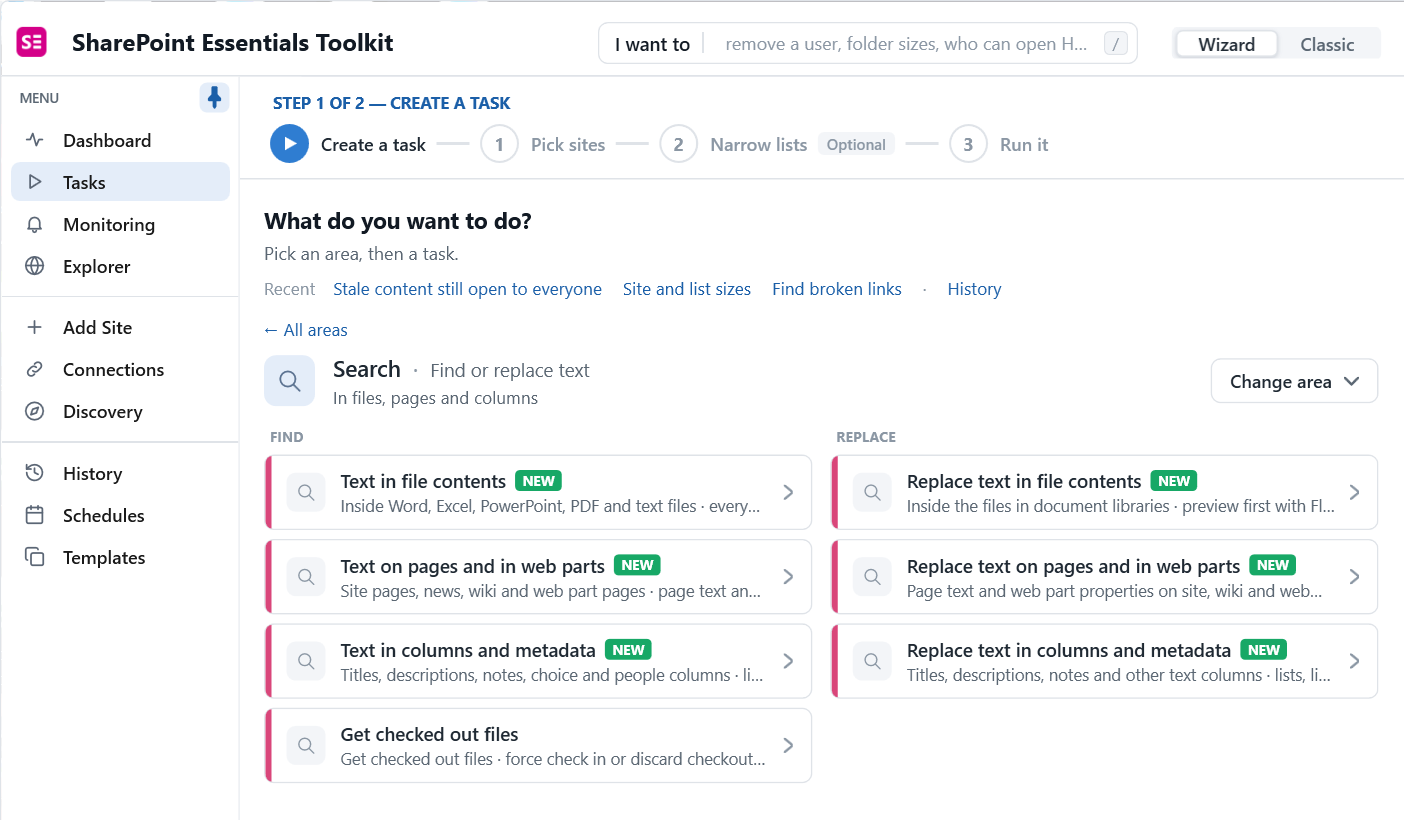
Go to Tasks > Search. The Find column has Text in file contents (inside Word, Excel, PowerPoint, PDF and text files), Text on pages and in web parts, Text in columns and metadata, and Get checked out files. The Replace column has matching replace tasks.
2. Pick sites and enter the words
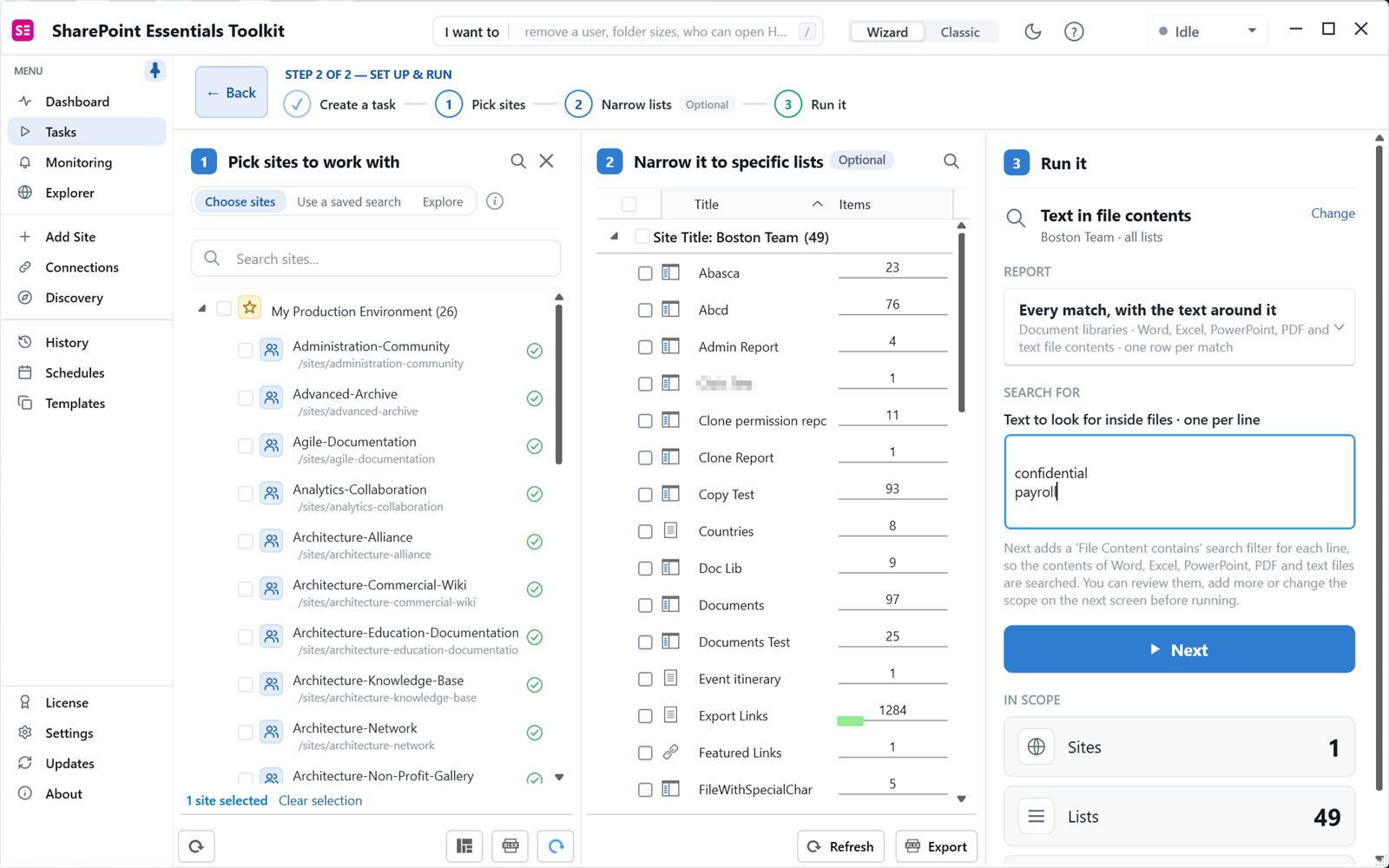
Choose Text in file contents, tick your sites, and type the words to look for, one per line. A file matches if it contains any of them. We searched one site for "confidential" and "payroll". The report preset Every match, with the text around it gives one row per match.
3. Review the summary and run
Click Next. The summary shows the sites, the number of values to search for, and that nothing will be changed. You can add more values, narrow file types or widen the scope before running. Click Run Now.
4. Read the results
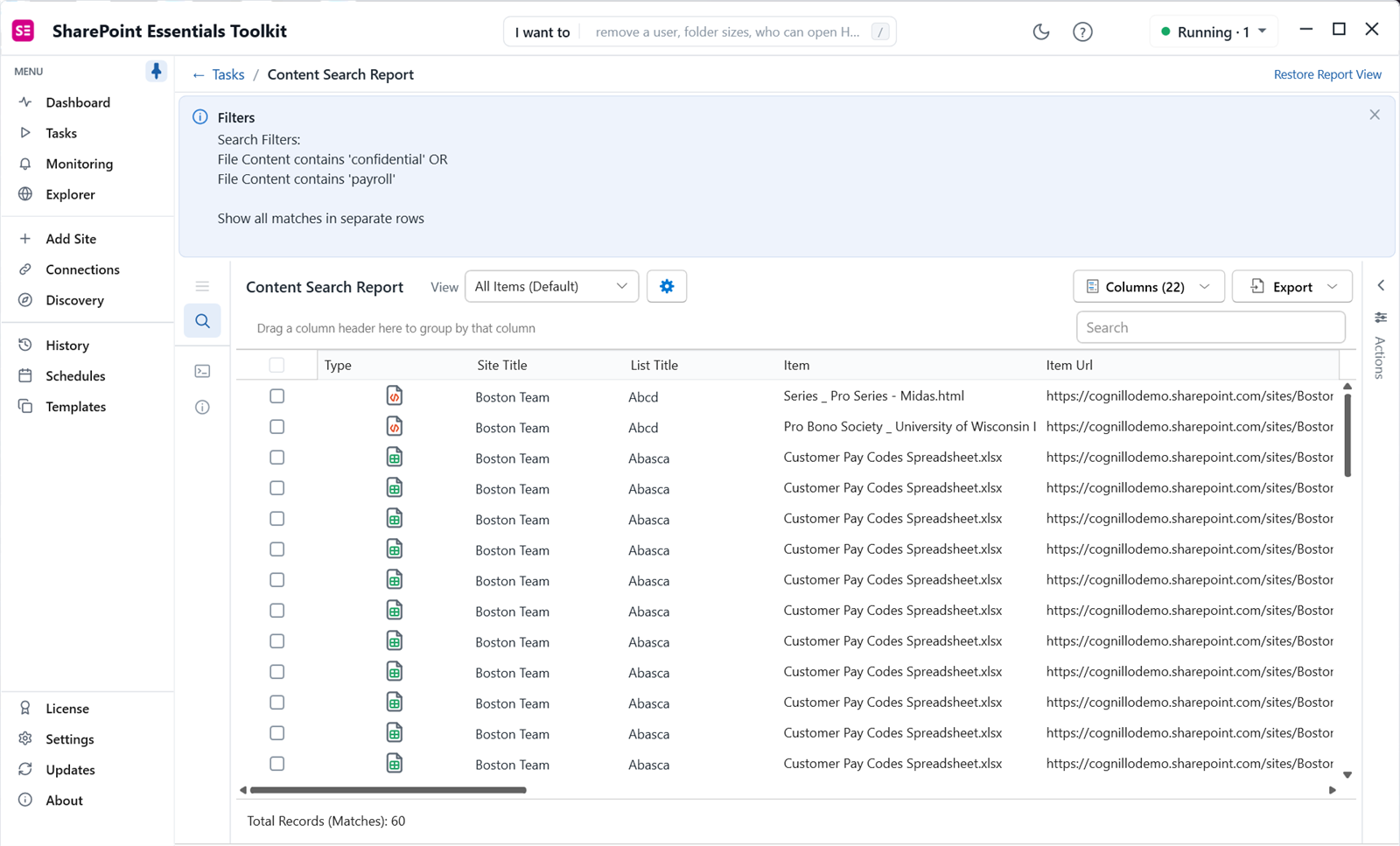
Results start arriving as libraries are read. Each row shows the site, list, file and URL. Within the first few libraries of our test site, the search had found 60 matches, many in a "Customer Pay Codes" spreadsheet.
5. See exactly where each match is
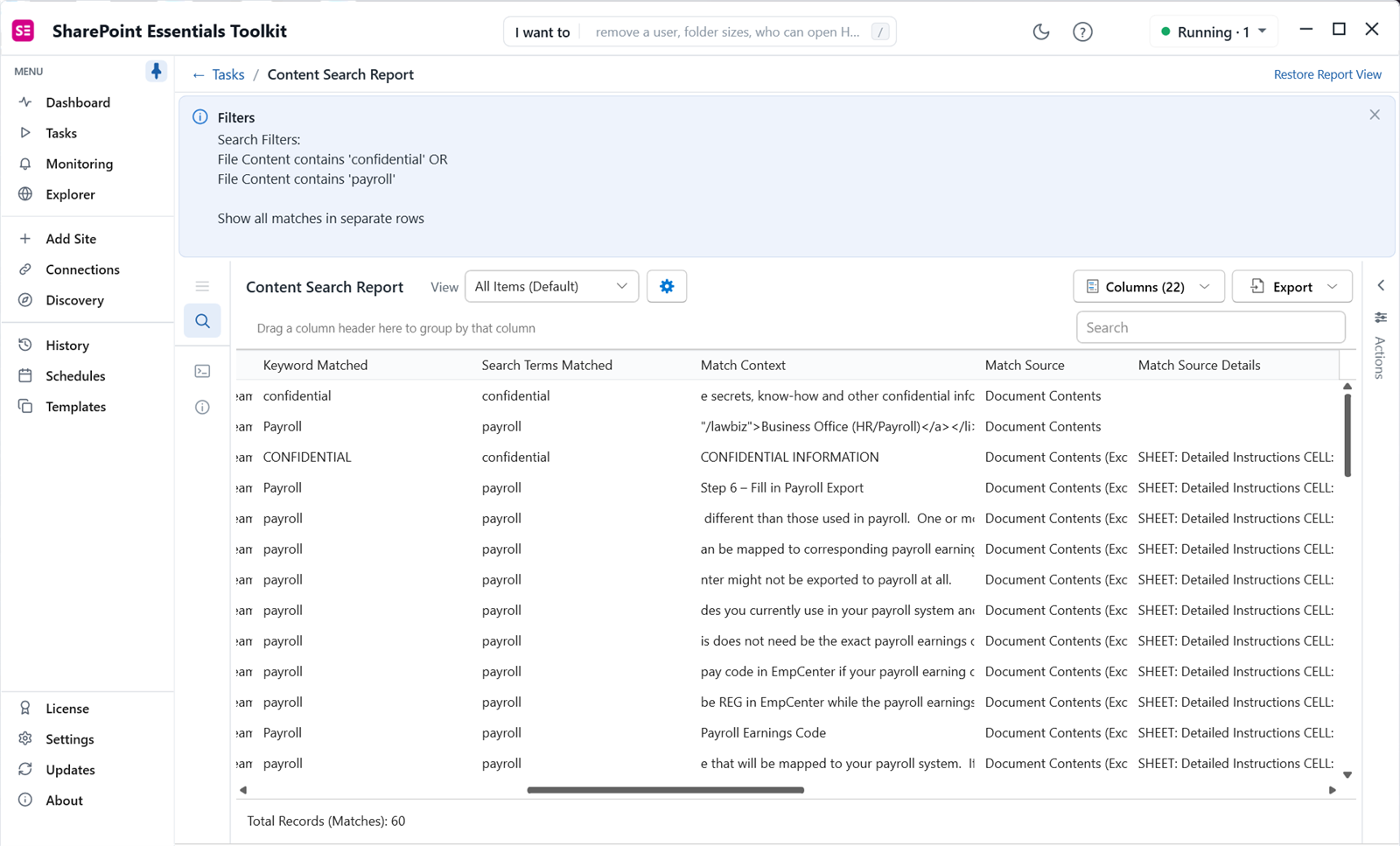
Scroll right for Keyword Matched, Match Context (the text around the word), Match Source and Match Source Details. For Excel files, the details give the sheet and cell, so you can open the workbook and go straight to the match.
Export to Excel or CSV from the Export button.
Three real uses
Old URLs after a migration
Search file contents, pages and columns for the old server name, for example sharepoint.contoso.local. For hyperlinks, the broken link scan and its "find specific links" task are more precise. Use both after any move covered in the on-premises to SharePoint Online migration guide.
Subject access requests
Search for a person's name, email address and employee number. The export, with match context, is a starting point for the response. Check your legal team's process; Purview is the system of record for formal eDiscovery.
Sensitive content in the wrong place
Search for "confidential", "salary", "passport" or account number patterns your organization uses. Then check who can open the matching files with the files shared with everyone report. If you only need a list of files by type or name, the item inventory is faster.
What about find and replace?
The Replace column offers Replace text in file contents, Replace text on pages and in web parts and Replace text in columns and metadata. Each can preview first. Because they write to SharePoint, Community Edition lets you try them on lists under 100 items; larger replacements need a paid edition. Searching itself is never limited.
Frequently asked questions
Why does SharePoint search not find my file?
SharePoint search returns what the search index holds and what you have permission to see. New or changed files can take time to be indexed, some libraries or sites are excluded from search, and results are trimmed and ranked rather than listed in full. A content search that reads the files directly does not depend on the index.
Can I search inside Excel and PDF files across SharePoint sites?
Yes. The Text in file contents task in SharePoint Essentials Toolkit reads Word, Excel, PowerPoint, PDF and text files in the libraries you pick. Each match shows the keyword, the text around it, and where it was found. For Excel, the match source details include the sheet and cell, so you can go straight to it.
How do I find files that still reference an old URL?
Search file contents, page text and columns for the old server name or site address. For links specifically, the Find one or more specific links task in the Links area is more precise, because it reads hyperlinks rather than plain text and covers navigation as well. Use both after a migration or site rename.
Can I export the search results?
Yes. Every result can be exported to Excel or CSV with the site, list, file, URL, keyword matched and match context. That makes the results usable as evidence for a subject access request or legal hold, or as a work list for site owners. SharePoint's own search results page has no export.
Is find and replace available?
The Search area includes replace tasks for text in file contents, on pages and web parts, and in columns. Each can be previewed first. Because they write to SharePoint, Community Edition lets you try them on lists under 100 items; larger replacements need a paid edition. Searching is never limited.
Search every site free, up to 20 sites
SharePoint Essentials Toolkit Community Edition is free. Search inside files, pages and columns on up to 20 sites per Microsoft 365 tenant, with no item caps and no trial period. Get your free Community Edition license key.