How to Clean Up User Permissions in SharePoint
Published:
Last updated: 2026-11-02
Clean up SharePoint user permissions step by step: remove orphaned users, unneeded direct access, Everyone except external users and stale sharing links.
To clean up user permissions in SharePoint, work through four kinds of access in order: remove orphaned users whose accounts no longer exist, remove direct permissions people shouldn't have, take away access granted to Everyone or Everyone except external users, and review sharing links. SharePoint Essentials Toolkit has a task for each, and every change is listed for review before it is applied, then logged so it can be undone.
Watch: Clean up user permissions in SharePoint
Why SharePoint permissions need cleaning up
Permissions drift. People leave but their accounts stay in site groups. Files get shared directly with one person "just for now". A Visitors group gets Everyone except external users added so a whole department can read it, and every list on the site inherits that. None of this shows on the site's home page, and none of it removes itself. A cleanup covers four kinds of access:
Access | What it looks like | Fix |
|---|---|---|
Orphaned users | Accounts deleted or disabled in Entra ID, still in the site's user list and groups | Remove the account from the site |
Direct permissions | A person granted access on a list, folder or file outside the site's groups | Remove the grant, or move the person into the right group |
Everyone access | Everyone, Everyone except external users, or an Anyone link on a site, list or file | Remove it from the group or object that grants it |
Sharing links | Links that work for the whole organization, or for people who no longer need them | Remove, expire or narrow the link |
Option 1: Clean up permissions with built-in tools
SharePoint can do each fix, one site or object at a time.
Remove orphaned users: All people
On the site, open Settings (gear) > Site permissions > Advanced permissions settings.
Open any group, then change the address to
/_layouts/15/people.aspx?MembershipGroupId=0to see every account the site knows.Tick the accounts that no longer exist in Entra ID, then Actions > Delete Users from Site Collection.
The list doesn't say which accounts are orphaned. You have to check each name against the Microsoft 365 admin center or Entra ID first.
Remove a direct permission: Advanced permissions
On the list or library, open Settings > List settings > Permissions for this list. For a file or folder, open Manage access > Advanced settings.
Tick the person and select Remove User Permissions.
Microsoft covers these pages in Customize permissions for a SharePoint list or library.
Remove Everyone except external users
Check the site's Visitors and Members groups in Site permissions, and remove Everyone except external users or Everyone from each. Then check every list and folder with unique permissions for a direct grant. Microsoft's data access governance reports in SharePoint Advanced Management list sites shared with everyone, if your tenant has that license.
What to know:
Every fix is per site or per object. The browser never shows one list of who has access across a site and everything in it.
Unique permissions are hidden until you open each list, folder or file.
There is no review step and no undo. A wrong removal has to be put back by hand.
Option 2: Clean up permissions with PowerShell
PnP PowerShell and Microsoft Graph PowerShell can find and remove orphaned users in bulk. Install PnP PowerShell 2.x or later, register your own Entra ID app, and install the Microsoft.Graph.Users module. The script below runs with -WhatIf behaviour first, so it only lists what it would remove.
# Remove users from one site whose Entra ID account is gone or disabled $ClientId = "<your-app-id>" $SiteUrl = "https://contoso.sharepoint.com/sites/Projects" $WhatIf = $true # set to $false to remove Connect-PnPOnline -Url $SiteUrl -Interactive -ClientId $ClientId Connect-MgGraph -Scopes "User.Read.All" $users = Get-PnPUser | Where-Object { $_.LoginName -like "i:0#.f|membership|*" -and $_.LoginName -notlike "*#ext#*" } foreach ($user in $users) { $upn = $user.LoginName.Split("|")[-1] $entra = Get-MgUser -UserId $upn -Property AccountEnabled -ErrorAction SilentlyContinue if ($entra -and $entra.AccountEnabled) { continue } if ($WhatIf) { "Would remove: $upn"; continue } Remove-PnPUser -Identity $user.LoginName -Force "Removed: $upn" }To take Everyone except external users out of a group: Remove-PnPGroupMember -Group "Projects Visitors" -LoginName "c:0-.f|rolemanager|spo-grid-all-users/<tenant-id>". To remove a direct grant on a list: Set-PnPListPermission -Identity "Documents" -User "sam@contoso.com" -RemoveRole "Edit".
What to know:
Guests, domain groups and accounts from an older on-premises sync need their own checks; the script above skips them.
Finding direct grants means reading the role assignments of every list, folder and file with unique permissions, which is slow on large sites and gets throttled.
Nothing records what was removed. Export the permissions first if you might need to put any back.
Option 3: Clean up permissions with SharePoint Essentials Toolkit
The toolkit has a task for each kind of access, and each one reports first, then fixes only what you tick. We ran the full cleanup on two test sites: Architecture-Knowledge-Base, with 10,220 items, and Boston Team.
1. Pick the sites and open Permissions
Open Tasks, tick the sites to clean up, and choose the Permissions area. It has every report and fix used below: Permissions report, Everything one person can access, Sharing links report and Clean up orphaned users.
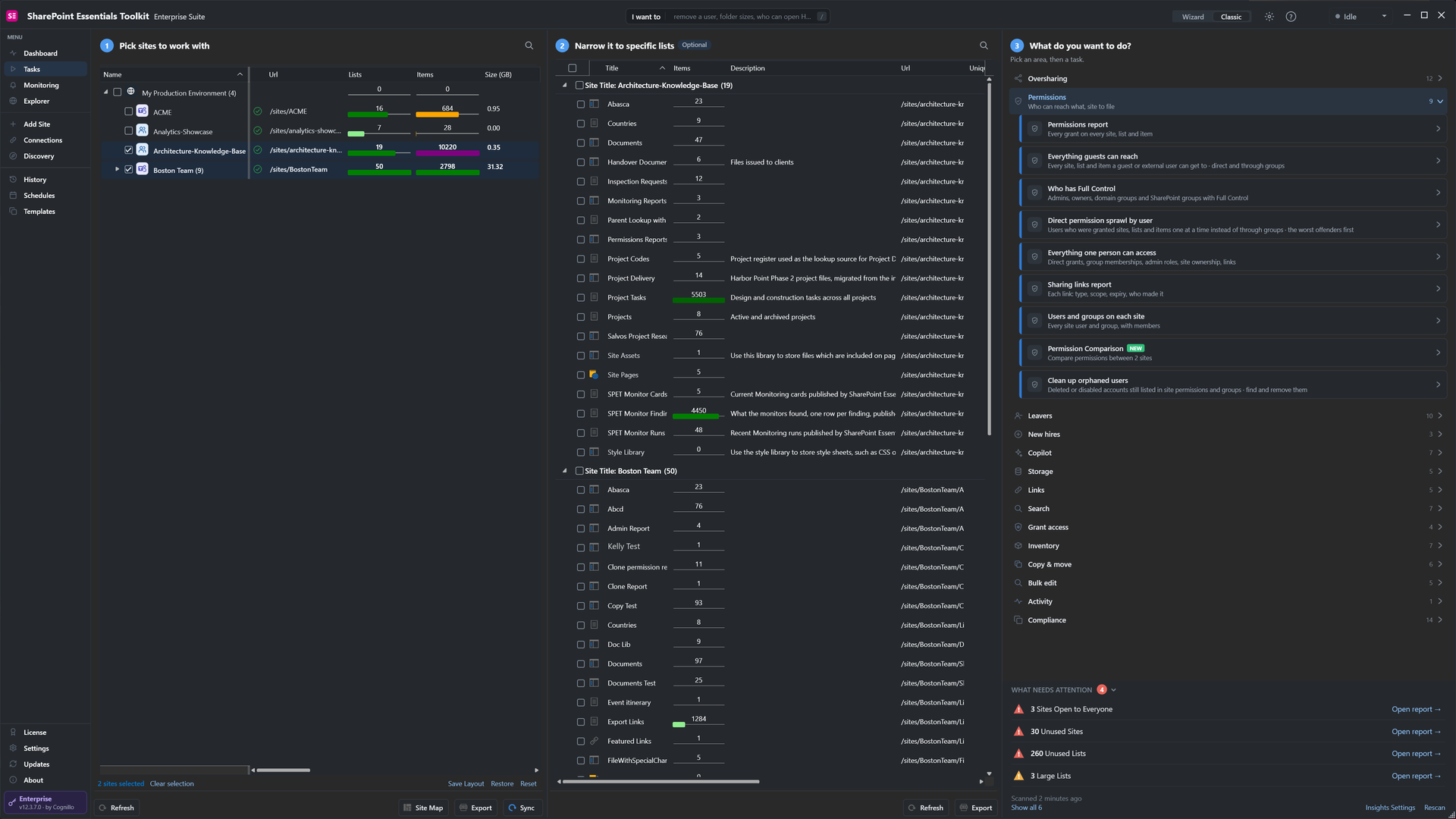
Two sites selected, and the Permissions tasks on the right.
2. Remove orphaned users
Pick Clean up orphaned users and select Next. The summary says what the job does: check every account on the selected sites against your directory, and remove one only after you review and confirm it.
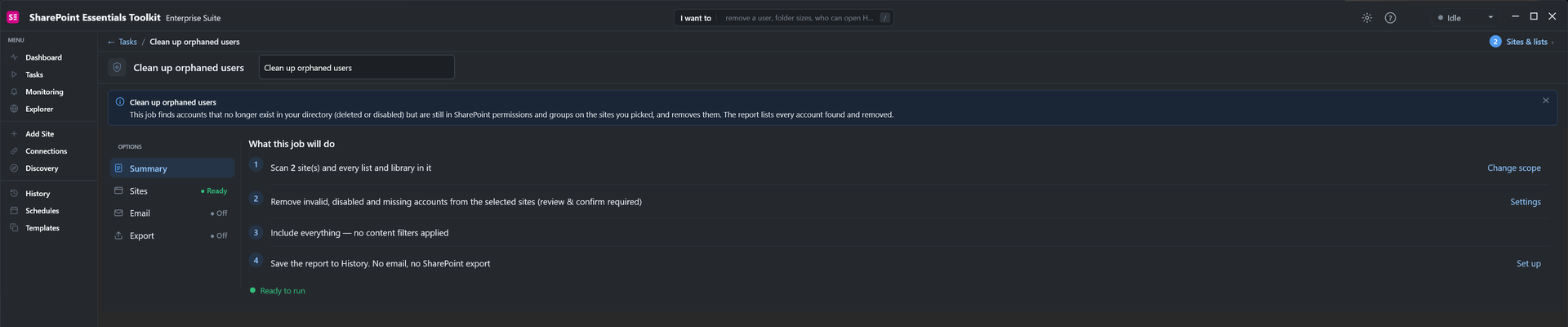
Nothing is removed until you confirm.
We selected Run Now. In 21 seconds the job found two accounts on Boston Team that no longer exist: Bindu Patel, a user who had left, and a domain group that had been deleted. Ticking a row opens the panel on the right, which shows the account's status as Not Active.
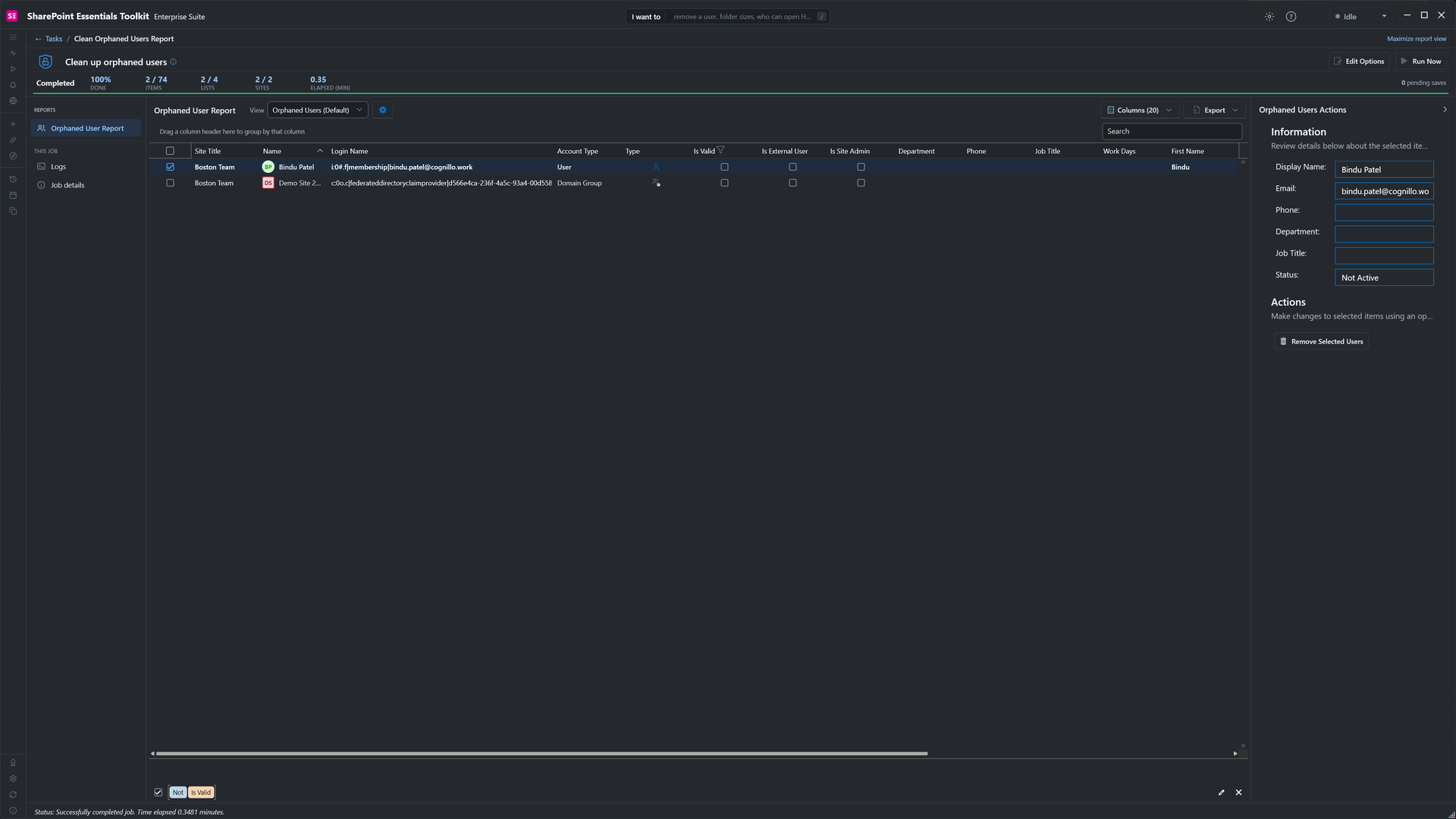
Two orphaned accounts, one ticked for removal.
Select Remove Selected Users. The confirmation says exactly what happens: the account is deleted from the site's user list, along with any permissions it still holds.
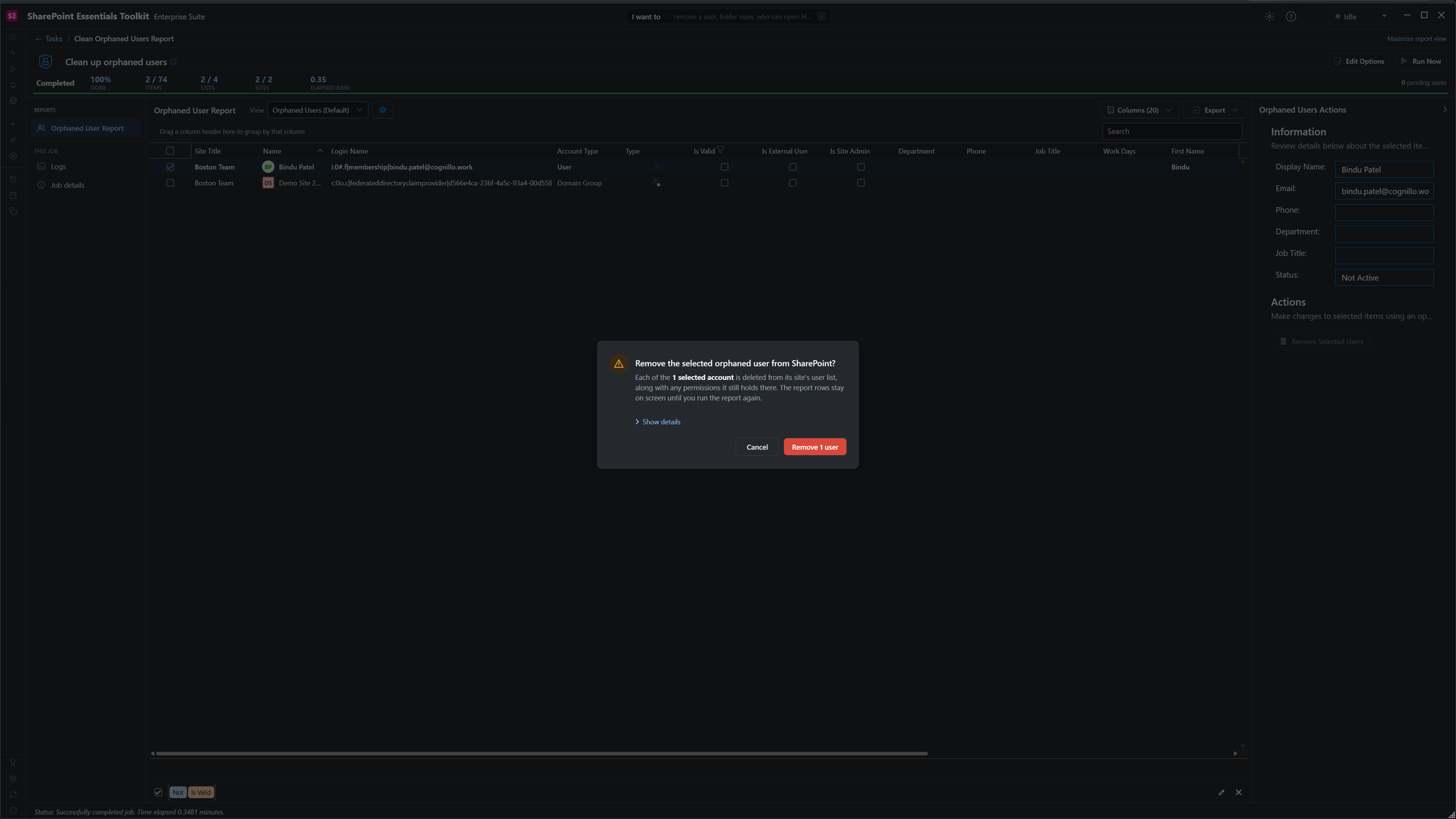
Remove 1 user. The deleted group can go the same way once its owner has confirmed.
3. Remove direct access with the permissions report
Next, see who has access and how they got it. We cleared Boston Team, selected Change, chose Permissions report and ran it. It lists every user and group on the site and on every list, folder and file, with their permission level and how it was granted. All 10,220 items were checked in 1.8 minutes, and the report changes nothing.
Switch the view to Direct Grants By User. These are people given access outside the site's groups, which is where access tends to creep in. Our site had four.
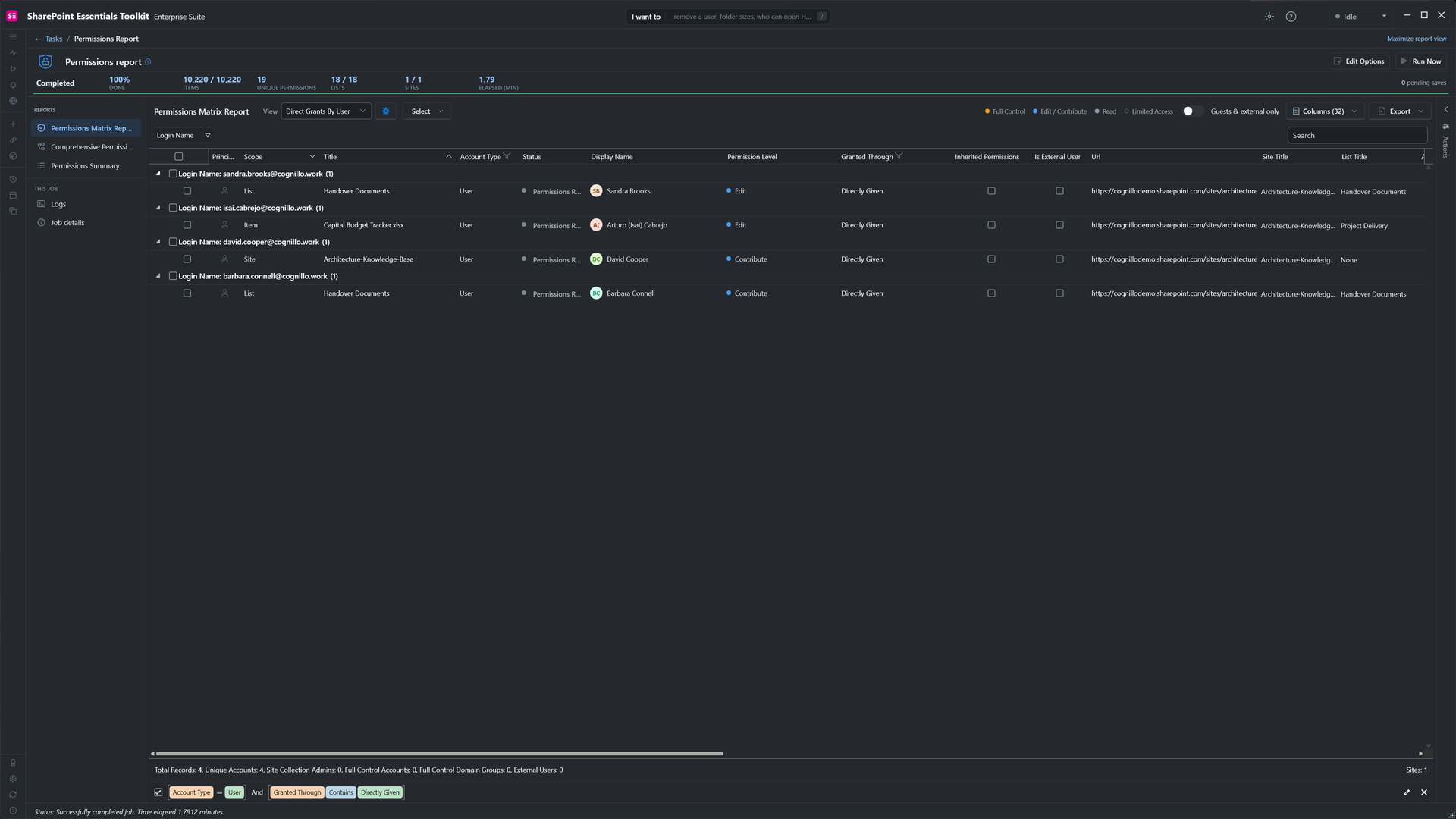
Four direct grants: Edit on a list and a file, Contribute on the site and on a list.
David Cooper still needed Contribute on the site, so we ticked the other three. The Actions panel lists the accounts and offers Remove 3 direct permissions.
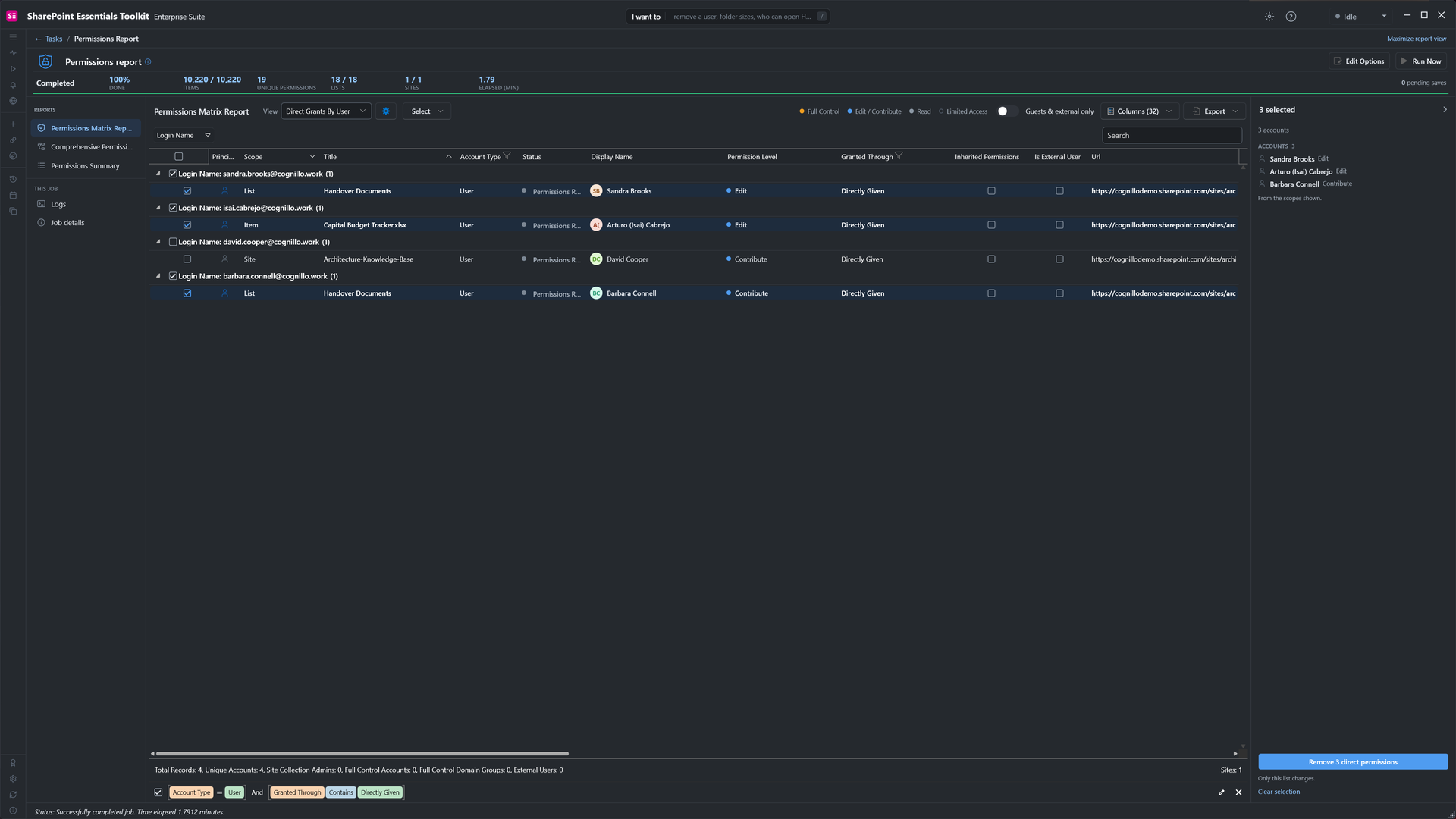
Three accounts selected; David's grant stays.
The review lists every change before anything happens. Each removal is local to that list or file, and nothing else changes.
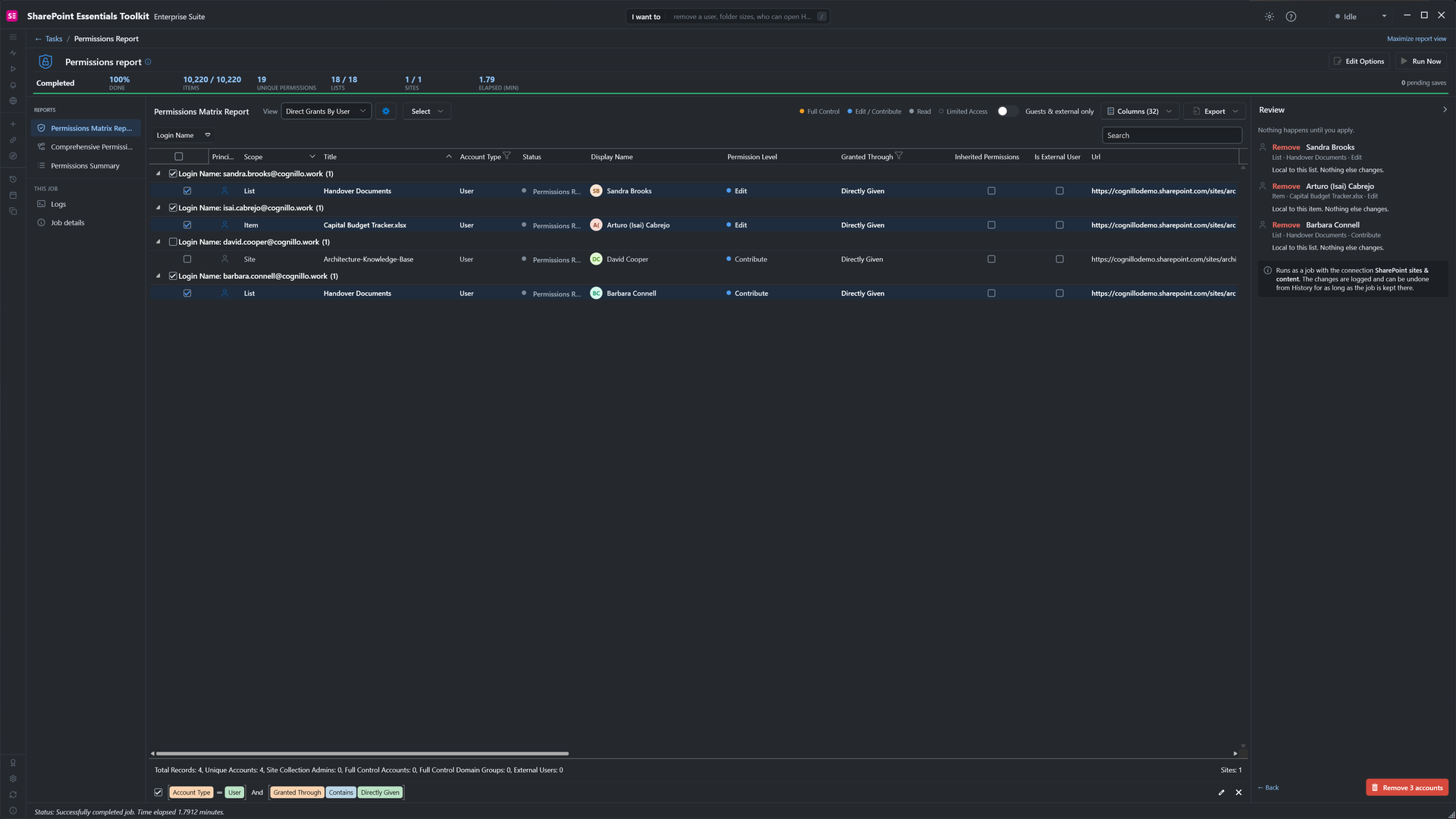
"Local to this list. Nothing else changes." for each one.
We selected Remove 3 accounts. It finished in 4 seconds, and the report updated at once: only David's direct grant is left.
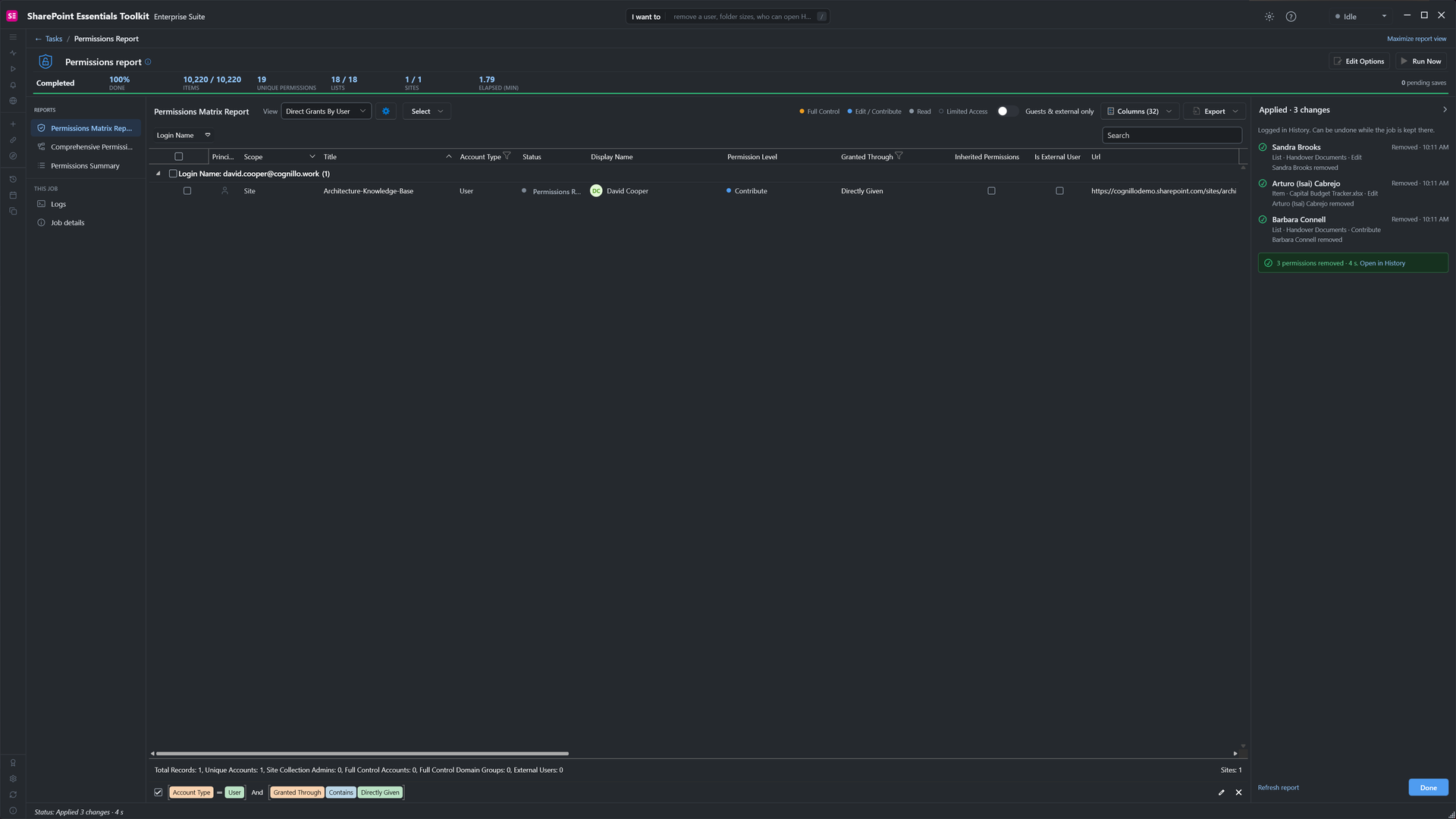
Applied: 3 permissions removed in 4 seconds.
4. Remove access open to everyone
In I want to at the top of the app, search for open to everyone and pick Sites and content open to everyone. It finds every site, list, folder and file that Everyone, Everyone except external users, or an Anyone link can reach.
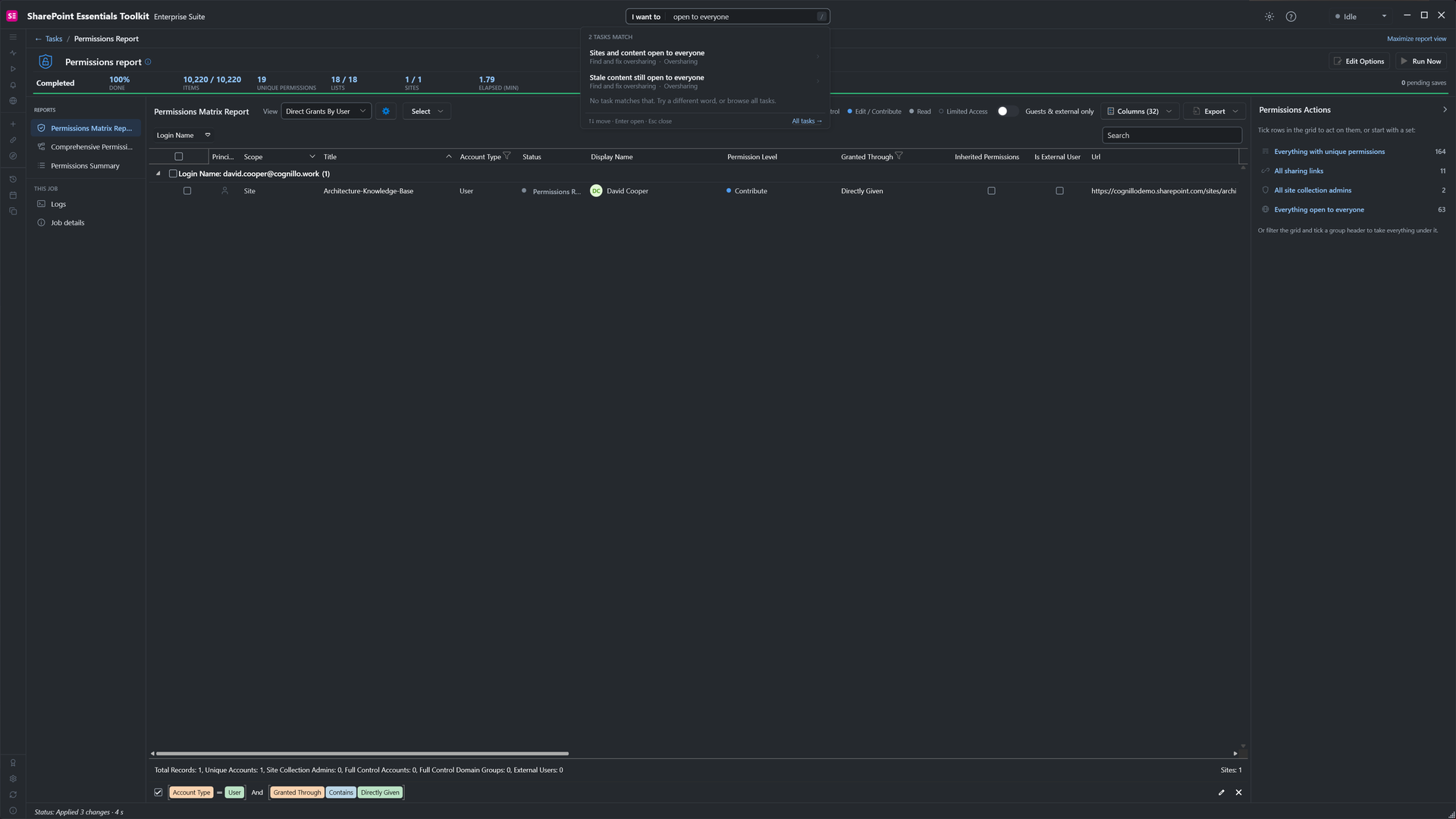
Search "I want to" to find a task by what it does.
We ran it on the same site. It found 37 open locations. At the site level, Everyone except external users had Read through the site's Visitors group, so every list that inherits from the site was open too; those grey rows simply follow their parent. One list, Salvos Project Research, gave the same audience Edit directly.
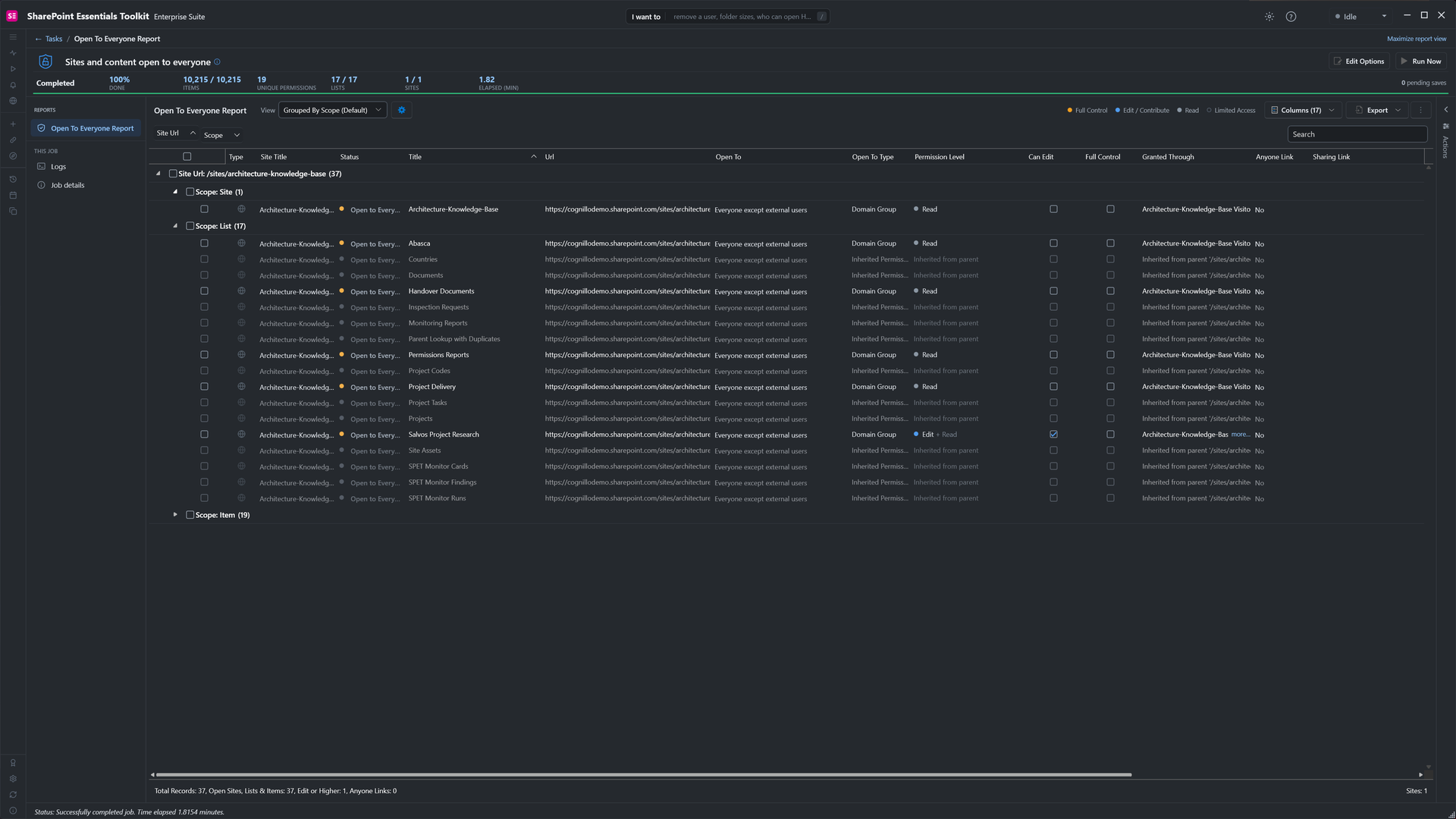
37 locations open to everyone, from two grants.
We ticked the site row and Salvos. The panel shows where the access comes from. Ticking the Visitors group membership and the direct grant on Salvos sets the button to Remove 2 permissions.
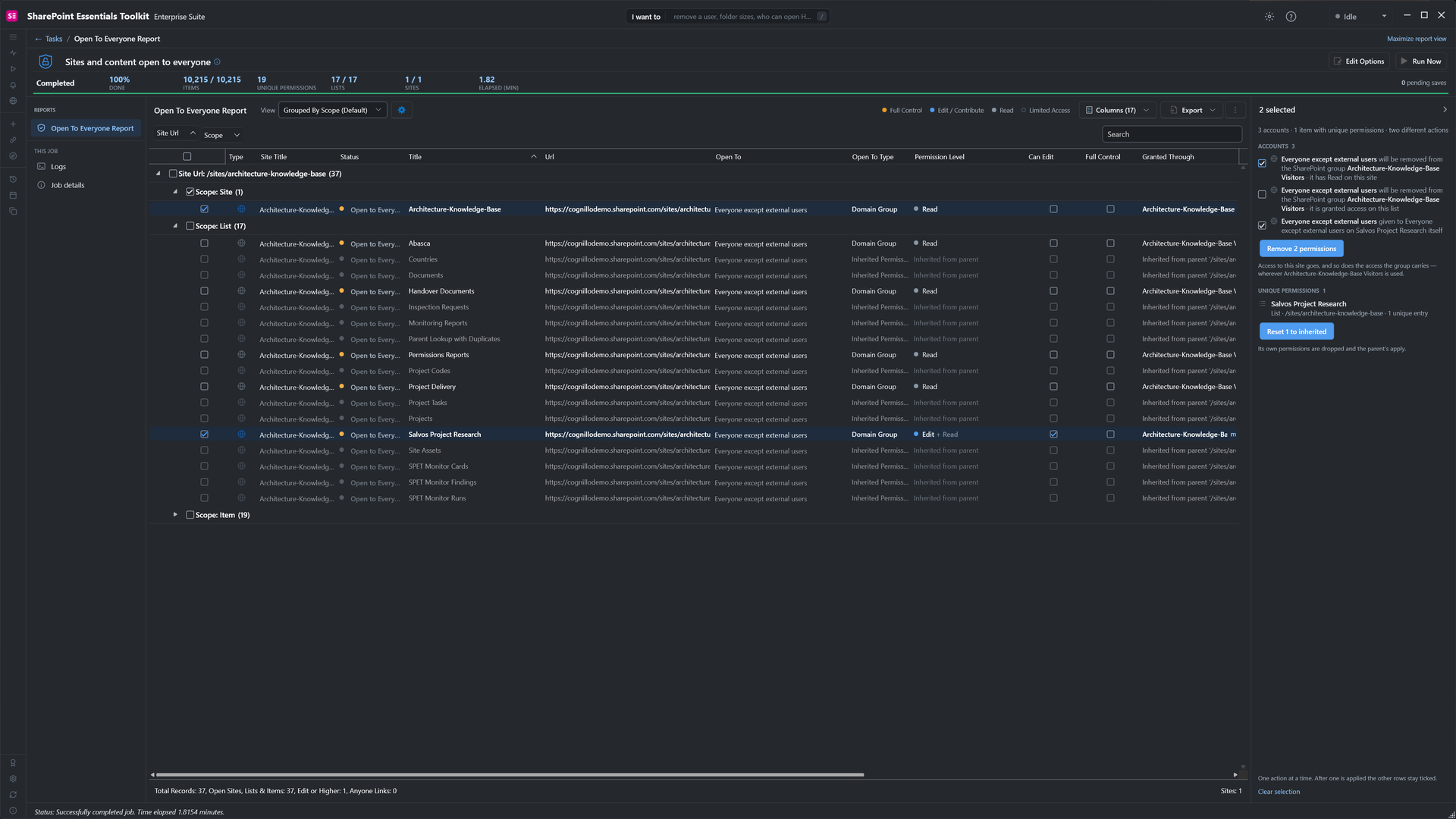
Two grants behind all 37 locations.
Because one change removes a group membership, the review warns that this takes the access away everywhere the Visitors group is used, not only on this site. That was what we wanted, so we confirmed.
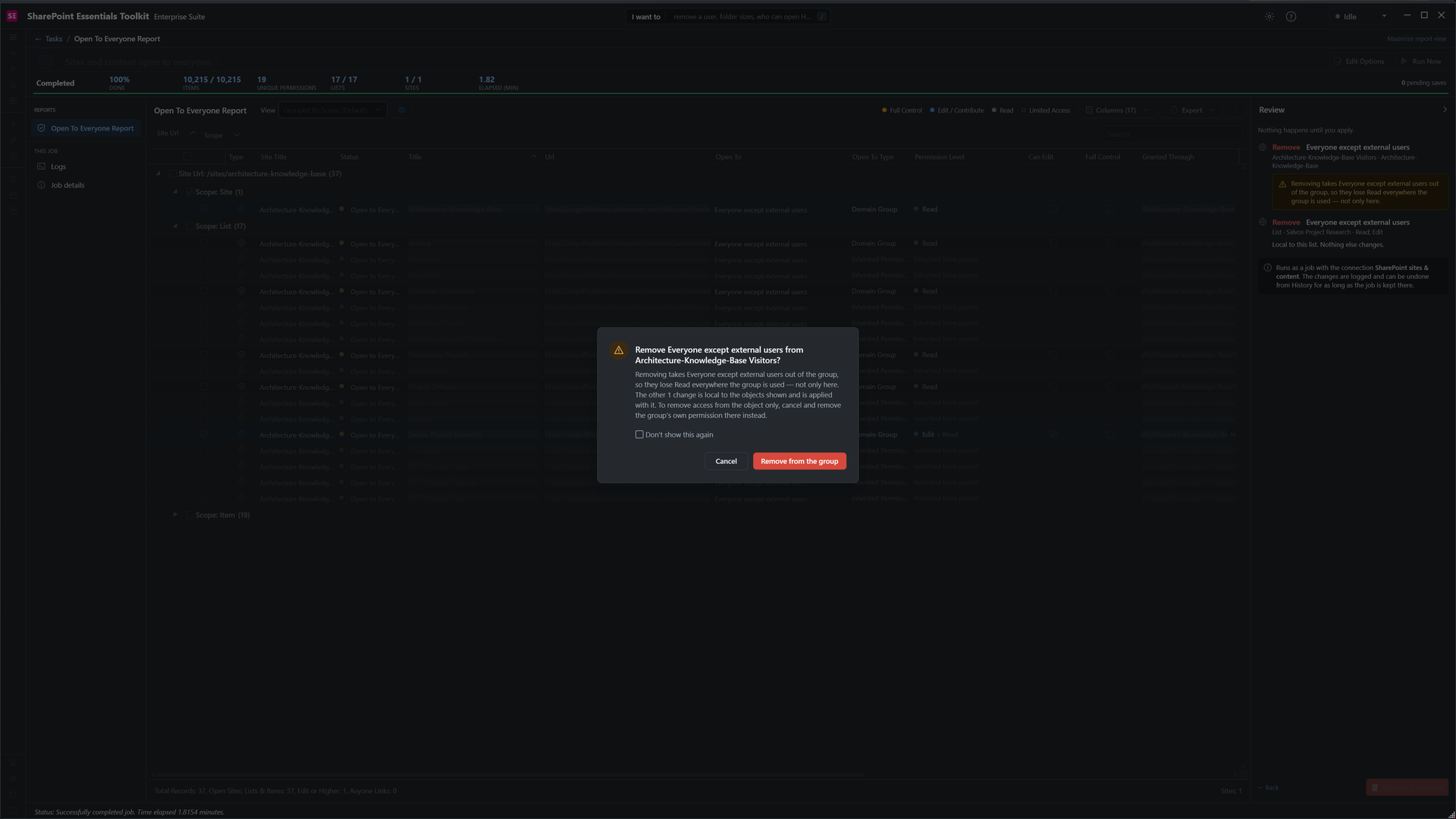
The warning names the group and what else it affects.
Both changes applied in 2 seconds. We refreshed the report to check against the live site, and this time it found no records. Two changes closed 37 open locations.
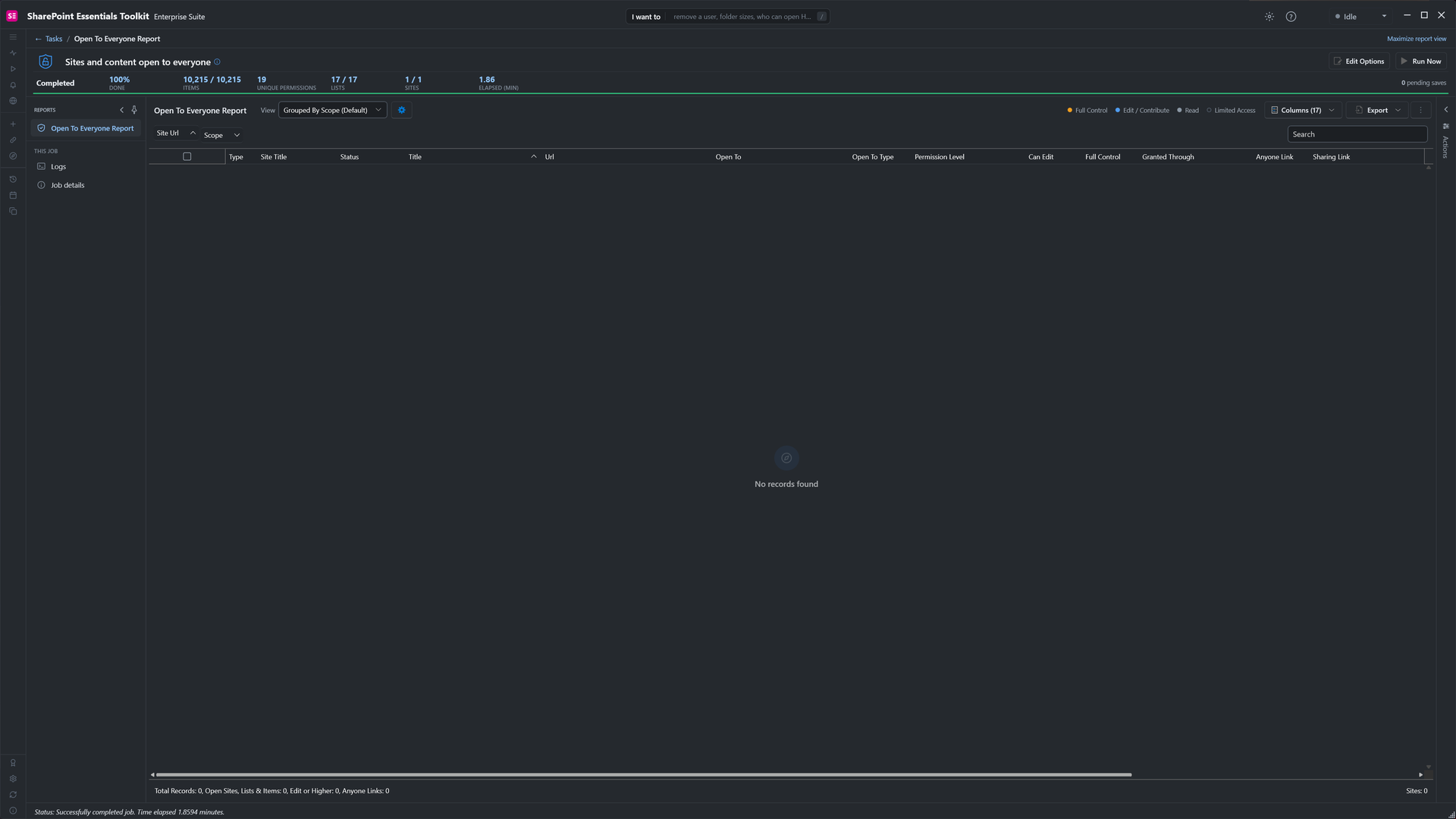
After the refresh: nothing on the site is open to everyone.
5. Review sharing links
A sharing link gives people access without adding them to any group or permission, so links are easy to miss in a permissions review. In I want to, search for sharing links, pick Sharing links report and run it. It found 11 links on 8 files in under two minutes. The Sharing Links · By Location view groups them under the site, library and file. Link Scope shows who each link works for, and Granted By shows who created it, so you know who to ask before you change anything.
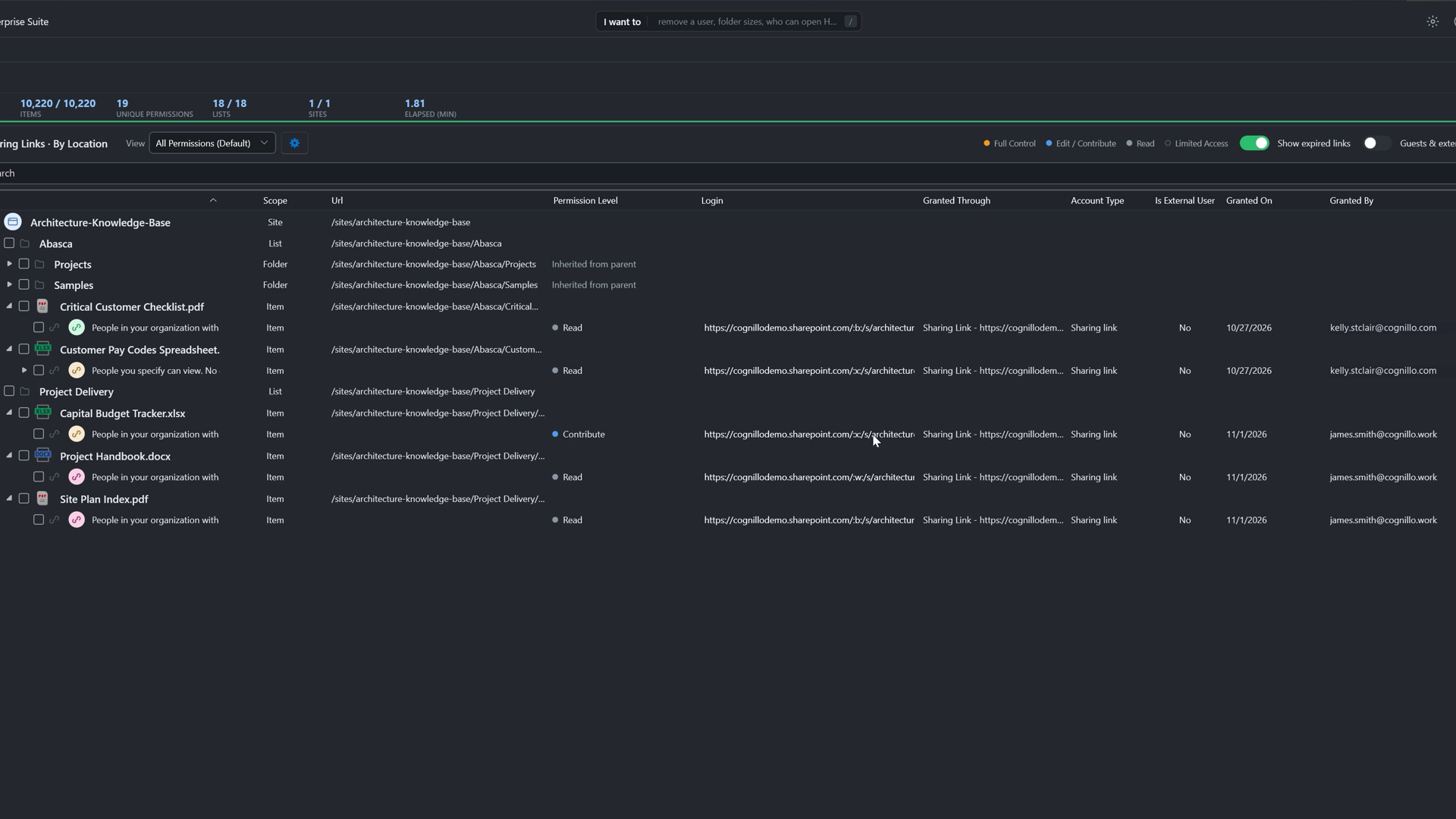
Most links work for anyone in the organization; one lets them edit a budget tracker.
In the Sharing Links · Matrix view, tick a link and the panel offers four fixes: remove the link, change when it expires, narrow who it works for, or set the item to inherited permissions. With nothing ticked, quick sets select organization links, links that expire soon, or links with no expiry.
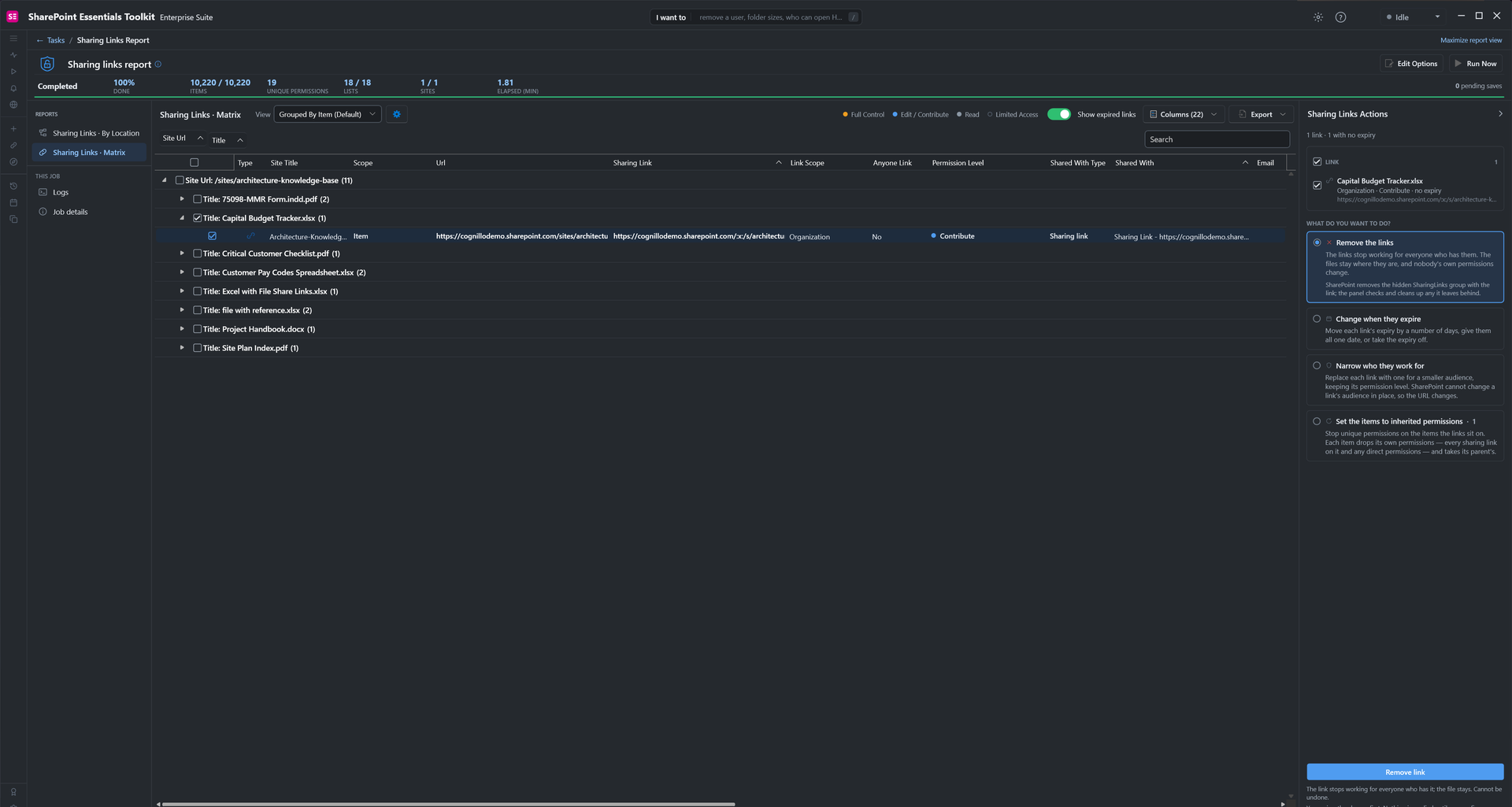
Four ways to fix a link, from the same report.
We didn't change any links in this cleanup. For each fix step by step, read How to clean up sharing links in SharePoint or watch the sharing links cleanup video.
6. Check and undo changes in History
Open History and filter to Changes. Each permission change from a report's Actions panel is listed as its own entry.
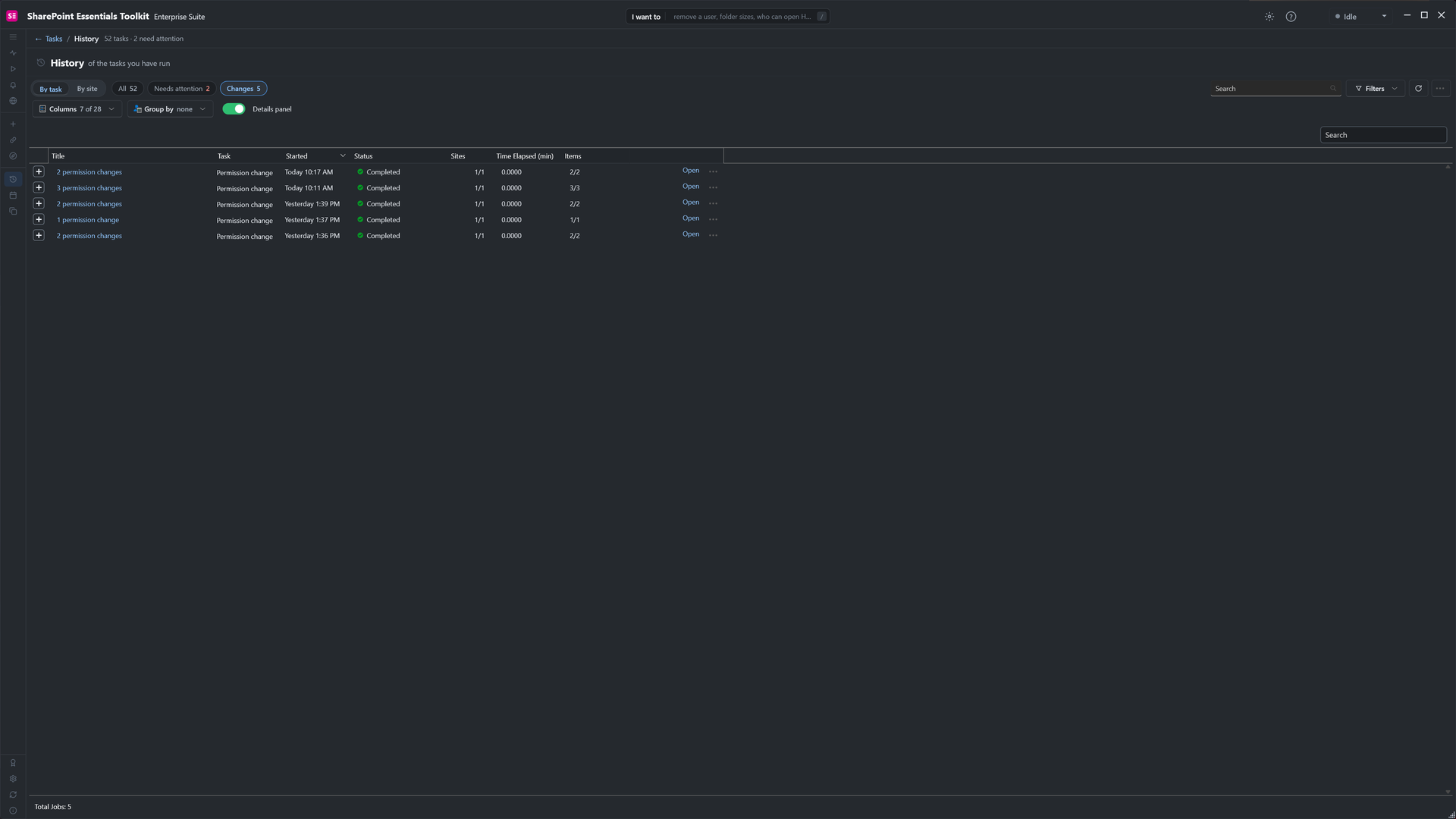
Every permission change job, newest first.
Select one to see what was removed, who ran it, and when. If something was removed by mistake, undo a single change, or select Undo all.
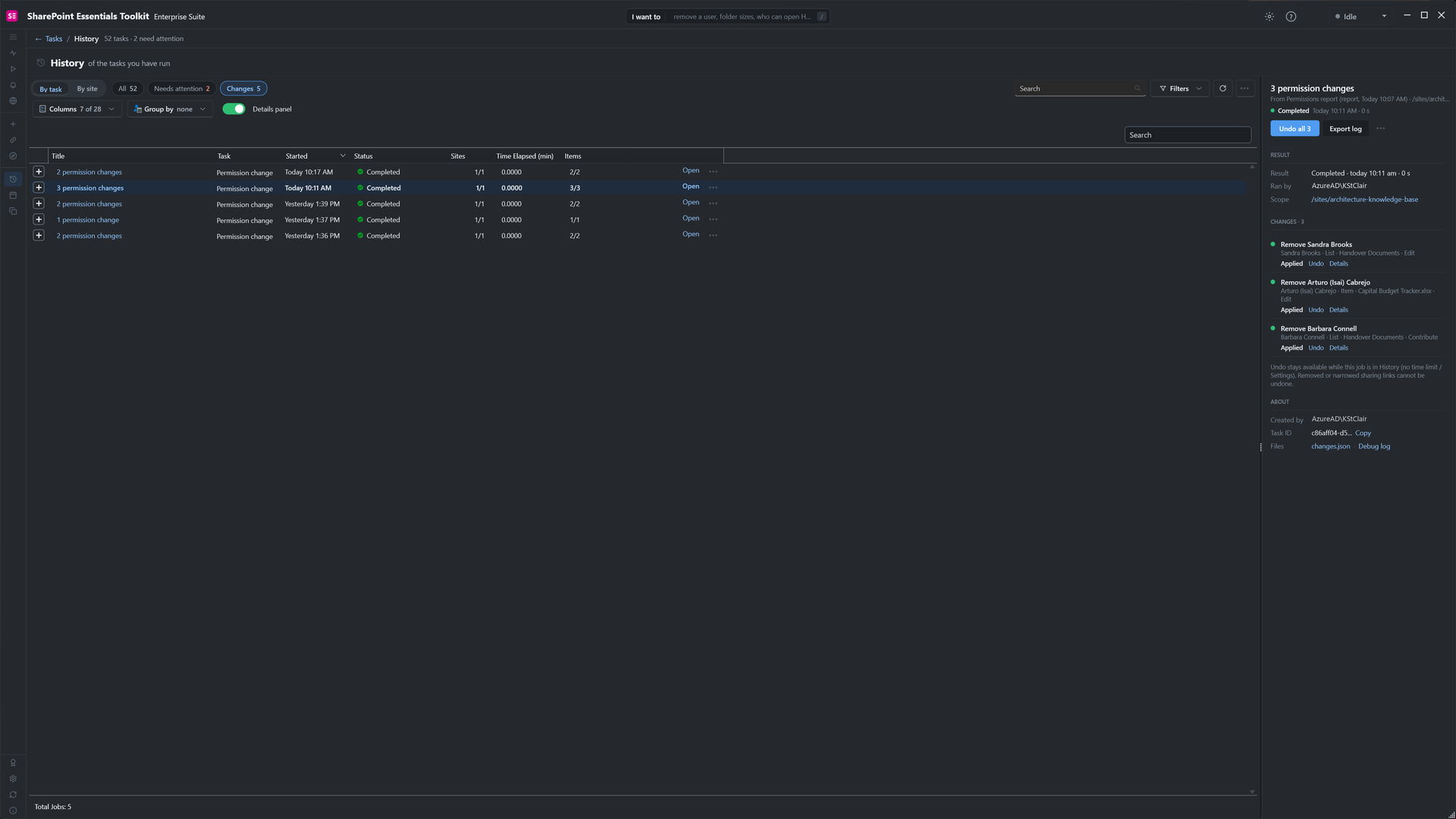
Each change can be undone while the job is kept in History.
Community Edition is free on up to 20 sites per Microsoft 365 tenant and applies up to 10 changes each time you select Apply. Each fix above used three changes or fewer. For cleanups across many sites, paid editions remove the per-Apply cap.
What order should you clean up SharePoint permissions in?
Everyone and Anyone access. It reaches the most people, and one group membership can open a whole site.
Orphaned users. Quick to remove, and it makes every later report easier to read.
Direct grants. Remove what's no longer needed, and move what is into the site's groups.
Sharing links. Remove old links, and give the ones still needed an expiry.
Repeat on a schedule. Schedule the tasks so new drift shows up in your inbox instead of in an audit.
To check one person's access in detail, see How to check user permissions in SharePoint. For the full report on its own, see SharePoint permissions report, and for files shared org-wide, Find SharePoint files shared with everyone.
Frequently asked questions
What is an orphaned user in SharePoint?
An orphaned user is an account that was deleted or disabled in Microsoft Entra ID but is still listed in a SharePoint site's user list, groups or permissions. SharePoint doesn't remove these entries when the account goes, so they pile up as people leave. They can't sign in, but they clutter permission reports, and a re-created account with the same name can pick up the old access.
Does removing someone from a SharePoint group remove their access everywhere?
It removes the access that group gave, everywhere the group is used: the site and every list, folder or file the group has permission on. Access the person has from another group, a direct grant or a sharing link stays. To take access away in one place only, remove the group's permission on that object instead.
How do I remove Everyone except external users from a SharePoint site?
First find where it is granted. It is usually a member of the site's Visitors or Members group, and sometimes it has a direct permission on a list or folder. Remove it from the group in Site permissions, and remove any direct grant in Advanced permissions on that object. SharePoint Essentials Toolkit's "Sites and content open to everyone" task lists every place it is granted, so you can remove them all in one review.
Can I undo a SharePoint permissions cleanup?
SharePoint has no undo for permission changes. In SharePoint Essentials Toolkit, the permission changes you apply from a report's Actions panel are logged in History, where you can undo one change or all of them for as long as the job is kept. Removed or narrowed sharing links can't be undone, because SharePoint gives a new link a new URL.
How often should I clean up SharePoint permissions?
Review them at least once a quarter, and after re-organisations, project closures or staff departures. In SharePoint Essentials Toolkit you can schedule the orphaned users, permissions and open to everyone tasks to run on their own and email the report, so you only act on what changed.
Clean up SharePoint permissions free on up to 20 sites
SharePoint Essentials Toolkit Community Edition is free. Find orphaned users, direct grants, everyone access and sharing links, and fix them from the same screen, on up to 20 sites per Microsoft 365 tenant, with no trial period. Get your free Community Edition license key.
About the author. The Cognillo SharePoint Team builds and supports SharePoint Essentials Toolkit and has worked with SharePoint administrators on permissions audits, migrations and cleanup projects since 2012.