Connect-PnPOnline Errors Explained: Missing Client ID, Retired Apps, Certificates, App-Only and MFA
Since September 2024, PnP PowerShell has no shared multi-tenant app, so Connect-PnPOnline needs -ClientId with your own Entra ID app registration. Without it you get "Please specify a valid client id for an Entra ID App Registration" and "Specified method is not supported". Register an app once with Register-PnPEntraIDAppForInteractiveLogin, then pass its ID. -UseWebLogin is gone in 2.x and later. For unattended scripts, use a certificate, not a client secret.
Published:
Last updated: 2026-10-29
The errors, and what each means
We ran Connect-PnPOnline on PnP.PowerShell 3.4.1 every way that commonly fails. These are the messages, word for word:
| What we ran | What we got | Cause |
|---|---|---|
-Interactive without -ClientId | WARNING: Please specify a valid client id for an Entra ID App Registration. NotSupportedException: Specified method is not supported. | No app to sign in with. The shared "PnP Management Shell" app was removed in September 2024. |
-Credentials without -ClientId | The same two messages | Same cause |
-UseWebLogin | A parameter cannot be found that matches parameter name 'UseWebLogin'. | Removed in PnP PowerShell 2.x. Use -Interactive -ClientId. |
-Thumbprint of a certificate not installed for this user | Cannot find certificate with this thumbprint in the certificate store. | The certificate is in LocalMachine, another user's store, or not imported with its private key. |
-ClientId of an app that doesn't exist, with -ClientSecret | Connect "succeeds" with a legacy authentication warning. The first cmdlet fails: AADSTS700016: Application with identifier '...' was not found in the directory | A client secret isn't checked until first use. Wrong ID, wrong tenant, or the app was deleted. |
That last one wastes the most time: a script that connects without error and fails on the next line looks like a permissions problem, but it's the connection.
Fix 1: Register your own app once (interactive and MFA)
This creates an Entra ID app for interactive sign-in with the delegated permissions PnP needs. It's a one-time step per tenant, and it needs someone who can grant admin consent:
Register-PnPEntraIDAppForInteractiveLogin -ApplicationName "PnP PowerShell - Contoso" `
    -Tenant contoso.onmicrosoft.com -Interactive

# From then on (MFA works; the browser prompt handles it)
Connect-PnPOnline -Url https://contoso.sharepoint.com/sites/Projects -Interactive -ClientId "<app-id-from-above>"
Save the ID so you don't have to pass it every time: set $env:ENTRAID_APP_ID = "<app-id>" in your profile. On a machine with no browser, use -DeviceLogin instead of -Interactive.
-Credentials (user name and password) doesn't work for accounts with MFA, and conditional access policies often block it for everyone. Use it only for accounts that are excluded on purpose, if at all.
Fix 2: App-only with a certificate (unattended scripts)
Scheduled tasks and pipelines can't answer an MFA prompt, so they sign in as the app. SharePoint only accepts Entra ID app-only tokens signed with a certificate; a client secret gets you the legacy warning above and fails on most calls.
# Creates the app, a self-signed certificate (.pfx and .cer), and asks for admin consent
Register-PnPEntraIDApp -ApplicationName "Contoso SharePoint reports" -Tenant contoso.onmicrosoft.com `
    -OutPath C:\Certs -CertificatePassword (Read-Host -AsSecureString "pfx password") `
    -SharePointApplicationPermissions "Sites.Read.All" -Interactive

# Unattended connect, from the .pfx file or from the certificate store
Connect-PnPOnline -Url https://contoso.sharepoint.com/sites/Projects -ClientId "<app-id>" `
    -Tenant contoso.onmicrosoft.com -CertificatePath C:\Certs\Contoso.pfx `
    -CertificatePassword (Read-Host -AsSecureString)
Connect-PnPOnline -Url https://contoso.sharepoint.com/sites/Projects -ClientId "<app-id>" `
    -Tenant contoso.onmicrosoft.com -Thumbprint "<thumbprint>"
Use the smallest permission that does the job: Sites.Read.All for reports, Sites.Selected to grant the app only specific sites. -Tenant must be the tenant's .onmicrosoft.com name or ID, not the SharePoint URL.
Check a connection before your script runs
This read-only snippet confirms the connection works and shows who you are signed in as and whether the token is app-only:
$conn = Get-PnPConnection
"Url:       {0}" -f $conn.Url
"ClientId:  {0}" -f $conn.ClientId
"Auth:      {0}" -f $conn.ConnectionMethod
try {
    $web = Get-PnPWeb -ErrorAction Stop
    "Connected to '{0}'" -f $web.Title
    $me  = Get-PnPProperty -ClientObject $web -Property CurrentUser
    "Signed in as: {0}" -f $me.LoginName
} catch {
    "Connection fails on first use: {0}" -f $_.Exception.Message
}
If Import-Module PnP.PowerShell itself fails with "Could not load file or assembly 'Microsoft.SharePoint.Client, Version=16.1.0.0'", another module in the same session loaded a different SharePoint client library first. We hit this ourselves. Start a new PowerShell 7 session and import PnP before anything else; see Connect-SPOService versus PnP for the same problem the other way round.
How SharePoint Essentials Toolkit relates
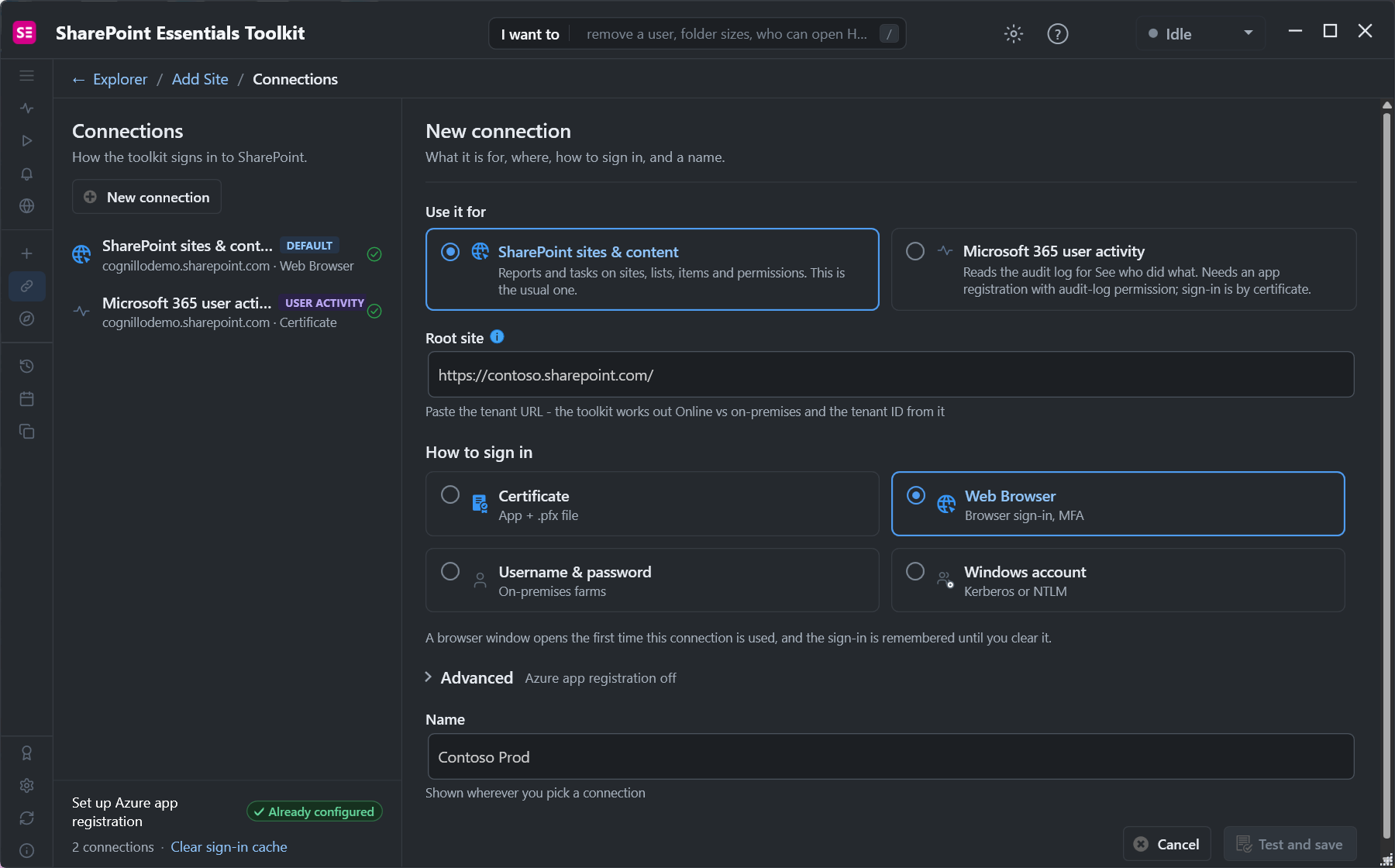
If you need the reports and bulk changes more than you need the scripts, the toolkit connects without any of this. A Web Browser connection signs in the way the SharePoint site does, MFA and conditional access included, and needs no app registration of your own:
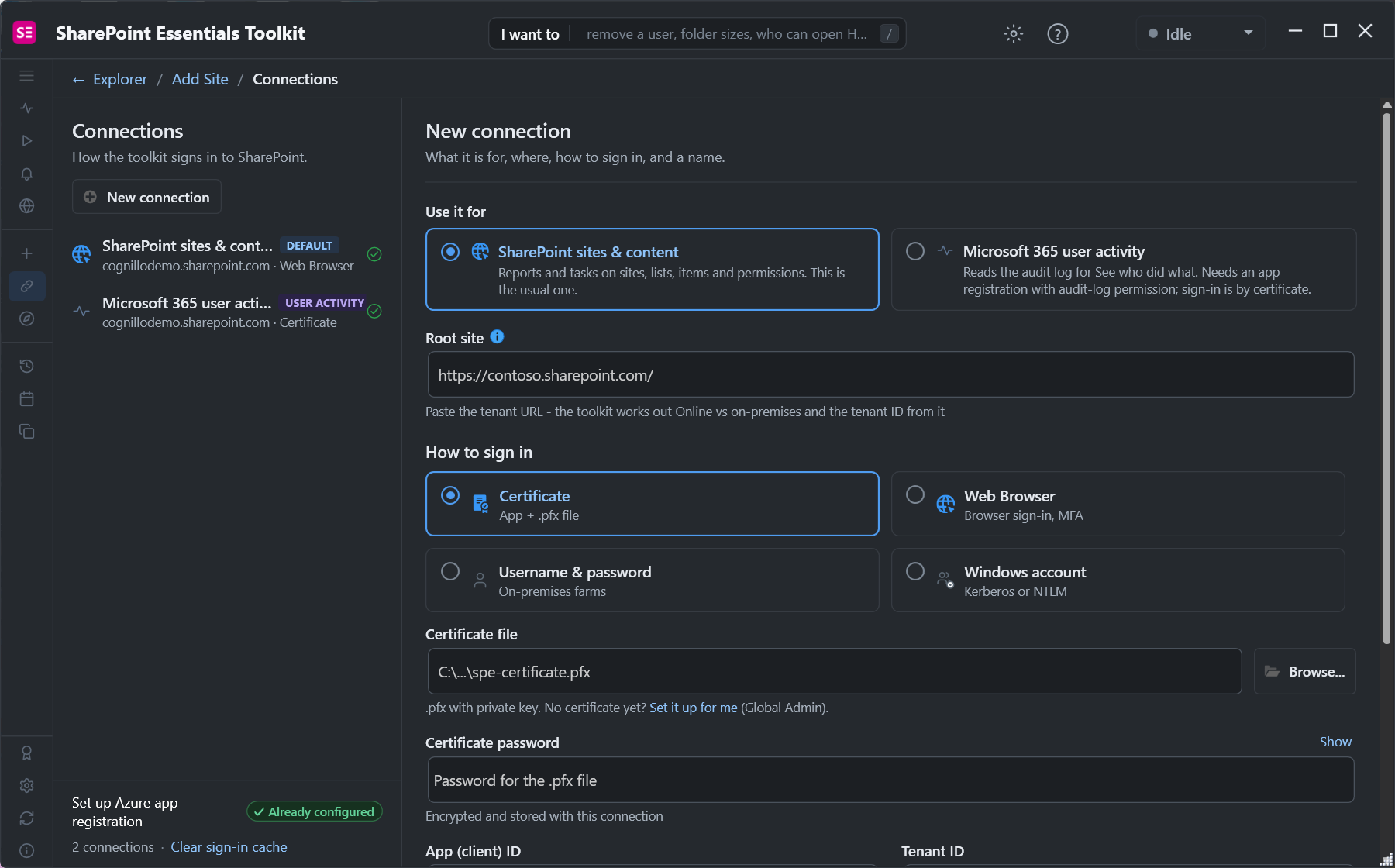
For unattended and scheduled jobs, a Certificate connection uses an app and a .pfx, like Fix 2. A Global Admin can choose Set it up for me, which creates the app registration and the certificate in one step:
Jobs can be scheduled from their options page, so a report you would otherwise write an app-only script for runs on that connection instead.
Frequently asked questions
Why does Connect-PnPOnline say Specified method is not supported?
You didn't pass -ClientId. Since September 2024 PnP PowerShell has no shared app, so you need your own Entra ID app registration. Create one with Register-PnPEntraIDAppForInteractiveLogin and pass its ID.
What replaced -UseWebLogin in PnP PowerShell?
-Interactive with -ClientId of your own app. -UseWebLogin was removed in PnP PowerShell 2.x; in 3.x it gives "A parameter cannot be found that matches parameter name UseWebLogin".
How do I use Connect-PnPOnline with MFA?
Use -Interactive (or -DeviceLogin on a machine without a browser) with your app's -ClientId. The sign-in prompt handles MFA. -Credentials doesn't work with MFA.
Why does Connect-PnPOnline succeed but the next cmdlet fails?
With -ClientSecret, the app isn't checked until the first call. A wrong app ID gives AADSTS700016 on that call. SharePoint also rejects most app-only calls signed with a secret; use a certificate.
Can I still use the PnP Management Shell app ID?
No. The multi-tenant PnP Management Shell app (31359c7f-...) was retired in September 2024. Register your own app in your tenant.
Run SharePoint reports without app registrations, free
SharePoint Essentials Toolkit Community Edition is free. Sign in with your browser, MFA included, and run permissions, inventory and storage reports on up to 20 sites per Microsoft 365 tenant. Get your free Community Edition license key.