Update a SharePoint Item from Power Automate Without an Infinite Loop
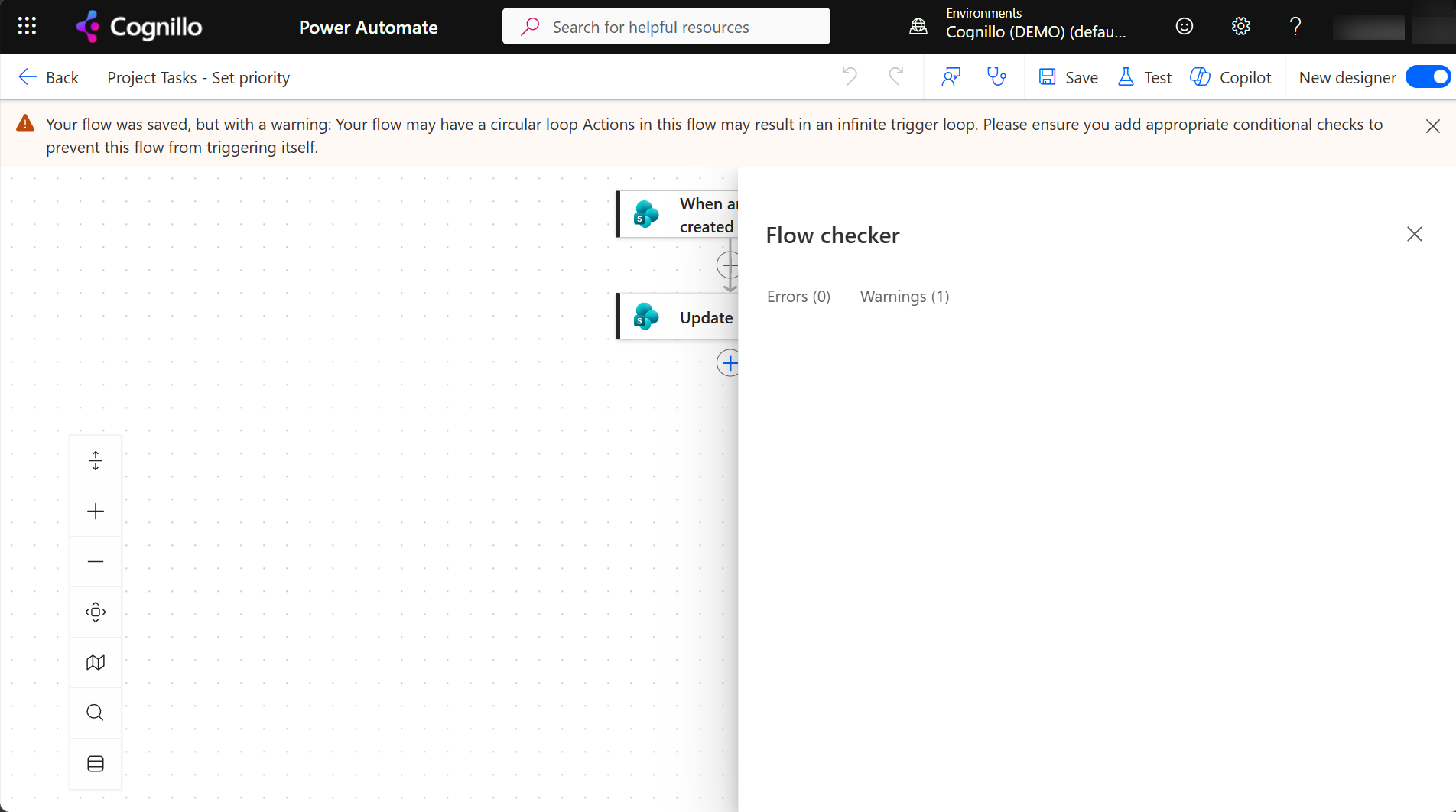
A flow triggered by "When an item is created or modified" that updates the same item fires its own trigger again, because the update is a modification. Power Automate warns about a possible circular loop when you save, but saves the flow anyway. Stop the loop with a trigger condition that is false once the flow has done its work, for example @not(equals(triggerOutputs()?['body/Priority/Value'], 'High')) when the flow sets Priority to High, or one that ignores changes made by the flow's own account.
Published:
Last updated: 2026-11-06
What happened in our test
The flow Project Tasks - Set priority had two steps: "When an item is created or modified" on Project Tasks, then Update item on the same item to set Priority to High.
Then we edited one item. Every Update item counted as a new modification, so the trigger picked the item up again on its next check:
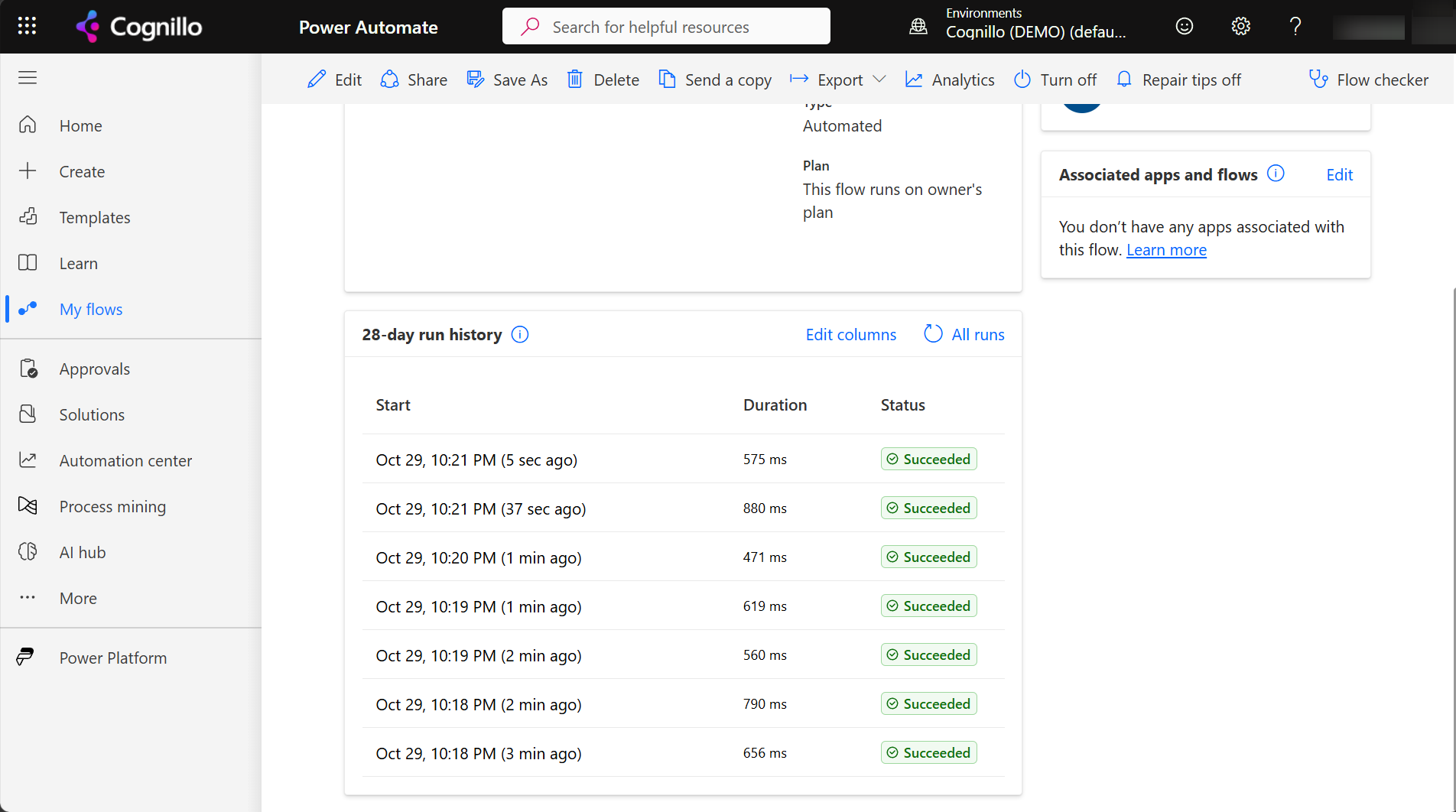
A loop like this adds a version to the item on every run, uses up the flow's daily request allowance, and fills the version history. With versioning limits, it can also push the real versions out.
Fix 1: A trigger condition on the value the flow sets
On the trigger's Settings tab, add a trigger condition that is false once the item already has the value:
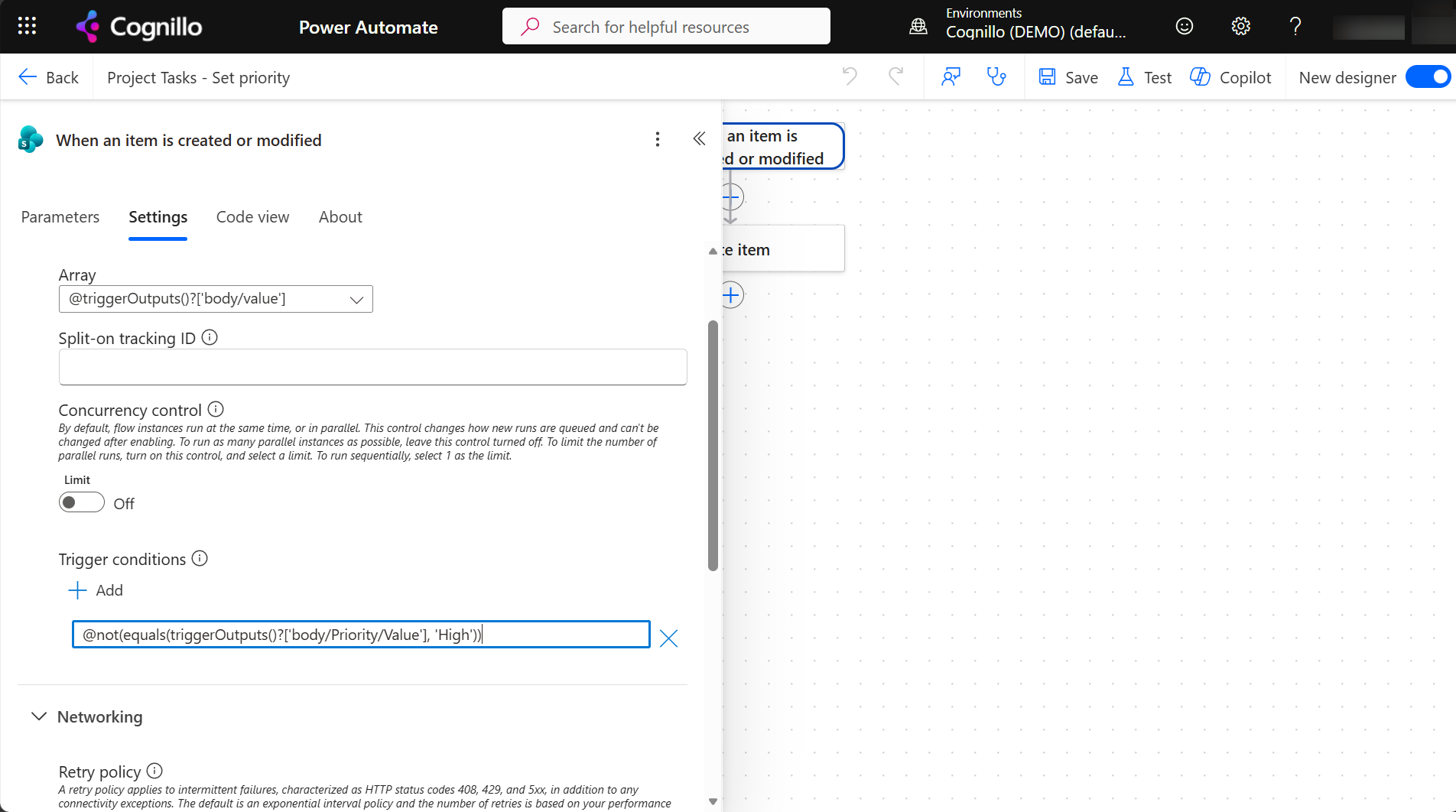
@not(equals(triggerOutputs()?['body/Priority/Value'], 'High'))
Choice columns need /Value; text and number columns don't. Use the internal name of the column, which you can see in the trigger's output or in the column's settings URL (Field=).
Fix 2: Ignore changes made by the flow's account
When the flow updates several columns, or the value can legitimately change back, compare who made the change. Run the flow's SharePoint connection under a service account, and add:
@not(equals(triggerOutputs()?['body/Editor/Email'], 'svc-flows@contoso.com'))
People's edits still trigger the flow; the flow's own edits don't. This also stops two flows from triggering each other.
Fix 3: A "processed" column
For work that should happen once per item, add a Yes/No column such as Processed. The flow sets it to Yes in the same Update item, and the trigger condition only runs when it isn't Yes yet:
@not(equals(triggerOutputs()?['body/Processed'], true))
To process an item again, set the column back to No. Hide the column from forms so people don't change it by accident.
Patterns that don't work
- A Condition action after the trigger. The run still starts and shows in history, and the request still counts. It stops the update, which ends the loop, but every edit still costs a run. Trigger conditions don't start a run at all.
- Concurrency limit 1. It runs the loop one run at a time, but it still loops.
- Turning the trigger to "When an item is created". It stops the loop, but edits stop triggering too.
Bulk updates: turn the flow off first
When you backfill a column on thousands of items, by script or by bulk edit, every saved item is a modification. Turn the flow off during the update, or make sure its trigger condition is false for the new values, then turn it back on. This PnP PowerShell sketch shows the order. It needs PnP PowerShell 2.x and your own Entra ID app registration; nothing changes until you set $WhatIf = $false.
$ClientId = "<your-app-id>"
$SiteUrl  = "https://contoso.sharepoint.com/sites/Projects"
$List     = "Project Tasks"
$WhatIf   = $true

Connect-PnPOnline -Url $SiteUrl -Interactive -ClientId $ClientId
$items = Get-PnPListItem -List $List -PageSize 500 |
    Where-Object { -not $_["Priority"] }
"{0} items have no Priority. Turn the 'Set priority' flow off before updating." -f $items.Count

if (-not $WhatIf) {
    foreach ($i in $items) {
        Set-PnPListItem -List $List -Identity $i.Id -Values @{ Priority = "Normal" } -UpdateType SystemUpdate | Out-Null
    }
}
-UpdateType SystemUpdate keeps Modified and Modified By and adds no version, which makes the backfill invisible in the item history. Turn the flow off anyway: don't rely on a system update to avoid the trigger.
Bulk edit without a flow with SharePoint Essentials Toolkit
A flow is the wrong tool for a one-time change to thousands of items. The toolkit's Bulk edit area changes items across lists and sites, and runs with a preview first:
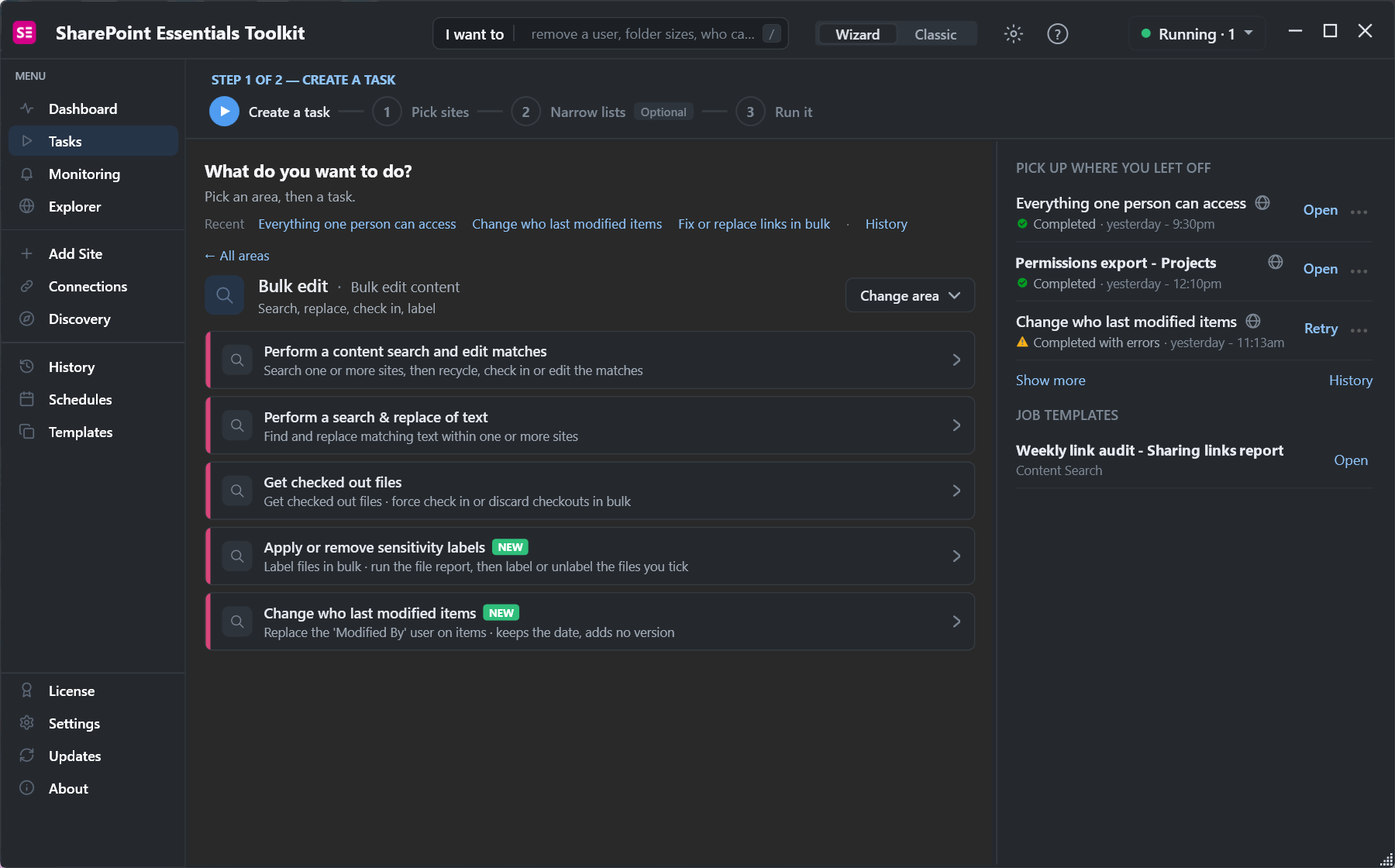
- Perform a search & replace of text changes column values across many lists in one job.
- Change who last modified items replaces the Modified By user and keeps the date, without adding a version. It's useful after a loop has stamped thousands of items with a service account.
Turn the flows on those lists off while the job runs.
Frequently asked questions
Why does my flow keep running after Update item?
Update item modifies the item, and "When an item is created or modified" fires on every modification, including the flow's own. Add a trigger condition to stop it.
What does "Your flow may have a circular loop" mean?
The flow updates the list its trigger watches. Power Automate warns but still saves and runs the flow, so add a trigger condition.
Is a Condition action enough to stop a loop?
It ends the loop, but every edit still starts a run. A trigger condition prevents the run from starting, which saves runs and history.
Does Update item add a version?
Yes, on lists with versioning. A loop adds a version every run, which can push older versions out when there is a version limit.
How do I update thousands of items without triggering a flow?
Turn the flow off during the update, or make its trigger condition false for the new values, then turn it back on.
Change thousands of items without a flow, free
SharePoint Essentials Toolkit Community Edition is free. Replace column values across lists and sites with a preview first, on up to 20 sites per Microsoft 365 tenant. Get your free Community Edition license key.