Free Up SharePoint Storage: Find Large Files, Bulk Delete Old Versions, and Clean Out Old Files Safely
Version history is usually the biggest hidden use of SharePoint storage: every version is a full copy. Find files by size including versions (SMTotalSize), then trim versions with New-SPOSiteFileVersionBatchDeleteJob for whole sites or libraries, or per file with PowerShell. Batch deletes are permanent; per-file recycling can be restored. Set version limits so it doesn't grow back. The free SharePoint Essentials Toolkit finds the largest files and trims versions with a review step and undo.
Published:
Last updated: 2026-10-29
Where the storage goes
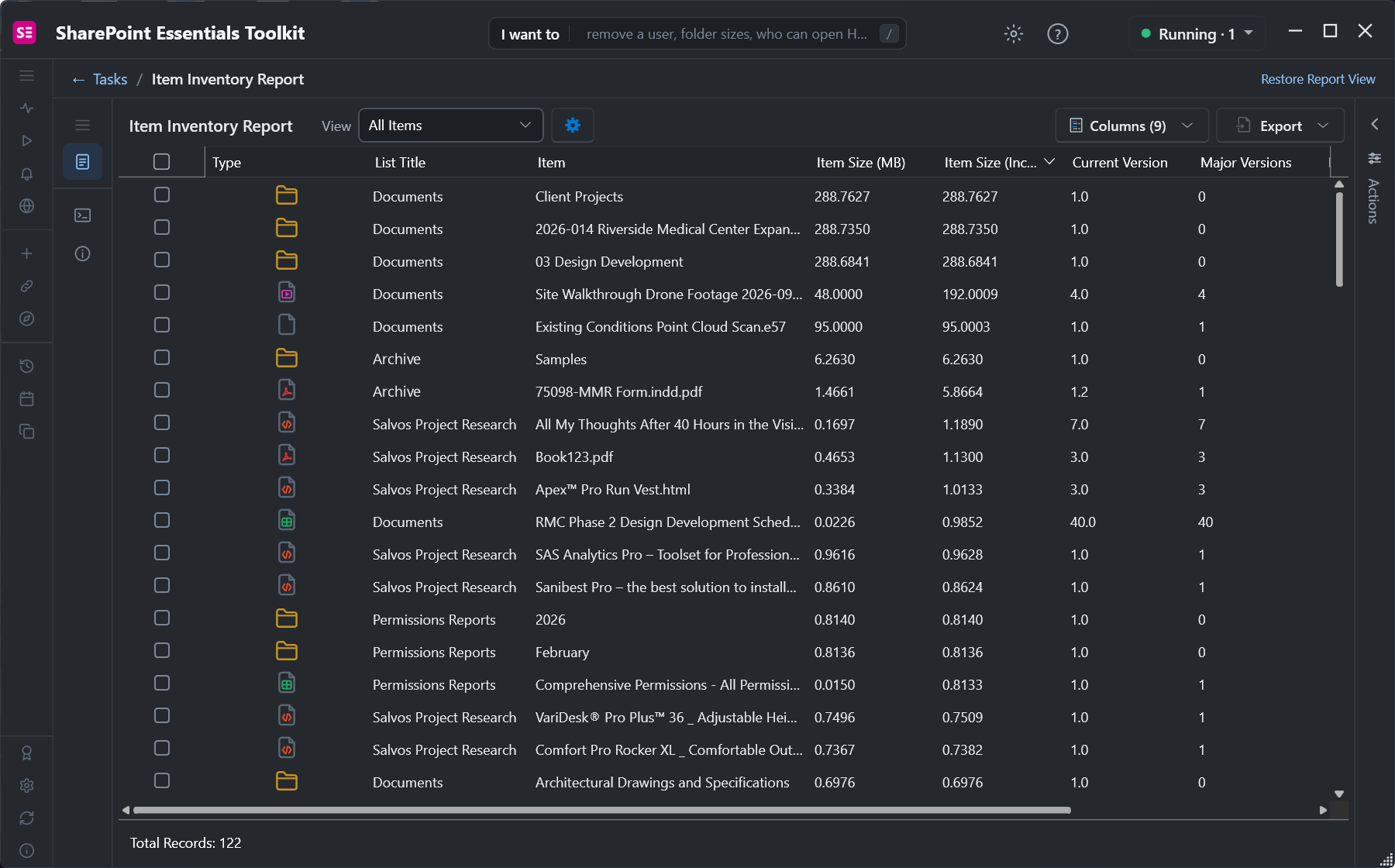
SharePoint stores every version of a file in full. A 48 MB video saved four times uses 192 MB; a workbook with 40 versions uses 40 times its size. The site's storage counts all of it, plus both recycle bins. So "find large files" has to mean size including versions, not the size you see in the library.
Option 1: Built-in settings
- Find the big sites: SharePoint admin center, Active sites, sort by Storage used.
- Find the big files in a site: Site settings, Storage Metrics shows folders and files by total size, versions included.
- Trim versions on one file: Version history, delete versions you don't need. They go to the recycle bin.
- Stop it growing: SharePoint admin center, Settings, Version history limits: automatic, or a count and age limit for new libraries. Library settings, Versioning settings changes one library.
- Remember the recycle bins. Deleted files and versions still count until the second-stage recycle bin is emptied or they expire.
Option 2: PowerShell
Find the largest files, including versions
Read-only. SMTotalSize is the file plus all its versions; File_x0020_Size is the current version only:
$ClientId = "<your-app-id>"
$SiteUrl  = "https://contoso.sharepoint.com/sites/Projects"
$MinMB    = 50
Connect-PnPOnline -Url $SiteUrl -Interactive -ClientId $ClientId

$rows = foreach ($lib in Get-PnPList | Where-Object { $_.BaseTemplate -eq 101 -and -not $_.Hidden }) {
    Get-PnPListItem -List $lib -PageSize 2000 -Fields FileRef, File_x0020_Size, SMTotalSize, _UIVersionString, Modified, FSObjType |
        Where-Object { $_["FSObjType"] -eq 0 } | ForEach-Object {
            $total = [double]$_["SMTotalSize"].LookupId     # SMTotalSize comes back as a lookup value
            if ($total / 1MB -ge $MinMB) {
                [pscustomobject]@{
                    File = $_["FileRef"]; CurrentMB = [math]::Round([double]$_["File_x0020_Size"] / 1MB, 1)
                    TotalMB = [math]::Round($total / 1MB, 1); Version = $_["_UIVersionString"]; Modified = $_["Modified"]
                }
            }
        }
}
$rows | Sort-Object TotalMB -Descending | Select-Object -First 50 | Format-Table -AutoSize
$rows | Export-Csv .\large-files.csv -NoTypeInformation
On libraries over 5,000 items, -PageSize keeps this under the list view threshold.
Trim versions on a whole site with a batch job
The SharePoint Online Management Shell can trim versions on a site or library in the background. Run the report job first, then decide; the delete is permanent: batch-deleted versions don't go to the recycle bin.
$Site   = "https://contoso.sharepoint.com/sites/Projects"
$WhatIf = $true
Connect-SPOService -Url https://contoso-admin.sharepoint.com

# What versions are there? Writes a CSV report into a library you choose.
New-SPOSiteFileVersionExpirationReportJob -Identity $Site `
    -ReportUrl "$Site/Shared Documents/version-report.csv"

if ($WhatIf) { "WhatIf: would keep the newest 10 major versions of every file on $Site" }
else {
    New-SPOSiteFileVersionBatchDeleteJob -Identity $Site -MajorVersionLimit 10 -MajorWithMinorVersionsLimit 0
    Get-SPOSiteFileVersionBatchDeleteJobProgress -Identity $Site
}
Use -DeleteBeforeDays 365 instead to delete versions older than a year, or New-SPOListFileVersionBatchDeleteJob for one library. If the module won't import with "Could not load type 'Microsoft.SharePoint.Client.FileVersionBatchDeleteMode'", see the import fix; it's exactly these cmdlets that need the newer client library.
Trim versions on chosen files, recoverably
For the files from the large-files report, this keeps the newest $Keep versions and sends the rest to the recycle bin, so they can be restored:
$Keep   = 5
$WhatIf = $true
foreach ($r in Import-Csv .\large-files.csv) {
    $file = Get-PnPFile -Url $r.File
    $versions = Get-PnPProperty -ClientObject $file -Property Versions
    $old = @($versions | Sort-Object { [version]$_.VersionLabel } -Descending | Select-Object -Skip $Keep)
    "{0}: {1} versions, would recycle {2}" -f $r.File, $versions.Count, $old.Count
    if (-not $WhatIf) {
        foreach ($v in $old) { $file.Versions.RecycleByLabel($v.VersionLabel) }
        Invoke-PnPQuery
    }
}
Recycle old files
Files nobody has changed in years are candidates for Microsoft 365 Archive (keeps them searchable by admins, cheaper storage) or deletion. This lists files not modified since a date and recycles them only with $WhatIf = $false:
$Library = "Documents"
$Before  = (Get-Date).AddYears(-5)
$WhatIf  = $true
$old = Get-PnPListItem -List $Library -PageSize 2000 -Fields FileRef, Modified, FSObjType |
    Where-Object { $_["FSObjType"] -eq 0 -and $_["Modified"] -lt $Before }
"{0} files not modified since {1:d}" -f $old.Count, $Before
$old | Select-Object @{n="File";e={$_["FileRef"]}}, @{n="Modified";e={$_["Modified"]}} | Export-Csv .\old-files.csv -NoTypeInformation
if (-not $WhatIf) { $old | ForEach-Object { Move-PnPListItemToRecycleBin -List $Library -Identity $_.Id -Force } }
Check retention policies first: files under a retention policy or label can't be deleted, or go to the Preservation Hold library instead of freeing space.
Option 3: Find large files and trim versions with SharePoint Essentials Toolkit
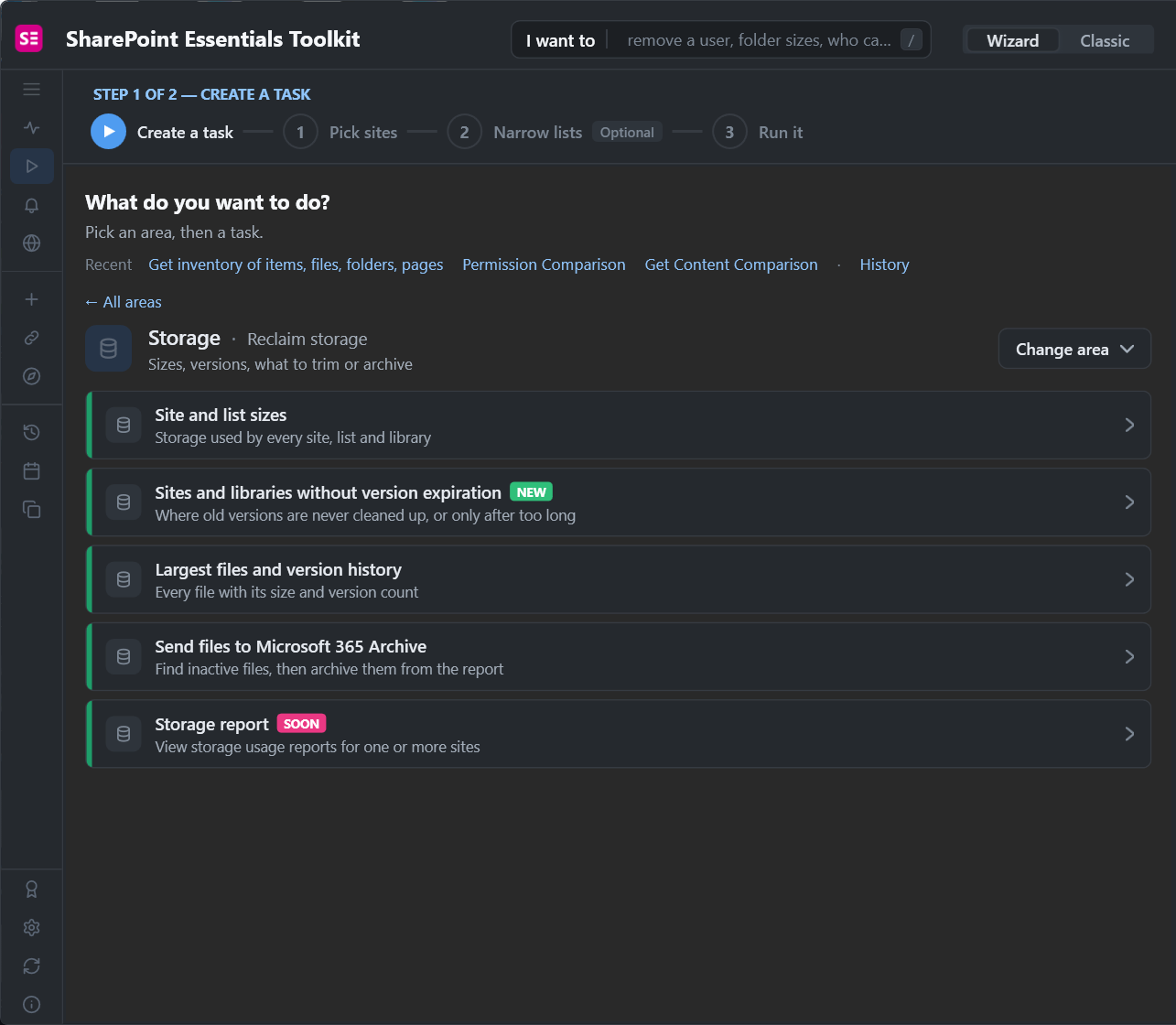
The toolkit's Storage area has the reports above as tasks:
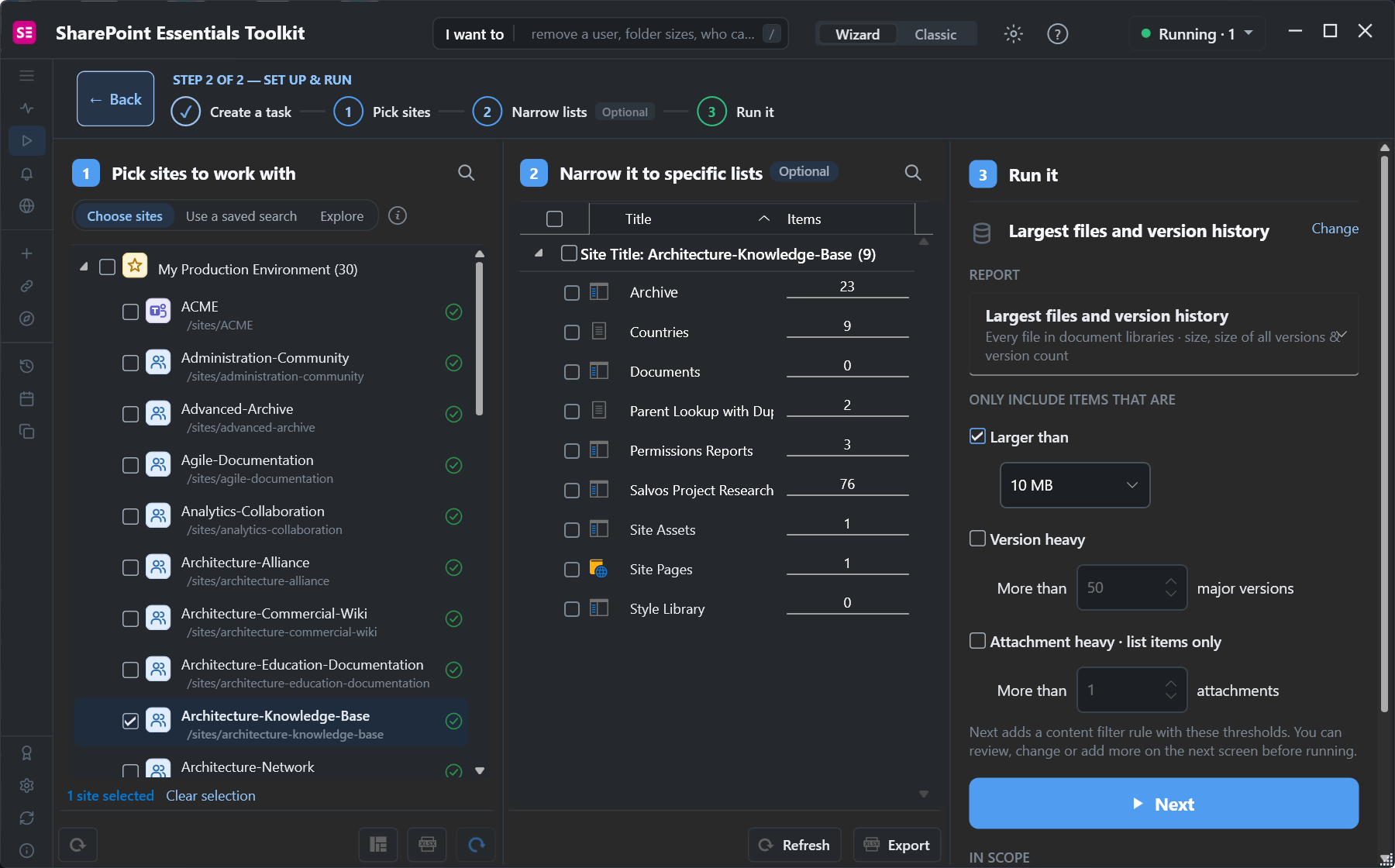
Largest files and version history lets you set the threshold and flag version-heavy and attachment-heavy items:
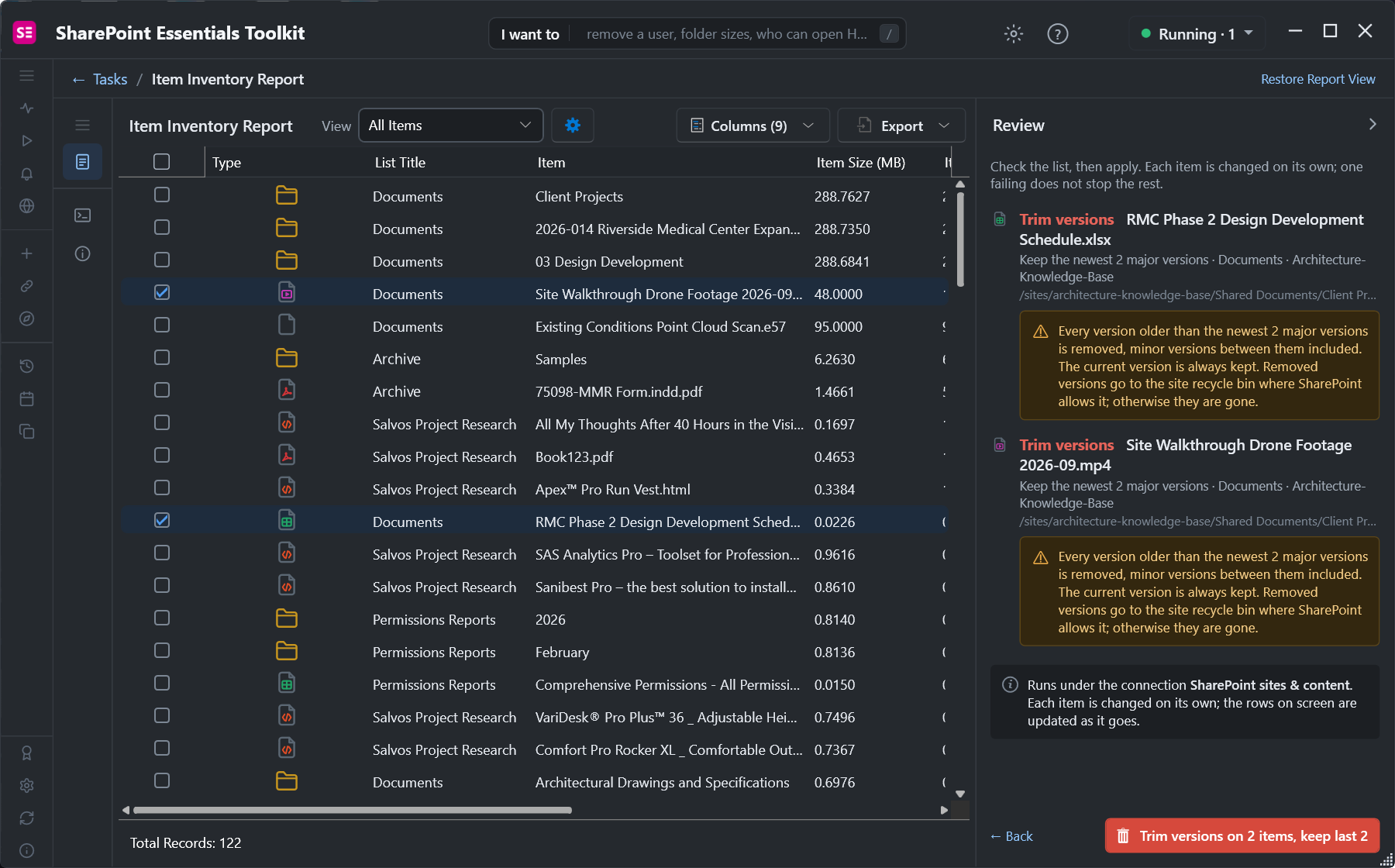
Then tick the files in the report and choose Clean up version history. You set how many versions to keep and review every change before it runs:
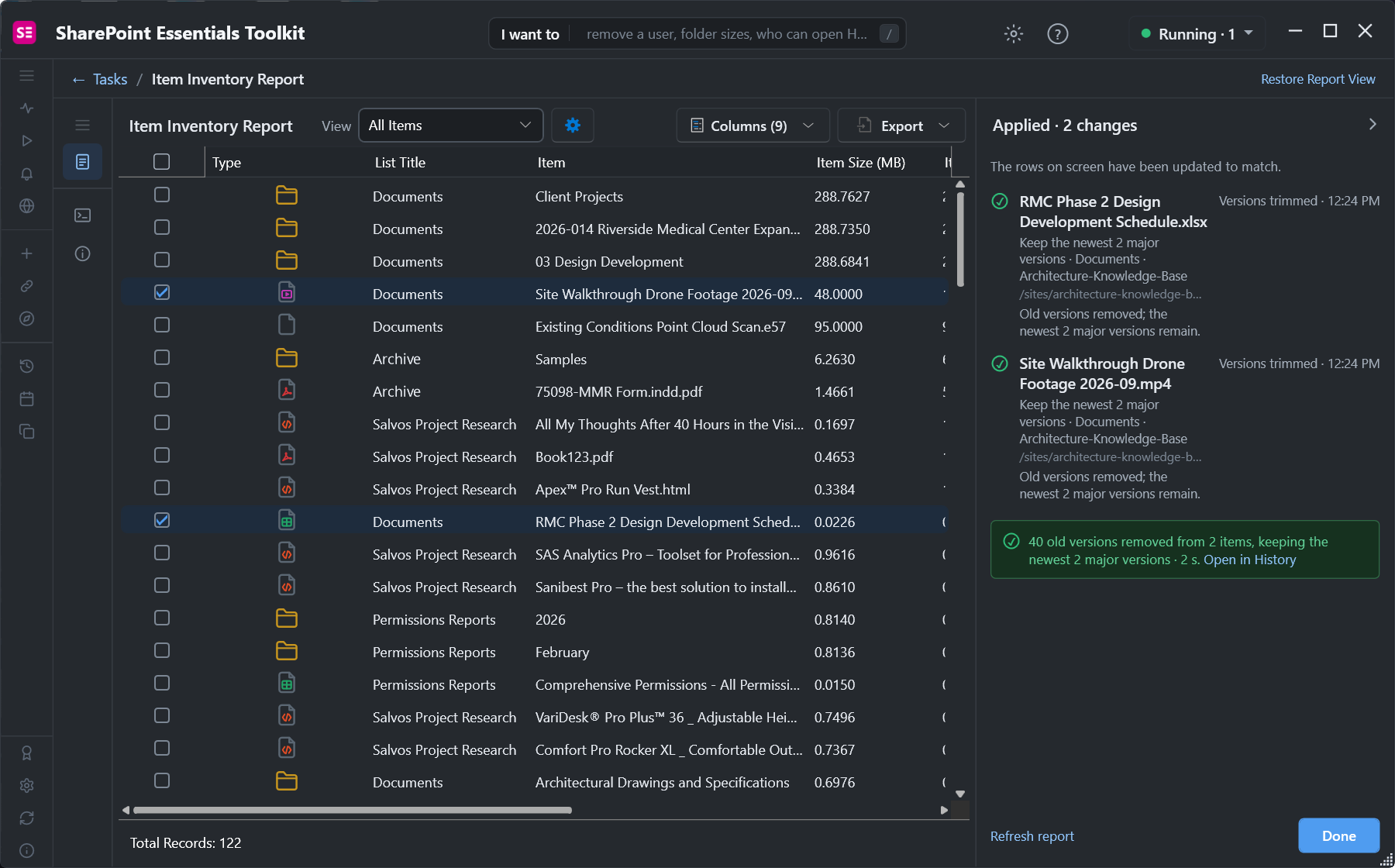
Sites and libraries without version expiration finds the libraries that will keep growing, so you can set limits on them.
Frequently asked questions
How do I bulk delete old versions in SharePoint Online?
Use New-SPOSiteFileVersionBatchDeleteJob (or New-SPOListFileVersionBatchDeleteJob) with -MajorVersionLimit or -DeleteBeforeDays. It runs in the background and the deleted versions are permanent; trim per file with PowerShell or a tool if you need the recycle bin.
How do I find the largest files in SharePoint including versions?
Read the SMTotalSize field, which is the file plus all versions, with Get-PnPListItem, or open Storage Metrics in Site settings. File_x0020_Size is only the current version.
Do SharePoint versions count against storage?
Yes. Every version is stored in full and counts against the site and tenant storage, as do items in both recycle bins.
Can I restore versions deleted by a batch delete job?
No. Versions deleted with the batch delete job are permanently deleted. Versions deleted from Version history, or recycled with RecycleByLabel, go to the recycle bin and can be restored.
How do I stop SharePoint version history using so much storage?
Set version history limits in the SharePoint admin center, automatic or a count and age limit, and apply them to existing libraries with Set-SPOSite or library versioning settings.
Find what fills your SharePoint storage, free
SharePoint Essentials Toolkit Community Edition is free. Find the largest files including versions and trim version history with a review step, on up to 20 sites per Microsoft 365 tenant. Get your free Community Edition license key.