How to Migrate SharePoint Online to SharePoint Online for Free
Published:
Last updated: 2026-11-05
To migrate SharePoint Online to SharePoint Online for free, use SharePoint Essentials Toolkit Community Edition, which is free on up to 20 site collections per tenant. Pick the source site, pick the target site, choose versions and permissions, and run the copy. It goes through the SharePoint Migration API, so version history, Created By, Modified By, dates and item IDs come across. Then run Verification to check every item on the target.
Below is a real run: 13 lists and 5,718 items copied from one SharePoint Online site to another in 43 minutes, with versions, lookups and permissions, followed by a verification of every item.
Why SharePoint Online to SharePoint Online is harder than it looks
Microsoft's free migration tools move content into SharePoint Online. The SPMT FAQ lists SharePoint Server and file shares as sources, not SharePoint Online, and Migration Manager covers file shares and cloud drives. Cross-tenant SharePoint migration only moves between tenants, needs a paid add-on license, and requires that the target site doesn't exist yet.
What's left inside SharePoint is Copy to and Move to in a library's menu. They work for a few folders, but Copy to brings only the latest version of each file, neither one copies lists, and neither copies permissions. A site move usually needs more:
Version history on documents and list items.
Authors and dates: Created By, Modified By, Created and Modified, rather than the person running the copy and today's date.
Lookup columns that still point at the right list and item, which means item IDs have to match.
Permissions: SharePoint groups, their members, and unique permissions on lists and items.
Proof that every item arrived, before anyone deletes the source.
Free ways to copy a SharePoint Online site
Method | Price | Lists and libraries | Version history | Authors and dates | Permissions | Item-by-item verification |
|---|---|---|---|---|---|---|
Copy to / Move to in a library | Free | Files and folders only | Move keeps it; Copy brings the latest version | Partly | No | No |
SPMT and Migration Manager | Free | SharePoint Online isn't a supported source | ||||
Microsoft cross-tenant migration | Paid add-on | Whole sites, between tenants, into a site that doesn't exist | Yes | Yes | Yes | No |
SharePoint Essentials Toolkit Community Edition | Free on up to 20 site collections per tenant | Sites, lists and libraries, into new or existing sites, same tenant or another | Yes, all or major only, with an optional limit | Yes | Yes, with group matching and user mapping | Yes |
Checked November 4, 2026, against Microsoft's documentation linked above. For paid tools such as ShareGate, AvePoint Fly and Quest Content Matrix, see our SharePoint migration tools comparison.
Before you start
Install SharePoint Essentials Toolkit on a Windows PC and connect to your tenant. Community Edition is free; request a license key.
Use an account that is a site collection administrator on both the source and the target. The high-fidelity bulk copy needs it, and the job tells you if it falls back to the standard engine.
Create the target site first. It can be empty or already in use: lists that already exist there can be added to, overwritten or skipped.
For a different tenant, add a second connection in the toolkit and pick the target from it.
Community Edition has no item limit on copies. Its limits are 20 site collections per tenant and per job, and one source list or the whole site per job.
Step by step: copy one SharePoint Online site to another
Our source was a project site, /sites/architecture-knowledge-base, with 21 lists and libraries. We copied 13 of them, 5,718 items, into /sites/business-operations in the same tenant.
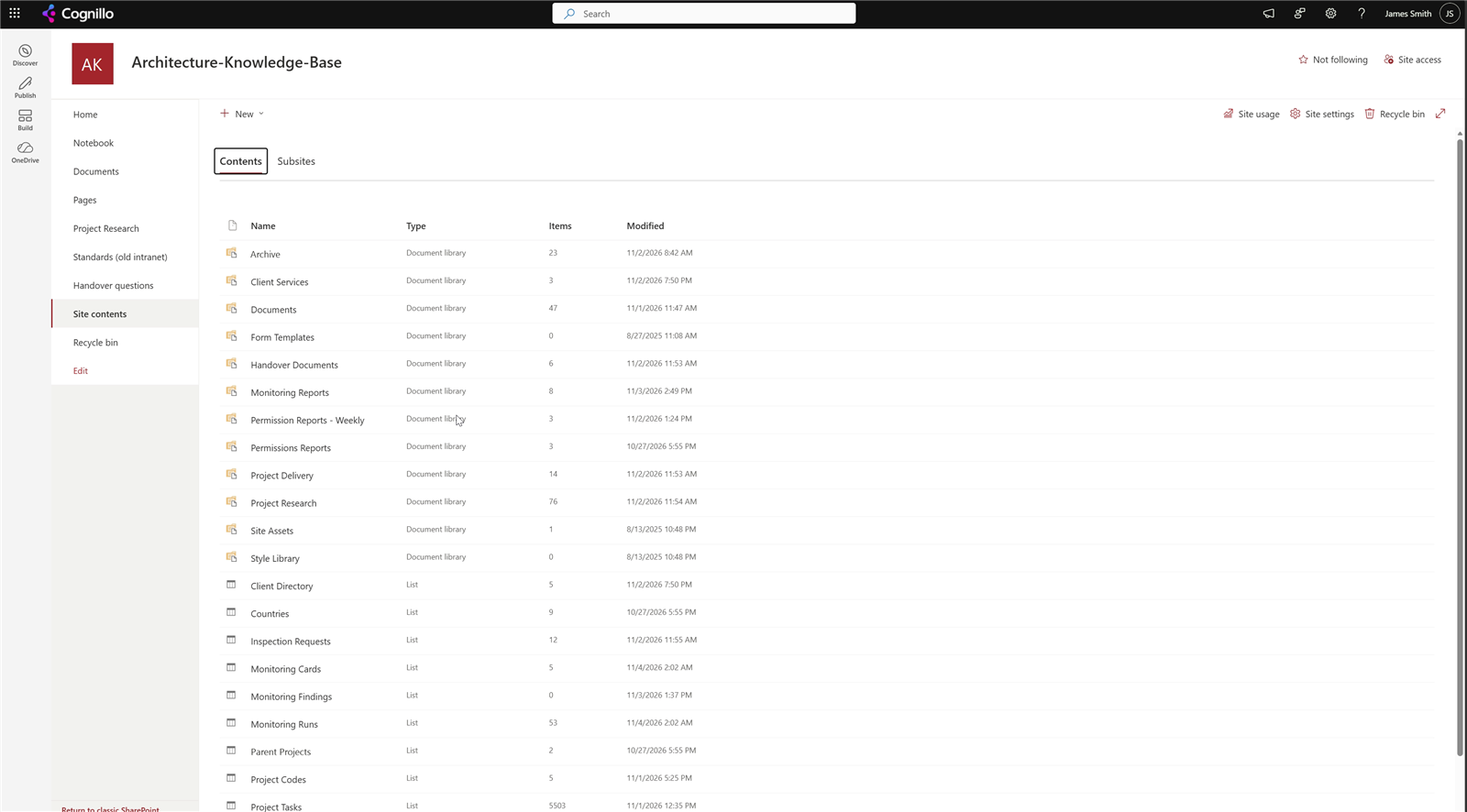
The source site. Project Tasks alone has 5,503 items.
Its Project Delivery library has custom columns (project lookups, a project code, review dates, people columns), and every file was last modified by James Smith on specific dates. Those are the details a plain copy loses.
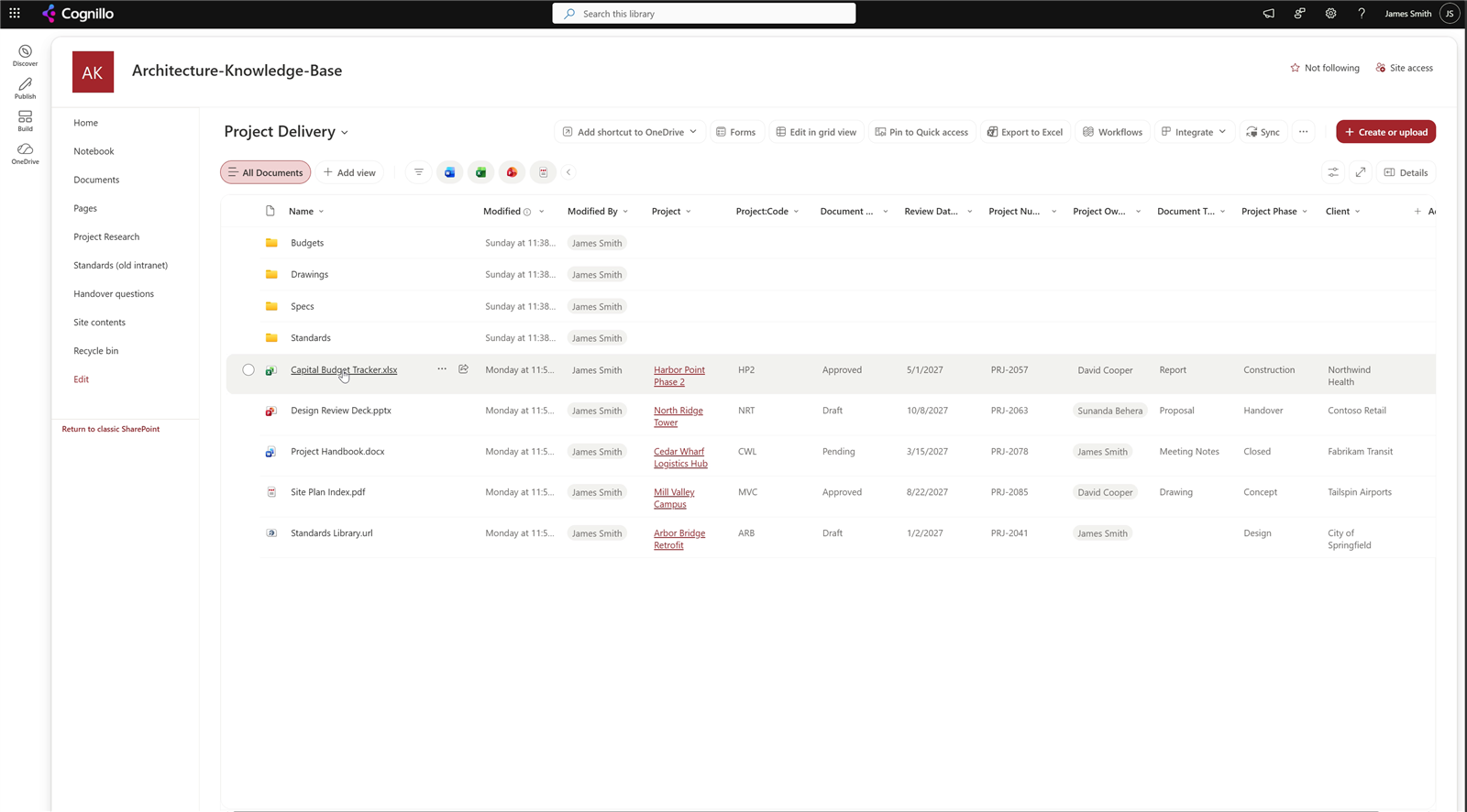
Source library metadata: Modified, Modified By, lookups and people columns.
1. Pick the source site and lists
In the toolkit, open Tasks, choose Copy sites, then find the source site in Pick source. Narrow it to specific lists is optional: leave it alone to copy every list on the site, or tick the ones you want. Community Edition copies the whole site or a single list; picking several specific lists in one job needs Professional. We picked 13.
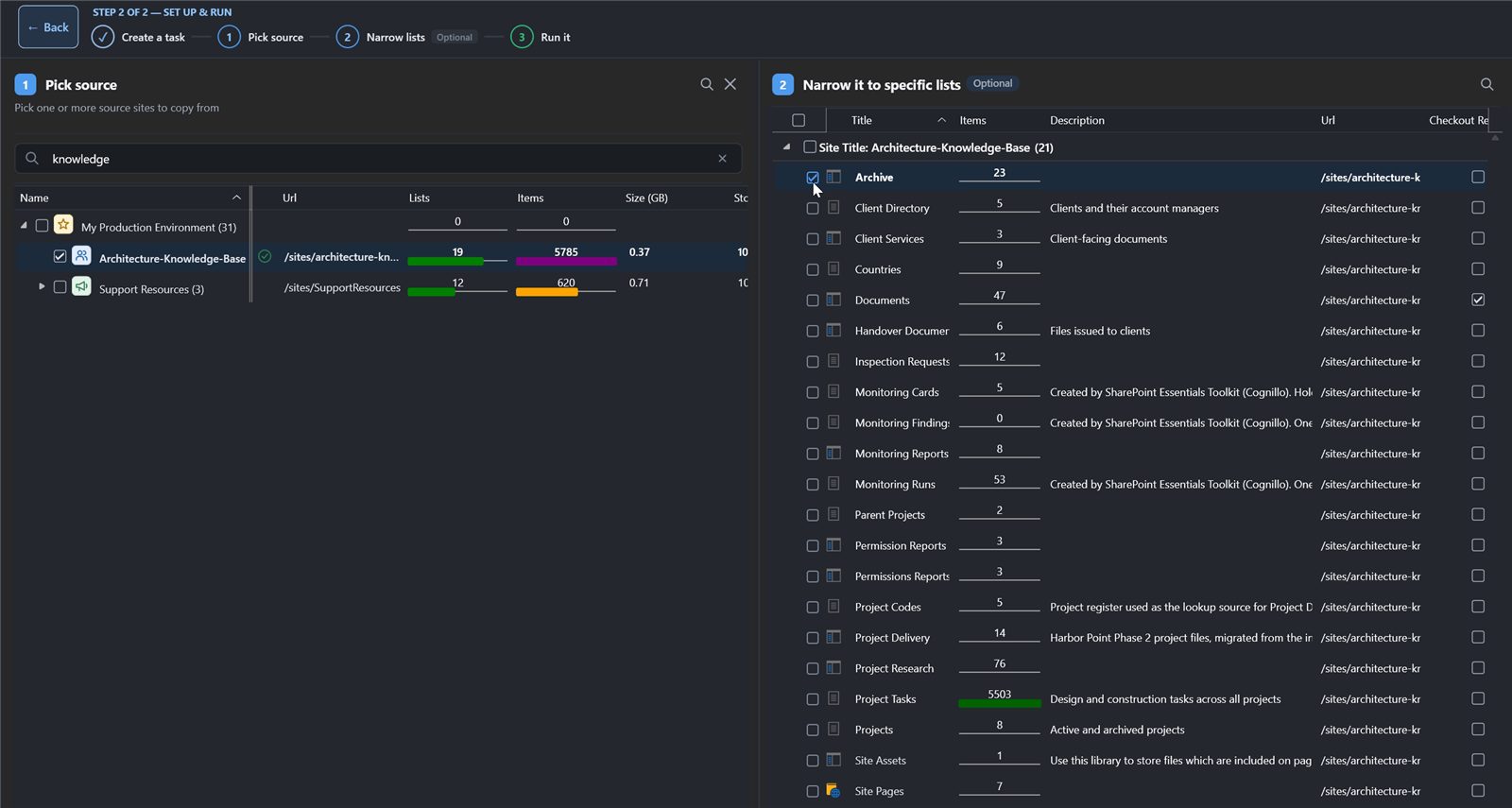
Pick source and narrow it to specific lists.
2. Pick the target site and map each list
On Target, choose Add target site and pick the destination. Each source list gets a row where you can change its name on the target, its internal name (which sets the URL) and the folder to copy into. Here we kept the names and copied into each library's root.
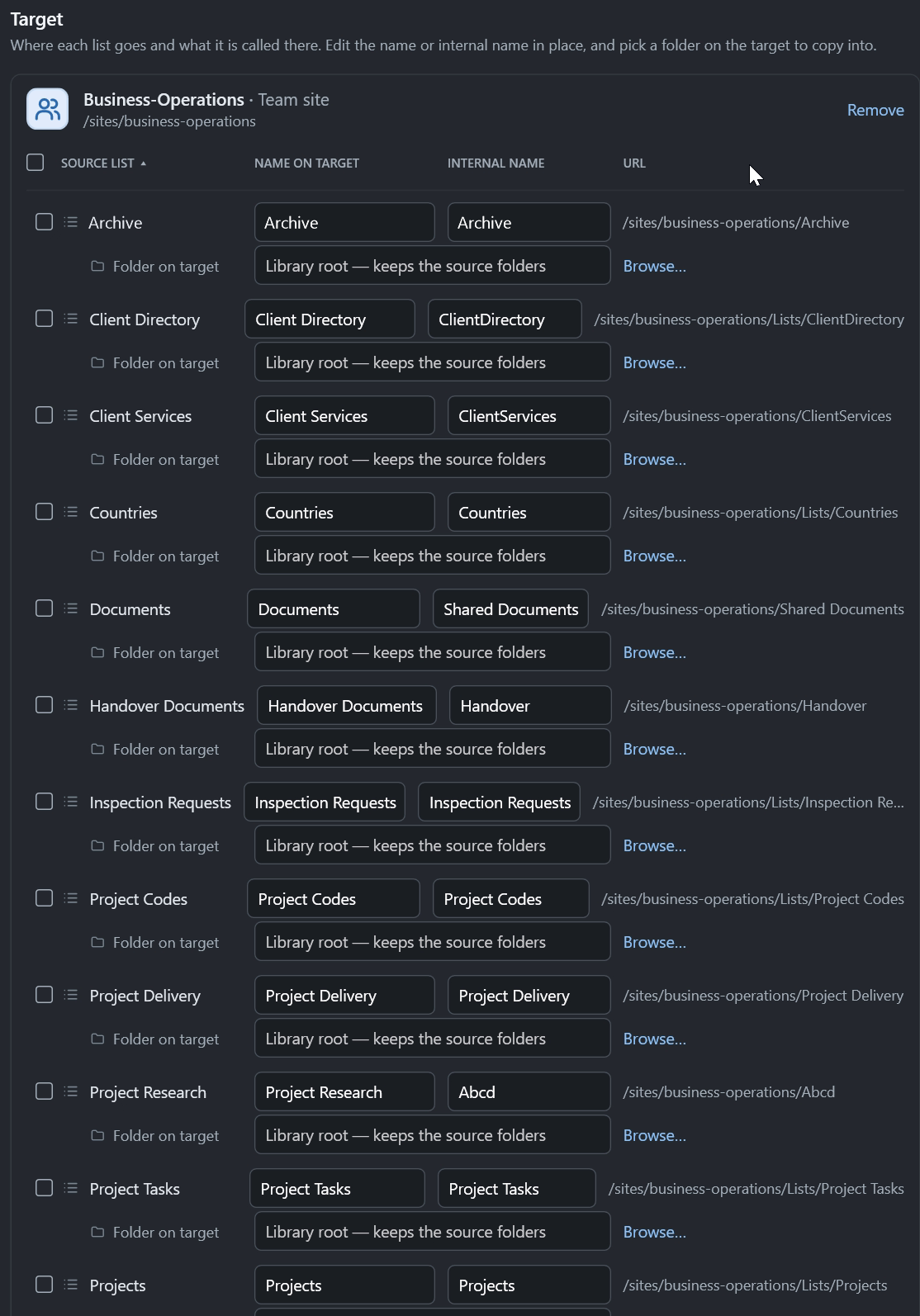
Every list mapped to the target site, with its name, internal name and URL.
Below the list, If a list with that name already exists on the target decides between adding items to it, overwriting it, or skipping it.
3. Choose what comes along
The Summary page lists everything the job will do in plain sentences, and each line links to its settings. We turned on:
Full copy, the site with its content: site features, site columns, content types, navigation, regional settings, and the theme and header.
Copy versions, with every major and minor version. Turn on Major versions only, or limit it to the most recent versions, to speed up libraries with long histories.
Copy permissions.
High-fidelity bulk copy, which uses the SharePoint Migration API and keeps versions, item IDs, authors and dates.
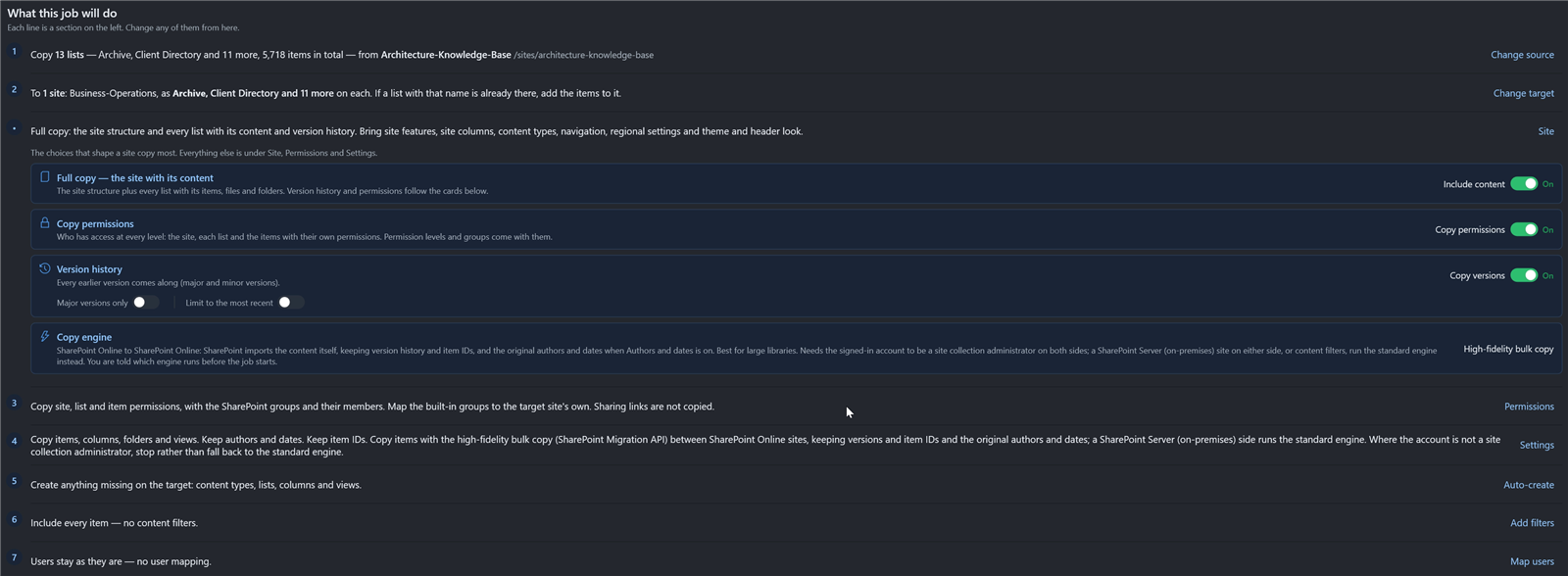
The job summary: 13 lists, 5,718 items, every version and permissions on.
Auto-create adds anything missing on the target (content types, lists, columns and views), so the target doesn't have to be prepared by hand.
4. Set permissions
Each permission level is its own switch: site permissions, SharePoint groups, group members, list permissions and item permissions. We also turned on Use the target site's Owners, Members and Visitors, so the source's built-in groups map to the target's groups instead of creating duplicates.
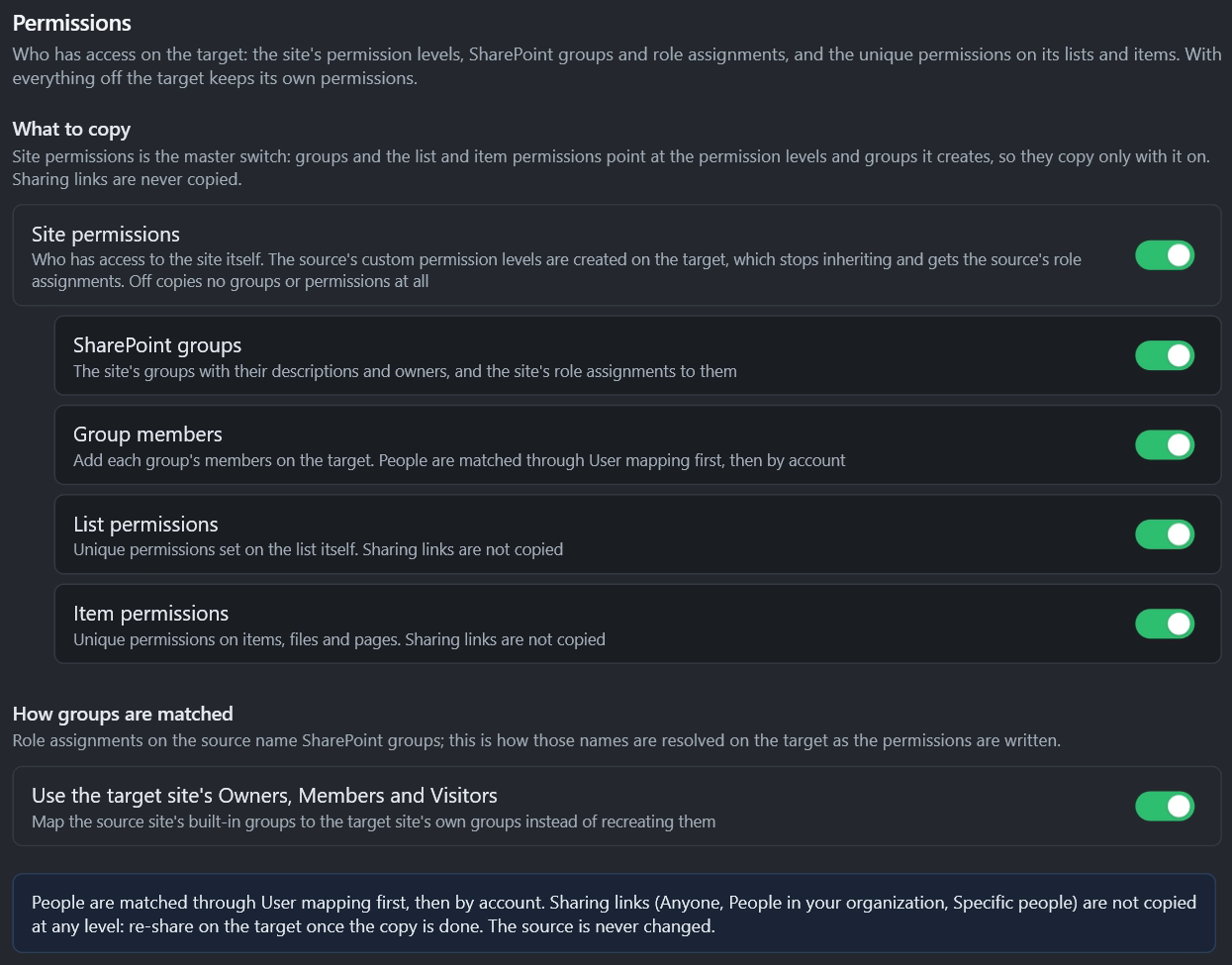
Permissions: groups, members, and list and item permissions.
Sharing links (Anyone, People in your organization, Specific people) aren't copied at any level. Share again from the target once the copy is done.
5. Map users (optional)
User mapping replaces one person with another, for people who have left or, in a tenant-to-tenant move, for accounts in the new tenant. The fallback account is written for anyone who can't be found on the target. In a copy within one tenant everyone exists, so we left it off.
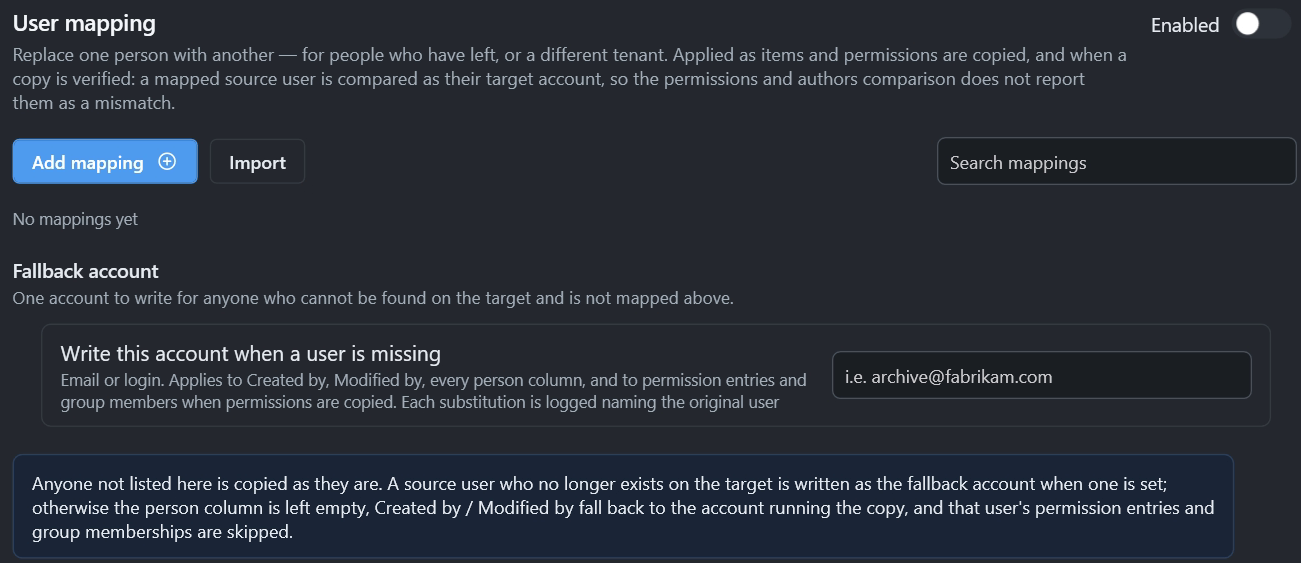
User mapping and the fallback account.
6. Run the copy
Choose Run Now. Before copying, the toolkit checked the lookup columns and found a lookup column pointing at Parent Projects, a list we hadn't selected. Without it, the lookups would arrive empty. Add it and copy puts the list in the job and copies it first.
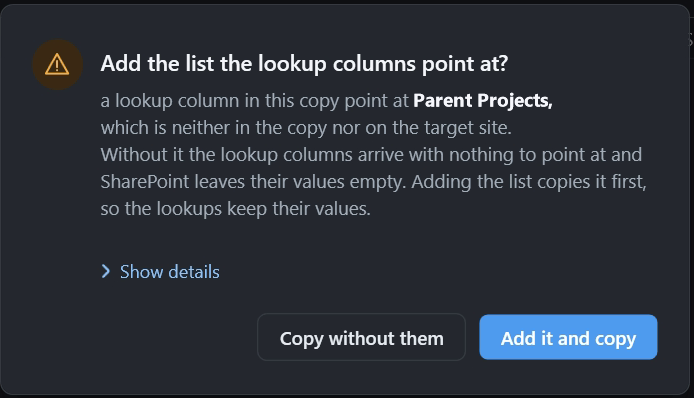
The lookup check before the copy starts.
The bulk copy exports each list from the source, then SharePoint imports it on the target. While SharePoint imports a large list, the status bar shows how many of its items have arrived on the target so far.
All 5,718 of 5,718 items and files were copied in 43 minutes. The job finished with 10 warnings and no errors. The warnings were all the same: a few items had been created by a SharePoint search service account that doesn't exist as a site user on the target, so the name was written as exported.
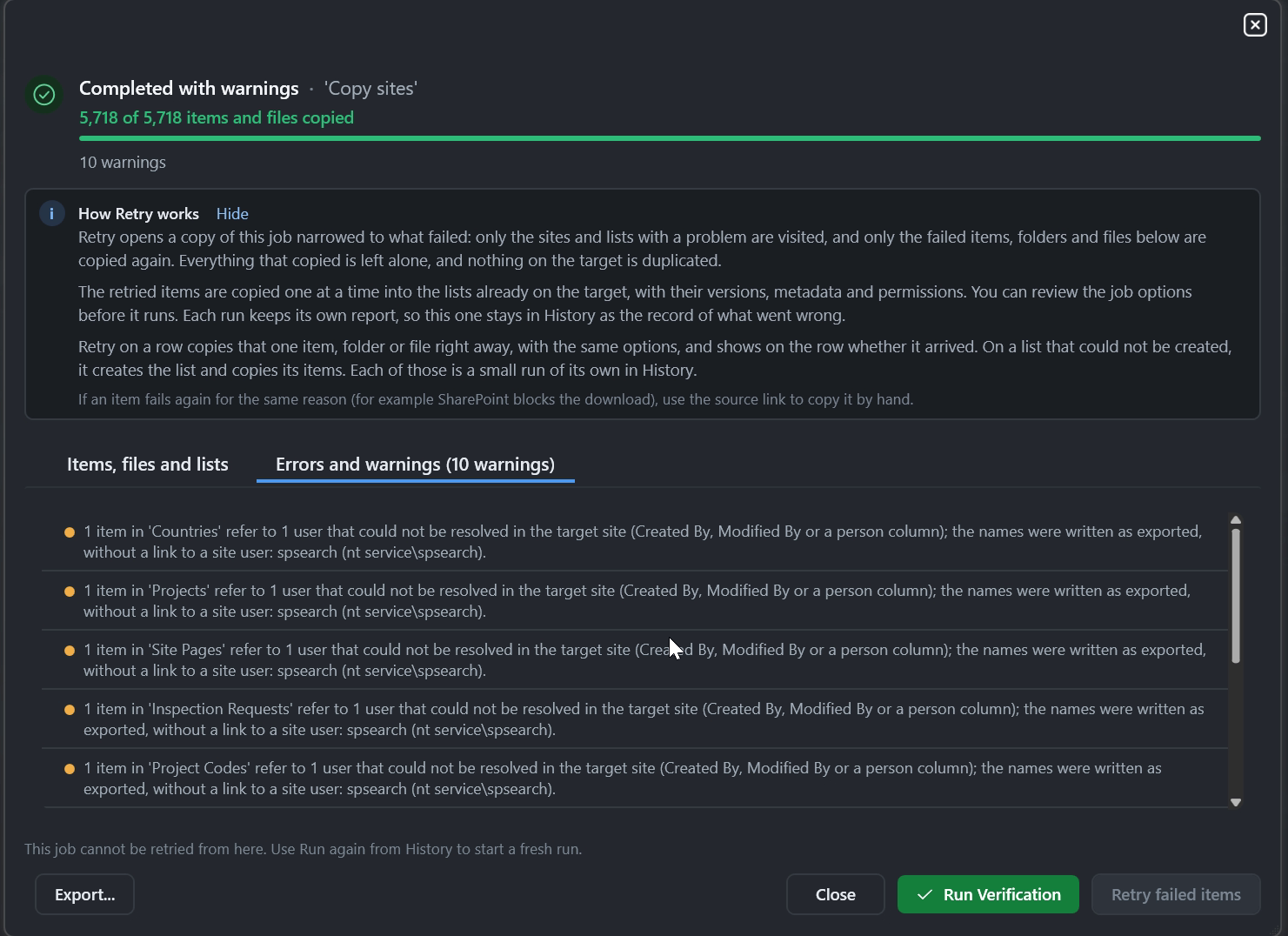
5,718 of 5,718 items and files copied, with 10 warnings about one unresolved service account.
This was our second run into the same target, with Overwrite chosen so every list was copied again. If an item fails, Retry failed items copies only what failed, without duplicating anything on the target.
7. Verify every item
Choose Run Verification. It walks every source list and looks each item up on the target, comparing size, dates, users, version and column values. Our 5,718 items were checked in 1.2 minutes.
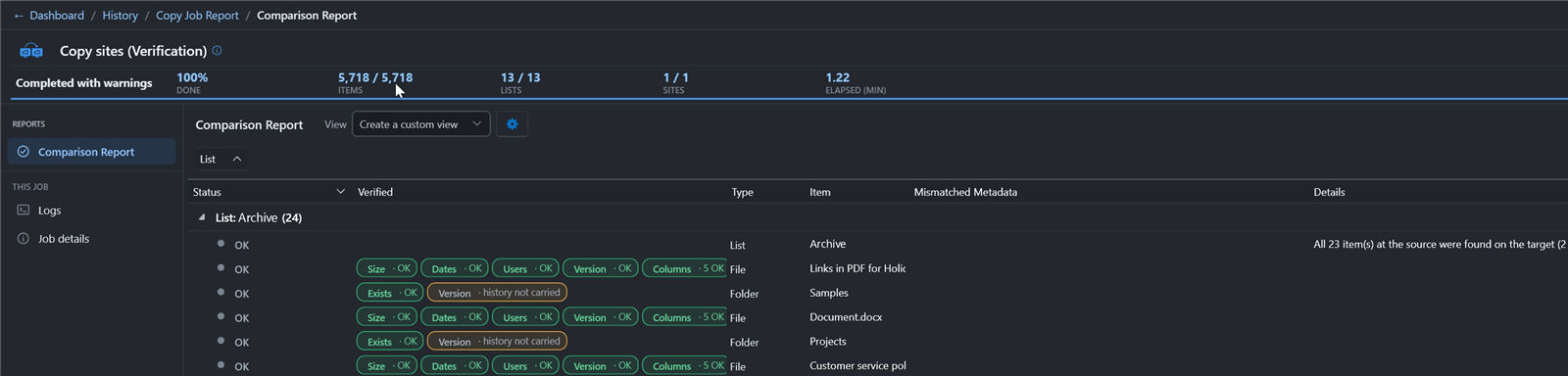
Verification: 5,718 of 5,718 items, 13 of 13 lists, each checked for size, dates, users, version and columns.
Everything matched except two Client Directory items. Their version on the target was 2.0 against 1.0 on the source, because the overwrite in the second run saved over items from the first run. That's the kind of difference worth knowing about before you retire the source, and the report shows it without having to open both sites.

Two items flagged: Version 1.0 on the source, 2.0 on the target.
8. Check the target site
The target now has the copied lists and libraries, with the same item counts.
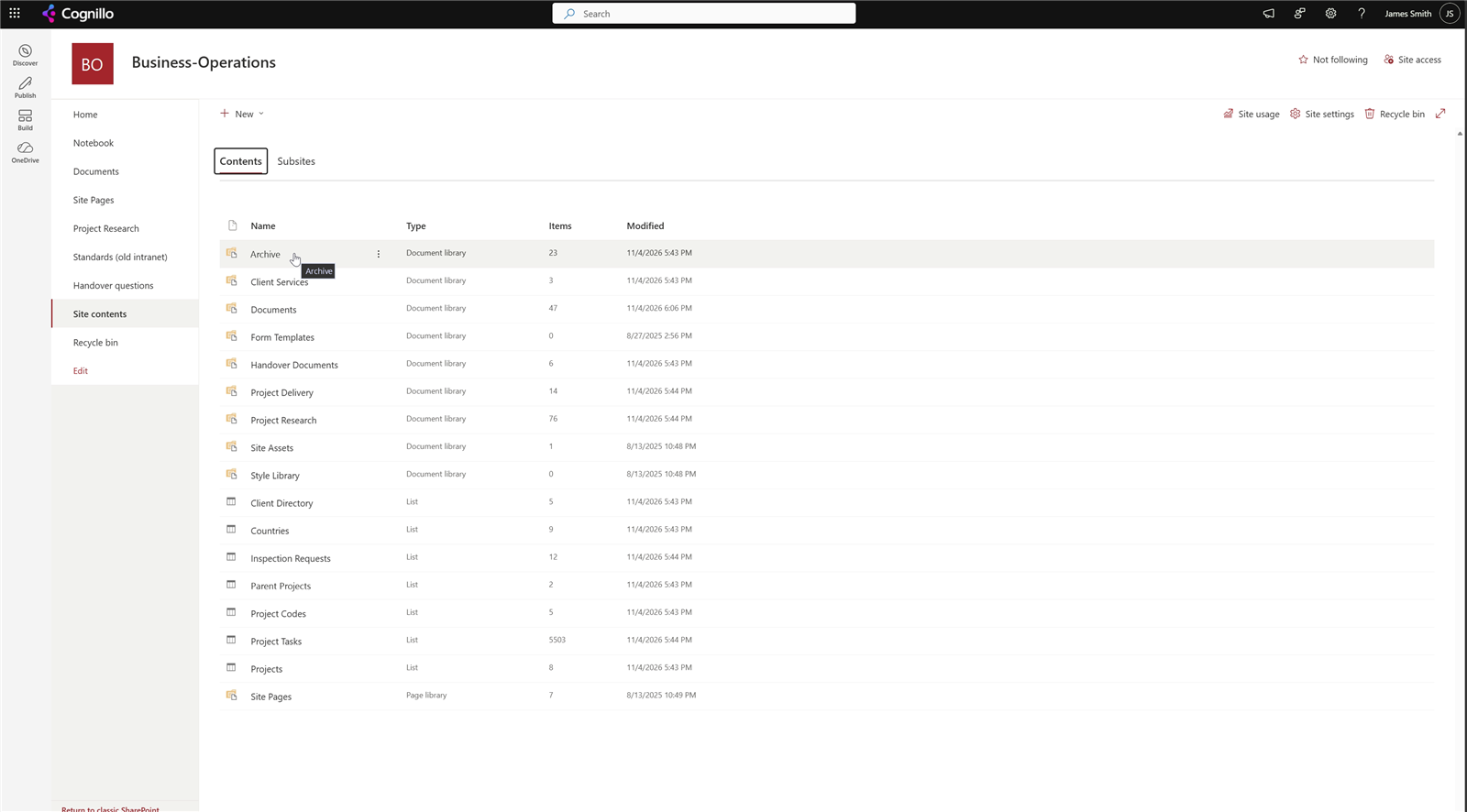
The target site after the copy.
In Project Delivery, Modified By is still James Smith, the dates are the source dates, and the project lookups, codes, review dates and people columns carried over.
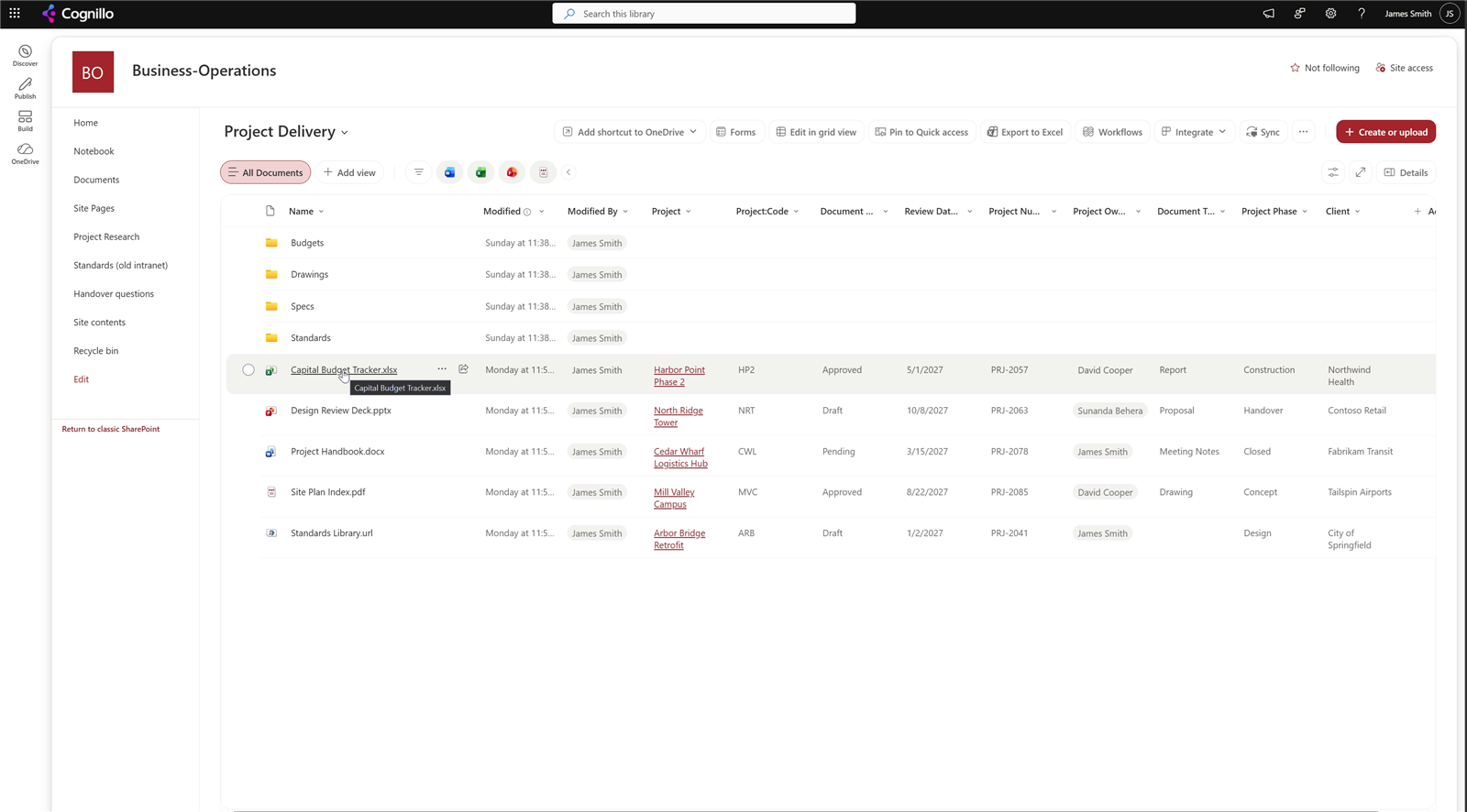
Same authors, dates and column values as the source.
Tips for a SharePoint Online to SharePoint Online migration
Include lookup source lists. Lookups only keep their values if the list they point at is copied too. The toolkit checks this before it starts, as in step 6.
Limit versions on big libraries. Every version has to be exported and imported, so long histories make the copy slower. Major versions only, or only the most recent few, is usually enough.
Map built-in groups. Matching the source's Owners, Members and Visitors to the target's avoids a second set of groups with the old site's name.
Re-share after the copy. Sharing links belong to the original files and aren't copied.
Plan for links. Links inside documents and pages still point at the old site. See how the toolkit fixes links after a migration.
Verify before you delete the source. Keep the verification report as the record of what moved.
Planning a bigger move? See the SharePoint migration checklist and free SharePoint migration tools compared.
Frequently asked questions
Is there a free SharePoint to SharePoint Online migration tool?
Yes. SharePoint Essentials Toolkit Community Edition is free on up to 20 site collections per Microsoft 365 tenant. It copies sites and lists from one SharePoint Online site to another, in the same tenant or a different one, through the SharePoint Migration API, keeping version history, authors, dates, item IDs and permissions. Microsoft's free SPMT and Migration Manager don't accept SharePoint Online as a source.
Can I copy a SharePoint Online site to another site with version history?
Yes. Turn on Copy versions in the copy job. You can bring every earlier version or only major versions, and limit the count to the most recent ones. Copy to in the SharePoint library menu copies only the latest version of each file.
Are Created By, Modified By and dates kept when copying between SharePoint Online sites?
Yes. The high-fidelity bulk copy writes the original authors and dates on the target. People who don't exist on the target can be mapped to another account, or written to a fallback account you choose.
Does the copy bring permissions and SharePoint groups?
It can. Site permissions, SharePoint groups and their members, list permissions and item permissions are separate switches, and the source groups can be matched to the target site's own Owners, Members and Visitors groups. Sharing links are not copied; share again on the target after the copy.
How do I check that a SharePoint migration copied everything?
Run Verification from the finished copy job. It reads every source list and item and looks each one up on the target, comparing size, dates, users, version and column values, and reports each item as OK, Metadata differs or Missing on target. In our run it checked 5,718 items in 1.2 minutes.
Can it migrate SharePoint Online to another tenant?
Yes. Add a connection for the second tenant and pick the target site from it. The steps are the same as a copy within one tenant, and user mapping matches people from the old tenant to accounts in the new one.
Comparing tools? See the SharePoint migration tools comparison: which ones fix broken links.
Copy your first SharePoint Online site for free
SharePoint Essentials Toolkit Community Edition is free on up to 20 site collections per Microsoft 365 tenant. Copy sites and lists between SharePoint Online sites or tenants with versions, authors, dates and permissions, then verify every item. Get your free Community Edition license key.
About the author. The Cognillo SharePoint Team builds and supports SharePoint Essentials Toolkit and has worked with SharePoint administrators on permissions audits, migrations and cleanup projects since 2012.