Included with SharePoint Essentials Toolkit. See editions and pricing
SharePoint Essentials Toolkit · Migration
SharePoint Migration Tool: Copy Sites With Versions, Metadata and Permissions
Migrate SharePoint Online to SharePoint Online, from one tenant to another, or from SharePoint Server 2019 and Subscription Edition. Sites and lists arrive with every version, their original authors and dates, item IDs, column values and permissions, through the Microsoft Migration API. Check the target before you copy, then verify the result item by item. Free on up to 20 sites.
The SharePoint Online to SharePoint Online gap
Site reorganizations, splitting one site into several, consolidating after a merger and moving to a new tenant all start in SharePoint Online. Microsoft's free migration tools don't cover them:
- SharePoint Migration Tool (SPMT) moves SharePoint Server and file shares to SharePoint Online, but doesn't accept SharePoint Online as a source.
- Migration Manager moves file shares and cloud drives, not SharePoint.
- Copy to in a library moves files with the latest version only, and no lists, permissions or site settings.
- Cross-tenant SharePoint migration is licensed per volume moved, runs once, and needs a target site that doesn't exist yet.
SharePoint Essentials Toolkit fills that gap, and adds the audit and verification reports around the copy that migration projects need.
What you can migrate
| From | To | Engine |
|---|---|---|
| SharePoint Online | SharePoint Online, same tenant or another tenant | High-fidelity bulk copy (Migration API), or standard |
| SharePoint Server 2019 or Subscription Edition | SharePoint Online | Standard |
| SharePoint Server 2019 or Subscription Edition | SharePoint on-premises | Standard |
Moving from SharePoint 2010, 2013 or 2016? Microsoft's free SPMT handles those farms; see how to migrate SharePoint on-premises to Online for where each tool fits.
What the migration tool does
Copy sites
Copy whole sites into an existing target: lists, libraries, pages, navigation, site features, permission levels, groups and subsites. Pick the targets with Explore, which searches every site your account can see.
Copy lists
Copy individual lists and libraries, with their columns, content types, views and items, into the same site, another site or another tenant. Duplicate a list to several targets.
High-fidelity bulk copy
The default engine stages each list in encrypted Azure storage and has SharePoint Online import it through the Microsoft Migration API. Authors, dates, versions and item IDs are kept, and no alerts or workflows fire.
Standard engine
Copies item by item through the SharePoint client API, for on-premises sources and filtered copies, with Skip, Update or Overwrite for items that already exist on the target.
Permissions and people
Site, list, folder and item permissions, custom permission levels, SharePoint groups and their members. Map built-in groups to the target's Owners, Members and Visitors, and map users who have left to a replacement.
Versions and metadata
Every version, the latest N, or major only, including minor versions. Column values on each version, managed metadata, lookups re-pointed and calculated columns recreated.
Check before, verify after
Check before you copy
Finds what would block or change the copy before it runs, such as target libraries that keep major versions only while the source has minor versions, and offers to fix the target.
Copy verification
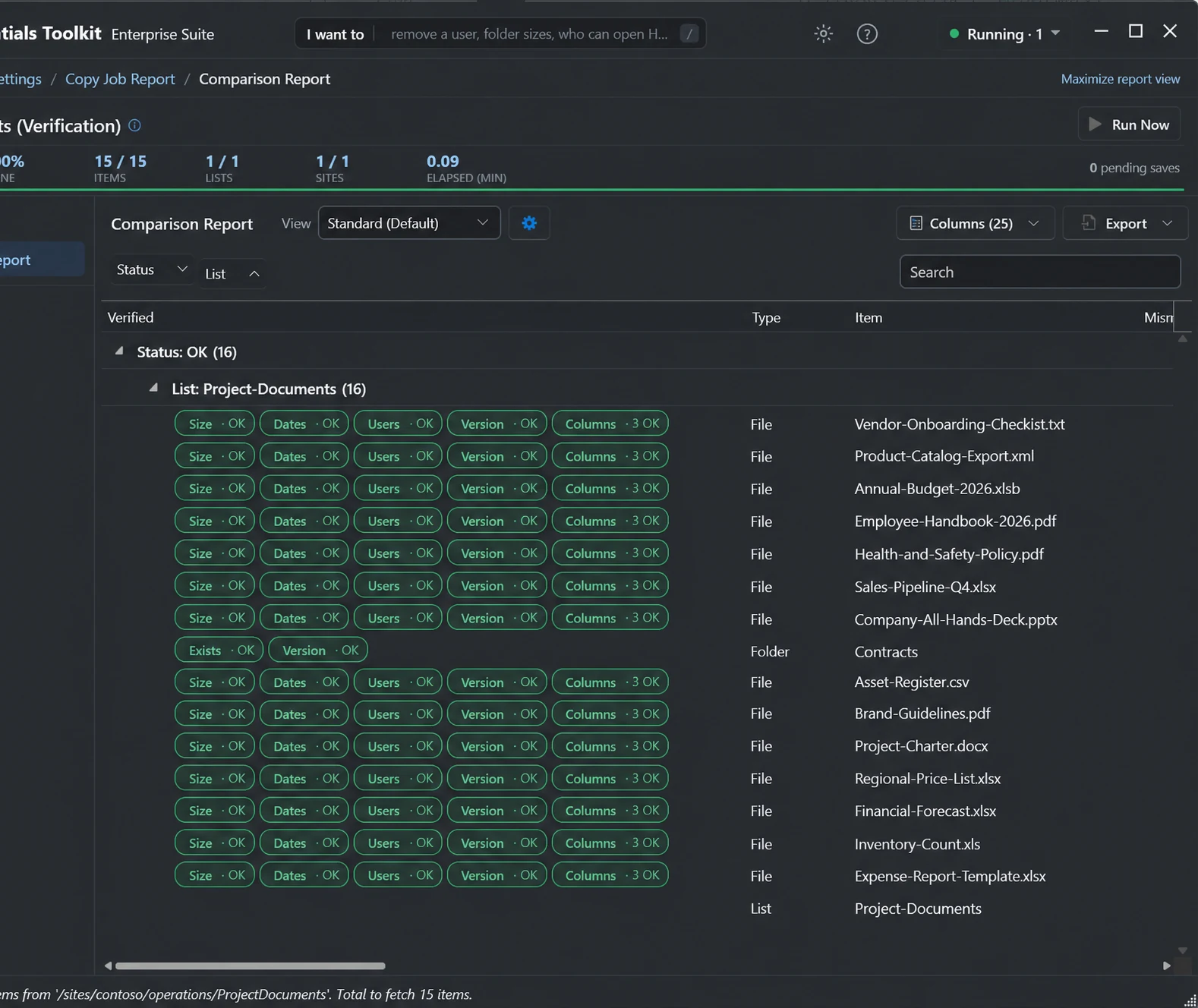
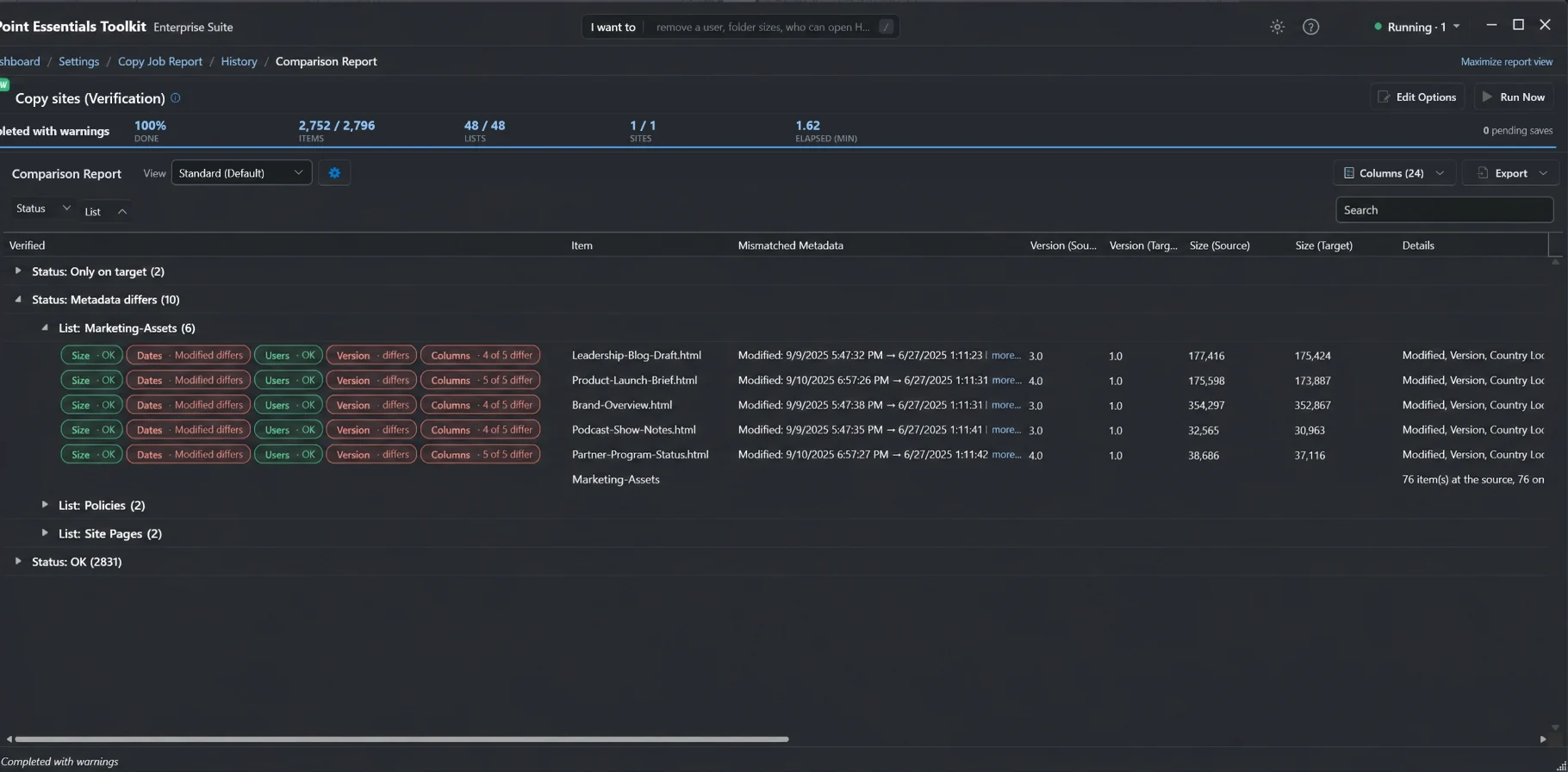
Compares source and target item by item on size, dates, people, version and column values, and lists anything missing or different. In our 48-list test, it took 1.6 minutes.
Pre-migration reports
Inventory, permissions, sharing links and broken links on the source, so you know what you're moving and can clean it up first.
Prepare links for migration
Capture link paths on the source, then fix links that still point to the old site on the target with the Broken Link Manager.
Pages and custom script
New SharePoint Online sites have custom script turned off, and the Migration API won't import pages into such a site. When Site Pages is in the copy and you run it as a SharePoint Administrator, the job turns custom script on for the target while pages are imported, with their version history, and turns it off again when the copy ends. Without that role, pages are copied with the standard engine as their latest version.
What isn't migrated
Workflows and Power Automate flows, sharing links, comments, alerts, the recycle bin and classic publishing layouts. The target site must already exist, and you set hub associations on it. Files up to SharePoint Online's 250 GB limit can be copied; a default setting skips files over 4 GB, which you can raise.
Editions
| Capability | Community (free) | Professional | Enterprise |
|---|---|---|---|
| Copy sites and lists, both engines, Migration API | Yes | Yes | Yes |
| Version history, item permissions, user and group mapping | Yes | Yes | Yes |
| Check before you copy, Copy verification, prepare links | Yes | Yes | Yes |
| Several source lists into one target (consolidation) | No | Yes | Yes |
| Find and replace links after the move | Lists with fewer than 100 items | Lists with fewer than 100 items | Unlimited |
| Sites | 20 per tenant, 20 per job | More sites; see pricing and the full comparison | |
Frequently asked questions
Can I migrate from one SharePoint Online site to another?
Yes. Microsoft's SharePoint Migration Tool and Migration Manager don't accept SharePoint Online as a source, and Copy to in a library brings only the latest version of files. SharePoint Essentials Toolkit copies sites and lists between SharePoint Online sites, in the same tenant or another tenant, through the Microsoft Migration API, keeping versions, authors, dates, item IDs and permissions.
Does it keep version history, Created By and Modified dates?
Yes. The high-fidelity bulk copy engine keeps every version (or the latest N, or major only, including minor versions), Created and Modified dates, authors and item IDs. Because item IDs are kept, lookup columns still point at the right items after the copy.
Can I migrate SharePoint 2019 or Subscription Edition?
Yes. SharePoint Server 2019 and Subscription Edition sites can be copied to SharePoint Online or to another on-premises farm with the standard copy engine, which also supports content filters and Skip, Update or Overwrite for items that already exist.
How fast is the migration?
In our tests, the bulk copy engine moves about 2 to 3 GB per hour, including every major and minor version, metadata and broken permission inheritance. An October 2026 test site of about 2.6 GB, with 48 lists and about 2,800 items, copied in about 62 minutes with no errors. Speed depends more on file count, versions and SharePoint throttling than on size.
What is not migrated?
Workflows and Power Automate flows, sharing links, comments, alerts, the recycle bin and classic publishing layouts aren't copied. The target site must already exist, and hub associations are set on the target by hand.
Is the SharePoint migration tool free?
Yes, on up to 20 site collections per Microsoft 365 tenant and 20 sites per job with Community Edition. Both copy engines, version history, permissions, Check before you copy and Copy verification are included. Copying several source lists into one needs Professional, and more sites need a paid edition.
Guides and related features
Migrate your first site free
SharePoint Essentials Toolkit Community Edition copies sites with versions and permissions, and verifies the result, on up to 20 sites per Microsoft 365 tenant. No item caps, no trial period.
Get your free Community Edition license key Plan a larger migration with us