Moving or Copying SharePoint Files Between Sites: What Keeps Its Metadata, Versions and Dates, and What Doesn't
SharePoint's Copy to keeps version history but resets the Created date, and drops any column, content type or Document ID the target library doesn't already have. Move to keeps more, but removes the source. To keep metadata, create the same columns and content types on the target first, or use a tool that creates them, keeps the original dates and item IDs, and reports what it couldn't copy, such as the free SharePoint Essentials Toolkit.
Published:
Last updated: 2026-10-29
What we tested
Our source file, A-101 Ground Floor Plan, has three versions (Rev A, Rev B, Rev C), the Architectural Drawing content type, a DrawingNumber site column set to A-101, and a Document ID. We copied it to the Documents library of another site with the same CreateCopyJobs API that the Copy to command uses, once with default options and once with version history explicitly kept.
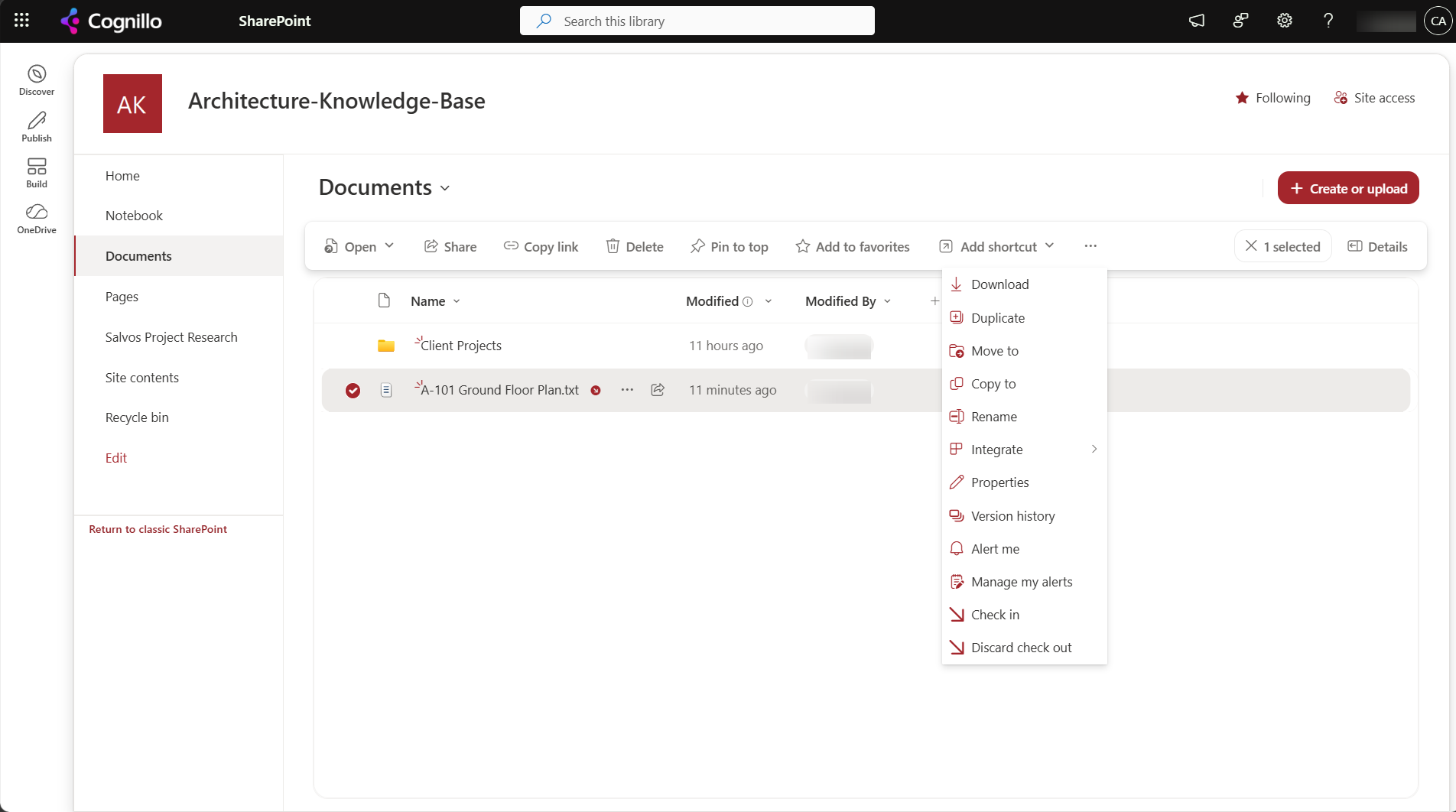
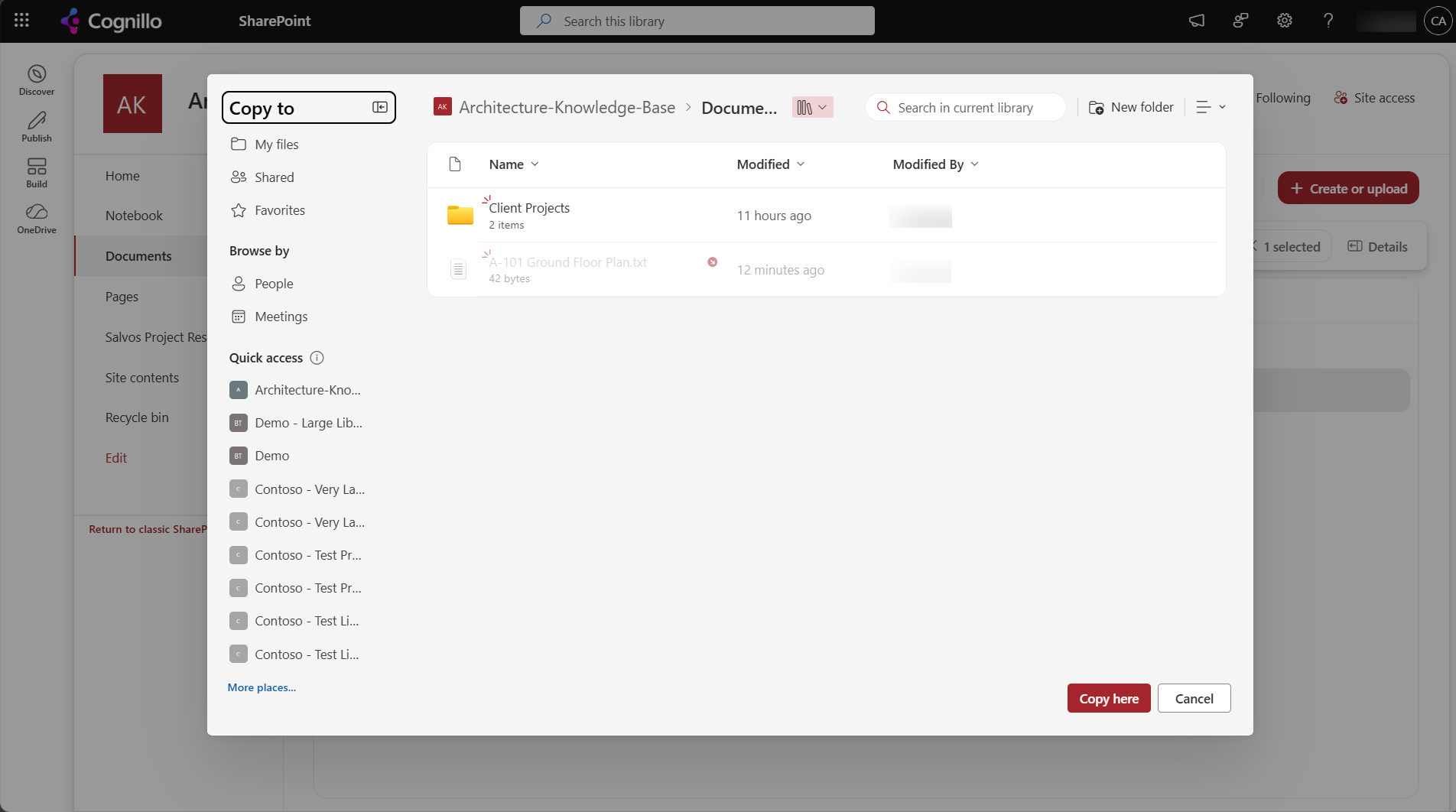
What Copy to kept and dropped
| Property | Copy to (both runs) |
|---|---|
| File and current version | Kept (3.0) |
| Version history | Kept: 1.0 Rev A, 2.0 Rev B |
| Created date | Reset to the time of the copy |
| DrawingNumber column | Dropped (the target library didn't have it) |
| Architectural Drawing content type | Dropped; the copy became a Document |
| Document ID | Not kept; the target assigns its own if the feature is on |
| Item ID | New ID in the target list |
| Permissions | Inherits the target folder's |
No error or warning was reported for the dropped values. Copy to only writes into columns the target already has, so a column that's missing on the target is silently lost.
Move to versus Copy to
| Move to | Copy to | |
|---|---|---|
| Version history | Kept | Kept |
| Created, Modified and their By columns | Kept | Created is reset |
| Columns missing on the target | Values dropped | Values dropped |
| Source file | Removed (kept until the move finishes) | Stays |
| Links to the file | Path links break; see what breaks when a URL changes | Point at the original |
| Size limits | Microsoft's documented limits for one operation: 100 GB total, 30,000 files, 15 GB per file | |
Option 1: Keep metadata with built-in tools
- Create the columns and content types on the target first. Use the same internal names. Site columns and content types published from the content type gallery are the easiest way; see content types and site columns.
- Use Move to rather than Copy to when the source doesn't need to stay, so dates and authors are kept.
- Copy a whole library by saving it as a template only for small libraries. It doesn't include version history and is limited in size.
- Check afterwards. Add the columns to a view on the target and compare a few files with the source.
Option 2: Copy with PowerShell and check what was lost
PnP PowerShell's Copy-PnPFile uses the same copy service. This script lists the columns the source library has and the target doesn't, so you know what Copy will drop, then copies only when you set $WhatIf = $false. It needs PnP PowerShell 2.x and your own Entra ID app registration.
$ClientId  = "<your-app-id>"
$SourceUrl = "https://contoso.sharepoint.com/sites/Projects"
$TargetUrl = "https://contoso.sharepoint.com/sites/Archive"
$SourceLib = "Documents"
$TargetLib = "Documents"
$File      = "Shared Documents/A-101 Ground Floor Plan.docx"   # site-relative
$WhatIf    = $true

$src = Connect-PnPOnline -Url $SourceUrl -Interactive -ClientId $ClientId -ReturnConnection
$dst = Connect-PnPOnline -Url $TargetUrl -Interactive -ClientId $ClientId -ReturnConnection
$filter = { -not $_.Hidden -and -not $_.ReadOnlyField -and $_.Group -ne "_Hidden" }
$srcFields = Get-PnPField -List $SourceLib -Connection $src | Where-Object $filter
$dstNames  = (Get-PnPField -List $TargetLib -Connection $dst).InternalName
$missing   = $srcFields | Where-Object { $_.InternalName -notin $dstNames }
"Columns the copy would drop: {0}" -f (($missing.InternalName) -join ", ")
$srcCts = (Get-PnPContentType -List $SourceLib -Connection $src).Name
$dstCts = (Get-PnPContentType -List $TargetLib -Connection $dst).Name
"Content types missing on target: {0}" -f (($srcCts | Where-Object { $_ -notin $dstCts }) -join ", ")

if (-not $WhatIf) {
    $targetFolder = (Get-PnPList -Identity $TargetLib -Connection $dst -Includes RootFolder.ServerRelativeUrl).RootFolder.ServerRelativeUrl
    Copy-PnPFile -SourceUrl $File -TargetUrl $targetFolder -Connection $src -Force
}
Use Move-PnPFile instead of Copy-PnPFile to move. Neither keeps the Created date on a copy or creates missing columns.
Option 3: Copy lists and libraries with SharePoint Essentials Toolkit
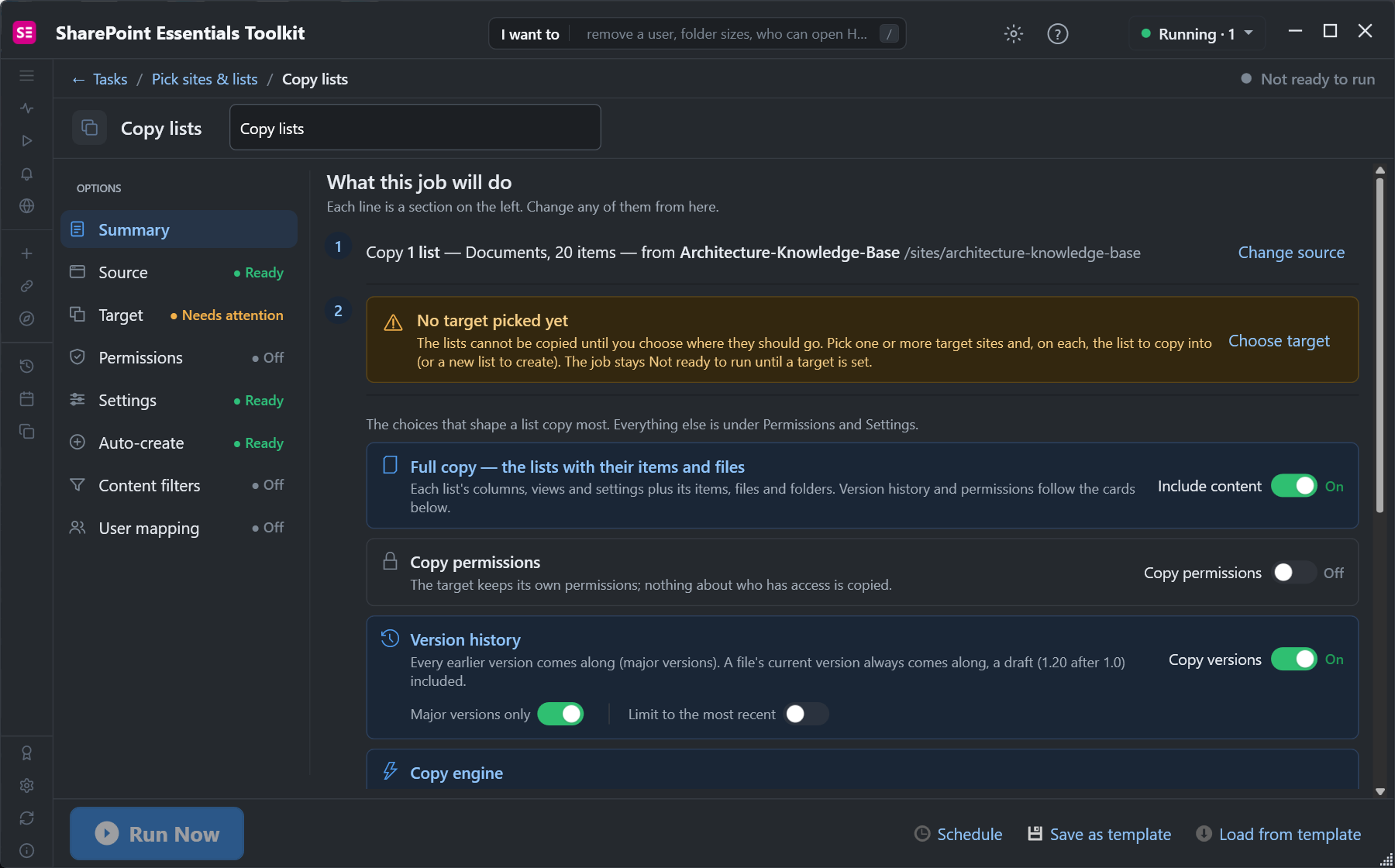
The toolkit's Copy & move > Copy lists task copies whole lists and libraries between sites and tenants. The summary page shows the choices that decide what arrives: content, permissions and version history:
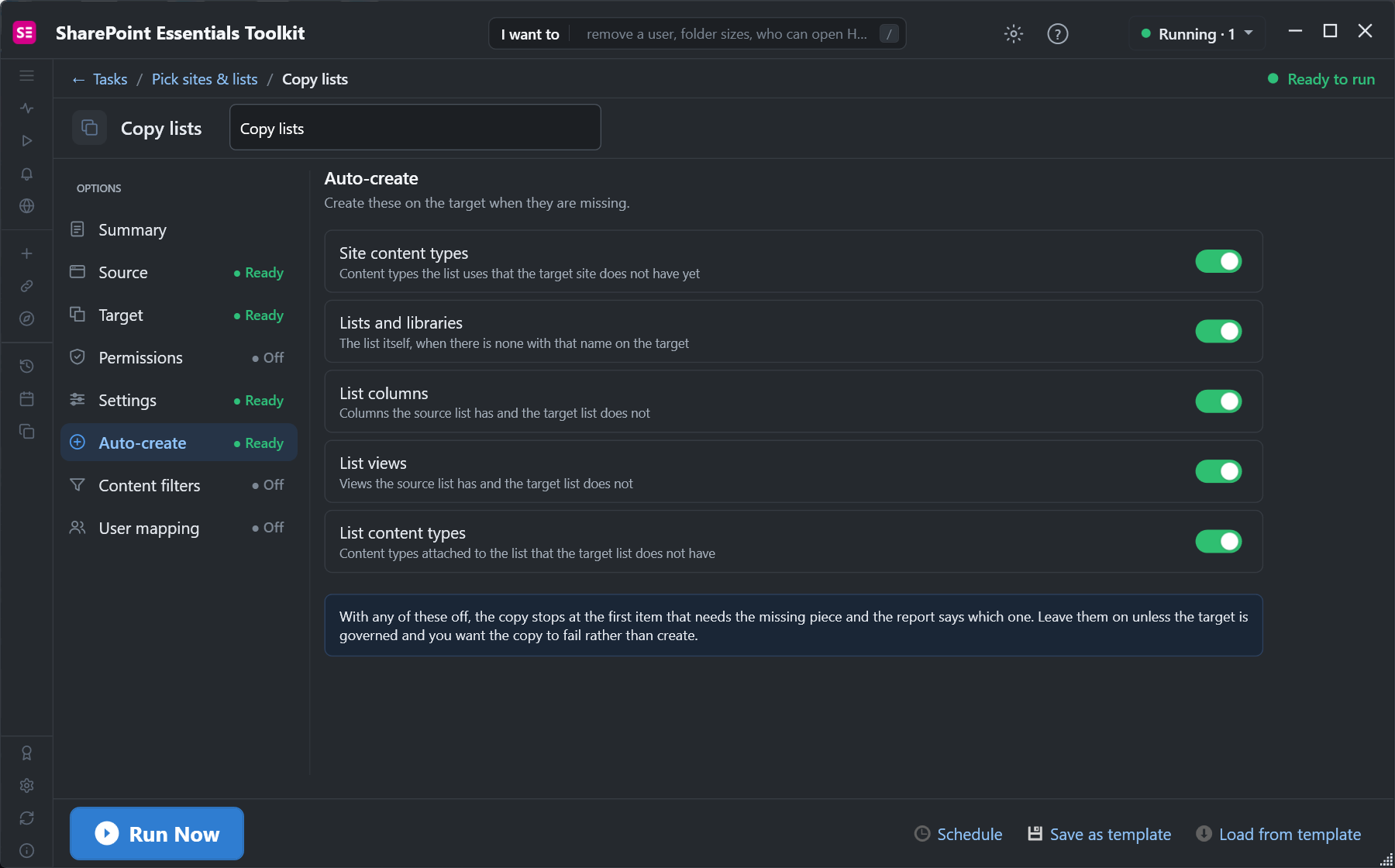
Auto-create creates what Copy to silently drops: the site content types, columns, views and list content types the target doesn't have yet:
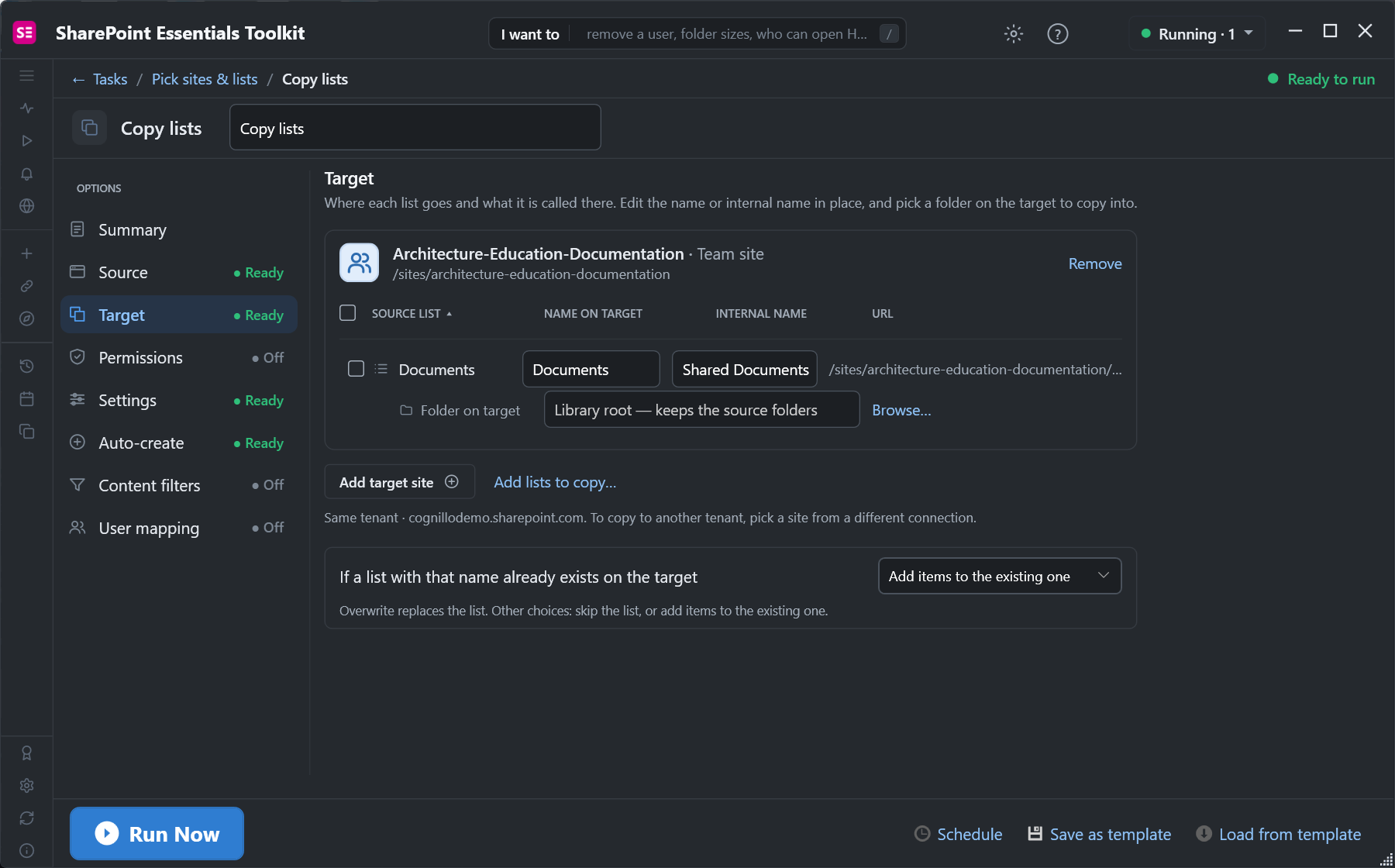
In our run, the toolkit copied all 20 items and files of the library. The five files we compared kept their item IDs (8 to 12) and their original Created dates, which Copy to resets. When something couldn't be copied as-is, it said so instead of dropping it:
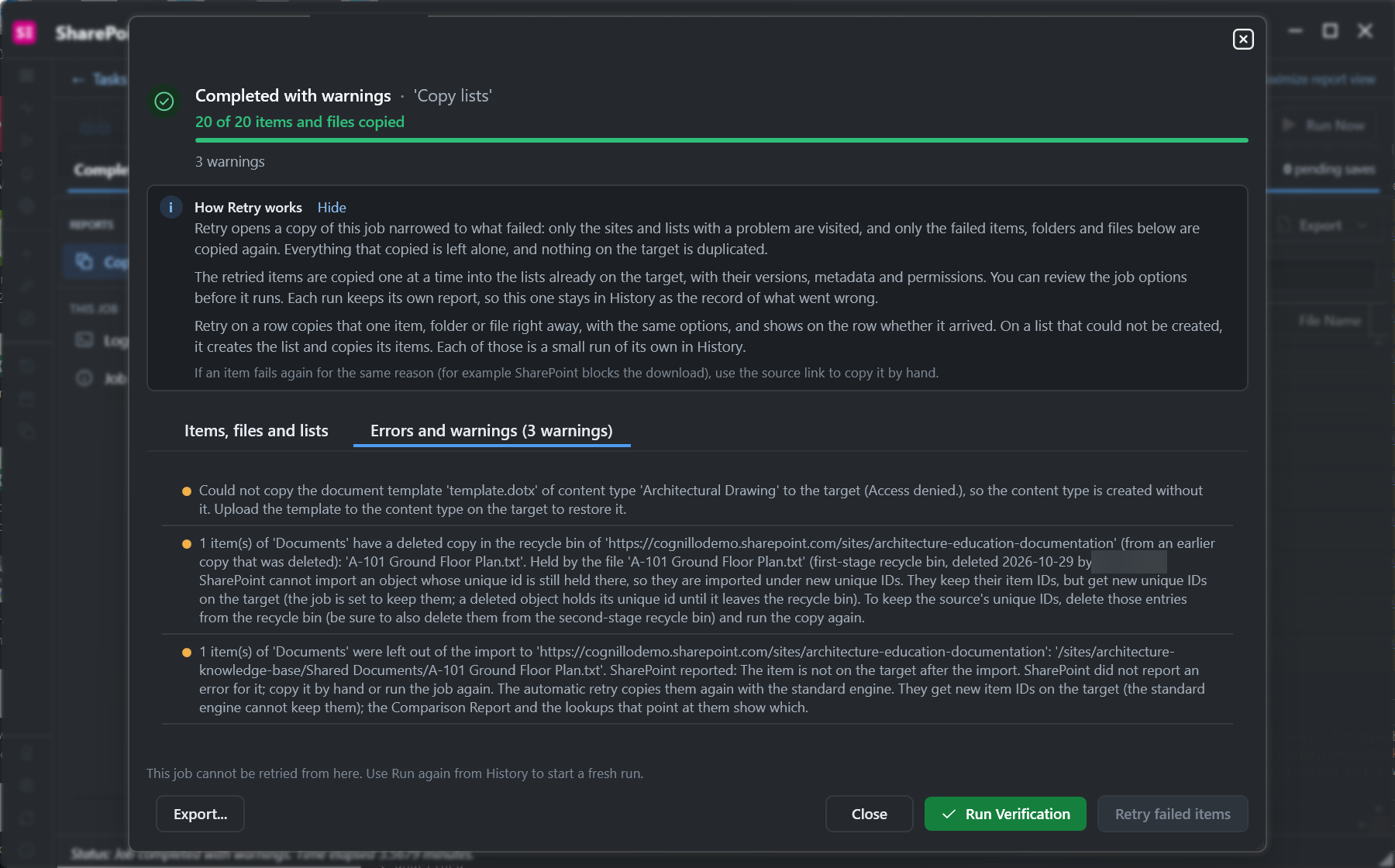
Two of those warnings are worth knowing about whatever tool you use:
- A deleted copy in the target's recycle bin holds the file's unique ID. If you copied a file before and deleted it, SharePoint won't import a new copy with the same unique ID until the old one leaves both recycle bins. Empty them, or accept a new ID.
- Content type document templates (the .dotx a content type opens with) are stored apart from the files. Ours failed with Access denied, so the content type arrived without it. Upload the template to the content type on the target afterwards.
After a copy, Run Verification compares source and target item by item.
Frequently asked questions
Does SharePoint Copy to keep version history?
Yes, in our test both the default copy and the copy with version history turned on kept all versions. It reset the Created date and dropped columns and content types the target didn't have.
Why did my SharePoint metadata disappear after copying to another site?
Copy to and Move to only write into columns the target library already has. Create the same columns (same internal names) and content types on the target before copying.
How do I keep the Created date when copying SharePoint files?
Copy to resets it. Move to keeps it, but removes the source. A migration tool that sets Created, Modified and their By columns keeps them on a copy.
Does the Document ID stay the same when a file is copied to another site?
No. The copy is a new document, and the target site collection assigns its own ID if the Document ID service is on. A move within the same site collection keeps the ID.
What is the size limit for SharePoint Move to and Copy to?
Microsoft documents 100 GB total, 30,000 files and 15 GB per file for one operation. Larger moves need several operations or a migration tool.
Copy SharePoint libraries with their metadata, free
SharePoint Essentials Toolkit Community Edition is free. Copy lists and libraries between sites with versions, original dates, item IDs and missing columns created, on up to 20 sites per Microsoft 365 tenant. Get your free Community Edition license key.