Renaming a SharePoint List or Library: Why the URL Doesn't Change, How to Change It, and What Breaks
Renaming a list or library in SharePoint changes only its title. The URL keeps the name it was created with, so a library created as "Abcd" and renamed "Salvos Project Research" still lives at /Abcd. To change the URL you have to move the root folder with PowerShell, and when you do, every link that uses the old path returns 404: SharePoint adds no redirect. Find and fix the links first, for example with the free SharePoint Essentials Toolkit.
Published:
Last updated: 2026-10-29
Rename changes the title, not the URL
We created a library called Client Deliverables, then renamed it in List settings. The title changed; the URL stayed /sites/architecture-knowledge-base/Client Deliverables. The same happens with Rename in Site contents and with Set-PnPList -Title.
That's why so many libraries have URLs that don't match their names. On our demo site, several don't, for example:
| Title | URL |
|---|---|
| Salvos Project Research | /sites/architecture-knowledge-base/Abcd |
| Handover Documents | /sites/architecture-knowledge-base/Handover |
| Documents | /sites/architecture-knowledge-base/Shared Documents |
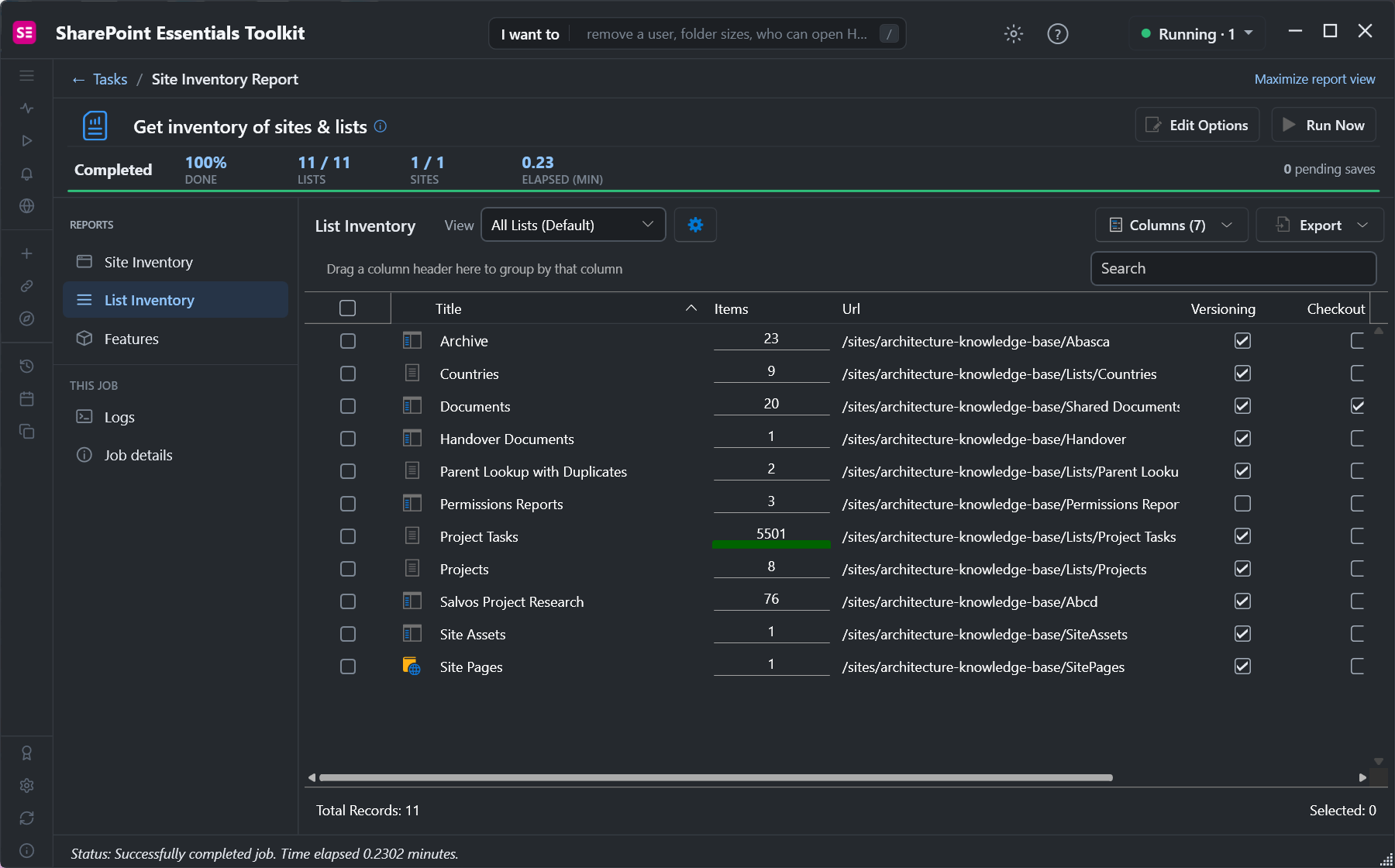
Keeping the URL is the safe default: links, sync, flows and apps that use the path keep working after a rename.
Changing the URL breaks every path link
To change the URL we moved the library's root folder to /Handover. Afterwards:
| URL | Result |
|---|---|
Old library URL (/Client Deliverables/Forms/AllItems.aspx) | 404 NOT FOUND |
Old file URL (/Client Deliverables/file.docx) | 404 |
New file URL (/Handover/file.docx) | 200 |

What uses the path and breaks:
- Links in pages, Quick Links and other web parts, and site navigation.
- Links inside Word, Excel, PowerPoint and PDF files, including Excel data connections and linked workbooks.
- Power Automate flows and Power Apps that use the library path, and Teams tabs.
- Bookmarks and links in emails.
- OneDrive sync of that library: users have to stop syncing and sync again.
What keeps working: links that use the file's ID instead of its path. Document ID links (DocIdRedir.aspx?ID=...) and sharing links find the file wherever it is in the site collection.
Option 1: Rename safely with built-in settings
- To change only what people see, rename: Settings, Library settings, List name, description and navigation. Nothing breaks.
- To change the URL without PowerShell, create a new library with the URL you want and Move to the files into it. Move keeps versions and metadata within a tenant, but it's still a URL change for every file, so the same links break. See moving files between sites.
- Before either URL change, turn on the Document ID service so new links are ID-based.
Option 2: Change the URL with PowerShell
SharePoint has no setting for a list URL, but moving the root folder changes it. This PnP PowerShell script shows what would change and only moves when you set $WhatIf = $false. It needs PnP PowerShell 2.x and your own Entra ID app registration.
$ClientId = "<your-app-id>"
$SiteUrl  = "https://contoso.sharepoint.com/sites/Projects"
$List     = "Salvos Project Research"
$NewName  = "SalvosResearch"        # last part of the new URL, no spaces is safest
$WhatIf   = $true

Connect-PnPOnline -Url $SiteUrl -Interactive -ClientId $ClientId
$l   = Get-PnPList -Identity $List -Includes RootFolder.ServerRelativeUrl, ParentWebUrl
$old = $l.RootFolder.ServerRelativeUrl
$new = ($l.ParentWebUrl.TrimEnd('/') + "/" + $NewName)
"Title   : {0}`nOld URL : {1}`nNew URL : {2}`nItems   : {3}" -f $l.Title, $old, $new, $l.ItemCount

if ($WhatIf) { "WhatIf: nothing moved. Every link that starts with $old will return 404 afterwards." }
else {
    $l.RootFolder.MoveTo($new)
    Invoke-PnPQuery
    (Get-PnPList -Identity $l.Id -Includes RootFolder.ServerRelativeUrl).RootFolder.ServerRelativeUrl
}
For lists (not libraries) the URL usually includes /Lists/; keep it in $new. Move the root folder of a library with retention labels or holds only after checking with your compliance team.
Option 3: Find and fix the links with SharePoint Essentials Toolkit
The work in a URL change is the links. The toolkit's Links area covers both sides of it:
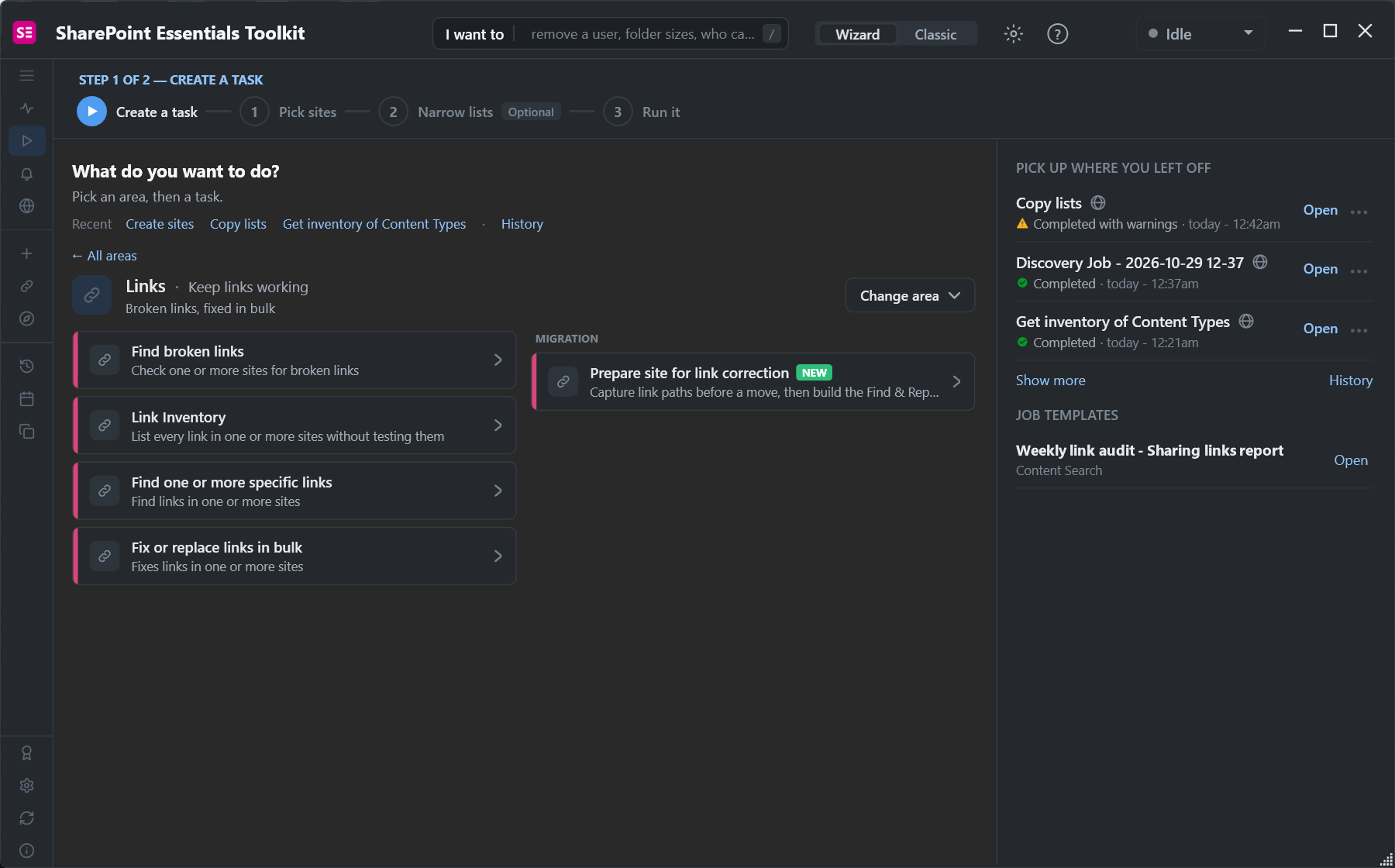
- Before the change: run Find one or more specific links for the old path across every site that might link to it, so you know what will break.
- After the change: run Fix or replace links in bulk with a rule that replaces the old path with the new one. It rewrites links in pages, web parts, navigation, list columns and inside Office and PDF files.
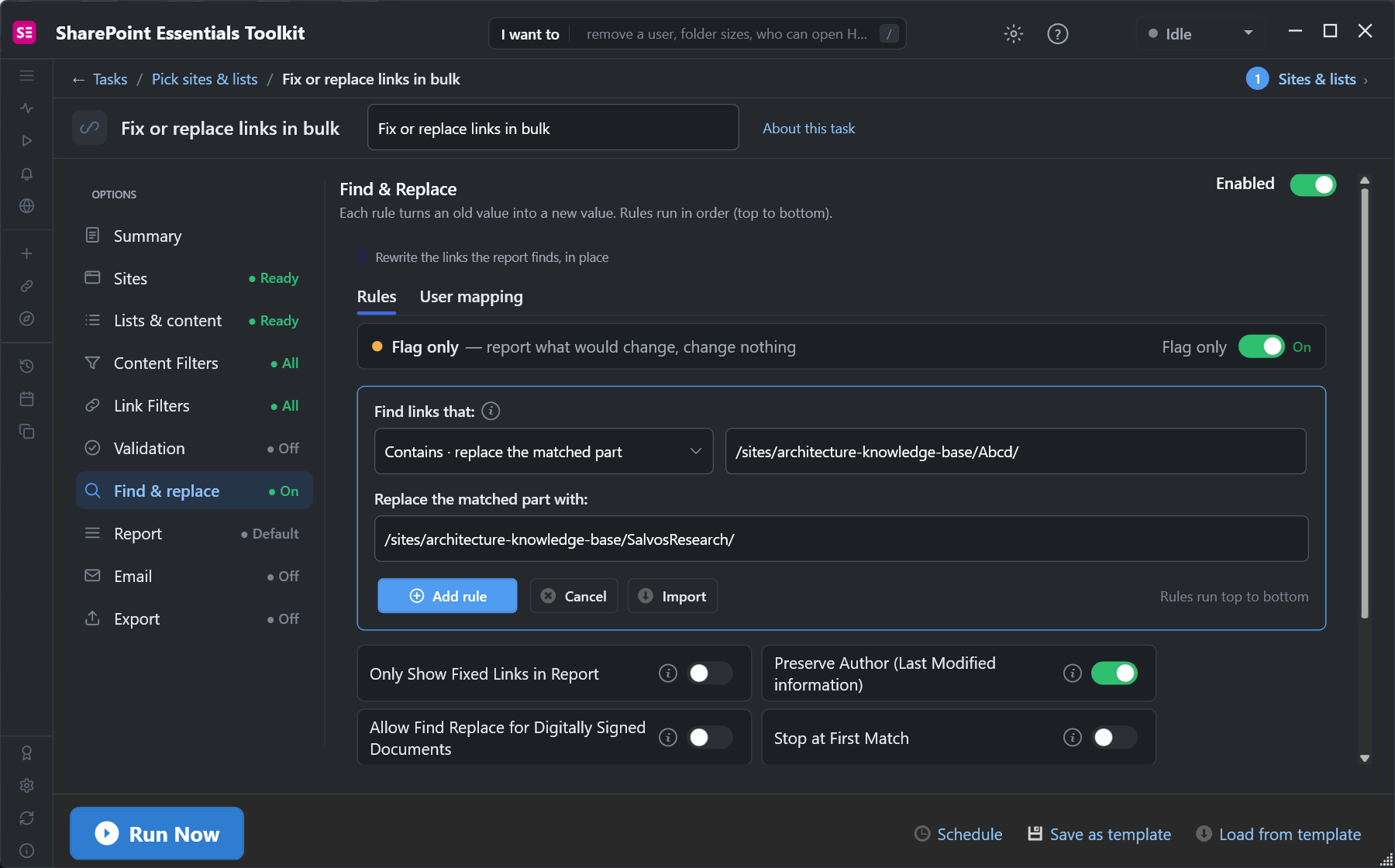
Run it with Flag only on to see every link it would change, then turn it off to apply. Changes can be undone from History. For moves between sites, Prepare site for link correction records every link form of every file before the move and builds the replace rules afterwards.
Frequently asked questions
Why didn't my SharePoint library URL change when I renamed it?
Renaming changes only the title. The URL keeps the name the list or library was created with, so links and sync keep working.
How do I change a SharePoint document library URL?
Move the library's root folder with PowerShell ($list.RootFolder.MoveTo(newUrl)), or create a new library with the URL you want and move the files into it. Both break links that use the old path.
Does SharePoint redirect the old library URL after a URL change?
No. In our test the old library URL and the old file URLs returned 404, and only the new URLs worked.
Which links keep working after a SharePoint library URL change?
Links based on the file's ID: Document ID links (DocIdRedir.aspx) and sharing links. Path links in pages, navigation, documents, flows, Teams tabs and bookmarks break.
How do I fix links after changing a SharePoint URL?
Find every link that contains the old path, then replace the old path with the new one in pages, navigation, list columns and documents. A bulk find and replace tool with a preview mode is the fastest way.
Change SharePoint URLs without breaking links, free
SharePoint Essentials Toolkit Community Edition is free. Find every link to an old path, then replace it in pages, navigation and documents with a preview first, on up to 20 sites per Microsoft 365 tenant. Get your free Community Edition license key.