SharePoint Content Types and Site Columns: The Deployment Errors, What Causes Them, and How to Deploy Reliably
Content types and site columns usually fail to deploy for four reasons: a column with the same internal name already exists, a content type with the same name already exists, the content type ID you set was ignored (the REST API does this), or you're deleting something still in use. Deploy from one place (the content type gallery or a PnP template), keep IDs and internal names fixed, and check where a content type is used before changing it, for example with the free SharePoint Essentials Toolkit.
Published:
Last updated: 2026-10-29
How content types and site columns fit together
- A site column is a column definition on a site, identified by a GUID and an internal name. Lists on that site and its subsites can use it.
- A content type is a named set of site columns plus settings such as a document template. Its ID encodes its parent:
0x0101is Document, and a child adds00and a GUID, for example0x0101009A3C2E1B5D4F4E8A9B7C6D5E4F3A2B10. - Adding a content type to a list makes a list content type, a copy with a longer ID that inherits from the site one.
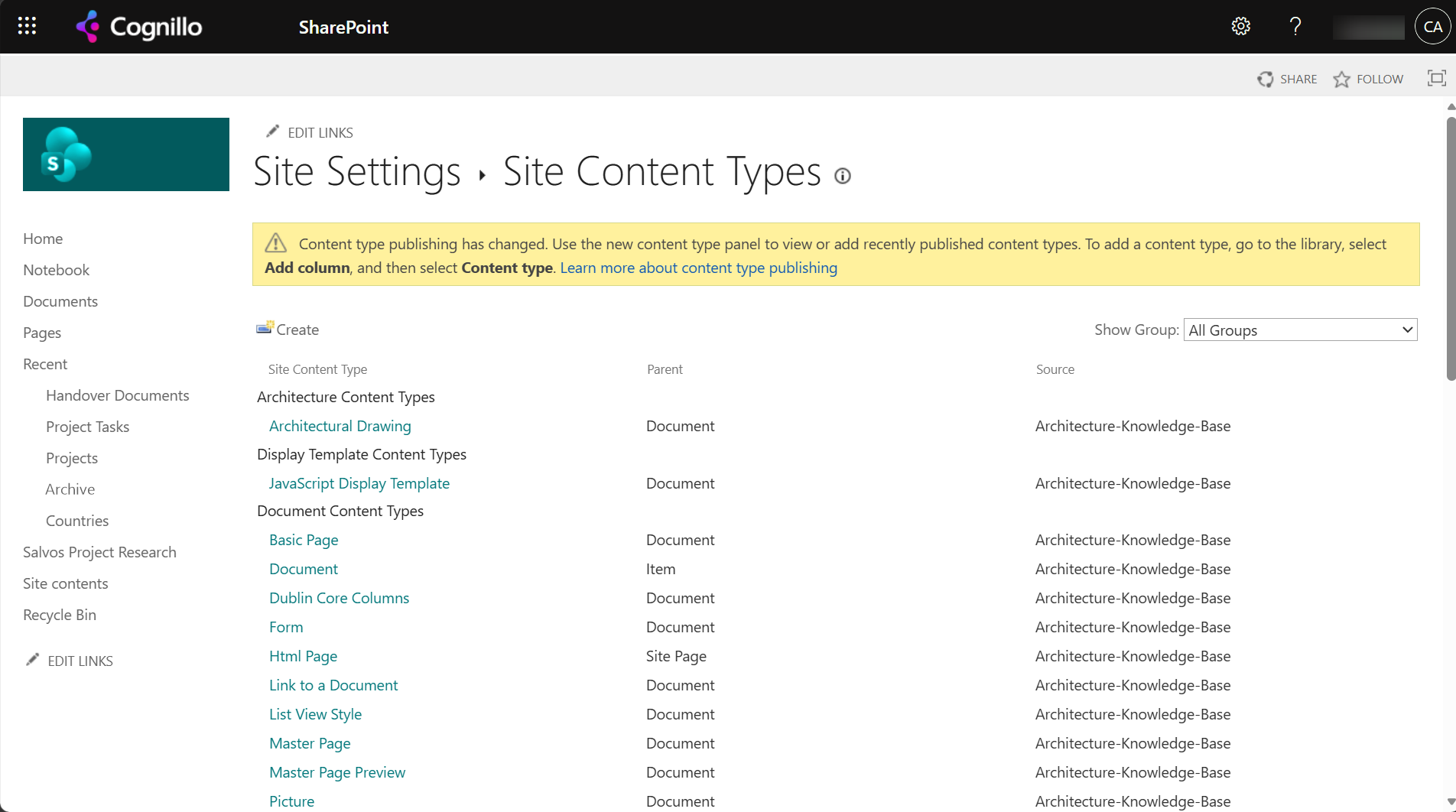
The ID matters. Search, retention policies, flows and document templates often refer to a content type by ID. Two content types called "Architectural Drawing" with different IDs on two sites are different content types to SharePoint.
The errors we hit, and what causes them
| What we did | What SharePoint said | Cause and fix |
|---|---|---|
| Created the DrawingNumber site column a second time, with the same ID or a new one | "A duplicate field name "DrawingNumber" was found." | Internal names are unique per site, including inherited columns. Check before creating; reuse the existing column. |
| Created Architectural Drawing again | "A duplicate content type "Architectural Drawing" was found." | Names are unique per site. Update the existing one instead. |
| Created the content type through REST with an ID and Document as parent | 201 Created, but under Item (0x0100...), with a new ID. The next call using our ID: "Cannot find resource for the request" | The REST contenttypes endpoint ignores the ID you pass. Use CSOM (ContentTypeCreationInformation.Id), PnP PowerShell or a PnP template, which set it. |
| Deleted the site column while a content type used it | "Site columns which are included in content types or on lists cannot be deleted. Please remove all instances of this site column prior to deleting it." | Remove it from the content types and lists first. |
| Deleted the content type while a list used it | "Another site or list is still using this content type. If you would still like to delete it, please remove the content type from all sites and lists and then try again." | Find every list that uses it; change items to another content type, remove it from the list, then delete. |
The REST one is the worst: it doesn't fail, so a script that "worked" leaves you with a content type under the wrong parent and an ID nothing else expects. Check the ID after you create one.
Option 1: Deploy with built-in settings
- Use the content type gallery in the SharePoint admin center (Content services, Content type gallery) for content types used on many sites. They're published to every site, and a library owner adds one with Add column, Content type. Changes are republished; allow time for them to arrive.
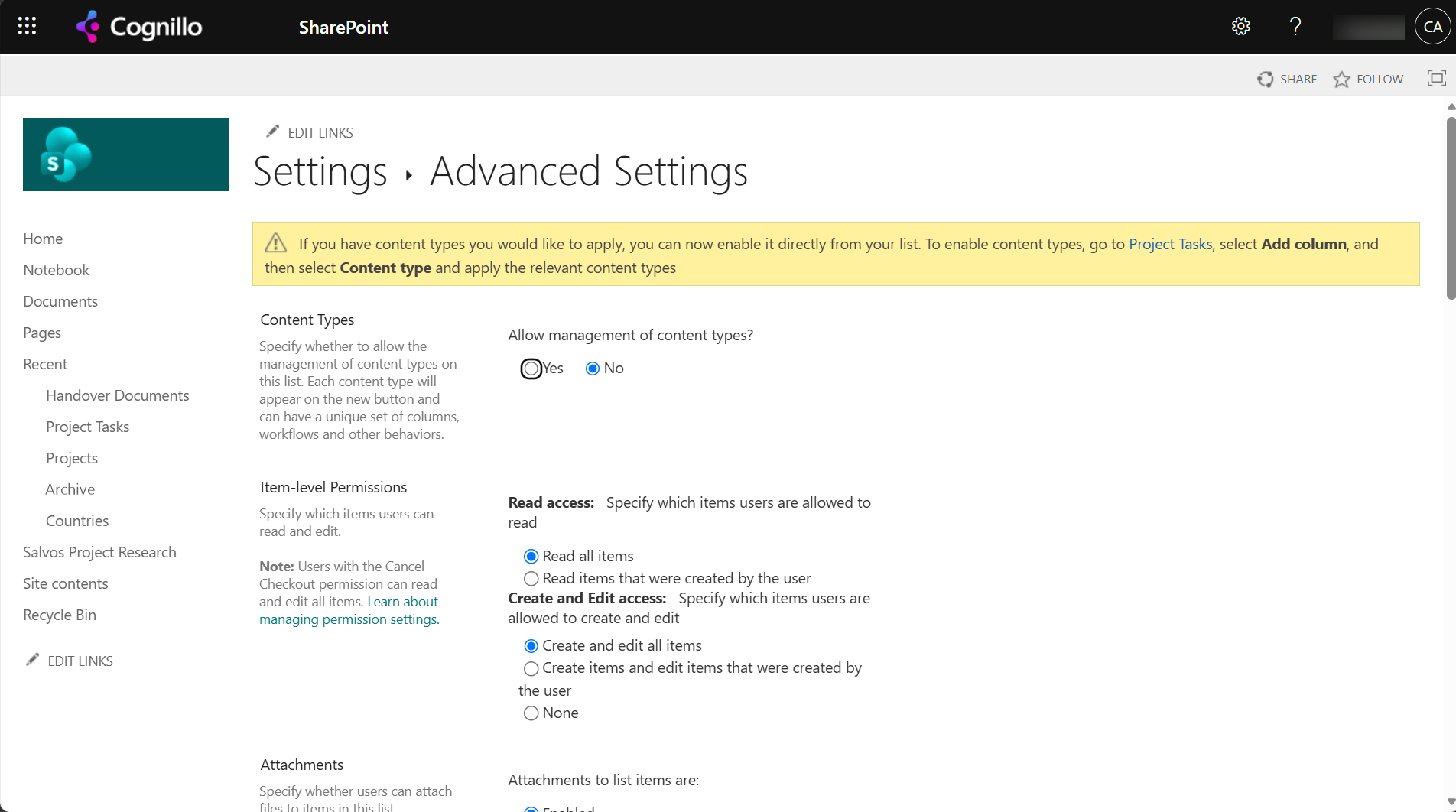
- Turn on content types on the list. List settings, Advanced settings, "Allow management of content types?" set to Yes. Without it, a list has one content type and no picker.
- Don't create site columns with the same name on several sites. Each gets a different GUID, and the values don't line up in search or in copies. Create it once, in the gallery or on the root site.
- Before deleting, check where it's used. The Site Content Types page doesn't tell you; the list settings of each list do.
Option 2: Deploy and check with PowerShell
This PnP PowerShell script creates a site column and a content type with a fixed ID only if they don't exist, adds the column to the content type and the content type to a library, and checks the ID afterwards. It changes nothing until you set $WhatIf = $false. It needs PnP PowerShell 2.x and your own Entra ID app registration.
$ClientId = "<your-app-id>"
$SiteUrl  = "https://contoso.sharepoint.com/sites/Projects"
$FieldId  = "6f1d2c3a-8e4b-4f5a-9c7d-1a2b3c4d5e6f"
$CtId     = "0x0101009A3C2E1B5D4F4E8A9B7C6D5E4F3A2B10"   # 0x0101 = Document, then 00 and a GUID
$Library  = "Documents"
$WhatIf   = $true

Connect-PnPOnline -Url $SiteUrl -Interactive -ClientId $ClientId
$field = Get-PnPField -Identity "DrawingNumber" -ErrorAction SilentlyContinue
$ct    = Get-PnPContentType -Identity "Architectural Drawing" -ErrorAction SilentlyContinue
"Site column : {0}" -f $(if ($field) { "exists, ID $($field.Id)" } else { "missing" })
"Content type: {0}" -f $(if ($ct) { "exists, ID $($ct.StringId)" } else { "missing" })
if ($ct -and $ct.StringId -ne $CtId) { "WARNING: same name, different ID. Don't create another; decide which one to keep." }

if (-not $WhatIf) {
    if (-not $field) {
        Add-PnPFieldFromXml -FieldXml "<Field ID='{$FieldId}' Type='Text' Name='DrawingNumber' StaticName='DrawingNumber' DisplayName='Drawing Number' Group='Architecture' />"
    }
    if (-not $ct) {
        $ct = Add-PnPContentType -Name "Architectural Drawing" -ContentTypeId $CtId -Group "Architecture" -Description "A drawing sheet with a drawing number"
    }
    Add-PnPFieldToContentType -Field "DrawingNumber" -ContentType "Architectural Drawing"
    Set-PnPList -Identity $Library -EnableContentTypes $true
    Add-PnPContentTypeToList -List $Library -ContentType "Architectural Drawing"
    "Created with ID {0}" -f (Get-PnPContentType -Identity "Architectural Drawing").StringId
}
To find where a content type is used before deleting it, loop over your sites and lists with Get-PnPContentType -List and match on StringId starting with the site content type's ID.
Option 3: See where every content type is used with SharePoint Essentials Toolkit
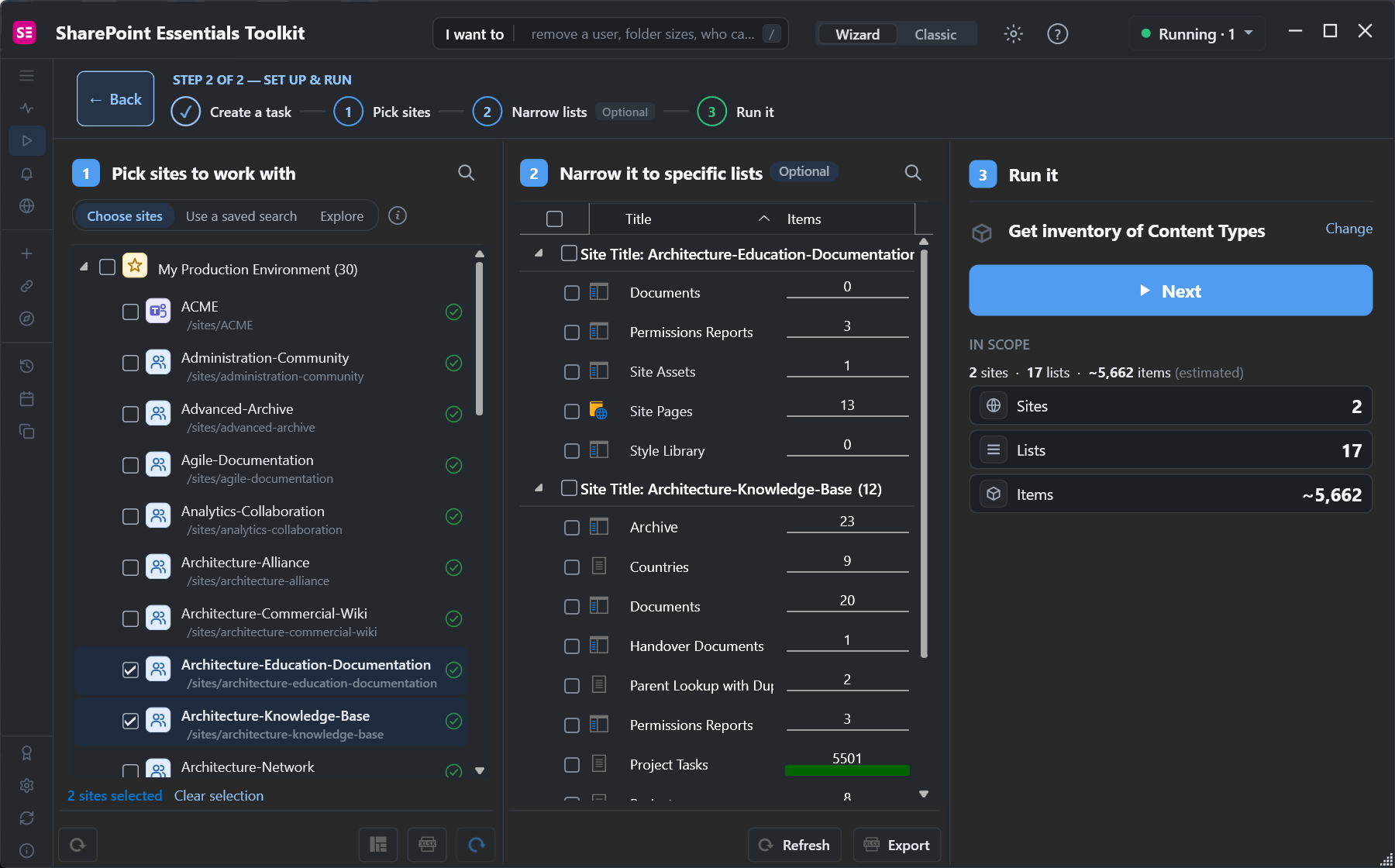
The toolkit's Inventory > Get inventory of Content Types task reads the site and list content types on the sites you pick. We picked our two architecture sites:
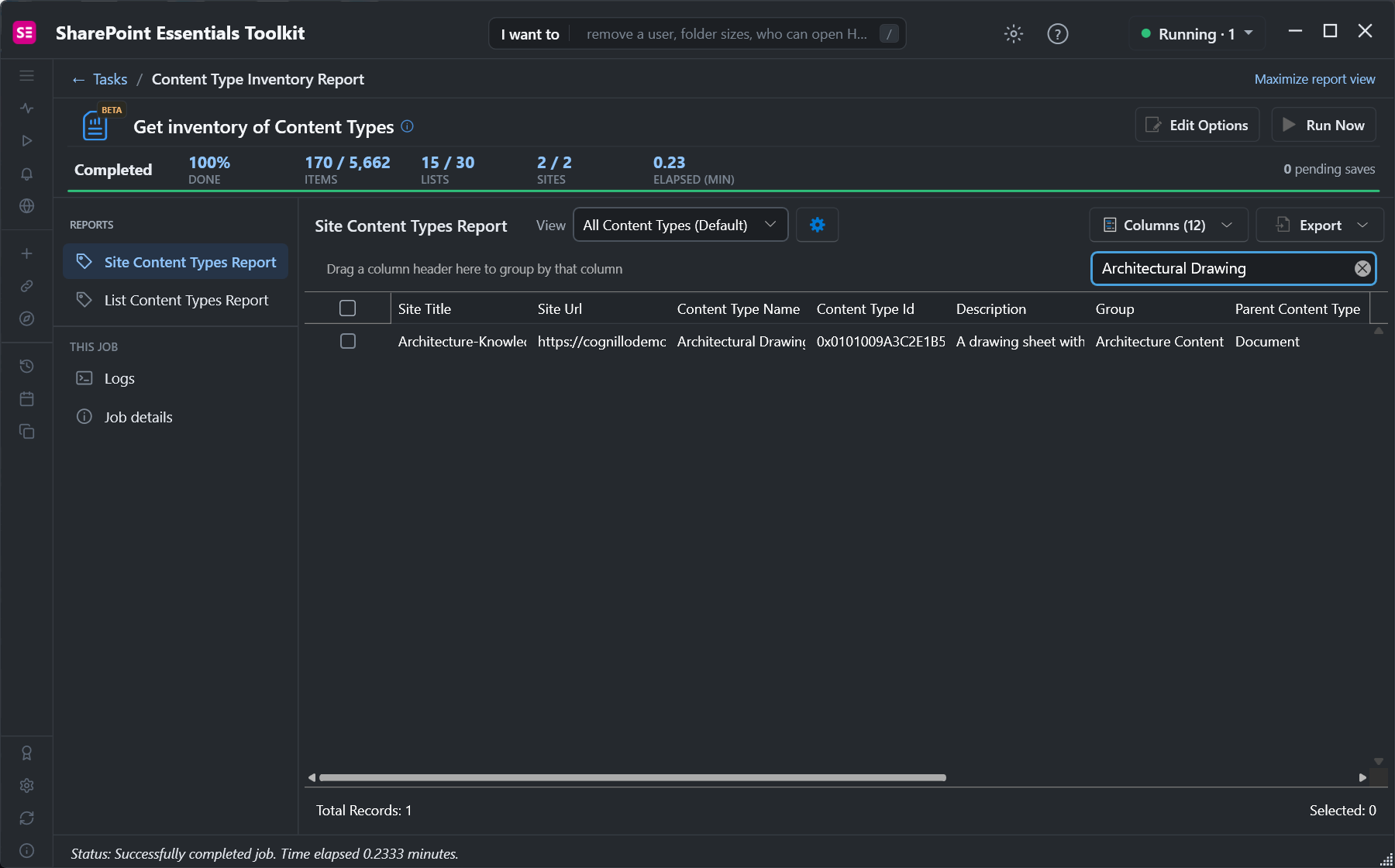
The Site Content Types Report has one row per content type per site, with its ID, group and parent. Search for a name to see whether it has the same ID everywhere:
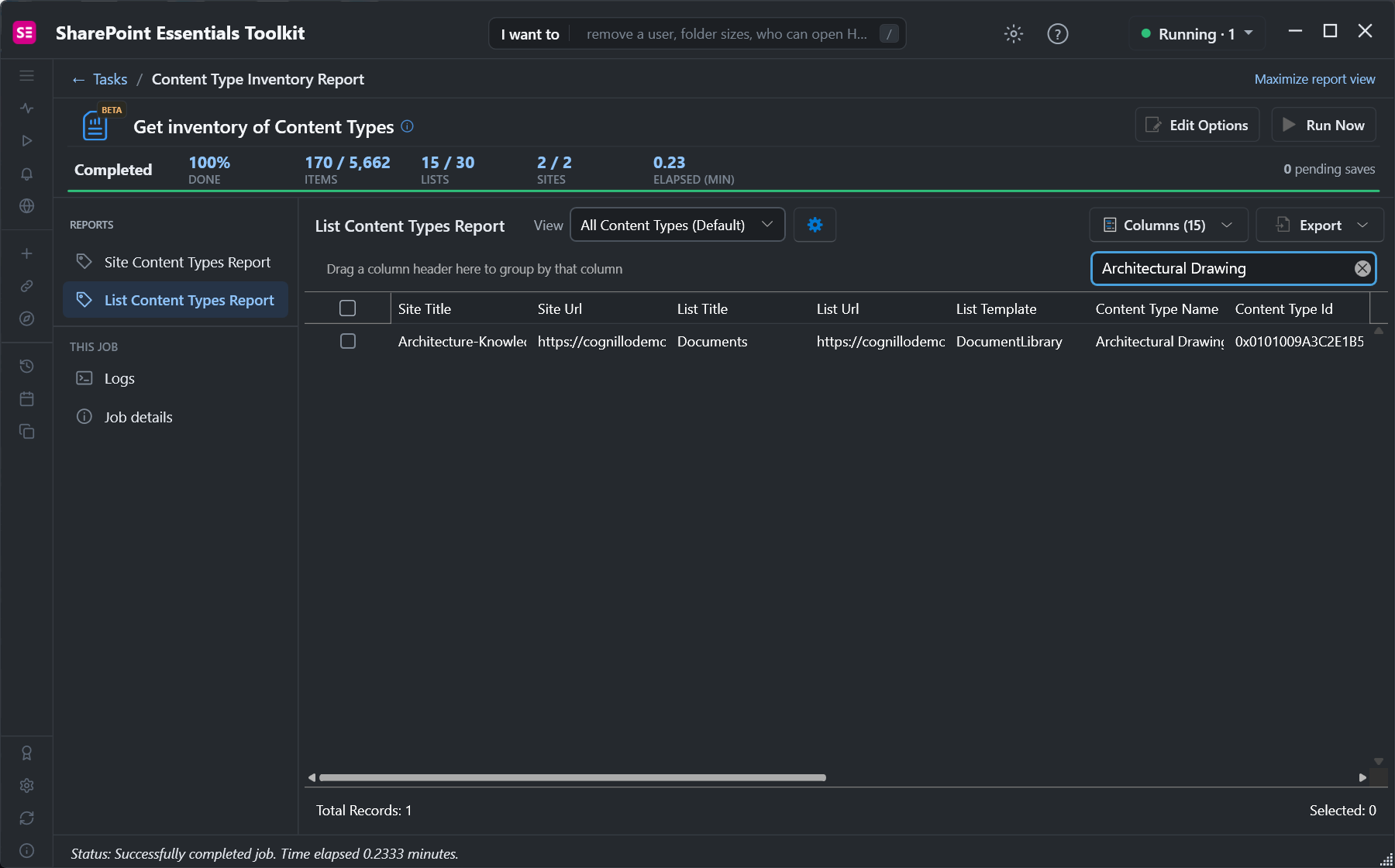
The List Content Types Report shows every list that uses it, which is exactly what you have to clear before SharePoint lets you delete it:
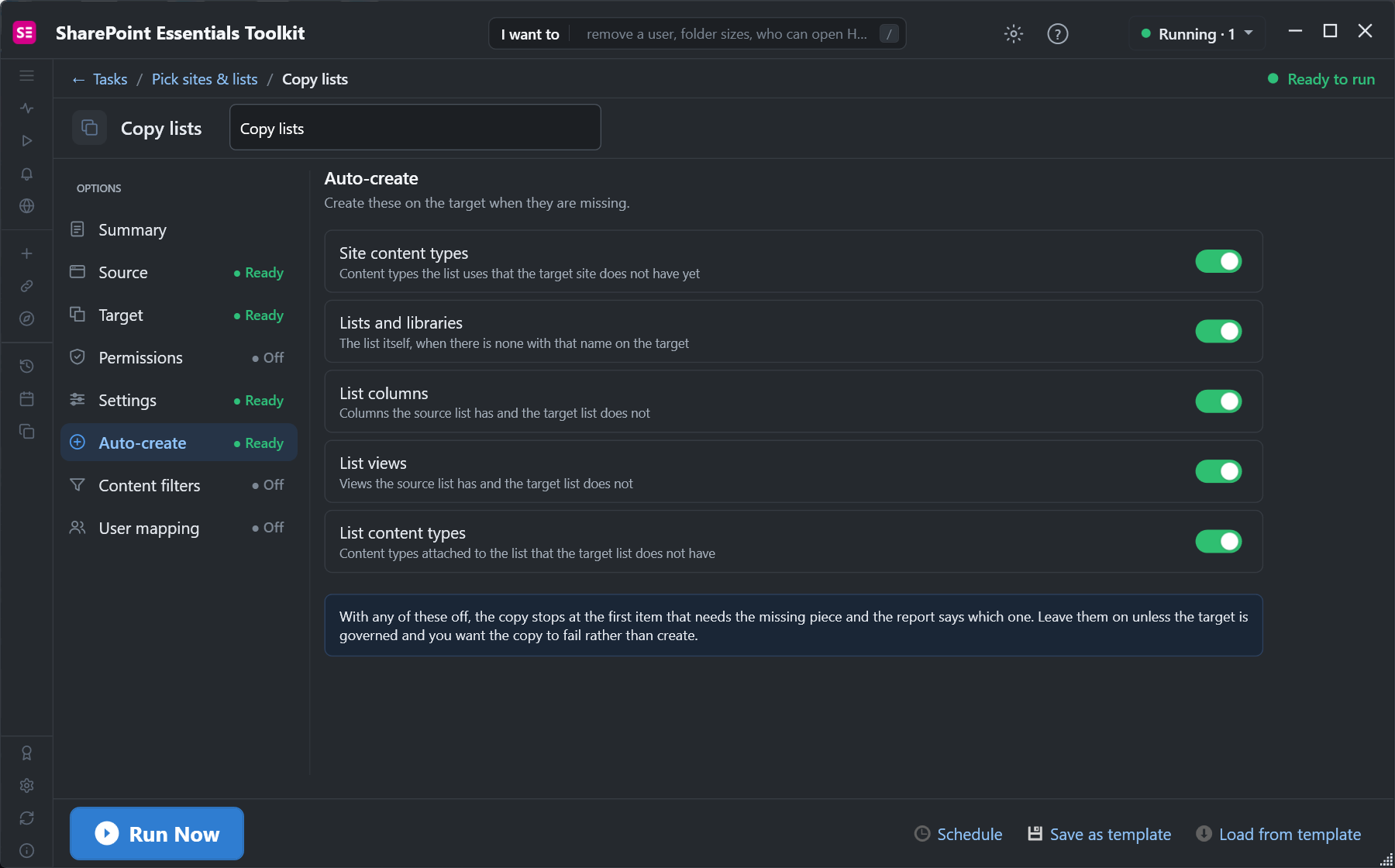
When you copy lists to another site, the Copy lists task's Auto-create options create the site content types, list content types and columns the target is missing:
Frequently asked questions
Why does SharePoint say a duplicate field name was found?
A column with that internal name already exists on the site or a parent site. Internal names are unique, whatever the ID. Reuse the existing column or pick a different internal name.
Why is my SharePoint content type ID different from the one I set?
The REST contenttypes endpoint ignores the ID you pass and creates the content type under Item with a new ID. Use CSOM, PnP PowerShell (Add-PnPContentType -ContentTypeId) or a PnP template.
How do I delete a SharePoint content type that is in use?
Change the items that use it to another content type, remove it from every list, then delete it. SharePoint says "Another site or list is still using this content type" until you do.
Should I use site columns or list columns?
Site columns for anything shared across lists or in content types, so the GUID and internal name are the same everywhere. List columns for values only one list needs.
How do I see which lists use a SharePoint content type?
Check each list's settings, loop over lists with Get-PnPContentType -List in PowerShell, or run a content type inventory that lists every list content type across sites.
See every SharePoint content type across sites, free
SharePoint Essentials Toolkit Community Edition is free. Inventory site and list content types with their IDs across sites, and copy lists with missing content types created, on up to 20 sites per Microsoft 365 tenant. Get your free Community Edition license key.