SharePoint Filter, Group By or Sort Not Working on a Large List? Why the Threshold Breaks It and How to Fix It
Filtering, grouping and sorting fail on lists over 5,000 items when the column involved isn't indexed, because SharePoint would have to scan the whole list. Index the column, make it the first filter and keep each filtered result under 5,000 items. Scripts and flows hit the same limit even when the browser view seems to work. To filter, group and sort every item without the limit, use the free SharePoint Essentials Toolkit.
Published:
Last updated: 2026-10-29
What fails, and what the error looks like
On our 5,501 item Project Tasks list, with no indexes apart from ID, these are the results we got:
| What we tried | In the browser | Through REST or PowerShell |
|---|---|---|
| Group by Region | "Unknown render failure. The number of items in the list exceeds the list view threshold" | Not tested |
| Filter Status = Blocked | Showed rows | Fails: SPQueryThrottledException |
| Filter Region = West | Not tested | Fails |
| Sort by Budget | Showed rows | Fails |
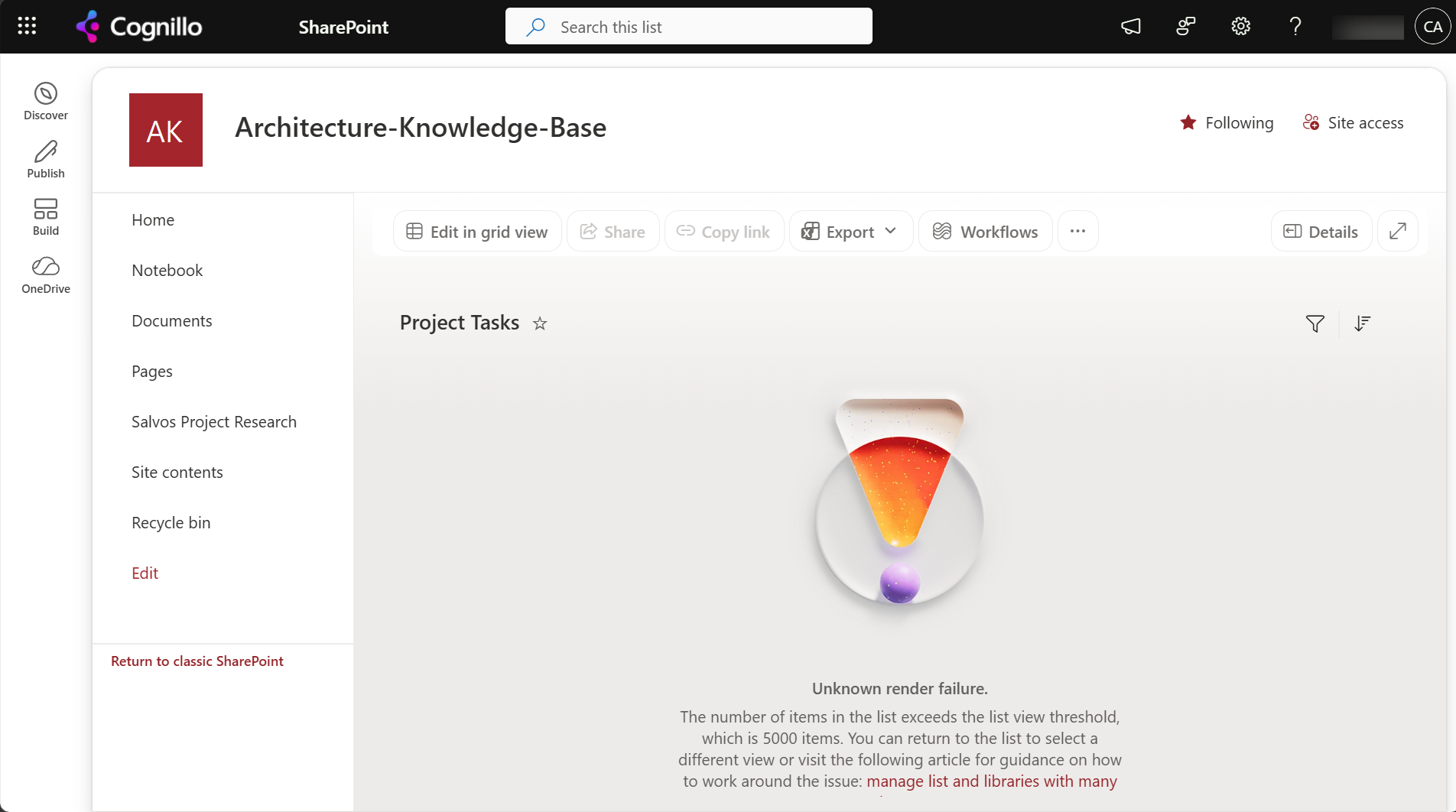
The browser isn't a reliable test. The modern view filtered on Status still showed rows, while the identical query from REST failed with "The attempted operation is prohibited because it exceeds the list view threshold." Power Automate's Get items with an OData filter, Power Apps and PowerShell all use the API, so they fail even when the view looks fine.
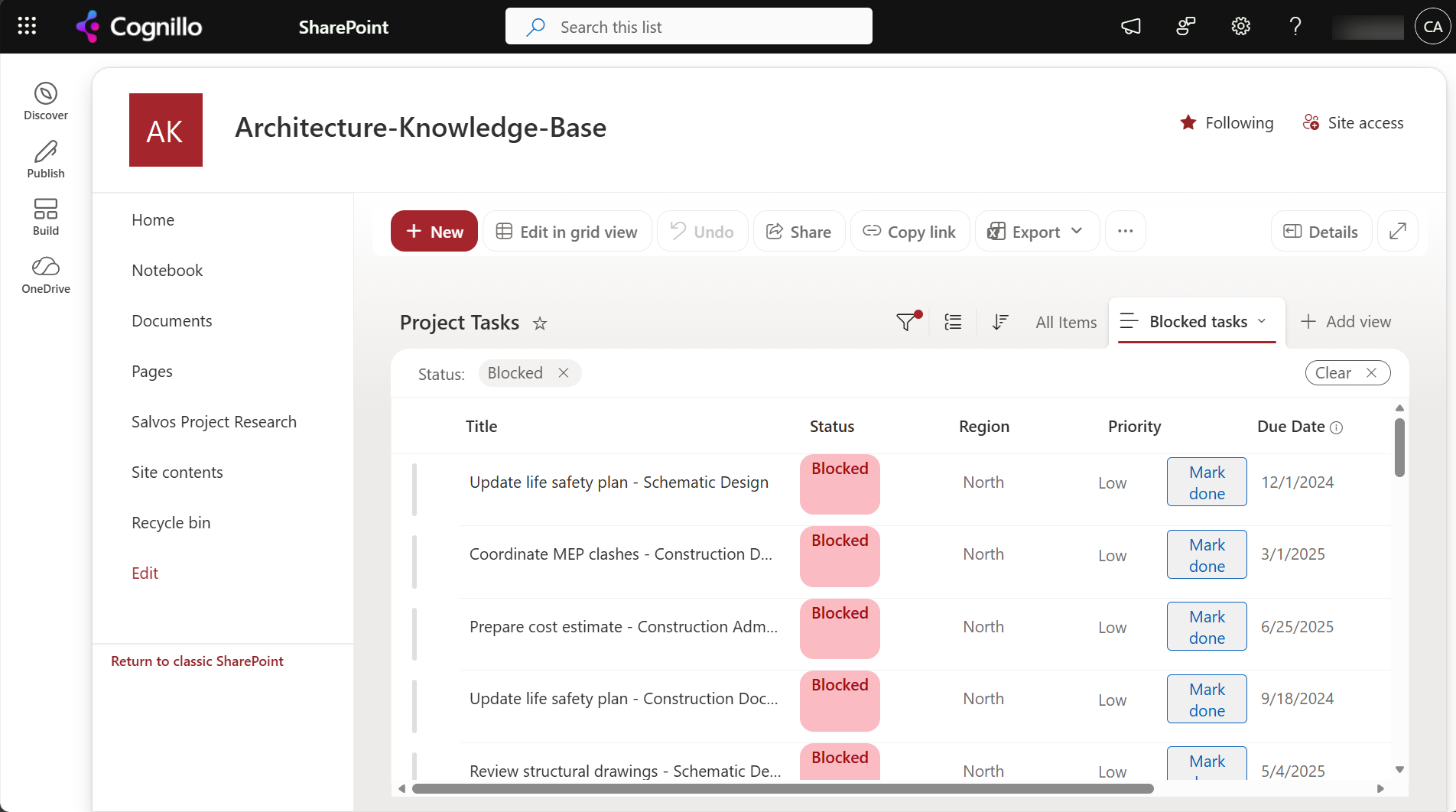
Option 1: Fix the view with built-in settings
- Index the column the view filters, sorts or groups by. List settings > Indexed columns. See how to index columns for the rules.
- Put the indexed filter first. In the view's filter, the first condition should be on an indexed column and should match fewer than 5,000 items.
- Index both columns of an AND filter if neither alone gets you under 5,000.
- Sort and group only on indexed columns. Group by is the strictest: the group-by column must be indexed, and collapsed groups with totals still have to count every item.
We indexed Status and Region. The Status and Region filters then worked through REST as well as in the browser, and a view filtered on Region and Priority loaded:
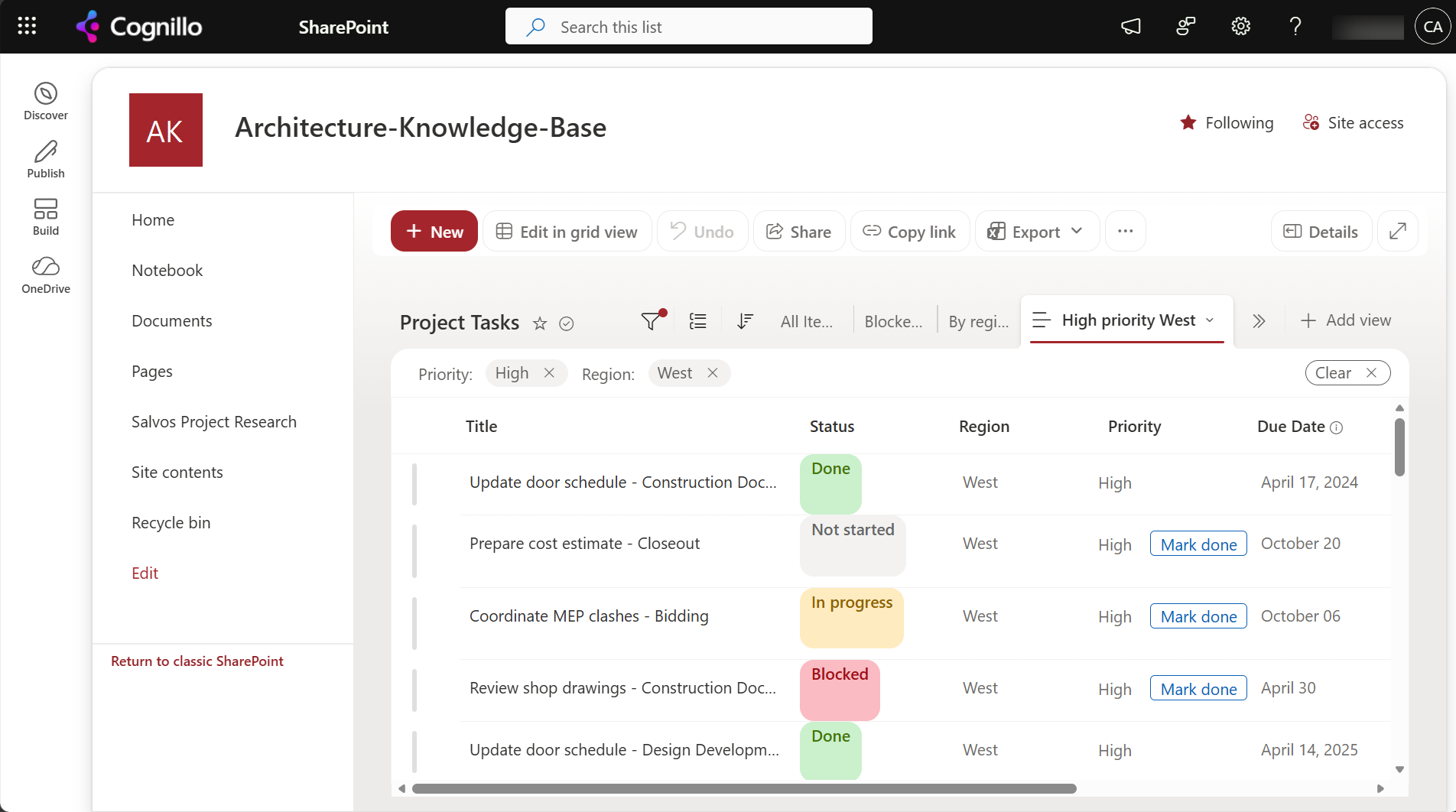
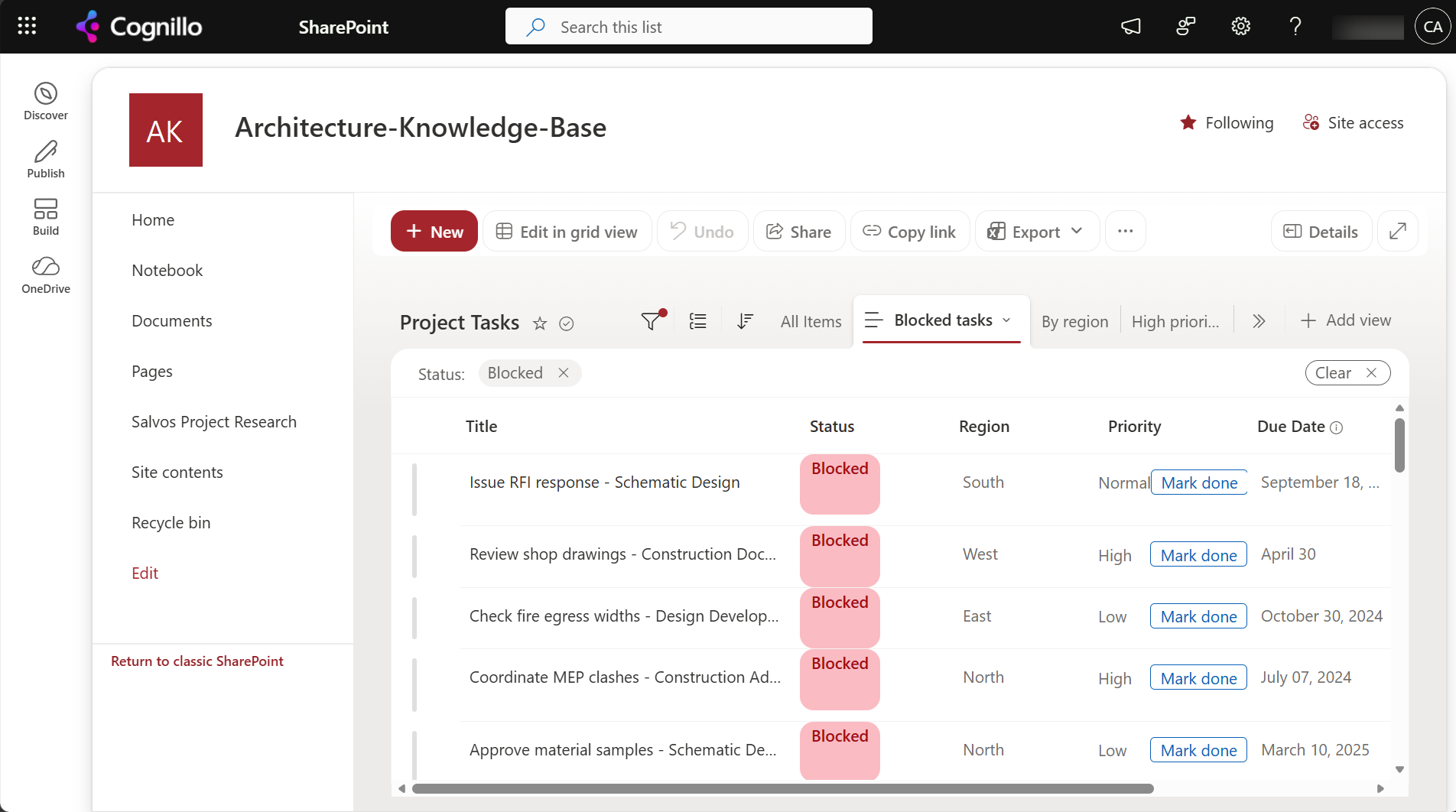
Sort by Budget still failed through the API afterwards, because Budget wasn't indexed. Index it, or sort within a filtered view that already returns fewer than 5,000 items.
Quick fixes users can do without list settings
- Use the search box above the list. Search uses the search index, not a list query.
- Open the list in Excel with Export > Export to Excel and pivot there. Excel pages through all items.
- Filter from the column header on an indexed column first, then add filters on other columns.
Option 2: Query large lists from PowerShell
A CAML query with a Where on a column without an index fails over 5,000 items, even with paging. The safe pattern is to page through every item with no Where, or with a Where on an indexed column only, then filter, group and sort in PowerShell. This script does both and is read-only. It needs PnP PowerShell 2.x and your own Entra ID app registration.
$ClientId = "<your-app-id>"
$SiteUrl  = "https://contoso.sharepoint.com/sites/Projects"
$List     = "Project Tasks"
Connect-PnPOnline -Url $SiteUrl -Interactive -ClientId $ClientId

# Fails over 5,000 items when Priority isn't indexed:
# Get-PnPListItem -List $List -Query "<View><Query><Where><Eq><FieldRef Name='Priority'/><Value Type='Choice'>High</Value></Eq></Where></Query></View>"

# 1. Page through everything, then filter, group and sort locally
$items = Get-PnPListItem -List $List -PageSize 2000 -Fields "Title", "TaskStatus", "Region", "Priority", "Budget"
$items | Where-Object { $_["Priority"] -eq "High" } |
    Group-Object { $_["Region"] } | Sort-Object Count -Descending |
    Select-Object Name, Count

$items | Sort-Object { [double]$_["Budget"] } -Descending | Select-Object -First 10 |
    ForEach-Object { "{0,-60} {1,12:N0}" -f $_["Title"], $_["Budget"] }

# 2. Or let SharePoint filter on an indexed column, with paging
$caml = @"
<View Scope='RecursiveAll'>
  <Query><Where><Eq><FieldRef Name='Region'/><Value Type='Choice'>West</Value></Eq></Where></Query>
  <RowLimit Paged='TRUE'>2000</RowLimit>
</View>
"@
(Get-PnPListItem -List $List -Query $caml).Count
In Power Automate, the same rule applies to Get items: filter only on indexed columns, or turn on pagination with no filter and use a Filter array step.
Option 3: Filter, group and sort every item with SharePoint Essentials Toolkit
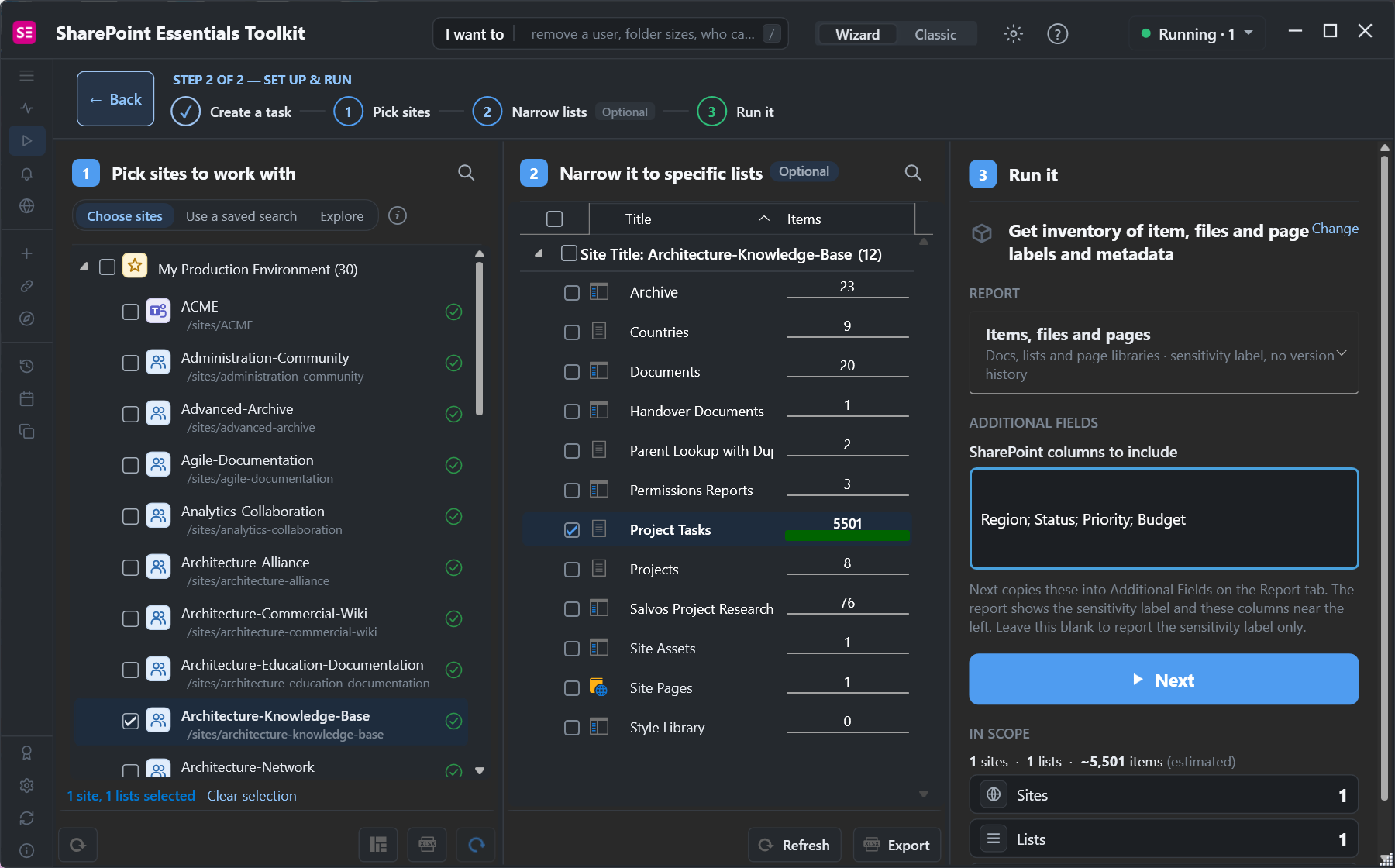
When you need to slice a big list in ways its indexes don't support, read the items out and work on them in a grid. Inventory > Get inventory of item, files and page labels and metadata lets you name the columns to bring along. We picked Project Tasks and asked for Region, Status, Priority and Budget:
The report pages through the whole list, so there's no threshold. In the grid, drag a column header to group by it, filter from the header, or sort any column:
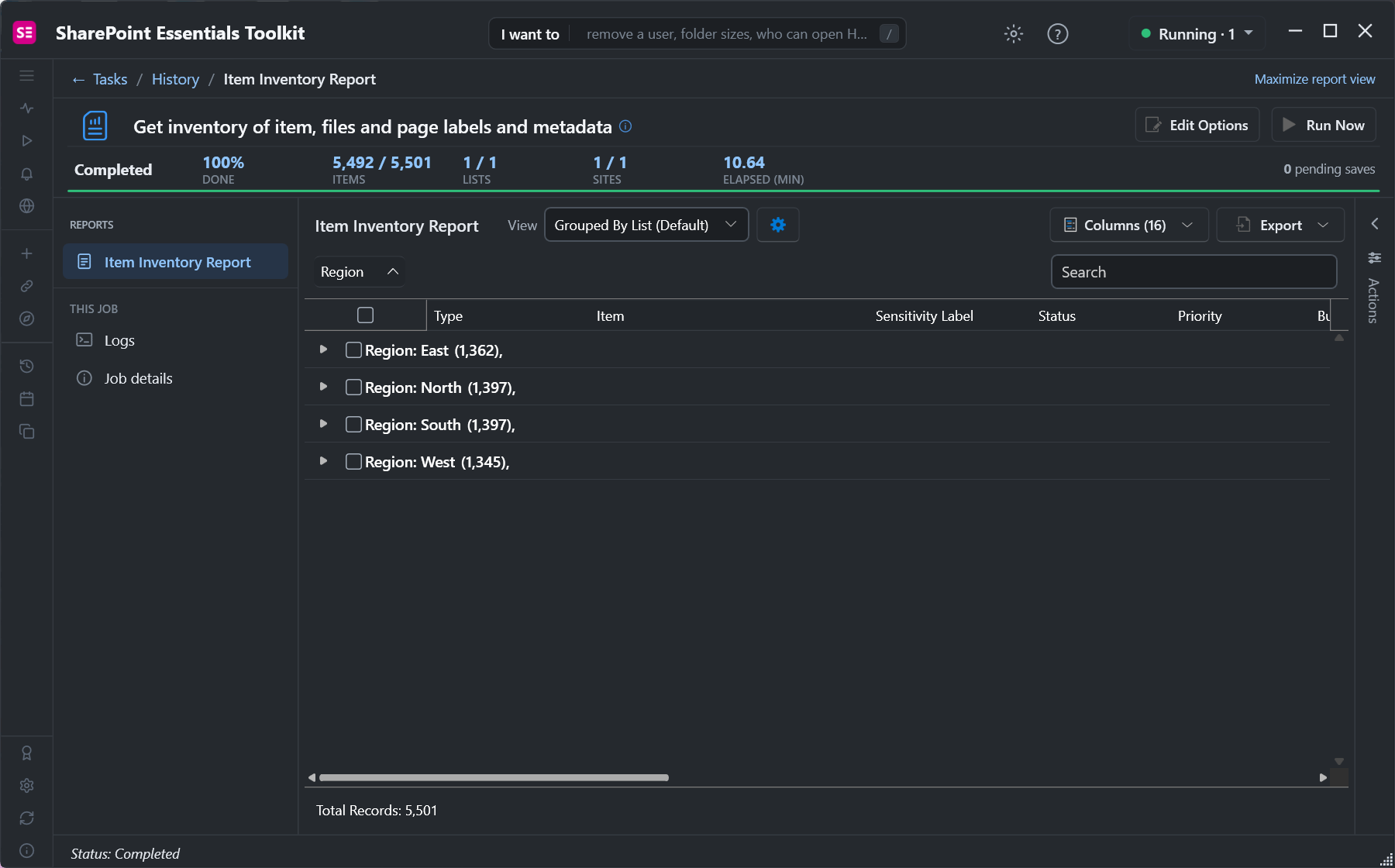
Grouping, filtering and sorting happen in the grid, so they work the same on indexed and unindexed columns, and on Status and Budget too. The inventory took about 11 minutes for 5,501 items, so run it once and slice the result as many ways as you need. Export the result to Excel or CSV, or select rows and use the item actions to change them in bulk.
Frequently asked questions
Why does group by not work in my SharePoint list?
On lists over 5,000 items, the group-by column must be indexed, or the view fails with "Unknown render failure" or a threshold message. Index the column in list settings, or group a filtered view that returns fewer than 5,000 items.
My SharePoint view works in the browser, so why does my flow fail with the threshold error?
The modern view can still show rows when the API query behind it would fail. Power Automate, Power Apps and PowerShell send the query directly, so a filter on a column without an index fails over 5,000 items. Index the column or filter after reading all items.
Can I sort a SharePoint list with more than 5,000 items?
Yes, by an indexed column, or within a filtered view that returns fewer than 5,000 items. Sorting the whole list by a column without an index fails.
Does paging fix the list view threshold in PowerShell?
Paging lets you read every item of a large list. It doesn't fix a CAML Where or OrderBy on a column without an index; that still fails over 5,000 items. Page without the filter and filter in PowerShell instead.
How do I filter on two columns in a large SharePoint list?
Put the more selective indexed column first so it alone returns fewer than 5,000 items, then add the second condition. If neither alone is narrow enough, index both.
Filter, group and sort large SharePoint lists, free
SharePoint Essentials Toolkit Community Edition is free. Read every item of large lists with the columns you choose, then filter, group, sort and export them without the threshold, on up to 20 sites per Microsoft 365 tenant. Get your free Community Edition license key.