SharePoint JSON Formatting: Conditional Colors, Action Buttons and Overdue Row Highlights That Work
Column formatting changes how one column is drawn; view formatting changes whole rows. Both are JSON stored on the column (CustomFormatter) or the view, and neither changes the data. Use @currentField for the column's value, [$InternalName] for other columns, @now for today, and customRowAction with setValue to give users a one-click button that updates the item. Apply them from the column menu (Column settings, Format this column) or in bulk with PowerShell.
Published:
Last updated: 2026-10-29
What JSON formatting can and can't do
JSON formatting changes how a value is displayed in modern list views. The value stored in the item stays the same, so sorting, filtering, exports and Power Automate see the raw value. Two kinds:
| Column formatting | View formatting | |
|---|---|---|
| Stored on | The column (CustomFormatter property) | The view (CustomFormatter on the view) |
| Applies to | Every view that shows the column | Only that view |
| Good for | Pills, icons, progress bars, buttons | Row colors, card layouts, group headers |
| Schema | sp/v2/column-formatting.schema.json | sp/v2/row-formatting.schema.json |
It doesn't work in classic views, in the Lists app on some older mobile clients, or in exports to Excel. Use the internal name of a column in [$Name], not the display name; our "Status" column's internal name is TaskStatus.
Example 1: Status pills
This colors a choice column by value. The sp-css-* classes are theme-aware, so the colors stay readable in dark mode and with any site theme:
{
  "$schema": "https://developer.microsoft.com/json-schemas/sp/v2/column-formatting.schema.json",
  "elmType": "div",
  "style": { "padding": "0 10px", "height": "22px", "line-height": "22px",
             "border-radius": "11px", "display": "inline-block", "font-weight": "600" },
  "attributes": {
    "class": "=if(@currentField == 'Done', 'sp-css-backgroundColor-BgMintGreen sp-css-color-MintGreenFont',
              if(@currentField == 'Blocked', 'sp-css-backgroundColor-BgCoral sp-css-color-CoralFont',
              if(@currentField == 'In progress', 'sp-css-backgroundColor-BgGold sp-css-color-GoldFont',
              'sp-css-backgroundColor-BgLightGray30 sp-css-color-LightGrayFont')))"
  },
  "txtContent": "@currentField"
}
Write the expression on one line when you paste it; it's split here to fit. The last value in the nested if is the fallback, so a choice added later still gets a gray pill instead of no style.
Example 2: A "Mark done" button that updates the item
customRowAction with setValue updates columns on the item when clicked, without opening the form. We put it in the Priority column, so it sits on every row, and hid it when the task is already done:
{
  "$schema": "https://developer.microsoft.com/json-schemas/sp/v2/column-formatting.schema.json",
  "elmType": "div",
  "style": { "display": "flex", "align-items": "center", "white-space": "nowrap" },
  "children": [
    { "elmType": "span", "txtContent": "@currentField", "style": { "width": "64px" } },
    { "elmType": "button", "txtContent": "Mark done",
      "style": { "display": "=if([$TaskStatus] == 'Done', 'none', 'inline-block')",
                 "border": "1px solid #0b62b8", "background-color": "white", "color": "#0b62b8",
                 "border-radius": "4px", "padding": "1px 8px", "cursor": "pointer" },
      "customRowAction": { "action": "setValue", "actionInput": { "TaskStatus": "Done" } } }
  ]
}
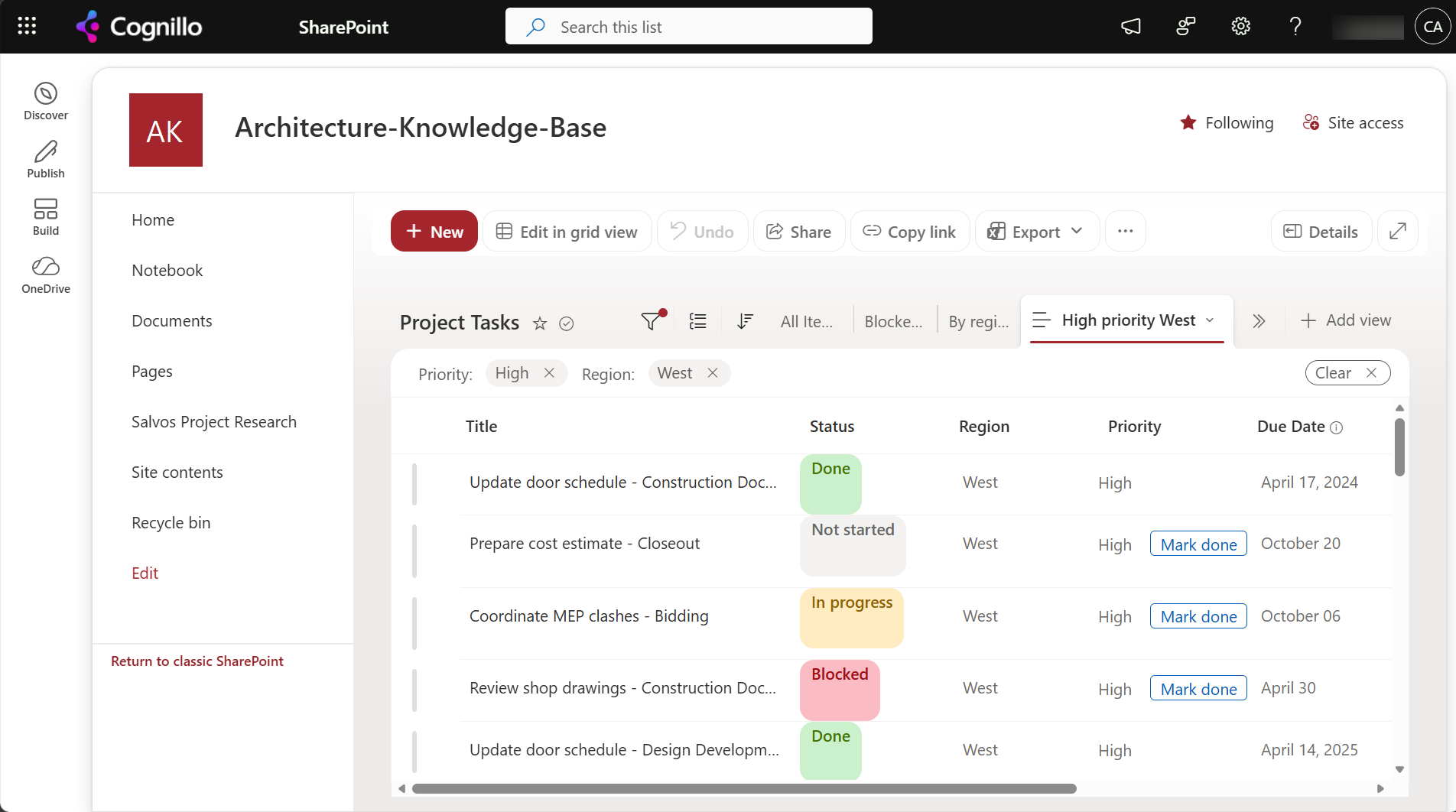
Things to know about setValue:
- It needs edit permission on the item. For read-only users the click fails. JSON has no permission check, so to show the button only to the assignee, compare
[$AssignedTo.email]with@mein thedisplayexpression. - The keys in
actionInputare internal names. Choice values must match a choice exactly. - It creates a new version and fires flows on "item modified", like any edit.
- For a date, use
"@now"; for a person,"@me"; to clear a value,"".
Example 3: Highlight overdue rows with view formatting
View formatting applies a class to the whole row. This marks tasks that are past due and not done:
{
  "$schema": "https://developer.microsoft.com/json-schemas/sp/v2/row-formatting.schema.json",
  "additionalRowClass": "=if([$DueDate] < @now && [$TaskStatus] != 'Done', 'sp-css-backgroundColor-BgCoral sp-css-borderColor-CoralFont', '')"
}
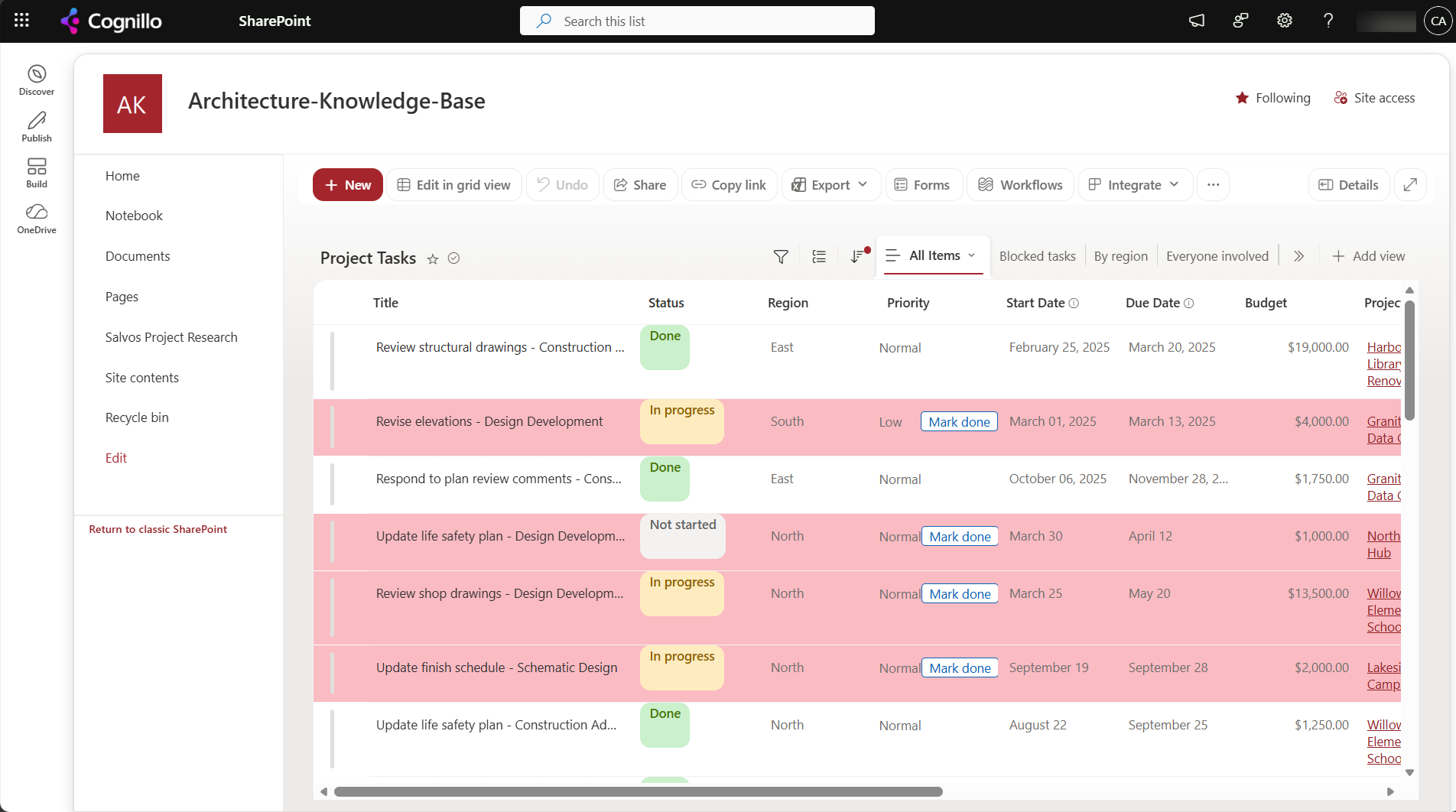
Unlike a calculated column with TODAY(), which only updates when the item is saved, @now is evaluated each time the view loads, so the highlight is always current. See SharePoint calculated column formulas for why TODAY() goes stale.
The formatting stays on in Edit in grid view, which is how our grid view screenshots in Edit in grid view not working still show red rows.
Option 1: Apply it in the browser
- Column formatting: open the column's header menu, then Column settings, then Format this column. Choose Advanced mode and paste the JSON. Preview shows it before you save.
- View formatting: open the view menu next to the view name, then Format current view, then Advanced mode.
- The JSON is saved for everyone. Column formatting needs permission to manage the list; view formatting on a public view does too.
If the preview shows nothing, check the browser console (F12): a JSON syntax error is reported there, and an internal name that doesn't exist silently evaluates to empty.
Option 2: Apply formatting to many lists with PowerShell
When the same format belongs on the same column in many lists (every "Status" column on every project site, say), set the CustomFormatter property with PnP PowerShell. This script previews by default and only writes when you set $WhatIf = $false. It needs PnP PowerShell 2.x and your own Entra ID app registration.
$ClientId  = "<your-app-id>"
$Sites     = Import-Csv .\sites.csv            # one column: Url
$ListTitle = "Project Tasks"
$Column    = "TaskStatus"                      # internal name
$Json      = Get-Content .\status-pills.json -Raw
$WhatIf    = $true

foreach ($s in $Sites) {
    Connect-PnPOnline -Url $s.Url -Interactive -ClientId $ClientId
    $list = Get-PnPList -Identity $ListTitle -ErrorAction SilentlyContinue
    if (-not $list) { "{0}: no list '{1}'" -f $s.Url, $ListTitle; continue }
    $field = Get-PnPField -List $list -Identity $Column -ErrorAction SilentlyContinue
    if (-not $field) { "{0}: no column '{1}'" -f $s.Url, $Column; continue }
    $same = $field.CustomFormatter -eq $Json
    "{0}: current format {1}" -f $s.Url, $(if ($same) { "already applied" } elseif ($field.CustomFormatter) { "is different" } else { "is empty" })
    if (-not $WhatIf -and -not $same) {
        Set-PnPField -List $list -Identity $Column -Values @{ CustomFormatter = $Json }
    }
}
For view formatting, use Set-PnPView -List $list -Identity "All Items" -Values @{ CustomFormatter = $Json }. Back up the old value first if a column already has a format; there's no history for it.
How SharePoint Essentials Toolkit relates
The toolkit doesn't edit column formatting on your lists. Two places where it touches the same feature:
- Export to SharePoint on any report creates a SharePoint list with typed columns, and status columns get JSON pill formatting like Example 1, so a permissions or link report is readable in the browser straight away.
- The Copy & move tasks create missing columns on the target from the source column's definition, so lists copied to new sites arrive with their columns, views and settings in place.
Frequently asked questions
Does JSON formatting change the data in a SharePoint list?
No. It only changes how the value is shown in modern views. Sorting, filtering, exports and flows still see the stored value. The exception is customRowAction with setValue, which updates the item when a user clicks the button.
Why does my SharePoint column formatting show nothing?
Usually a column referenced by display name instead of internal name, or a JSON syntax error. Check the internal name in the column settings URL (Field=...), and look in the browser console for the error.
How do I highlight overdue items in a SharePoint list?
Use view formatting with additionalRowClass and compare the due date to @now, for example =if([$DueDate] < @now && [$TaskStatus] != 'Done', 'sp-css-backgroundColor-BgCoral', ''). @now is evaluated each time the view loads.
Can a SharePoint formatted button update the item?
Yes. customRowAction with action setValue and actionInput such as { "TaskStatus": "Done" } updates the item in place. The user needs edit permission, and it creates a new version.
Can I apply SharePoint column formatting to many lists at once?
Yes. Set the column's CustomFormatter property with Set-PnPField, or the view's CustomFormatter with Set-PnPView, in a loop over your sites and lists.
Get readable SharePoint reports, free
SharePoint Essentials Toolkit Community Edition is free. Inventory lists and columns, copy lists between sites, and export reports to SharePoint lists with formatting applied, on up to 20 sites per Microsoft 365 tenant. Get your free Community Edition license key.