SharePoint Calculated Column Formulas: Dates, IF, Concatenation, and Why Values Don't Update (Tested Examples)
A calculated column works out its value from other columns in the same item when the item is saved, using Excel-style formulas such as =TEXT([Due Date],"yyyy-mm") or =IF([Status]="Done","Closed","Open"). Values only change when the item is saved or the formula is edited, which is why formulas using TODAY() go stale and formulas using [ID] show 0 on new items. For values that must change daily, use JSON formatting or a scheduled flow instead.
Published:
Last updated: 2026-10-29
Formulas we tested
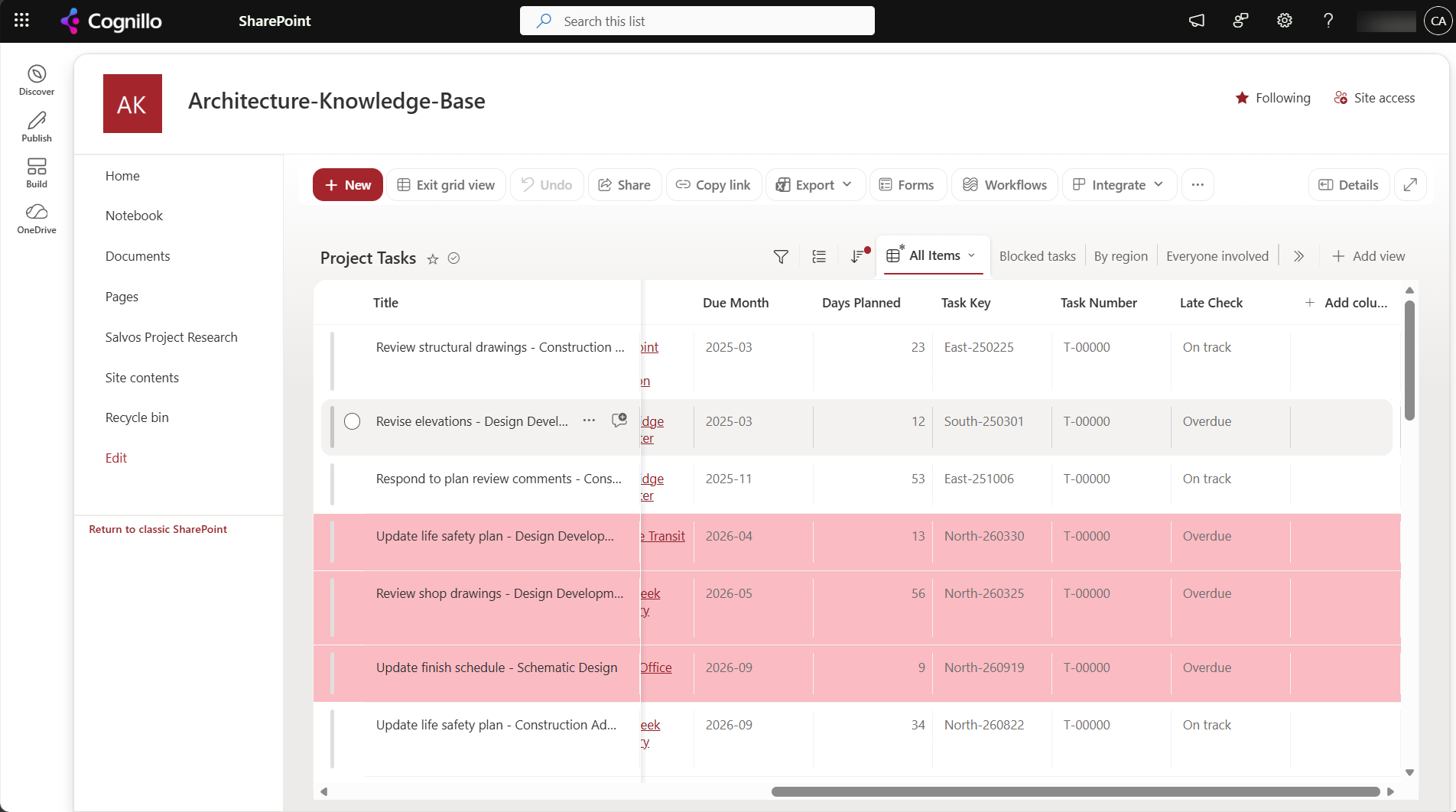
We added six calculated columns to our Project Tasks list and read the values back on an item that already existed (ID 25) and a new item (ID 5501):
| Column | Formula | Returns | Result |
|---|---|---|---|
| Due Month | =TEXT([Due Date],"yyyy-mm") | Single line of text | 2026-05, 2026-10 |
| Days Planned | =[Due Date]-[Start Date] | Number, 0 decimals | 33, 19 |
| Task Key | =[Region]&"-"&TEXT([Start Date],"yymmdd") | Single line of text | North-260412, North-261001 |
| Late Check | =IF(AND([Status]<>"Done",[Due Date]<DATE(2026,10,28)),"Overdue","On track") | Single line of text | Overdue, Overdue |
| Task Number | ="T-"&TEXT([ID],"00000") | Single line of text | T-00025, T-00000, then T-00000 on every item |
| Late | =IF(AND([Status]<>"Done",[Due Date]<TODAY()),"Overdue","") | Single line of text | Overdue, Overdue (on the day it was saved) |
![Edit Column page for Task Key, a calculated column with formula =Region&"-"&TEXT([Start Date],"yymmdd") returning a single line of text](/__l5e/assets-v1/ccbc8592-146e-42e0-a348-1302d6968a50/calculated-column-formula-editor.png)
Formula patterns that work
Dates
- Add days:
=[Start Date]+14(return type Date and Time). - Days between:
=[Due Date]-[Start Date](return type Number), or=DATEDIF([Start Date],[Due Date],"d"). - Month or year as text for grouping:
=TEXT([Due Date],"yyyy-mm"),=YEAR([Created]). - End of month:
=DATE(YEAR([Due Date]),MONTH([Due Date])+1,1)-1. - There's no NETWORKDAYS function. Calculate working days in a flow if you need them.
IF, AND, OR
- Nested:
=IF([Budget]>10000,"Large",IF([Budget]>2000,"Medium","Small")). - Blank checks:
=IF(ISBLANK([Due Date]),"No date","Has date"). - Text in a choice column: compare with
=, which isn't case-sensitive. For partial matches use=IF(ISNUMBER(SEARCH("urgent",[Title])),"Yes","No").
Joining text
=[Region]&" - "&[Title]or=CONCATENATE([Region]," - ",[Title]).- Numbers and dates need TEXT to format them:
="Due "&TEXT([Due Date],"d mmm yyyy"). - A lookup, person, managed metadata or multiple lines of text column can't be used in a formula. Choice columns can, unless they allow multiple values.
Formulas use your site's regional settings for separators. In sites set to some European locales, you write ; instead of , between arguments.
Why calculated values don't update
1. They're calculated on save, not on view
A calculated value is stored with the item. It changes when the item is edited or when the formula itself is changed, which recalculates every item. Nothing recalculates it overnight.
2. TODAY() goes stale
The column settings page rejects [Today] and TODAY() with "Calculated columns cannot contain volatile functions like Today and Me". A column added through the API or a site template can contain it, as our Late column did, but it is evaluated only when the item is saved. Our new item said Overdue on the day we created it; it will say the same next year, and an item that falls overdue tomorrow won't change until someone edits it.
For "overdue", "days left" or "expires soon", use one of these instead:
- JSON formatting with
@now, which is evaluated every time the view renders. See column and view formatting with JSON; we used it to color overdue rows on the same list. - A view filter like
Due Date < [Today], which views evaluate at query time. - A scheduled flow that writes a regular column each night, if you need to filter, sort or report on it.
3. [ID] is 0 when the item is saved
Right after we added Task Number, item 25 showed T-00025, but a new item showed T-00000, because the ID isn't assigned yet when the formula runs. A few hours and some bulk edits later, all 5,501 items showed T-00000. SharePoint doesn't support [ID] in calculated columns, so don't use it for numbering. Use the ID column itself, a flow that copies the ID into a text column after the item is created, or Document IDs; see Document ID and unique IDs.
Other things that stop formulas working
- Renaming a column used in a formula updates the formula for you.
- Calculated columns can't be indexed, so they can't be used to filter views on lists over 5,000 items. See the list view threshold.
- They're read-only everywhere, including grid view, where the cell says "This cell is read-only".
Option 2: Add formulas and force a recalculation with PowerShell
This PnP PowerShell script adds a calculated column from XML, which lets you set the internal name and return type. It then recalculates items whose stored value has gone stale by re-saving them as a system update, which doesn't create a new version. In our test, a system update recalculated the item's calculated columns straight away and left it at version 3.0. Run that part nightly for TODAY() style formulas. Both steps change the list, so they only run when you set $WhatIf = $false. It needs PnP PowerShell 2.x and your own Entra ID app registration.
$ClientId = "<your-app-id>"
$SiteUrl = "https://contoso.sharepoint.com/sites/Projects"
$List = "Project Tasks"
$WhatIf = $true
Connect-PnPOnline -Url $SiteUrl -Interactive -ClientId $ClientId
# Internal names of the columns the formula uses (display names go in the formula)
Get-PnPField -List $List | Where-Object { $_.Title -in "Due Date", "Start Date", "Region" } |
Select-Object Title, InternalName, TypeAsString
$xml = @"
<Field Type="Calculated" Name="TaskKey" DisplayName="Task Key" ResultType="Text" ReadOnly="TRUE">
<Formula>=[Region]&"-"&TEXT([Start Date],"yymmdd")</Formula>
<FieldRefs><FieldRef Name="Region"/><FieldRef Name="StartDate"/></FieldRefs>
</Field>
"@
if (-not (Get-PnPField -List $List -Identity "TaskKey" -ErrorAction SilentlyContinue)) {
if ($WhatIf) { "WhatIf: would add TaskKey" } else { Add-PnPFieldFromXml -List $List -FieldXml $xml | Out-Null }
}
# Recalculate open items that are past due but not yet flagged
$stale = Get-PnPListItem -List $List -PageSize 2000 -Fields "Title", "TaskStatus", "DueDate", "LateFlag" | Where-Object {
$_["TaskStatus"] -ne "Done" -and $_["DueDate"] -and ([datetime]$_["DueDate"]) -lt (Get-Date).Date -and $_["LateFlag"] -ne "Overdue"
}
"$($stale.Count) item(s) to recalculate"
foreach ($item in $stale) {
if ($WhatIf) { "WhatIf: would re-save item $($item.Id) $($item['Title'])"; continue }
Set-PnPListItem -List $List -Identity $item.Id -Values @{ Title = $item["Title"] } -UpdateType SystemUpdate | Out-Null
}
Inside the XML, & in the formula must be written &, and < and > as < and >.
How SharePoint Essentials Toolkit relates
The toolkit doesn't write formulas. Its item inventory reads the calculated values along with any other columns you name, for every item in a list, so you can check results across thousands of items and export them to Excel. When it copies a list to another site, calculated columns are created on the target with their formulas and recalculate there.
Frequently asked questions
Why is my SharePoint calculated column not updating?
Calculated values are stored when an item is saved and only change when that item is edited or the formula is changed. Formulas that depend on today's date or on the item ID don't refresh on their own.
Can I use TODAY() in a SharePoint calculated column?
The column settings page rejects it. Columns created through the API can contain it, but it is only evaluated when the item is saved, so the value goes stale. Use a view filter with [Today], JSON formatting with @now, or a scheduled flow.
Why does [ID] return 0 in a calculated column?
The ID isn't assigned when the formula runs on a new item, so it returns 0. In our test, every existing item also showed 0 within hours. Use the ID column directly, a flow that copies the ID into a text column, or Document IDs.
How do I combine two columns in SharePoint?
Create a calculated column with =[Column1]&" "&[Column2] or =CONCATENATE([Column1]," ",[Column2]). Wrap dates and numbers in TEXT to format them, for example TEXT([Due Date],"yyyy-mm-dd").
Can a calculated column use a lookup or person column?
No. Lookup, person, managed metadata and multiple lines of text columns can't be referenced in formulas. Copy the value into a single line of text column with a flow and reference that instead.
Check calculated values across every item, free
SharePoint Essentials Toolkit Community Edition is free. Inventory items with the columns you name, including calculated ones, and export them to Excel, on up to 20 sites per Microsoft 365 tenant. Get your free Community Edition license key.