SharePoint "Edit in Grid View" Missing, Greyed Out or Read-Only: Every Cause and How to Fix It
Edit in grid view is missing when the list's Advanced settings turn off "Allow items in this list to be edited using the grid view" (DisableGridEditing), when you don't have edit permission, or in classic views. Inside the grid, calculated, ID, Created, Modified and system columns are always read-only and show "This cell is read-only". For edits across many lists or sites, or more items than you can paste in a grid, use PowerShell or the free SharePoint Essentials Toolkit.
Published:
Last updated: 2026-10-29
What we tested
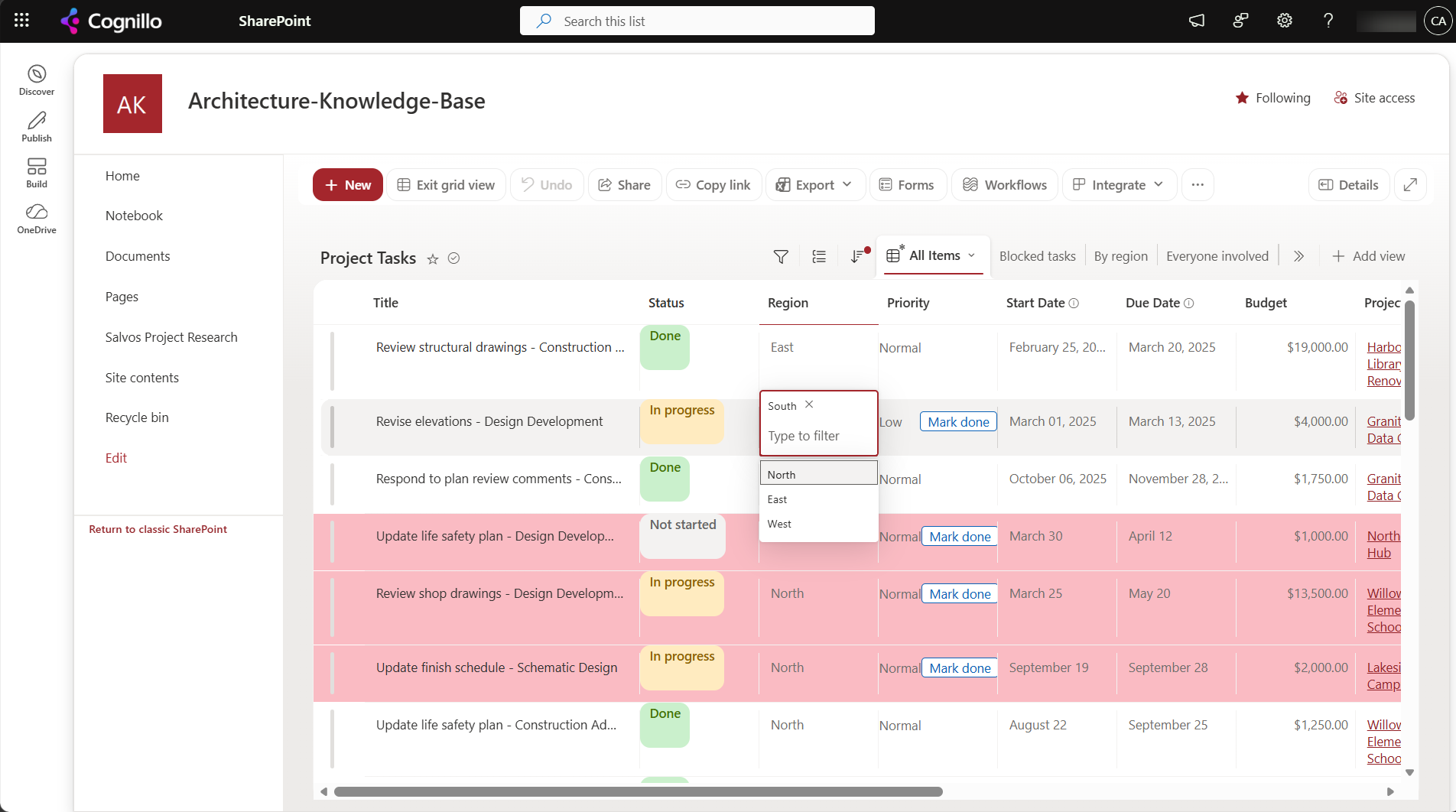
We opened Edit in grid view on our 5,501 item Project Tasks list. It has choice, number, currency, date, person and lookup columns, five calculated columns and JSON formatting on two columns. Grid view loaded fine above the 5,000 item threshold, kept the JSON formatting (the red overdue rows and status pills), and edited a choice cell in place:
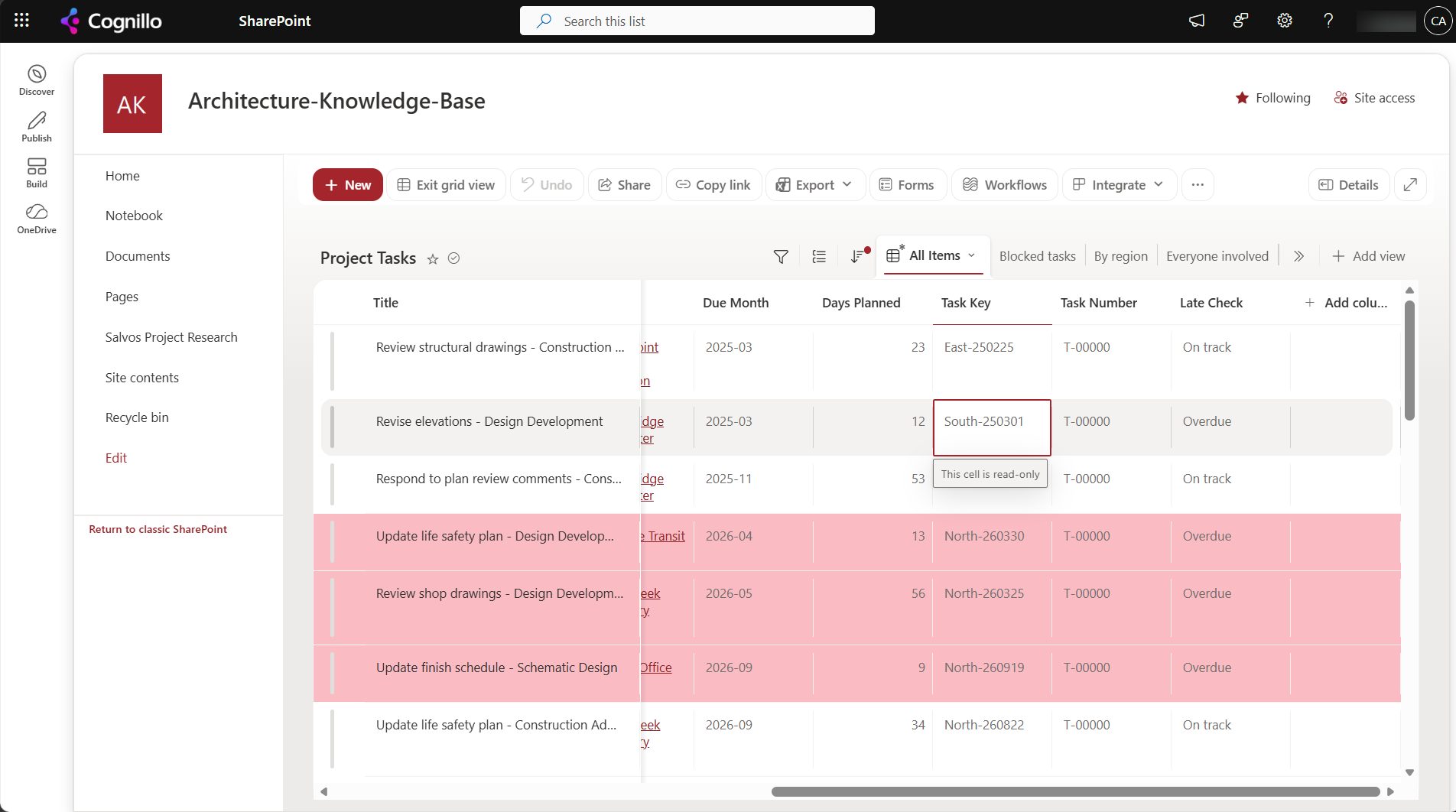
Calculated cells didn't edit. Clicking one shows "This cell is read-only":
Why the Edit in grid view button is missing
| Cause | How to check | Fix |
|---|---|---|
| Grid editing is turned off for the list | List settings, Advanced settings, "Allow items in this list to be edited using the grid view?" | Set it to Yes. In PowerShell it's the list's DisableGridEditing property. |
| You can only read the list | No New button either | Needs Edit or Contribute permission on the list |
| Classic experience | The page has a ribbon | Switch the list to the new experience; classic "Quick edit" is the old equivalent |
| A view type that has no grid | Calendar, Gallery or Board view | Switch to a List view |
| The browser window is very narrow | The command bar collapses into "..." | Look under "..." or widen the window |
Columns you can't edit in grid view
- Always read-only: calculated, ID, Created, Created By, Modified, Modified By, Version, Type, File Size, Check Out User, and the projected fields a lookup brings with it.
- Read-only by design of the column: columns set to read-only in their schema, which many apps and migrations create, and Document ID.
- Limited: enhanced rich text (multi-line text with formatting) opens a panel rather than editing in the cell; image and location columns open a picker.
- Libraries that require check out: property edits go into a checked-out version that other people don't see until it's checked in. Check the files in after a grid edit.
Calculated values change when you edit the columns they use, not in the cell. See SharePoint calculated column formulas for why they sometimes don't refresh.
Grid view and large lists
Grid view loads items in pages as you scroll, so the 5,000 item list view threshold doesn't stop it opening. It does stop sorting and filtering on unindexed columns, the same as in the normal view. Pasting into the grid works for a few hundred rows; beyond that, browser memory and SharePoint throttling make it slow and error-prone. Use one of the options below for big edits.
Option 1: Turn grid editing back on with PowerShell, and find lists where it's off
This PnP PowerShell script reports grid editing, required check out and versioning for every list on each site. It only changes something when you set $WhatIf = $false, and then only turns grid editing back on. It needs PnP PowerShell 2.x and your own Entra ID app registration.
$ClientId = "<your-app-id>"
$Sites    = Import-Csv .\sites.csv     # one column: Url
$WhatIf   = $true

$report = foreach ($s in $Sites) {
    Connect-PnPOnline -Url $s.Url -Interactive -ClientId $ClientId
    foreach ($l in Get-PnPList -Includes DisableGridEditing, ForceCheckout | Where-Object { -not $_.Hidden }) {
        [pscustomobject]@{
            Site = $s.Url; List = $l.Title; Items = $l.ItemCount
            GridEditingOff = $l.DisableGridEditing; RequireCheckOut = $l.ForceCheckout
        }
        if ($l.DisableGridEditing -and -not $WhatIf) {
            $l.DisableGridEditing = $false; $l.Update(); Invoke-PnPQuery
        }
    }
}
$report | Where-Object GridEditingOff | Format-Table
$report | Export-Csv .\grid-editing.csv -NoTypeInformation
Option 2: Bulk edit outside the grid with PowerShell
For thousands of items, read the IDs that match and update them in batches. This sets Status to Done on every overdue task in one region, previews by default, and uses a batch so SharePoint gets one request per 100 updates:
$List   = "Project Tasks"
$WhatIf = $true
$query  = "<View><Query><Where><And>
  <Eq><FieldRef Name='Region'/><Value Type='Choice'>West</Value></Eq>
  <Lt><FieldRef Name='DueDate'/><Value Type='DateTime'><Today/></Value></Lt>
</And></Where></Query><RowLimit Paged='TRUE'>2000</RowLimit></View>"
$items = Get-PnPListItem -List $List -Query $query -PageSize 2000
"{0} items match" -f $items.Count
if (-not $WhatIf) {
    $batch = New-PnPBatch
    foreach ($i in $items) { Set-PnPListItem -List $List -Identity $i.Id -Values @{ TaskStatus = "Done" } -Batch $batch }
    Invoke-PnPBatch -Batch $batch
}
The filter has to use an indexed column on lists over 5,000 items. Index Region first, or the query fails with the threshold error. To keep Modified and Modified By unchanged, drop the batch and call Set-PnPListItem with -UpdateType SystemUpdate per item; it's slower but adds no visible edit.
Option 3: Check grid editing and bulk edit with SharePoint Essentials Toolkit
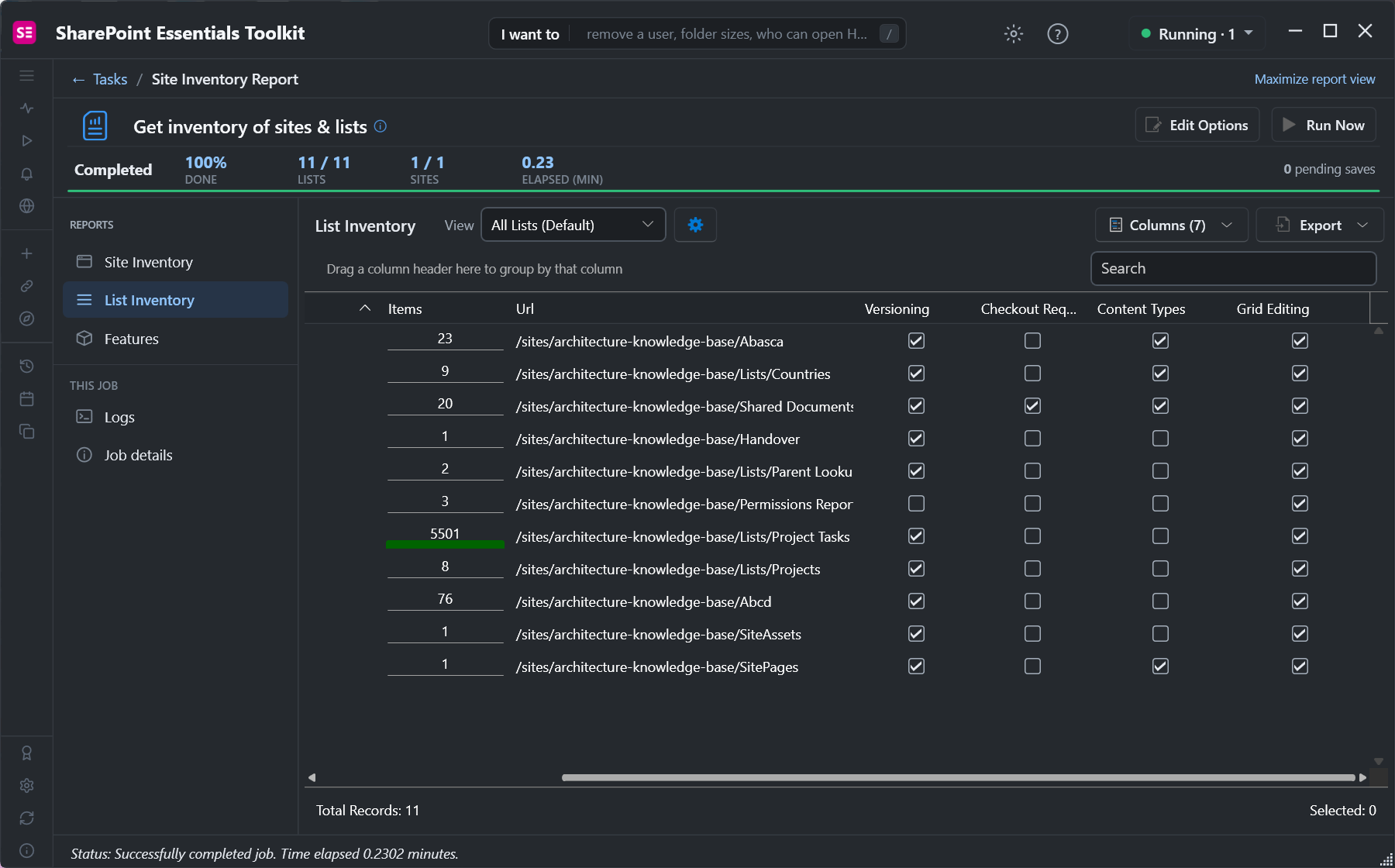
The toolkit's Get inventory of sites & lists task lists every list on the sites you pick, with its item count and whether grid editing, required check out, versioning and content types are on. Sort or filter the Grid Editing column to find the lists where users won't see the button:
For text edits across many lists and sites, Search > Replace text in columns and metadata finds a value in titles, descriptions, notes and other text columns and rewrites it. Turn on Flag only to see every match first; the report lists every change, and History can undo it. Get checked out files finds the files a grid edit left checked out in libraries that require check out, and checks them in or discards the check-outs in bulk.
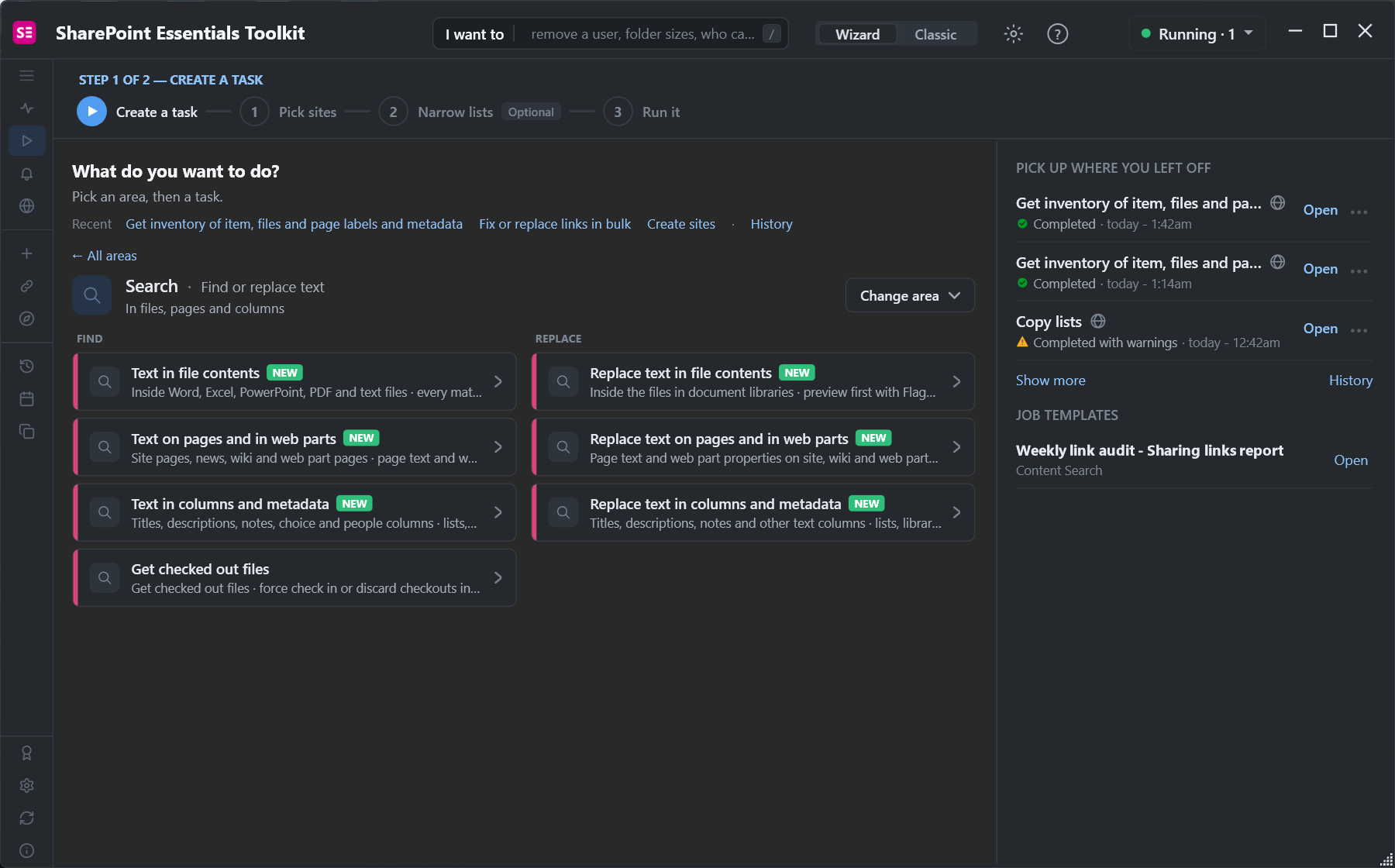
The Bulk edit area also has Change who last modified items, which replaces the Modified By user on many items without changing the Modified date or adding a version. The grid can't edit Modified By at all.
Frequently asked questions
Why is Edit in grid view missing in SharePoint?
Usually because the list's Advanced settings have "Allow items in this list to be edited using the grid view" set to No. It's also missing without edit permission, in classic views, and in calendar, gallery and board views.
Why does SharePoint grid view say This cell is read-only?
The column can't be edited directly: calculated columns, ID, Created, Modified, their By columns, lookup projected fields and columns marked read-only in their schema. Edit the columns a calculated column uses instead.
Does Edit in grid view work on lists over 5,000 items?
Yes, it opens and loads as you scroll. Sorting and filtering on unindexed columns is still blocked by the list view threshold, and pasting thousands of rows is slow, so use PowerShell or a bulk edit tool for large changes.
Does JSON column formatting work in grid view?
Yes. In our test, status pills and overdue row highlights stayed on in grid view, and the cell switches to an editor when you click it.
How do I bulk edit SharePoint items without grid view?
Use PnP PowerShell with Get-PnPListItem and Set-PnPListItem in a batch, Power Automate, or a bulk edit tool that sets column values across many lists and sites with a report of what changed.
Find and fix list settings across every site, free
SharePoint Essentials Toolkit Community Edition is free. Inventory every list's grid editing, check out and versioning settings, and find and replace column values in bulk with a report of every change, on up to 20 sites per Microsoft 365 tenant. Get your free Community Edition license key.