SharePoint List View Threshold (5,000 Items): How to Fix It, Which Columns to Index, and What Indexing Doesn't Fix
The list view threshold stops any single query from scanning more than 5,000 items in a list. It can't be raised in SharePoint Online, but a list can hold 30 million items. To fix a view that fails, index the column it filters on, make that filter the first condition, and make sure it returns fewer than 5,000 items. To find every list that is over or close to the threshold, use PowerShell or the free SharePoint Essentials Toolkit.
Published:
Last updated: 2026-10-29
What the threshold actually blocks
The threshold applies per query, not per list. Any operation that has to read more than 5,000 rows of the list's table to find its answer is refused. Showing the first 30 items of a 50,000 item list is fine; filtering, sorting or grouping those 50,000 items by a column without an index is not.
We built a test list, Project Tasks, with 5,501 items. The list settings page says it straight away:
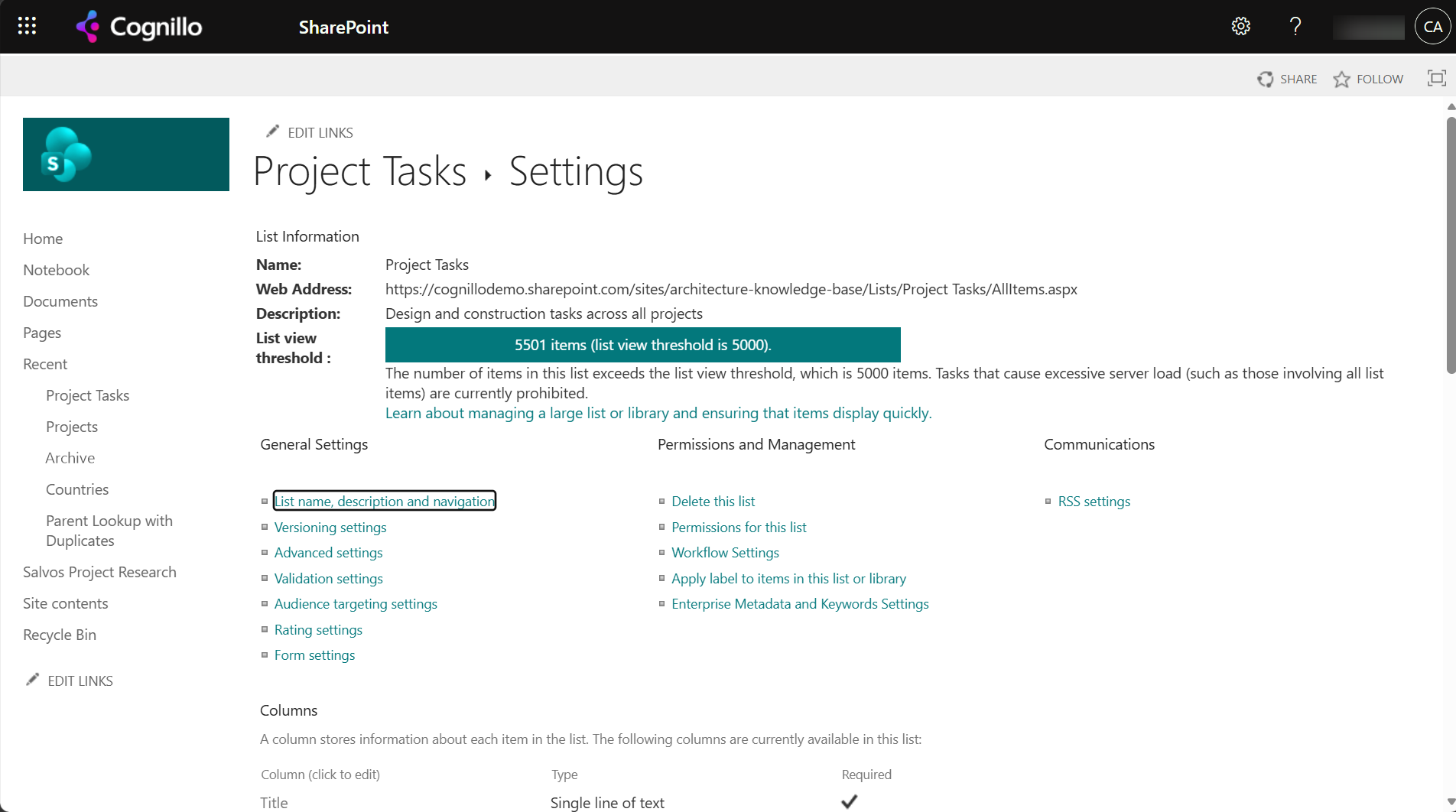
We then ran the same queries a view runs, through the REST API, before and after indexing two columns:
| Query on 5,501 items | No indexes | Status and Region indexed |
|---|---|---|
| Filter on ID | Works | Works |
| Filter Status = Blocked | Fails | Works |
| Filter Region = West | Fails | Works |
| Filter Priority = High | Fails | Fails (not indexed) |
| Sort by Budget | Fails | Fails (not indexed) |
Each failure returned Microsoft.SharePoint.SPQueryThrottledException: "The attempted operation is prohibited because it exceeds the list view threshold." ID always works because it is indexed by default. In the browser, the modern view grouped by Region showed this instead of the list:
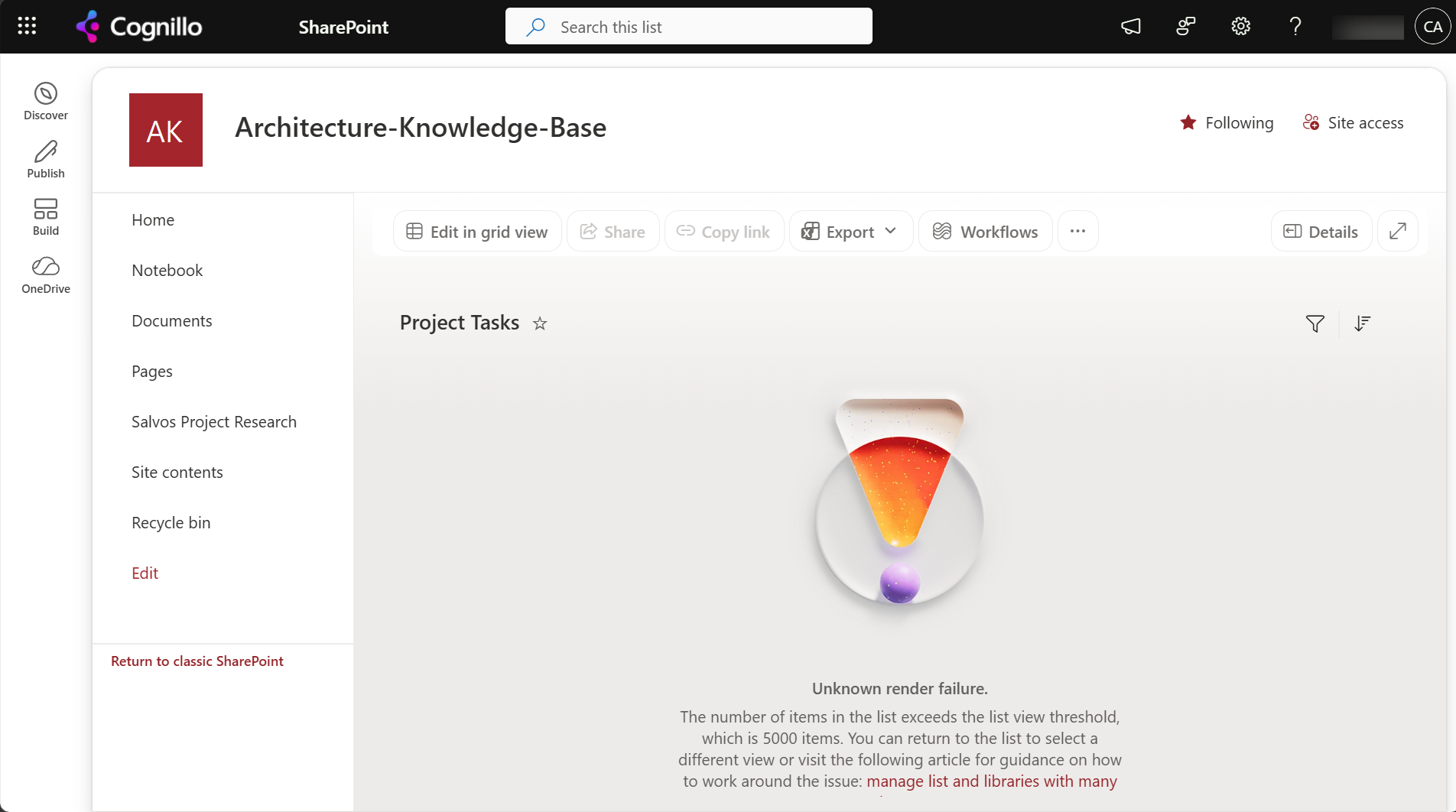
A modern view filtered on Status, with no index, still showed rows in the browser. The same filter failed through REST, so flows, Power Apps and scripts that run it get the error even when the browser view looks fine. That difference is covered in Filter, group or sort fails because of the threshold.
Option 1: Fix it with built-in settings
1. Index the columns your views filter on
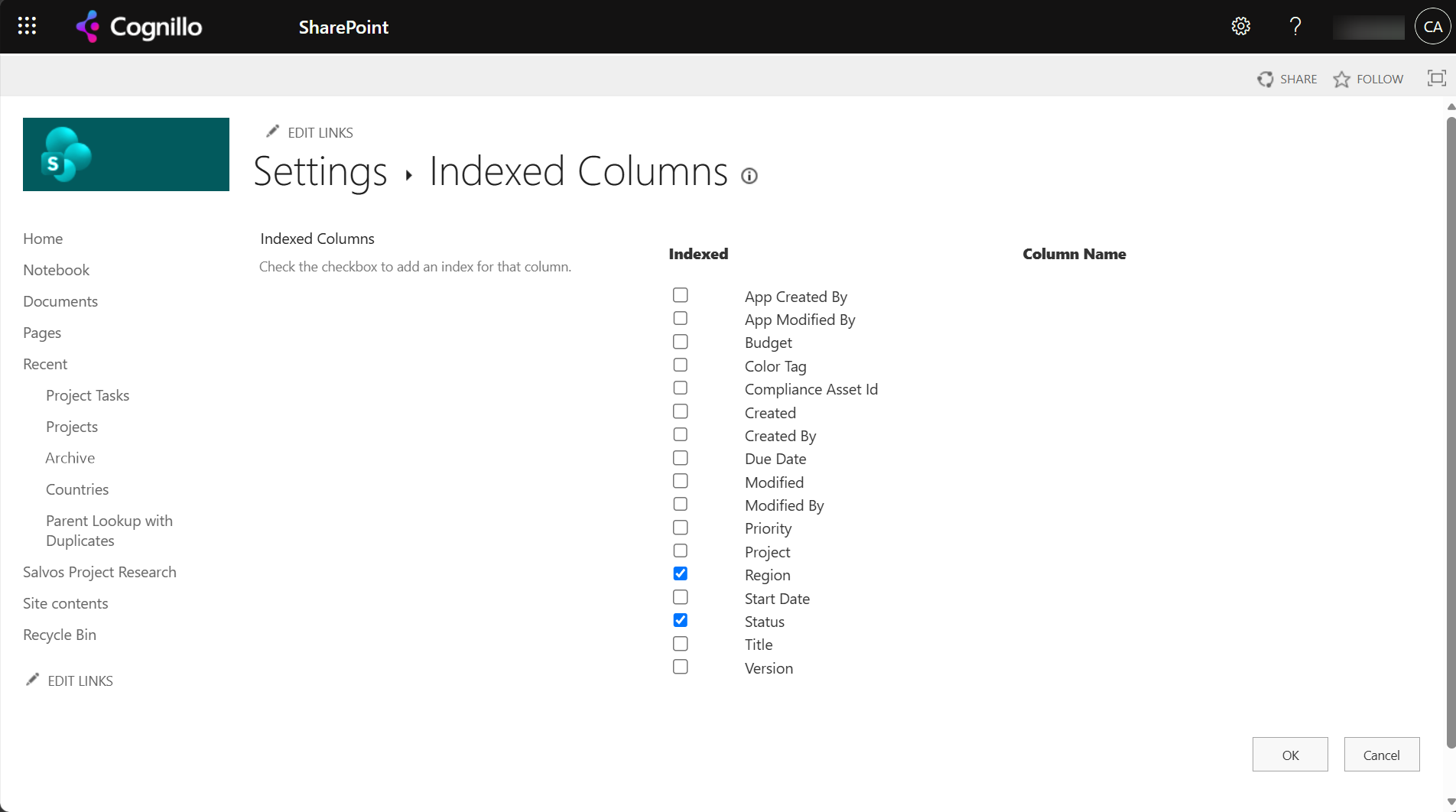
Open List settings > Indexed columns > Create a new index, or in the classic page tick the columns. We indexed Status and Region:
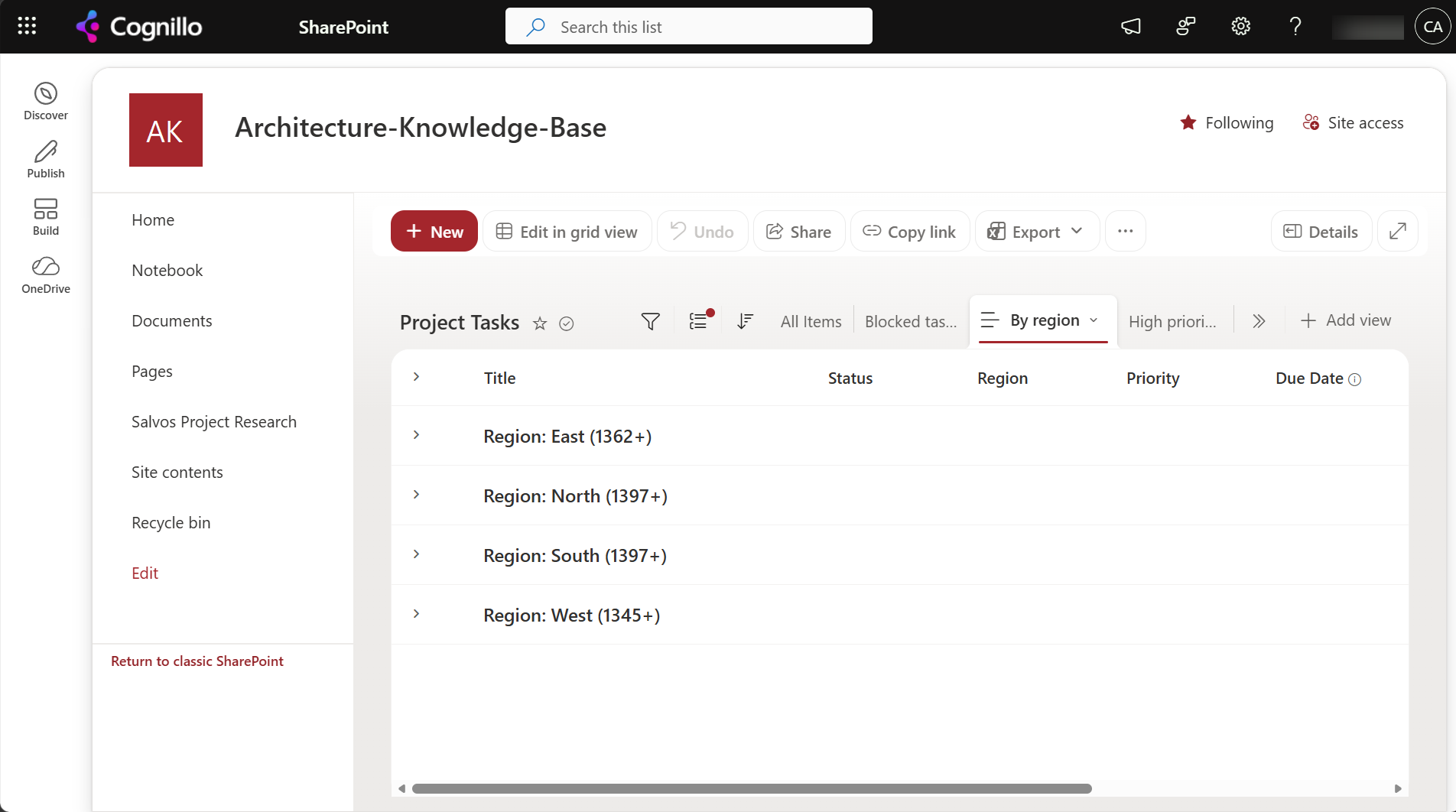
After that, the same view grouped by Region loaded. The counts end in "+" because SharePoint stops counting once it has enough rows to display:
Rules that decide whether an index helps:
- The first filter must use an indexed column and return fewer than 5,000 items. Status = Blocked works because it matches far fewer than 5,000 items. A filter like Status ≠ Done can still fail if it matches more than 5,000.
- A list can have up to 20 indexes, so don't index columns nobody filters on.
- Multiple lines of text, calculated columns, hyperlinks and columns that allow multiple values can't be indexed. To filter on a calculated value, store it in a regular column instead; see calculated column formulas.
- Sorting by a column needs an index on that column. Grouping needs an index on the group-by column.
- An
ORacross two indexed columns, or a filter on a column without an index ANDed after an indexed one, is only safe when the indexed part alone gets below 5,000 items.
2. Leave automatic index management on
List settings > Advanced settings > Automatic Index Management lets SharePoint add indexes for columns used to sort and filter in views. Microsoft documents that it does this for lists with fewer than 20,000 items, so add indexes yourself before a list gets that big.
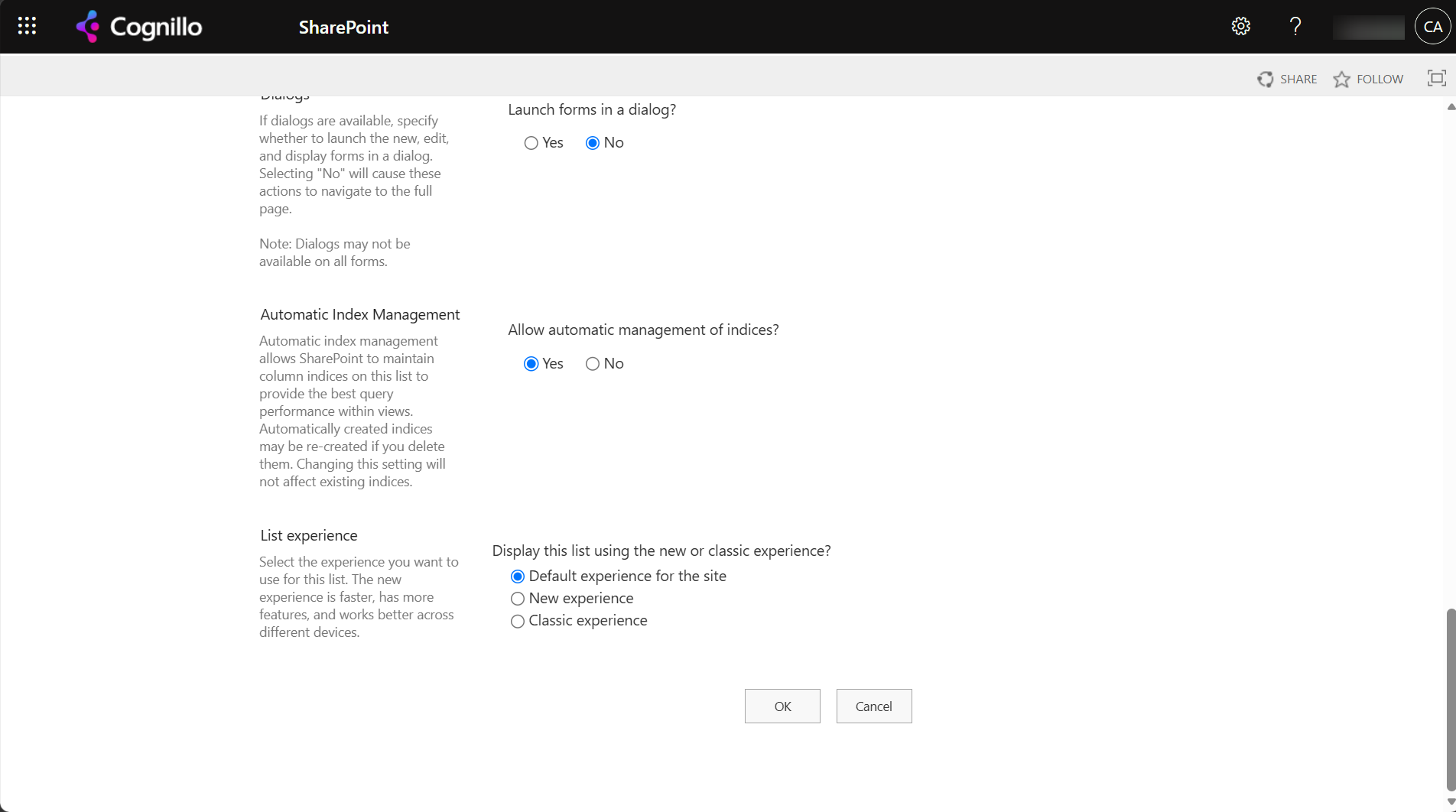
3. Redesign views that scan the whole list
- Filter by something narrow first: a project, a year, an assigned person,
Created >= [Today]-90on an indexed Created column. - Use folders. A view showing one folder at a time only reads that folder's items.
- Don't depend on totals, "Show all items without folders" or "group by" on columns that aren't indexed.
- For reporting across all items, export to Excel or use Power BI, which page through the list instead of running one big query.
Option 2: Find large lists and their indexes with PowerShell
This PnP PowerShell script lists every list and library on a set of sites with more than 4,000 items, and the columns that are indexed on each, so you can fix views before users hit the limit. It is read-only, apart from the optional last step, which adds an index only when you set $WhatIf = $false. It needs PnP PowerShell 2.x and your own Entra ID app registration.
$ClientId = "<your-app-id>"
$Sites    = @("https://contoso.sharepoint.com/sites/Projects", "https://contoso.sharepoint.com/sites/Finance")
$Warn     = 4000
$WhatIf   = $true

$rows = foreach ($site in $Sites) {
    Connect-PnPOnline -Url $site -Interactive -ClientId $ClientId
    Get-PnPList -Includes ItemCount, Hidden | Where-Object { -not $_.Hidden -and $_.ItemCount -ge $Warn } | ForEach-Object {
        $indexed = Get-PnPField -List $_ | Where-Object { $_.Indexed } | Select-Object -ExpandProperty InternalName
        [pscustomobject]@{
            Site      = $site
            List      = $_.Title
            Items     = $_.ItemCount
            OverLimit = $_.ItemCount -gt 5000
            Indexed   = ($indexed -join "; ")
        }
    }
}
$rows | Sort-Object Items -Descending | Format-Table -AutoSize
$rows | Export-Csv "large-lists.csv" -NoTypeInformation

# Add an index to one column on one list
$IndexSite = "https://contoso.sharepoint.com/sites/Projects"
$IndexList = "Project Tasks"
$IndexCol  = "Region"
if ($WhatIf) {
    "WhatIf: would index '$IndexCol' on '$IndexList'"
} else {
    Connect-PnPOnline -Url $IndexSite -Interactive -ClientId $ClientId
    Set-PnPField -List $IndexList -Identity $IndexCol -Values @{ Indexed = $true }
}
Scripts hit the same threshold as views. Get-PnPListItem -List "Project Tasks" -PageSize 2000 reads every item in pages and works on any size of list. Adding a CAML -Query that filters or sorts on a column without an index fails over 5,000 items, even with paging.
Option 3: Find every list over the threshold with SharePoint Essentials Toolkit
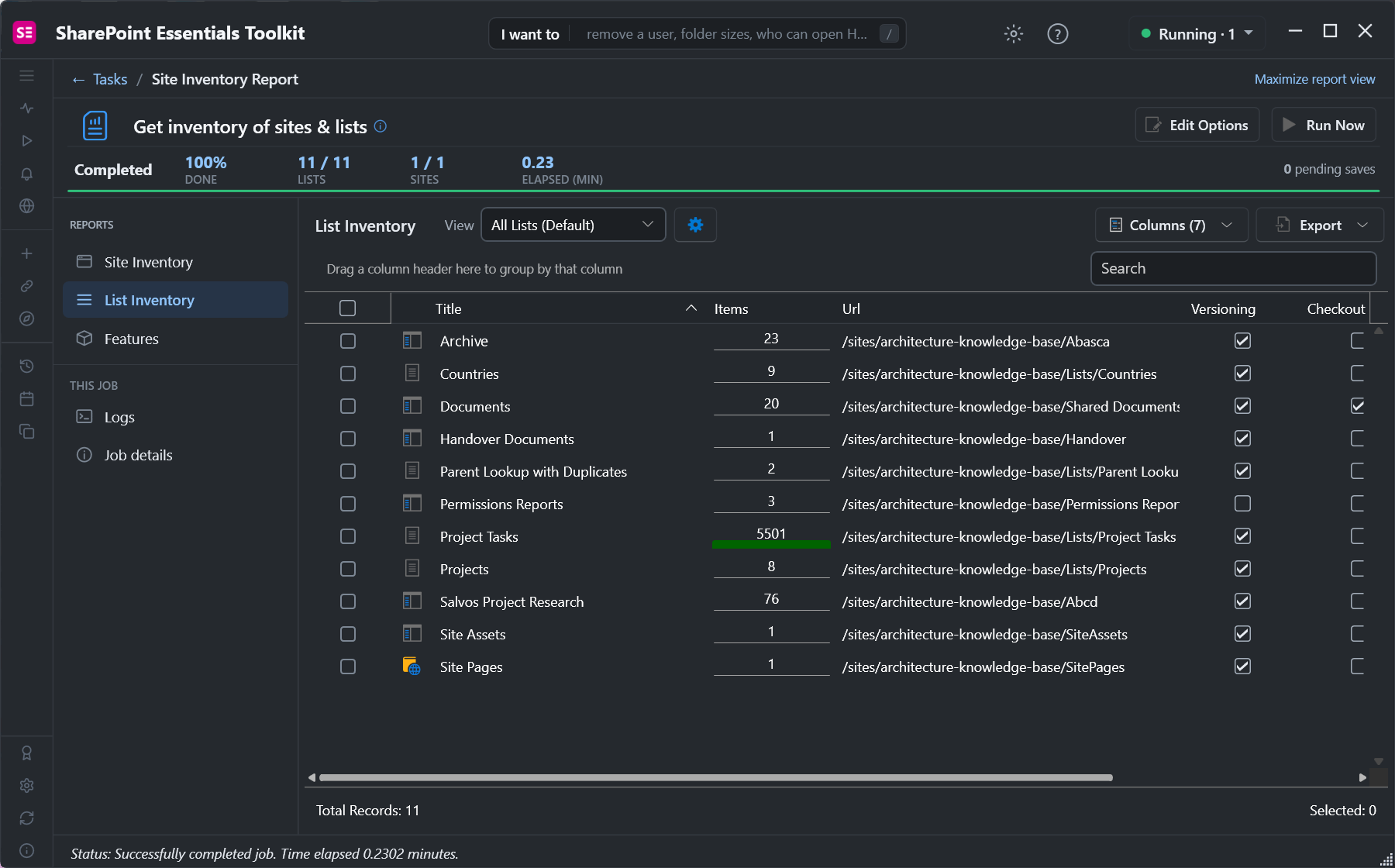
Inventory > Get inventory of sites & lists reads every list on the sites you pick, with its item count. Sort the Items column to see which lists are over or close to 5,000. On our test site, Project Tasks stands out at 5,501:
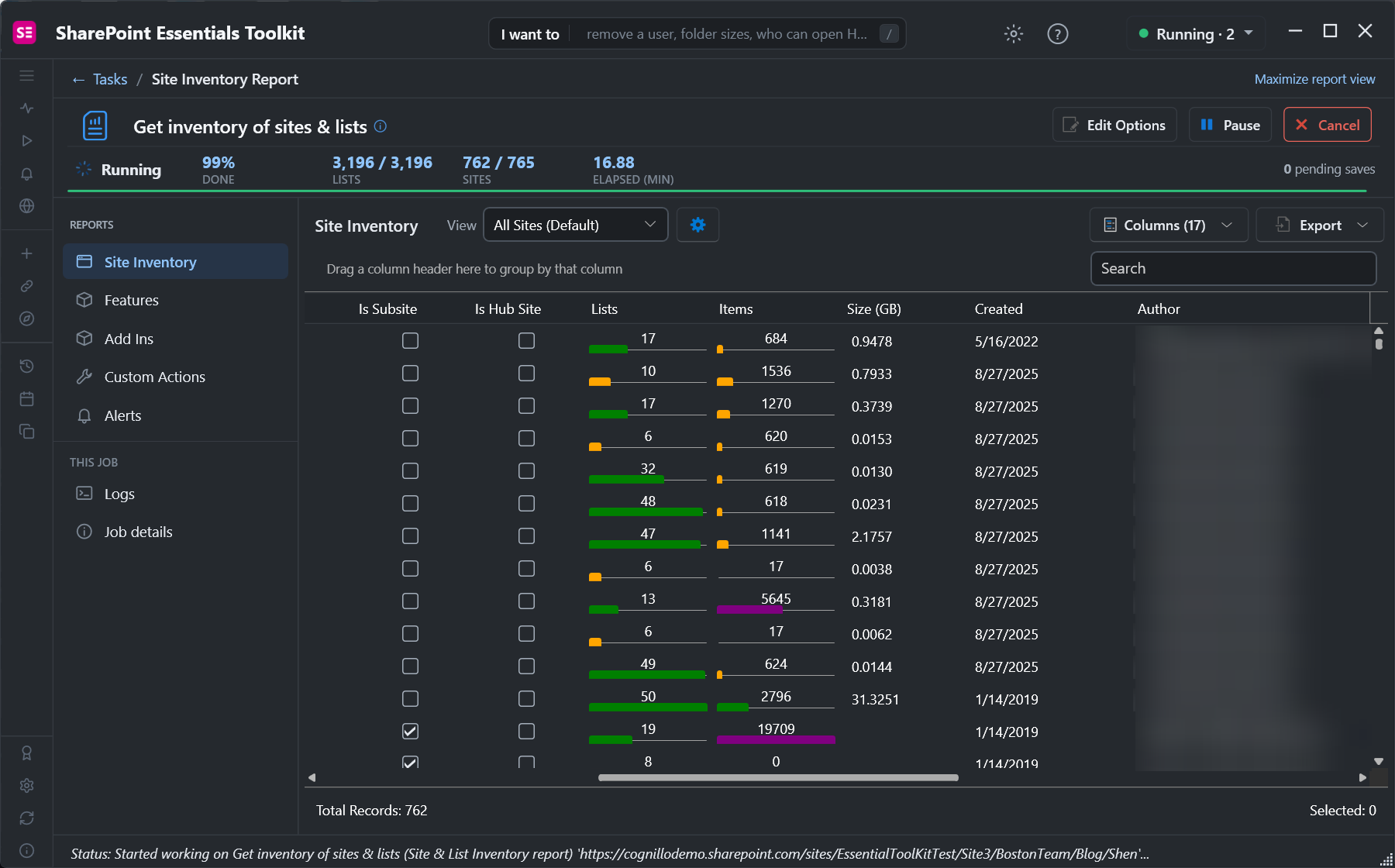
Run it on many sites at once and the Site Inventory tab shows lists and items per site, which is a quick way to find the sites that hold the big lists. In our tenant, one site had 19,709 items:
The toolkit's own reports page through lists, so they read lists of any size without hitting the threshold. Its grid can then filter, group and sort all the items, which SharePoint's views can't do without indexes.
Frequently asked questions
Can I increase the 5,000 item list view threshold in SharePoint Online?
No. The threshold is fixed at 5,000 in SharePoint Online. In SharePoint Server, a farm administrator can change it in Central Administration, but Microsoft recommends against it.
How many items can a SharePoint list hold?
Up to 30 million items and files. The 5,000 limit is on how many items one query can scan, not on how many the list can store.
Can I add an index to a list that already has more than 5,000 items?
Yes, in SharePoint Online. We indexed two columns on a 5,501 item list from Indexed columns in list settings, and views filtered on them worked straight away.
Which columns can't be indexed in SharePoint?
Multiple lines of text, calculated columns, hyperlink or picture columns, and choice, lookup or person columns that allow multiple values. A list can have up to 20 indexes.
Why does my view still fail after I indexed the column?
The indexed filter must come first and return fewer than 5,000 items. A filter that matches more than 5,000 items, a sort on a column without an index, or grouping by a column without an index still fails.
Find every SharePoint list over the threshold, free
SharePoint Essentials Toolkit Community Edition is free. Inventory lists and item counts across your sites, and filter, group and sort large lists without hitting the threshold, on up to 20 sites per Microsoft 365 tenant. Get your free Community Edition license key.