How to Clean Up Everyone Except External Users (EEEU) in SharePoint for Free
To clean up Everyone except external users (EEEU) in SharePoint, first find every place it has access, then remove it where it comes from: a SharePoint group such as Visitors, or a direct permission on a list, folder or file. SharePoint Essentials Toolkit, a free tool, does both. Its Sites and content open to everyone report finds every location EEEU can reach, and you remove the access from the same screen, with every change logged so it can be undone.
Published:
Last updated: 2026-11-05
In the run below, EEEU could reach 37 locations on one site. Two changes removed all of them, and a rescan found none.
The Everyone except external users cleanup starts at 2:51. The rest of the video removes orphaned users and direct access, and reviews sharing links.
What is Everyone except external users?
Everyone except external users is a built-in SharePoint claim that stands for every account in your Microsoft 365 tenant except guests. Its login name is c:0-.f|rolemanager|spo-grid-all-users/ followed by your tenant ID. Granting it access is the same as granting every employee, contractor and service account with a work account in your organization.
It usually gets there by accident. Someone shares a site "with everyone" by adding EEEU to the Visitors or Members group, a list is given EEEU access so a team can find a form, or a file is shared broadly years ago and forgotten. Because lists, folders and files inherit from the site, one group membership can open hundreds of locations.
It matters more with Microsoft 365 Copilot. Copilot answers from anything the person asking can open, so content open to EEEU is content anyone can surface with a question. Microsoft's oversharing blueprint for Copilot starts with finding and narrowing broad access like this. For Restricted SharePoint Search and other Copilot controls, see Copilot oversharing in SharePoint.
Option 1: Check and remove EEEU with built-in tools
- On the site, open Settings (the gear) > Site permissions > Advanced permissions settings.
- Choose Check Permissions, type Everyone except external users, and choose Check Now. It shows the permission levels and the groups that give them.
- Open each group listed, tick Everyone except external users, and choose Actions > Remove Users from Group. If it's granted directly, tick it on the permissions page and choose Remove User Permissions.
- Repeat on every list, library, folder and file that has unique permissions, and on every site.
What to know: Check Permissions covers one object at a time, so items with their own permissions have to be found and checked one by one. In the SharePoint admin center, the data access governance reports list sites shared with EEEU across the tenant, but they need SharePoint Advanced Management or Microsoft 365 Copilot licenses, and they report rather than remove.
Option 2: Remove EEEU with PowerShell
PnP PowerShell can remove the claim from a site's groups. Replace the tenant ID and site URL with yours; run it without Remove-PnPGroupMember first to see what it finds.
$tenantId = "00000000-0000-0000-0000-000000000000"
$eeeu = "c:0-.f|rolemanager|spo-grid-all-users/$tenantId"
Connect-PnPOnline -Url "https://contoso.sharepoint.com/sites/projects" -Interactive -ClientId "your-app-id"
foreach ($group in Get-PnPGroup) {
    if (Get-PnPGroupMember -Group $group | Where-Object LoginName -eq $eeeu) {
        Write-Host "EEEU is in $($group.Title)"
        Remove-PnPGroupMember -Group $group -LoginName $eeeu
    }
}
What to know: this covers group memberships on one site. Direct grants on lists, folders and files need a walk through every object with unique permissions, which is slow on large sites and easy to get wrong. There's no undo, so export what you change. Our PowerShell guide to all-users access in SharePoint has a fuller read-only script.
Option 3: Clean up EEEU with SharePoint Essentials Toolkit
SharePoint Essentials Toolkit is a free Windows desktop app for SharePoint administrators. Community Edition runs on up to 20 site collections per tenant. Here it cleans up EEEU on /sites/architecture-knowledge-base, a project site with about 10,000 items.
1. Find the task
In I want to at the top of the app, type open to everyone and pick Sites and content open to everyone.

2. Pick the sites and run
Pick the sites to check and click Next. The summary says what the job does: it scans each site and every list and library in it, finds what a broad audience can reach, and changes nothing. Click Run Now.

All 10,215 items, including the ones with unique permissions, were checked in 1.8 minutes.
3. Read the report
EEEU could reach 37 locations: the site, 17 lists and libraries, and 19 items. The report groups them by scope and shows, for each one, who it's open to, the permission level and where the access comes from.

Two sources explained all 37:
- The Visitors group. EEEU was a member of Architecture-Knowledge-Base Visitors, which has Read on the site. Every list that inherits from the site was open too, which is why most rows are gray and say "Inherited from parent".
- A direct grant. The Project Research library gave EEEU Edit directly, and Can Edit is ticked on that row. Anyone in the organization could change or delete its files.
4. Select what to remove
Tick the site row. The Actions panel explains that EEEU's access here is a membership of the Visitors group, and warns that removing it takes them out of the group everywhere the group is used. To take access away from only one object, you'd remove the group's permission there instead.

Then tick the Project Research row. The panel now lists each source separately: the group membership, and the direct grant on the library. It also offers Reset to inherited for the library, which drops its unique permissions so the site's apply again.

Tick both the Visitors membership and the direct grant. The button changes to Remove 2 permissions.
5. Review and apply
The review lists every change before anything happens: EEEU out of the Visitors group, with the reminder that they lose Read everywhere the group is used, and EEEU off the Project Research library, local to that list.

Click Remove 2 accounts. A last confirmation repeats the group warning; choose Remove from the group.
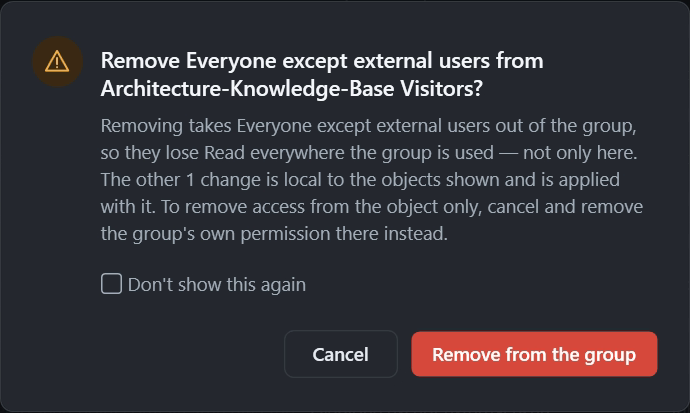
Both changes were applied in 2 seconds and logged in History.

6. Rescan to confirm
Click Refresh report. It scans the site again, every item included, and this time it finds no records. Two changes closed all 37 locations.

7. Undo if you need to
Open History and filter to Changes. Each permission change job is listed with when it ran; open one to see exactly what was removed and by whom, and undo a single change or all of them.

Before you remove EEEU
- Find out who relies on it. A site shared with everyone on purpose, such as an intranet home or a policy library, should keep broad Read. Leave those, or replace EEEU with a Microsoft 365 group that says who the audience really is.
- Give access back on purpose. Add the team's Microsoft 365 group or security group to the Members or Visitors group before you remove EEEU, so the people who need the site don't lose it.
- Start with Edit. EEEU with Edit or Contribute lets anyone change or delete content. The report's Can Edit column shows those rows; fix them first.
- Check Anyone links too. The same report lists Everyone and Anyone links. See how to clean up sharing links.
- Stop it coming back.
Set-SPOTenant -ShowEveryoneExceptExternalUsersClaim $falsehides EEEU from the people picker (Set-SPOTenant). Schedule the report so new grants show up.
For orphaned users, direct access and sharing links as well, see how to clean up user permissions in SharePoint.
Frequently asked questions
What is Everyone except external users in SharePoint?
It's a built-in claim that stands for every account in your Microsoft 365 tenant except guests. Its login name starts with c:0-.f|rolemanager|spo-grid-all-users/ followed by your tenant ID. Adding it to a group or permission gives every employee, contractor and service account with a work account the same access.
How do I find everywhere Everyone except external users has access?
Run Sites and content open to everyone in SharePoint Essentials Toolkit. It checks every site, list, folder and file on the sites you pick, including items with unique permissions, and lists each place that Everyone, Everyone except external users or an Anyone link can reach, with the permission level and the group it comes through. The report is free and changes nothing.
Is it safe to remove Everyone except external users from the Visitors group?
It removes their access everywhere that group is used, which is usually the point. Check first who relies on that access, and add the people or Microsoft 365 group that should keep it to the Visitors group. Every change made from the toolkit is logged in History and can be undone.
Can I stop people from adding Everyone except external users again?
Yes. A SharePoint administrator can run Set-SPOTenant -ShowEveryoneExceptExternalUsersClaim $false, which hides the claim from the people picker. Existing permissions stay as they are, so clean those up separately, and rerun the report on a schedule to catch anything new.
Is removing Everyone except external users free in SharePoint Essentials Toolkit?
Yes. Community Edition is free on up to 20 site collections per tenant. The report has no limits, and each Apply from its actions panel makes up to 10 changes, so you can clean up a site in a few passes. Enterprise applies changes in bulk.
Find and remove Everyone except external users for free
SharePoint Essentials Toolkit Community Edition is free on up to 20 site collections per Microsoft 365 tenant. Find every site, list, folder and file open to everyone, remove the access where it comes from, and undo any change from History. Get your free Community Edition license key.