Copy or Move Files in SharePoint with Power Automate: What We Saw Kept and Lost
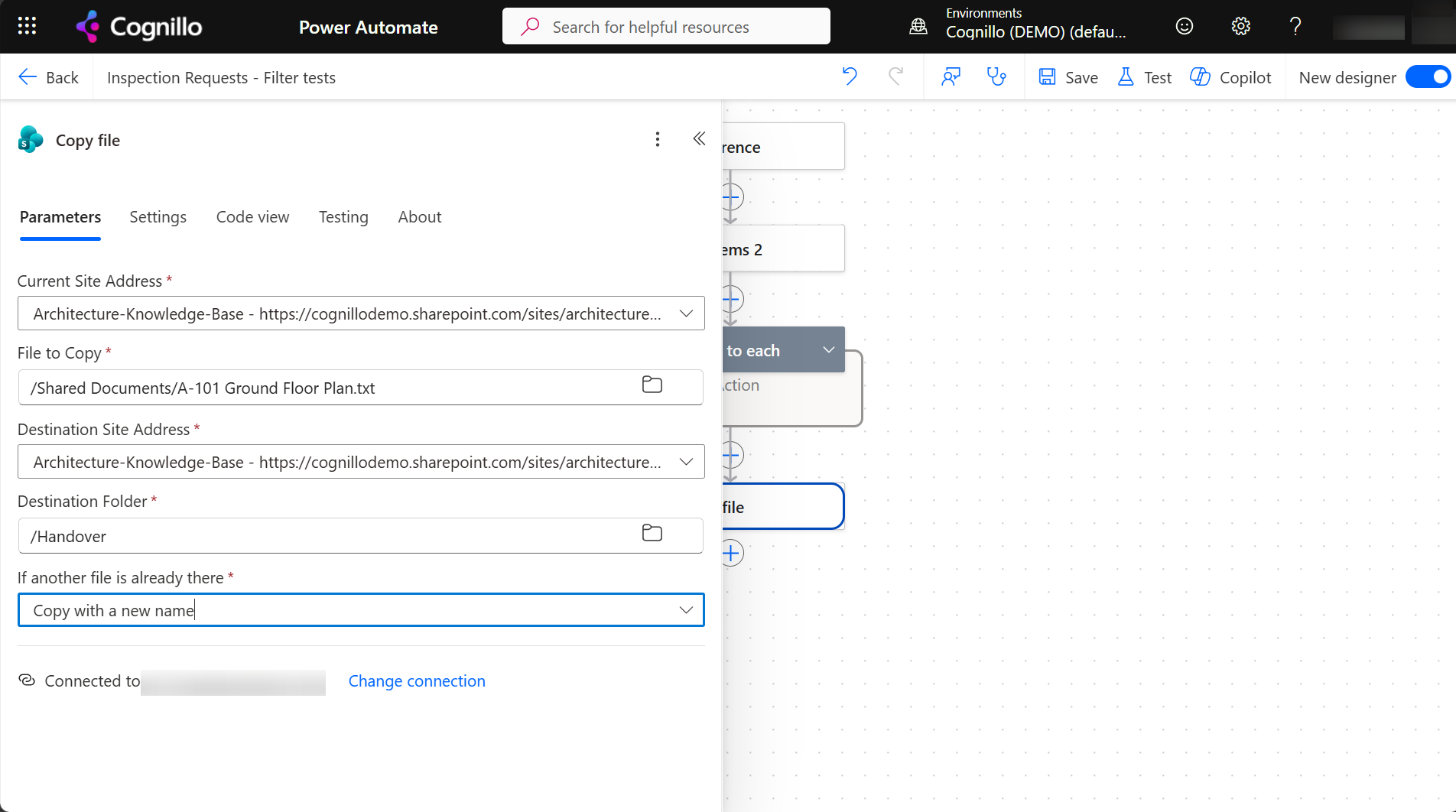
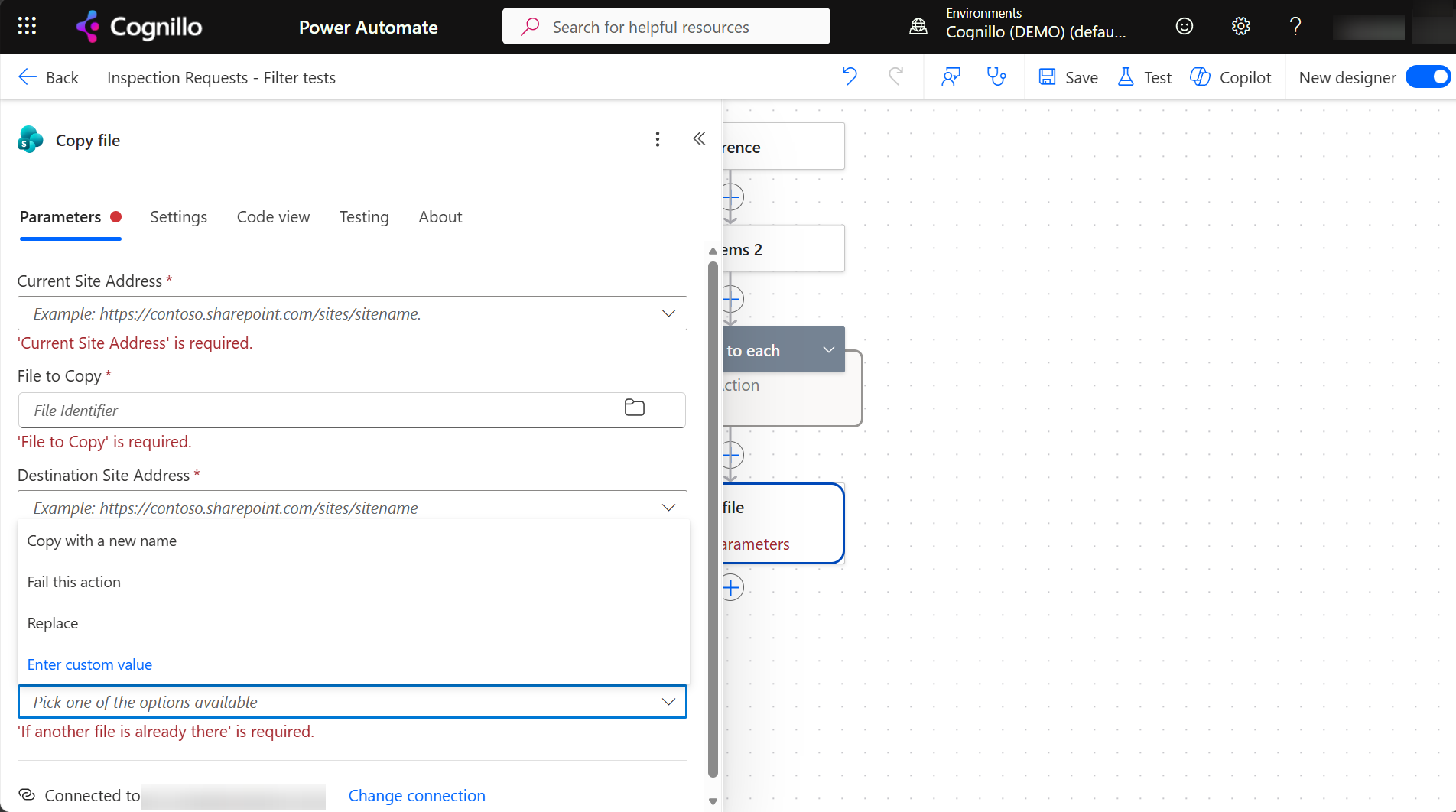
Power Automate's SharePoint Copy file action copies the file's current content and file name to another folder, library or site. In our test it didn't keep version history, the original Created date and author, custom columns that don't exist in the destination, the content type or the Document ID. Its conflict setting decides what happens when the name is taken: copy with a new name, fail, or replace. To copy with versions and metadata, use Move to or Copy to in SharePoint, or a migration tool.
Published:
Last updated: 2026-11-06
The actions
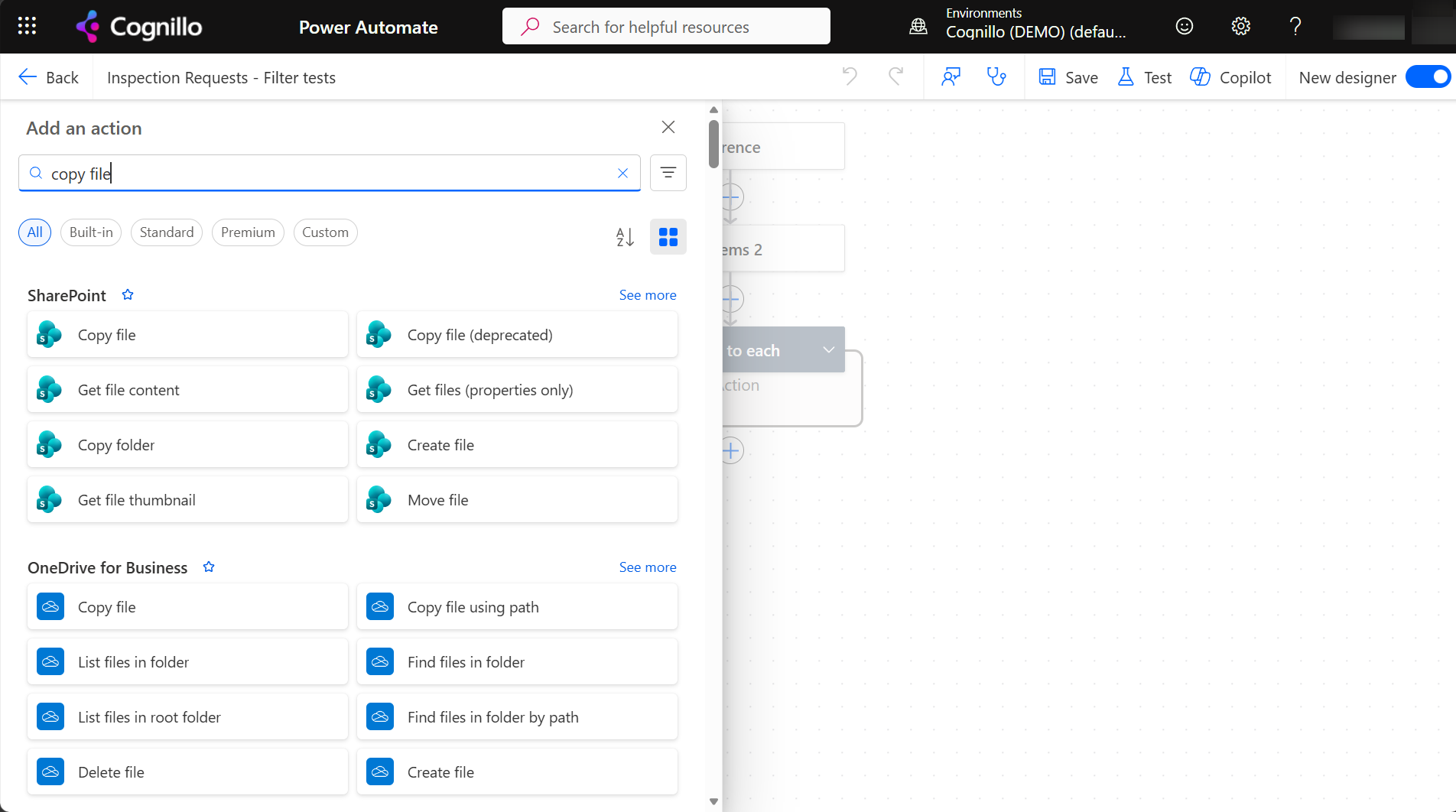
The SharePoint connector has Copy file, Copy folder, Move file and Move folder, plus an older "Copy file (deprecated)". Use the current ones.
What was kept and what wasn't
The source was A-101 Ground Floor Plan.txt in Documents: version 3.0 with two earlier versions, a custom content type, Drawing Number A-101 and a Document ID. We copied it to Handover Documents on the same site, then ran the flow again.
| Property | Source | Copy |
|---|---|---|
| Content | Current version | Same |
| Version | 3.0, with 2 earlier versions | 1.0, no history |
| Created and Created By | Original date and author | The time of the copy, by the flow's connection account |
| Content type | Custom drawing content type | Document (the library default) |
| Drawing Number | A-101 | Gone: the column doesn't exist in the destination |
| Document ID | …-80273064-21 | A new ID |
| Second run, same name | "A-101 Ground Floor Plan1.txt" (Copy with a new name) | |
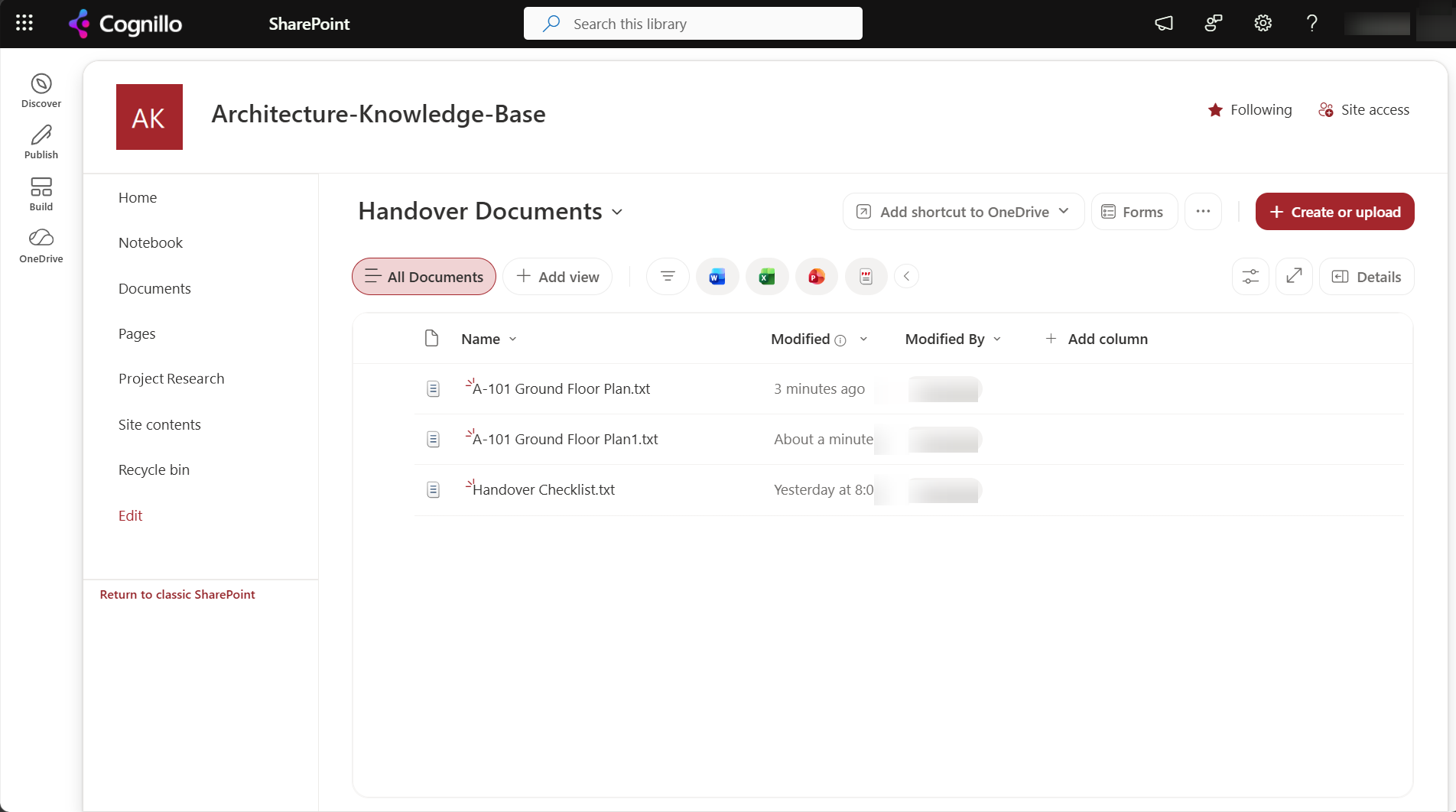
Each run took 13 seconds. If the destination library had the same columns, values in matching columns would be the ones to check next; here the column didn't exist, so there was nothing to keep it in.
When Copy file is the right tool
- Publishing a final copy somewhere else, where the history should stay behind.
- Making a working copy from a template file.
- Archiving a snapshot of a document at a point in time.
Set the metadata on the copy afterwards with Update file properties, using the ItemId from Copy file's output. Watch for loops if a flow on the destination library reacts to that update.
When you need versions and metadata
- SharePoint Move to. Moving keeps version history and metadata within the tenant. The old URL stops working.
- SharePoint Copy to. Kept version history in our tests, but also reset Created and dropped columns the target didn't have. See moving and copying files between sites.
- Move file in Power Automate. We didn't test it here. Before relying on it, move one file and check its version history and columns, and plan for the URL change in links and flows.
- A migration tool for whole libraries with dates, authors, versions and permissions.
Document IDs are tied to the site collection; a copy gets a new one. See Document ID.
Copy with versions in PowerShell
PnP PowerShell's Copy-PnPFile copies through SharePoint's copy job, the same API as Copy to, which kept versions in our earlier test. This script copies one file and prints its version before and after. It needs PnP PowerShell 2.x and your own Entra ID app registration; nothing is copied until you set $WhatIf = $false.
$ClientId = "<your-app-id>"
$SiteUrl  = "https://contoso.sharepoint.com/sites/Projects"
$Source   = "/sites/Projects/Shared Documents/A-101 Ground Floor Plan.txt"
$Target   = "/sites/Handover/Shared Documents"
$WhatIf   = $true

Connect-PnPOnline -Url $SiteUrl -Interactive -ClientId $ClientId
$f = Get-PnPFile -Url $Source -AsListItem
"Source: {0} v{1}" -f $Source, $f["_UIVersionString"]

if ($WhatIf) { "WhatIf: would copy to $Target" }
else {
    Copy-PnPFile -SourceUrl $Source -TargetUrl $Target -Force
    $name = Split-Path $Source -Leaf
    $c = Get-PnPFile -Url "$Target/$name" -AsListItem
    "Target: {0}/{1} v{2}" -f $Target, $name, $c["_UIVersionString"]
}
Copy with versions and metadata with SharePoint Essentials Toolkit
For more than a few files, the toolkit's Copy & move area copies whole lists and libraries, or sites, between sites and tenants:
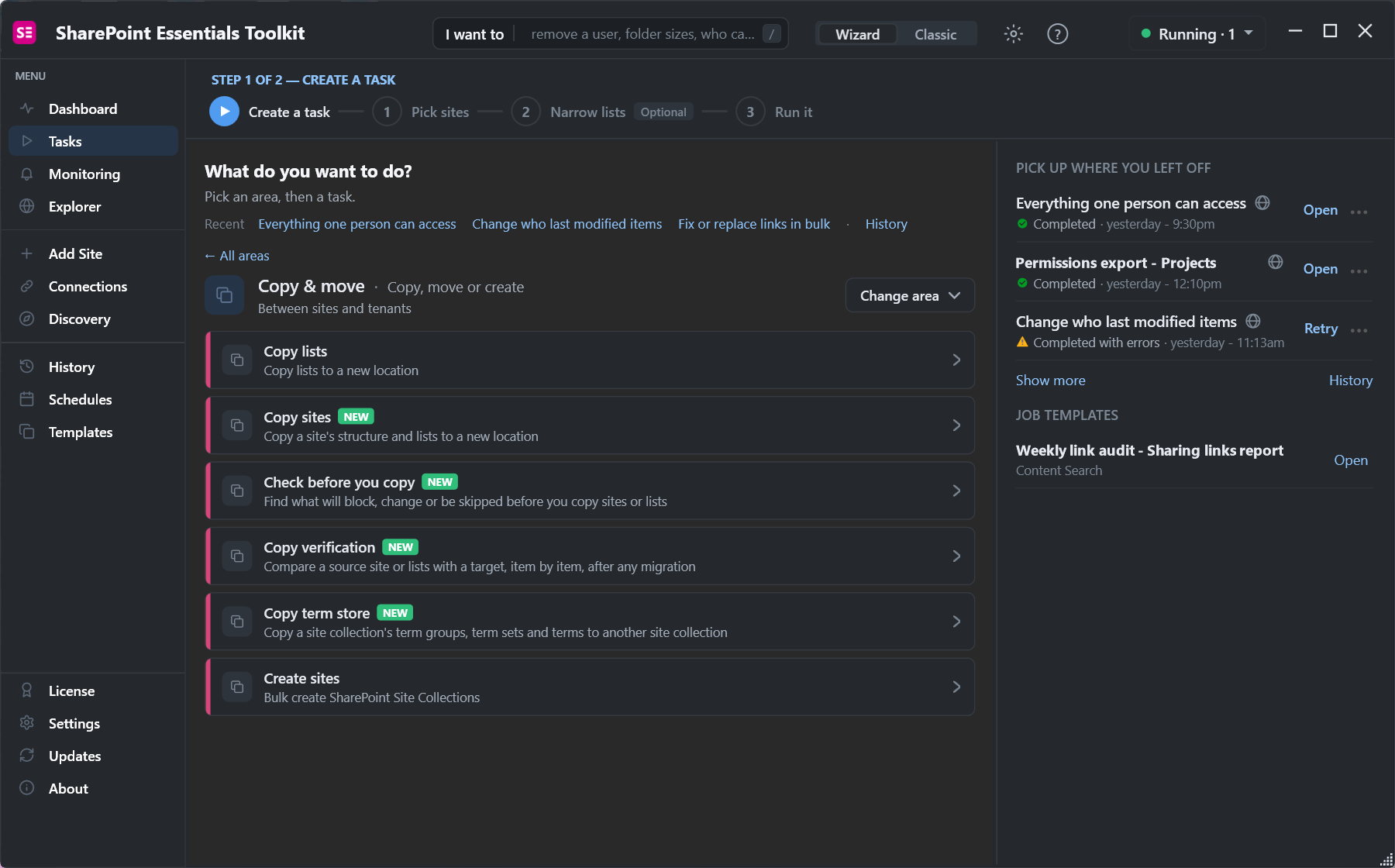
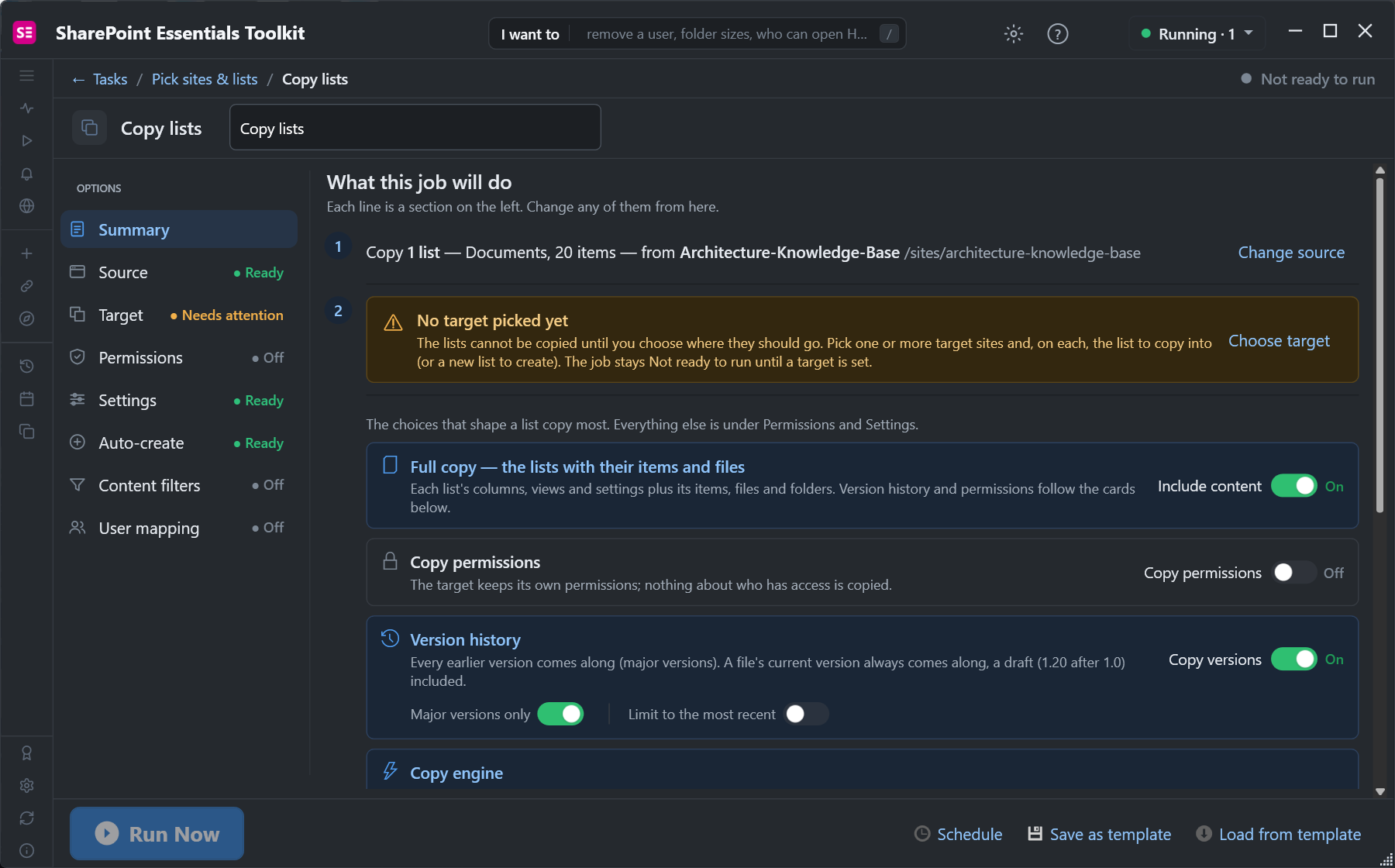
- Check before you copy finds columns, content types and lookups missing on the target, the reason Drawing Number vanished above.
- Copy lists creates missing columns and content types on the target, and keeps versions, dates and authors.
- Copy verification compares source and target item by item afterwards.
Frequently asked questions
Does Power Automate Copy file keep version history?
No. In our test the copy was version 1.0 with no history, although the source had three versions.
Does Copy file keep metadata?
Not reliably. Created and Created By were reset to the copy, the content type became the default, and a column missing in the destination was dropped.
What happens if the file already exists?
It depends on "If another file is already there": Copy with a new name adds a number (our copy became Plan1.txt), Fail this action stops, Replace overwrites.
Does Move file keep versions?
We didn't test Move file. SharePoint's own Move to keeps version history within the tenant; move one file with the flow and check before relying on it. Links to the old path break either way.
How do I copy a whole library with versions?
Use SharePoint Copy to or Move to for small sets, Copy-PnPFile in PowerShell, or a migration or copy tool for whole libraries with versions, dates and authors.
Copy libraries with versions and metadata, free
SharePoint Essentials Toolkit Community Edition is free. Check before you copy, copy lists with versions, dates and authors, and verify the result, on up to 20 sites per Microsoft 365 tenant. Get your free Community Edition license key.