The Flow Owner Left the Company: How to Change a Power Automate Flow's Owner and Connections
A flow runs on its connections, and connections sign in as the person who created them. When that person leaves and their account is disabled, the connections fail and the flow stops. For a flow outside a solution, Set primary owner says "The owner cannot be changed". Instead, add a co-owner (a person, a group, or a SharePoint list for list flows), have them change every connection to their own or a service account, and save. An admin can add co-owners to orphaned flows with Set-AdminFlowOwnerRole. Flows in a solution can have their owner changed.
Published:
Last updated: 2026-11-06
Owner and connections are different things
The flow details page shows both. The owner decides who manages the flow; the connections decide whose account the flow acts as.
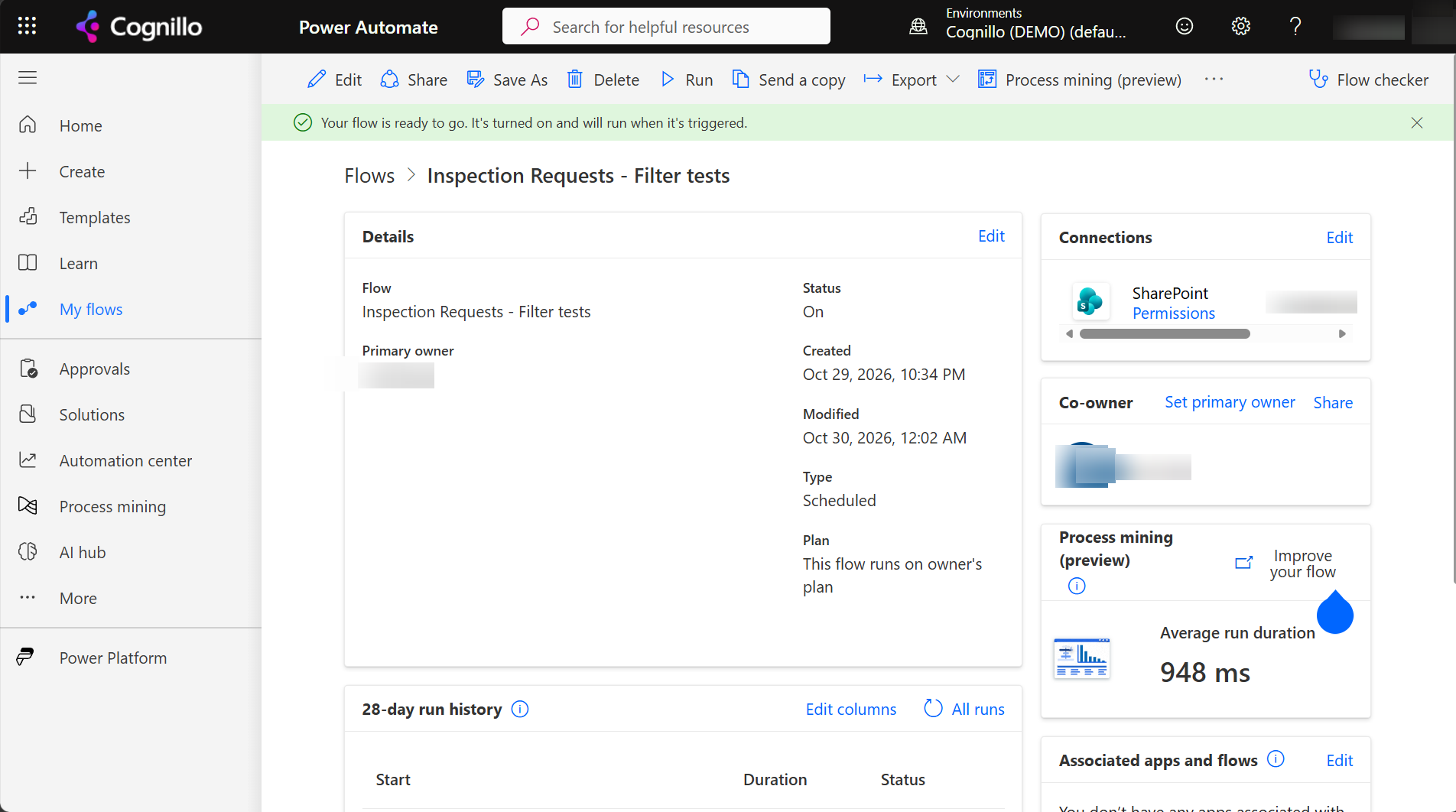
When the person leaves, the flow keeps its owner field, but their connections stop working once their account is disabled or their password is reset. Runs fail with an unauthorized error, or the trigger stops checking.
"This is a non-solution flow. The owner cannot be changed."
We clicked Set primary owner on a flow created from My flows:
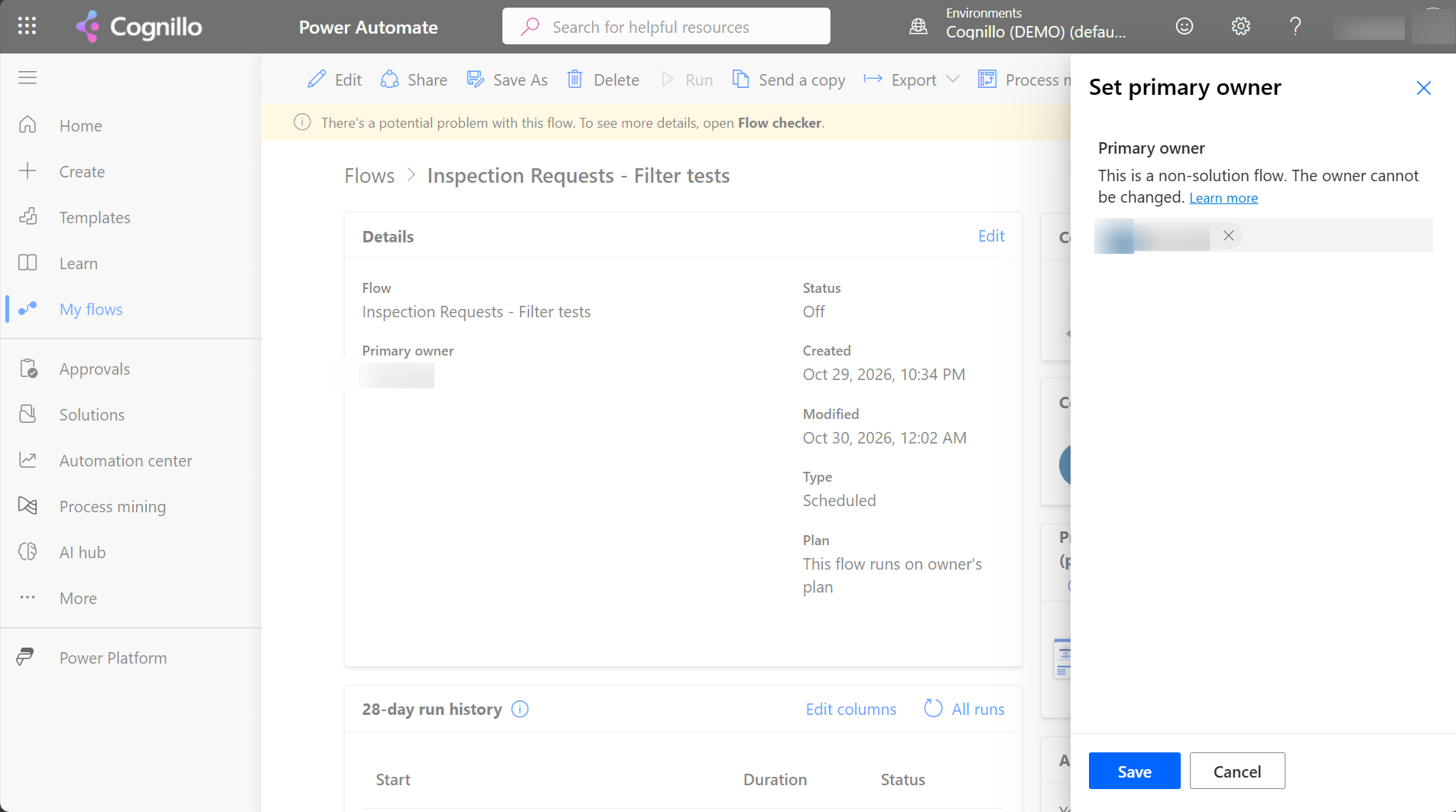
Flows in a solution can have their owner changed. You can add an existing flow to a solution from Solutions, Add existing, Automation, Cloud flow. For flows that stay outside solutions, co-owners are the way.
Add co-owners
From Share on the details page:
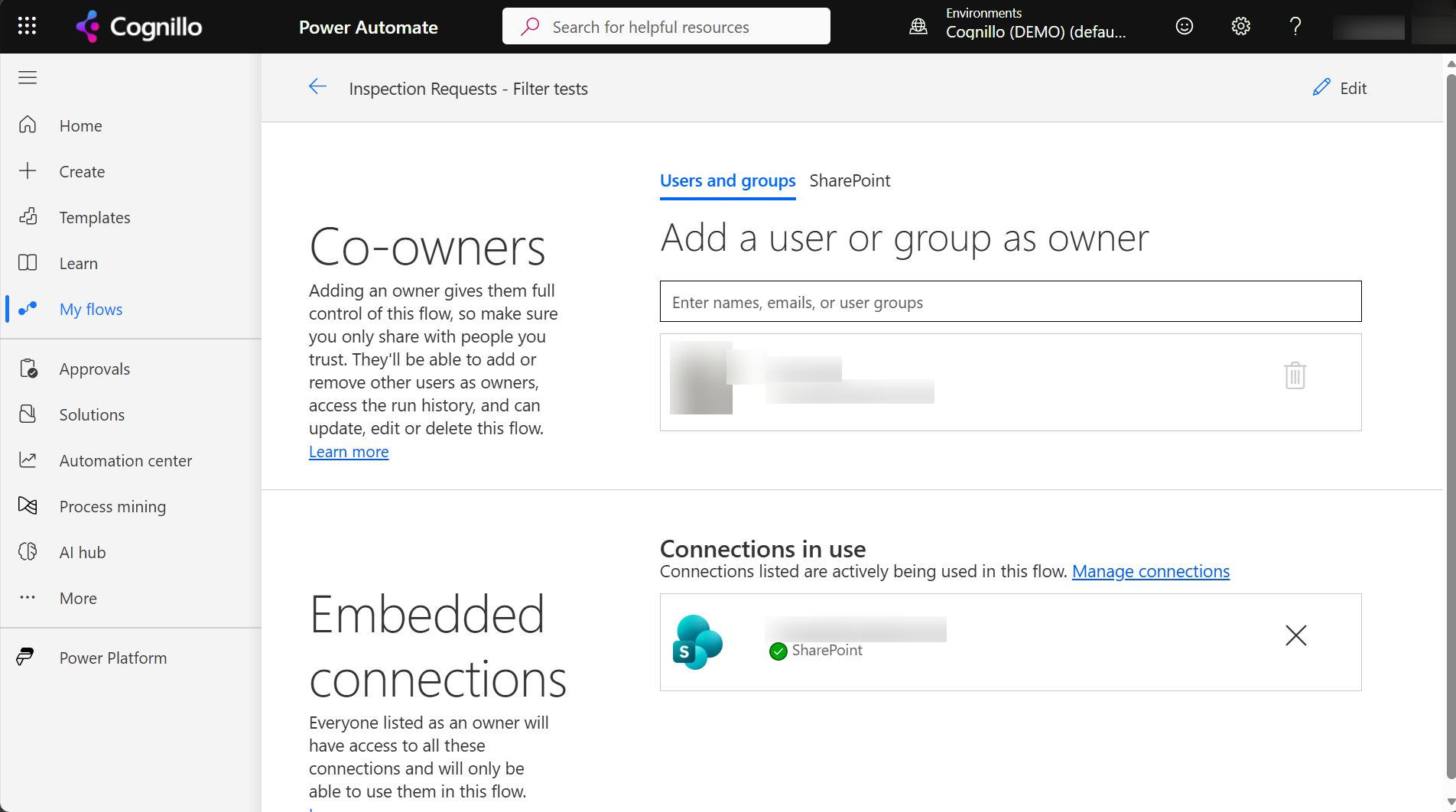
- Users and groups. Add a team's Microsoft 365 group or security group, so the flow doesn't depend on one person.
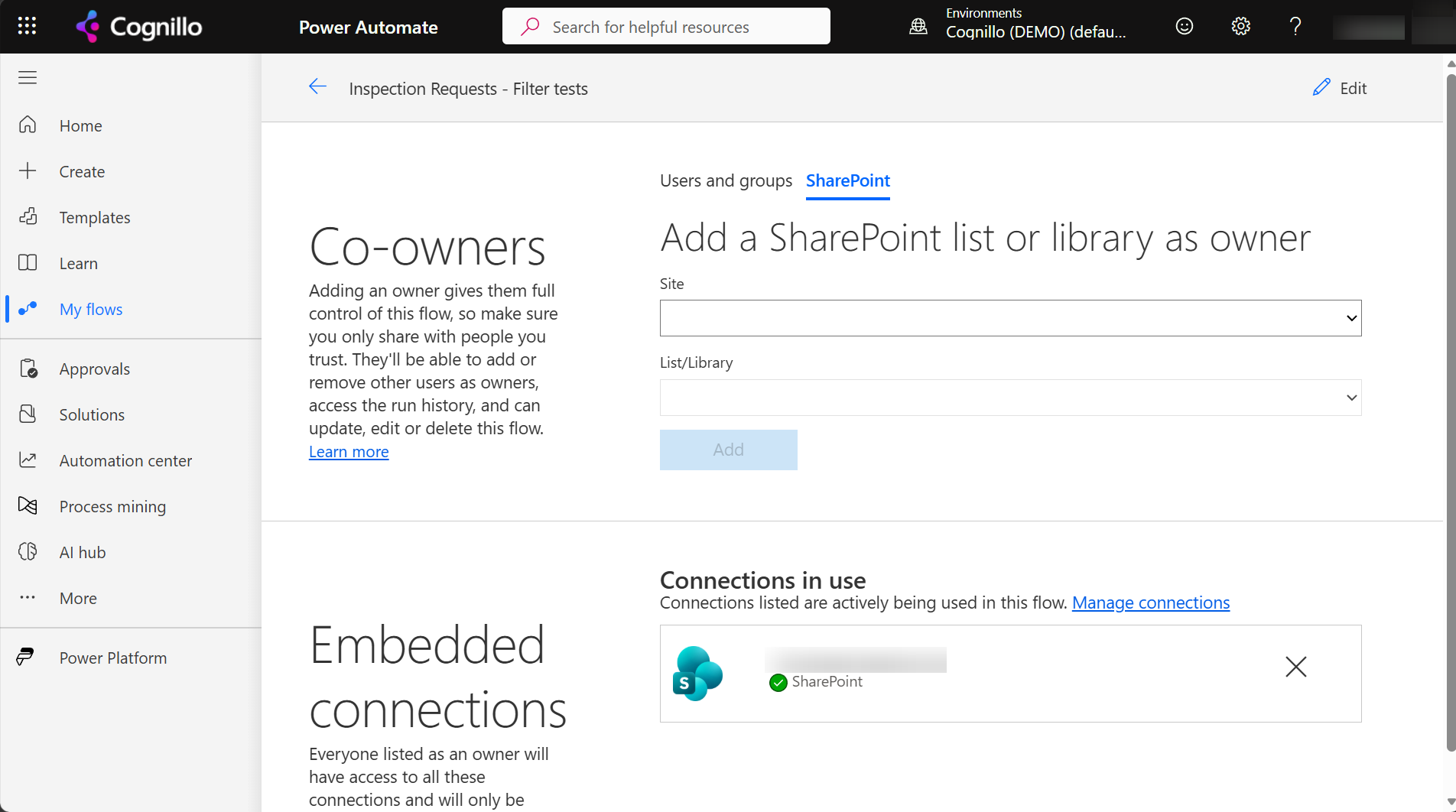
- SharePoint. Make a list or library a co-owner: everyone who can edit that list becomes a co-owner.
- Embedded connections. Co-owners can use the connections already in the flow, but only in this flow. That keeps it running until the owner's account is disabled. It doesn't fix it after.
Switch the connections
- As a co-owner, open the flow and click Edit.
- Select each action and choose Change connection under its parameters. Pick a connection you own, or add one for a service account.
- Do it for every connector: SharePoint, Outlook, Approvals, Teams. One left on the old account is enough to fail the run.
- Save and test. The flow checker should show no connection errors.
For important flows, use a dedicated service account with a license, and give it access only to the sites the flow needs. Then a person leaving never stops a flow.
Find and take over a leaver's flows with PowerShell
Admins can find flows created by a user and add a co-owner with the Microsoft.PowerApps.Administration.PowerShell module. Nothing changes until you set $WhatIf = $false.
Install-Module Microsoft.PowerApps.Administration.PowerShell -Scope CurrentUser
Add-PowerAppsAccount
$EnvironmentName = "Default-<tenant-id>"
$LeaverObjectId  = "<leaver-entra-object-id>"
$NewOwnerId      = "<successor-entra-object-id>"
$WhatIf          = $true

$flows = Get-AdminFlow -EnvironmentName $EnvironmentName -CreatedBy $LeaverObjectId
$flows | Select-Object DisplayName, Enabled, LastModifiedTime | Format-Table -AutoSize

if (-not $WhatIf) {
    foreach ($f in $flows) {
        Set-AdminFlowOwnerRole -EnvironmentName $EnvironmentName -FlowName $f.FlowName `
            -PrincipalType User -PrincipalObjectId $NewOwnerId -RoleName CanEdit
    }
}
Run it before the account is disabled, so the successor can switch the connections while the old ones still work.
Hand over the SharePoint side with SharePoint Essentials Toolkit
A flow is only part of what a leaver owns. Their SharePoint access, group memberships and items need a successor too. The toolkit's Leavers area finds and hands over the SharePoint side:
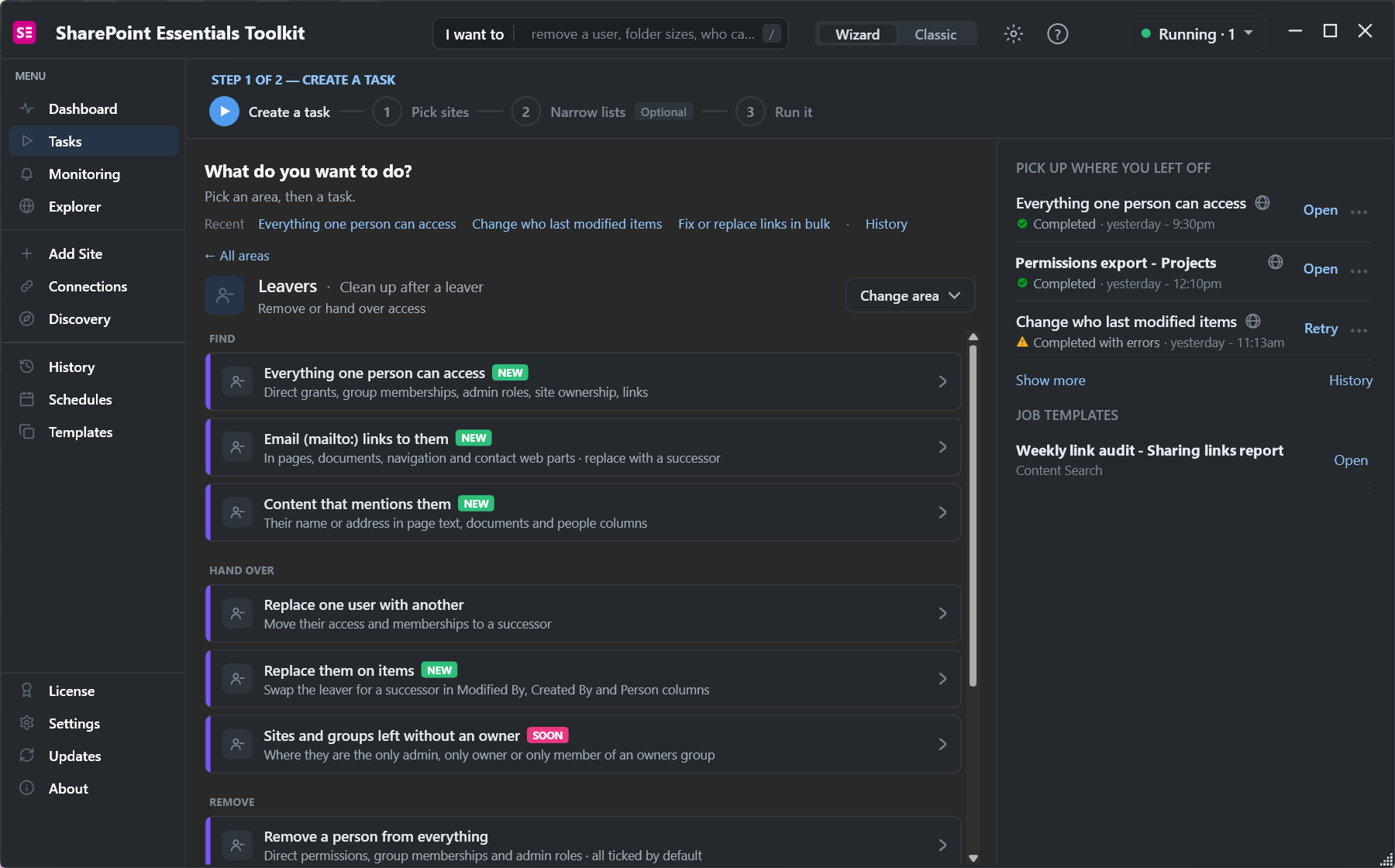
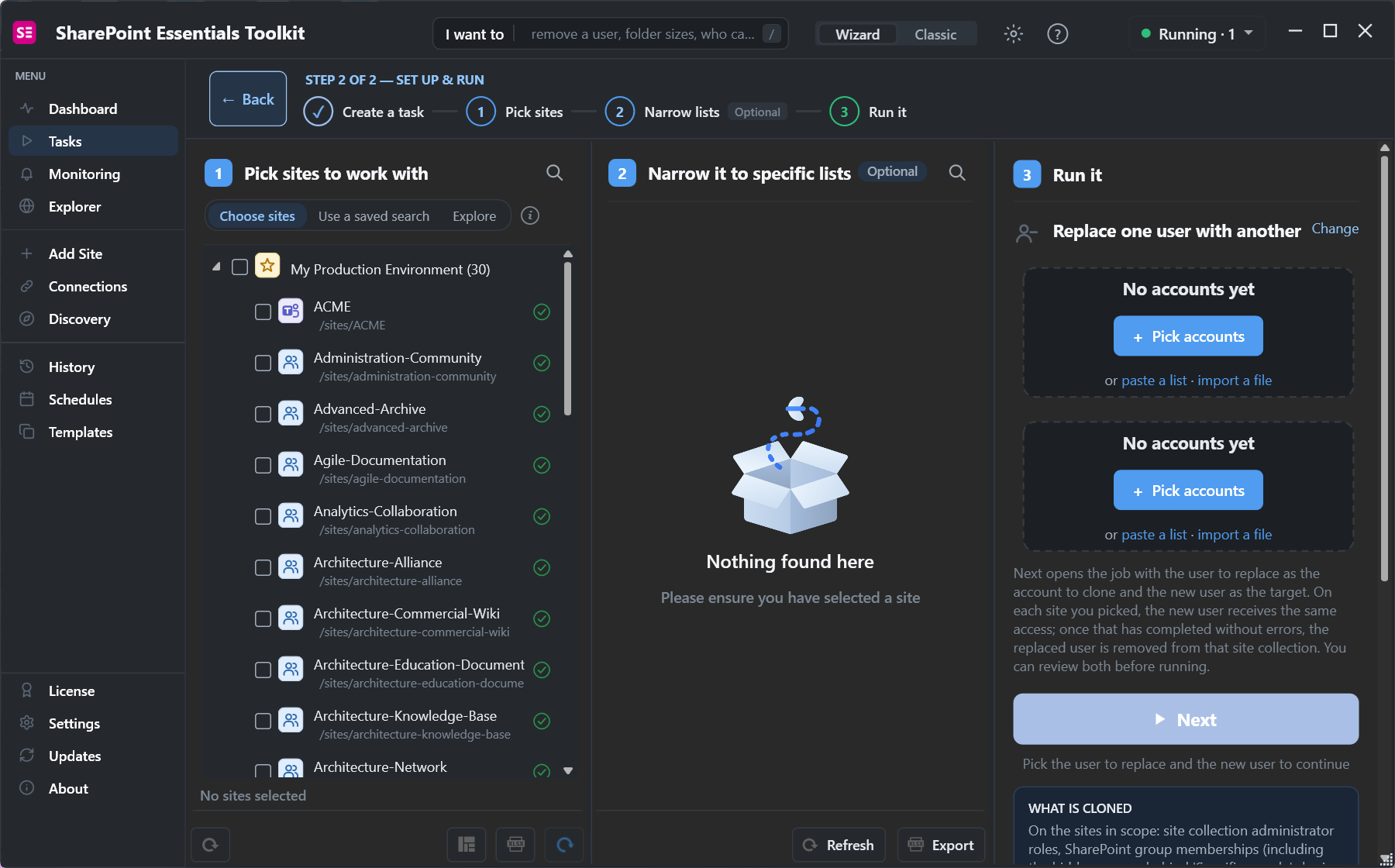
- Everything one person can access shows the sites, lists and items, including the sites their flows use.
- Replace one user with another gives the successor the same site admin roles, group memberships and permissions, then removes the leaver.
- Replace them on items swaps them for the successor in Created By, Modified By and Person columns, so views and flows filtered on the leaver keep working.
The toolkit doesn't change flow owners or connections; do that with the steps above.
Seeing "There's a problem with the flow's trigger"? See how to fix a Power Automate flow trigger problem in SharePoint.
Frequently asked questions
Why can't I change the owner of my flow?
Flows outside a solution show "This is a non-solution flow. The owner cannot be changed." Add co-owners instead, or move the flow into a solution.
Does a flow stop when its owner leaves?
It stops when the owner's connections stop working, usually when their account is disabled. Switch every connection to another account first.
Can a SharePoint list be a flow co-owner?
Yes. On the co-owners page, the SharePoint tab adds a list or library as owner, which makes everyone who can edit it a co-owner.
Can co-owners use the owner's connections?
Yes, but only inside that flow, and only while the connections work. After the owner's account is disabled, co-owners must change the connections.
How do admins take over orphaned flows?
Find them with Get-AdminFlow, then add a co-owner with Set-AdminFlowOwnerRole, or use the Power Platform admin center.
Hand over a leaver's SharePoint access, free
SharePoint Essentials Toolkit Community Edition is free. Find everything a leaver can access and give it to a successor in one job, on up to 20 sites per Microsoft 365 tenant. Get your free Community Edition license key.