Send Due-Date Reminders from a SharePoint List with a Scheduled Power Automate Flow
Use a scheduled flow: Recurrence once a day in your time zone, Get items with a filter for items due tomorrow, then Apply to each with Send an email (V2) to the person in the item. Build "tomorrow" with convertFromUtc(utcNow(),'your time zone'), not utcNow() alone, or evening runs pick the wrong day. In our test the filter returned the two inspections due the next day, and the flow built one message per inspector.
Published:
Last updated: 2026-11-06
The flow
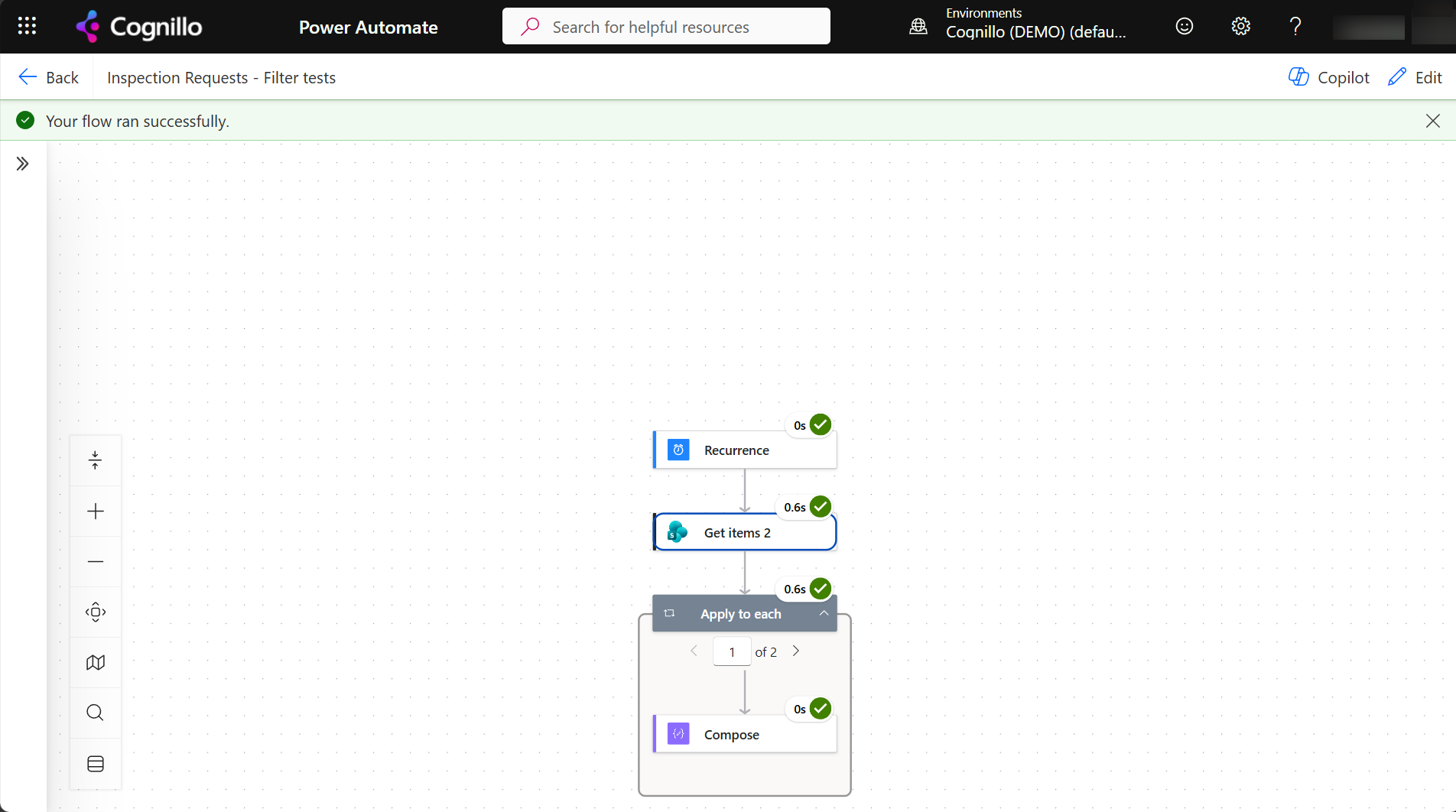
- Recurrence: every 1 day, at 7:00, with Time zone set to yours. Without a time zone, the schedule is UTC.
- Get items on the list, with a filter for tomorrow (below) and Order By the date column.
- Apply to each over the items.
- Send an email (V2): To the person column's email, Subject and Body from the item, and a link to the item.
The filter for "due tomorrow"
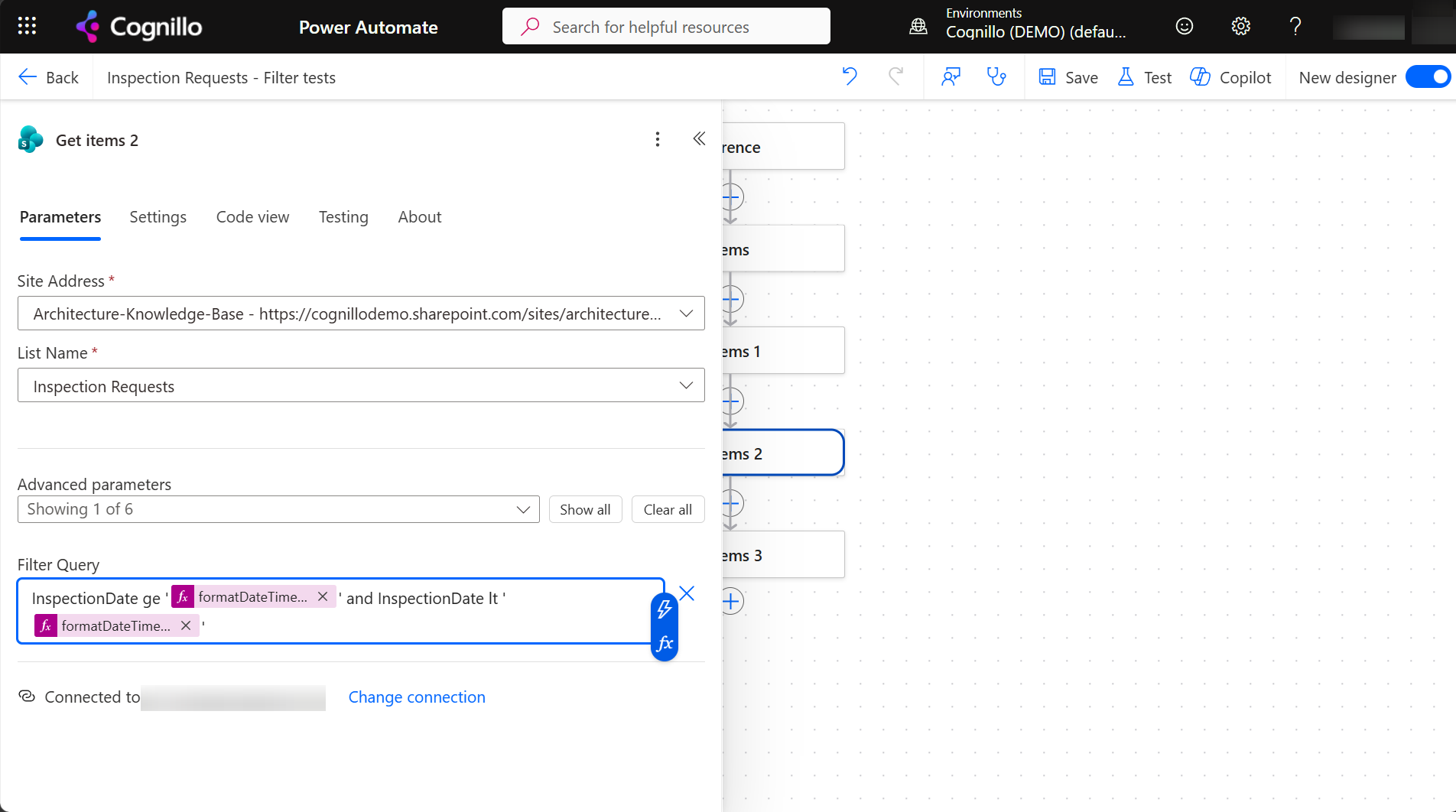
InspectionDate ge '@{formatDateTime(addDays(convertFromUtc(utcNow(),'Eastern Standard Time'),1),'yyyy-MM-dd')}' and InspectionDate lt '@{formatDateTime(addDays(convertFromUtc(utcNow(),'Eastern Standard Time'),2),'yyyy-MM-dd')}'
Our first version used utcNow() without converting it. Run at 11:36 PM Eastern, it was already the next day in UTC, so "tomorrow" was the day after tomorrow. With convertFromUtc, the run just after local midnight on October 30 asked for October 31, which is right. Time zone names are Windows names such as Eastern Standard Time, GMT Standard Time or AUS Eastern Standard Time.
For other reminders, change the offsets: 0 and 1 for due today, -30 and -29 for exactly a month overdue. For "overdue", use DueDate lt 'today' and a Status filter.
What the run produced
Get items returned two inspections for October 31, one per inspector. The message for each:
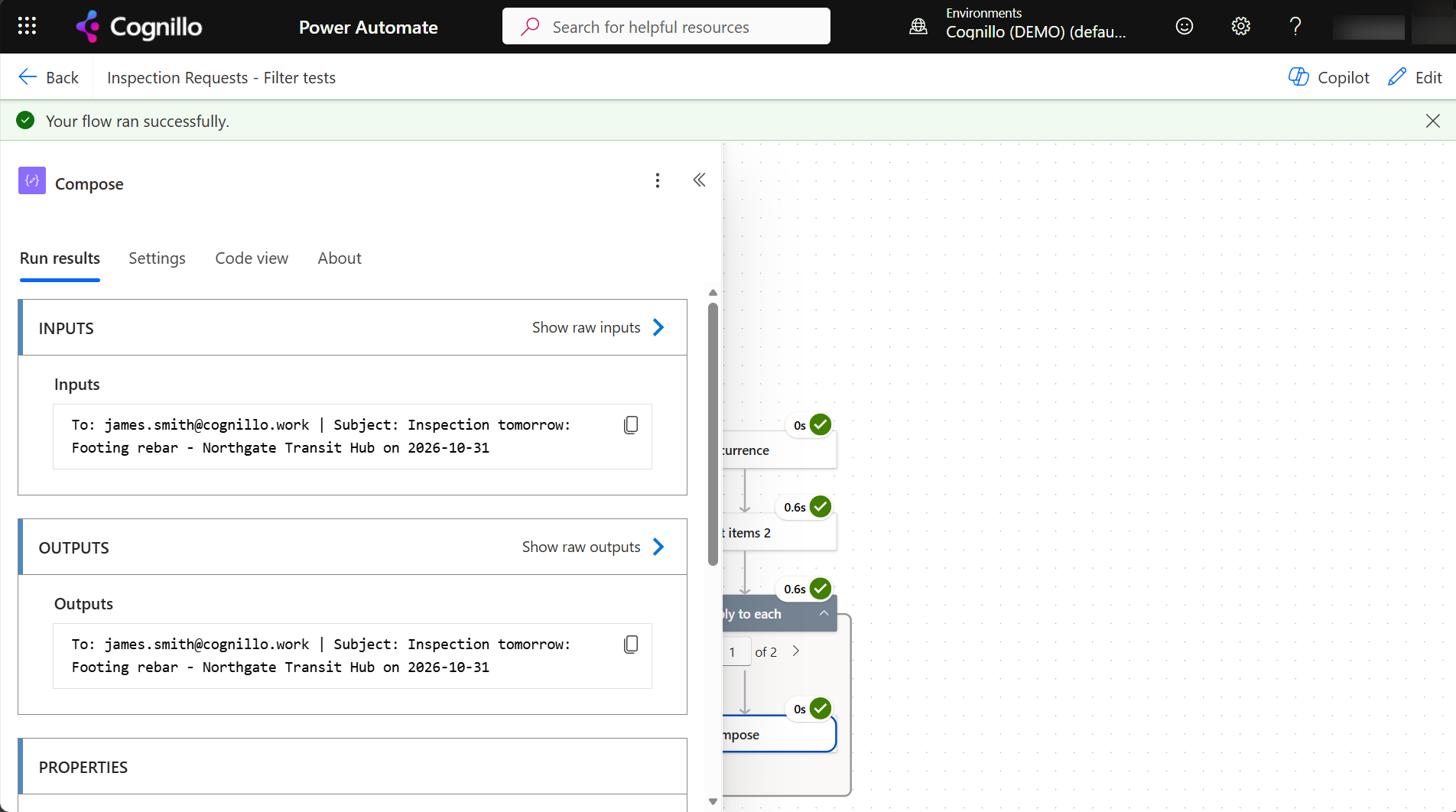
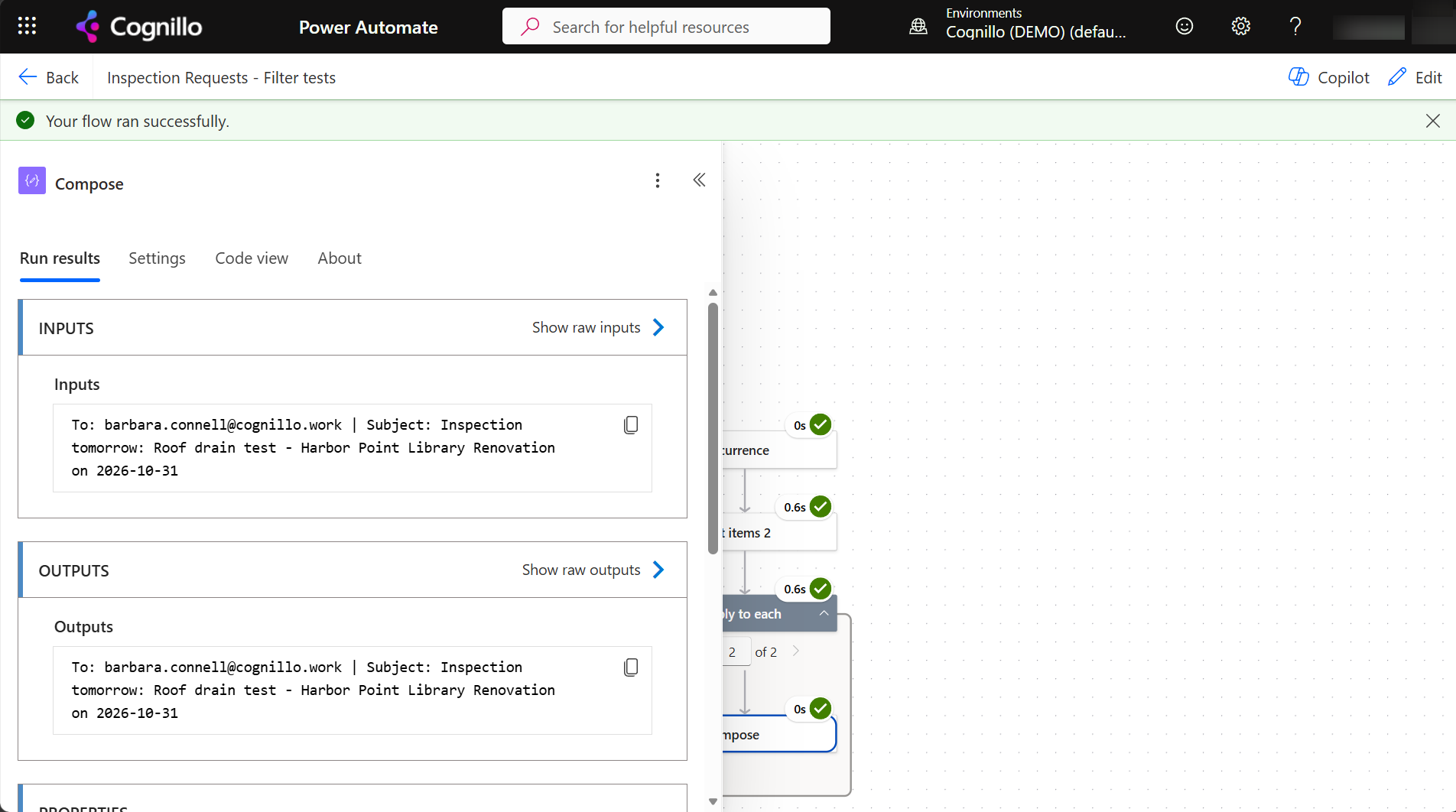
Expressions that build this message from the item (person columns have Email, lookups have Value):
To:      @{items('Apply_to_each')?['Inspector']?['Email']}
Subject: Inspection tomorrow: @{items('Apply_to_each')?['Title']} - @{items('Apply_to_each')?['Project']?['Value']} on @{formatDateTime(items('Apply_to_each')?['InspectionDate'],'yyyy-MM-dd')}
In our test tenant, the Outlook connection needed an interactive sign-in, so a Compose action shows the message instead of Send an email (V2). Swap it in with the same To and Subject.
Better reminders
- One email per person instead of one per item: use Select to get the emails,
union()to remove duplicates, then a Filter array per person and Create HTML table for the body. - Skip done items: add
and InspectionStatus ne 'Completed'to the filter, using the column's internal name. - Large lists: index the date column, or the filter fails on lists over the 5,000-item threshold.
- Weekends: in the Recurrence, choose Week with weekdays only, and on Friday look three days ahead with
dayOfWeek().
Columns and filters are covered in more detail in Get items filter queries.
Check the filter with PowerShell
To see which items tomorrow's run will pick up, run the same filter with PnP PowerShell. It's read-only, and needs PnP PowerShell 2.x and your own Entra ID app registration.
$ClientId = "<your-app-id>"
$SiteUrl  = "https://contoso.sharepoint.com/sites/Projects"
$List     = "Inspection Requests"
$TimeZone = "Eastern Standard Time"

$local    = [TimeZoneInfo]::ConvertTimeBySystemTimeZoneId([DateTime]::UtcNow, $TimeZone)
$from     = $local.Date.AddDays(1).ToString("yyyy-MM-dd")
$to       = $local.Date.AddDays(2).ToString("yyyy-MM-dd")
$filter   = [uri]::EscapeDataString("InspectionDate ge '$from' and InspectionDate lt '$to'")

Connect-PnPOnline -Url $SiteUrl -Interactive -ClientId $ClientId
$url = "_api/web/lists/getbytitle('$List')/items?`$filter=$filter&`$select=Id,Title,InspectionDate,Inspector/EMail&`$expand=Inspector"
(Invoke-PnPSPRestMethod -Url $url).value |
    Select-Object Id, Title, InspectionDate, @{ n = 'Inspector'; e = { $_.Inspector.EMail } }
Scheduled reports with SharePoint Essentials Toolkit
Reminders are a flow's job. For recurring reports about the sites themselves, such as who has access, sharing links, storage or broken links, the toolkit runs jobs on a schedule: set up the job in Tasks, schedule it, and manage it on the Schedules page. Each run is kept in History, so you can compare this week with last week.
Frequently asked questions
How do I send a reminder for SharePoint items due tomorrow?
Use a Recurrence flow, Get items with InspectionDate ge tomorrow and lt the day after, then send an email for each item.
Why does my reminder flow pick the wrong day?
utcNow() is in UTC, which is already tomorrow in the evening in the Americas. Wrap it in convertFromUtc with your time zone before adding days.
What time does a Recurrence flow run?
At the time you set, in the time zone you pick on the Recurrence. Without a time zone, the times are UTC.
How do I send one reminder per person instead of per item?
Select the emails, remove duplicates with union(), then filter the items for each person and send one email with an HTML table.
Why does my date filter fail on a large list?
Lists over 5,000 items need the filtered column to be indexed. Index the date column in List settings.
Schedule SharePoint reports, free
SharePoint Essentials Toolkit Community Edition is free. Schedule access, sharing link and storage reports and keep every run in History, on up to 20 sites per Microsoft 365 tenant. Get your free Community Edition license key.