SharePoint Approval Workflows Today: Built-In List Approvals, Power Automate Approvals and the Approval Email
The classic SharePoint approval workflow is retired in SharePoint Online. There are two replacements. Built-in list approvals (Integrate, Approvals, or Configure approvals) add an Approval status column, let anyone request approval on an item, and notify approvers in the Teams Approvals app. For rules, routing and custom emails, build a Power Automate flow with "Start and wait for an approval", which sends the approval email and waits for the response, then update the item with the outcome.
Published:
Last updated: 2026-11-06
Option 1: Built-in list approvals
Lists and libraries have an approvals feature that needs no flow. On the Inspection Requests list we turned it on from Integrate, Approvals:
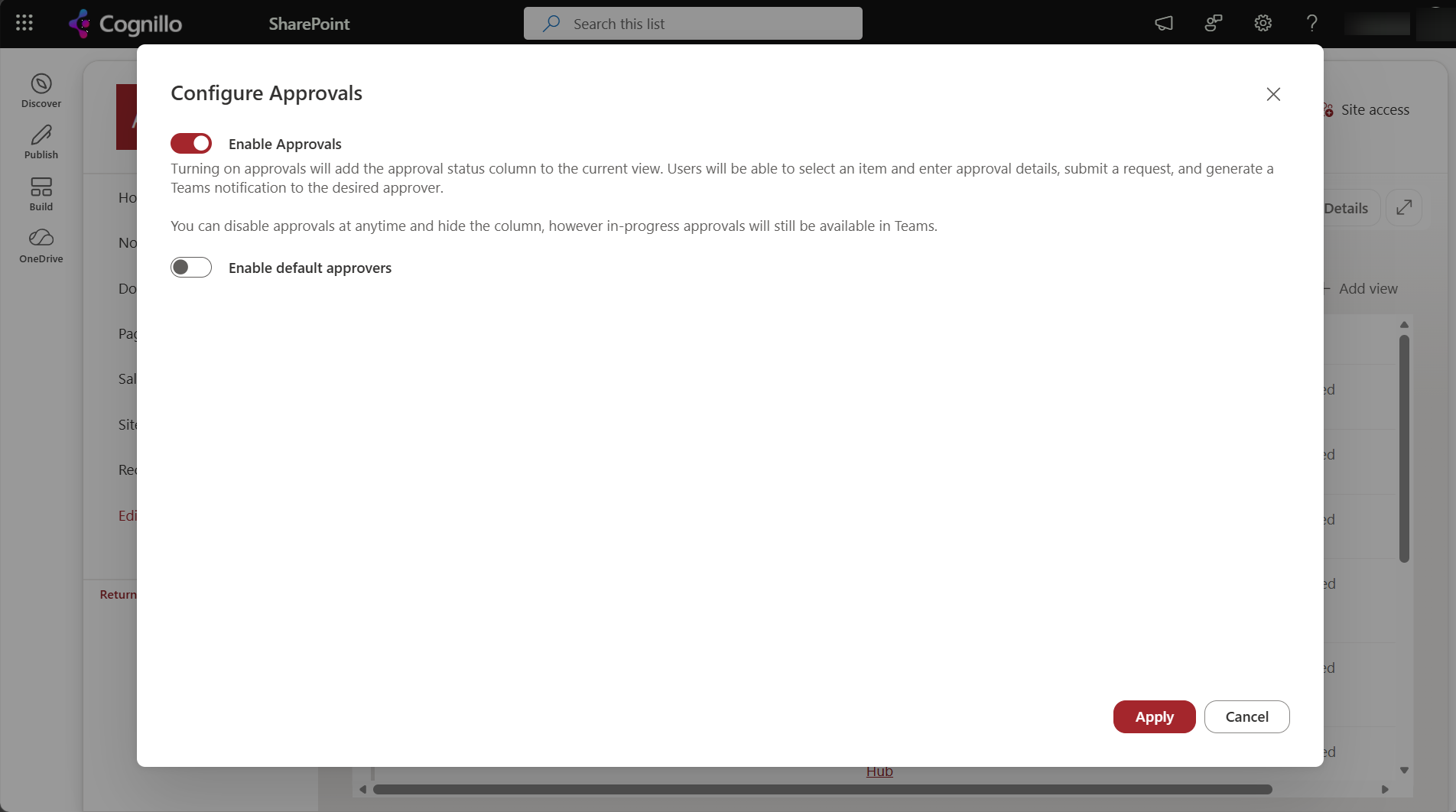
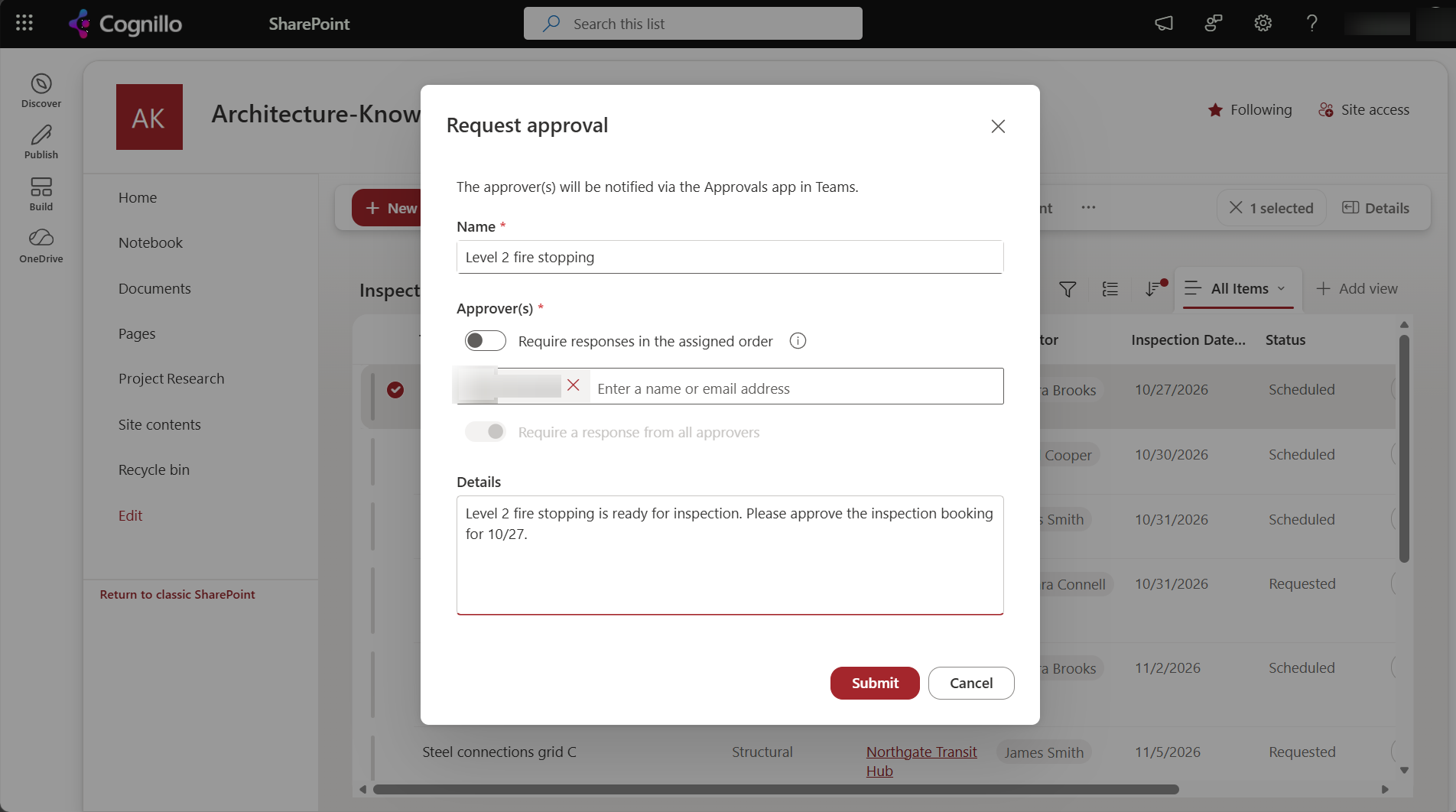
- Select an item and choose Request approval.
- Name the request, add approvers, and choose whether they respond in order or all must respond.
- Approvers get a notification in the Teams Approvals app and can respond there or in Power Automate.
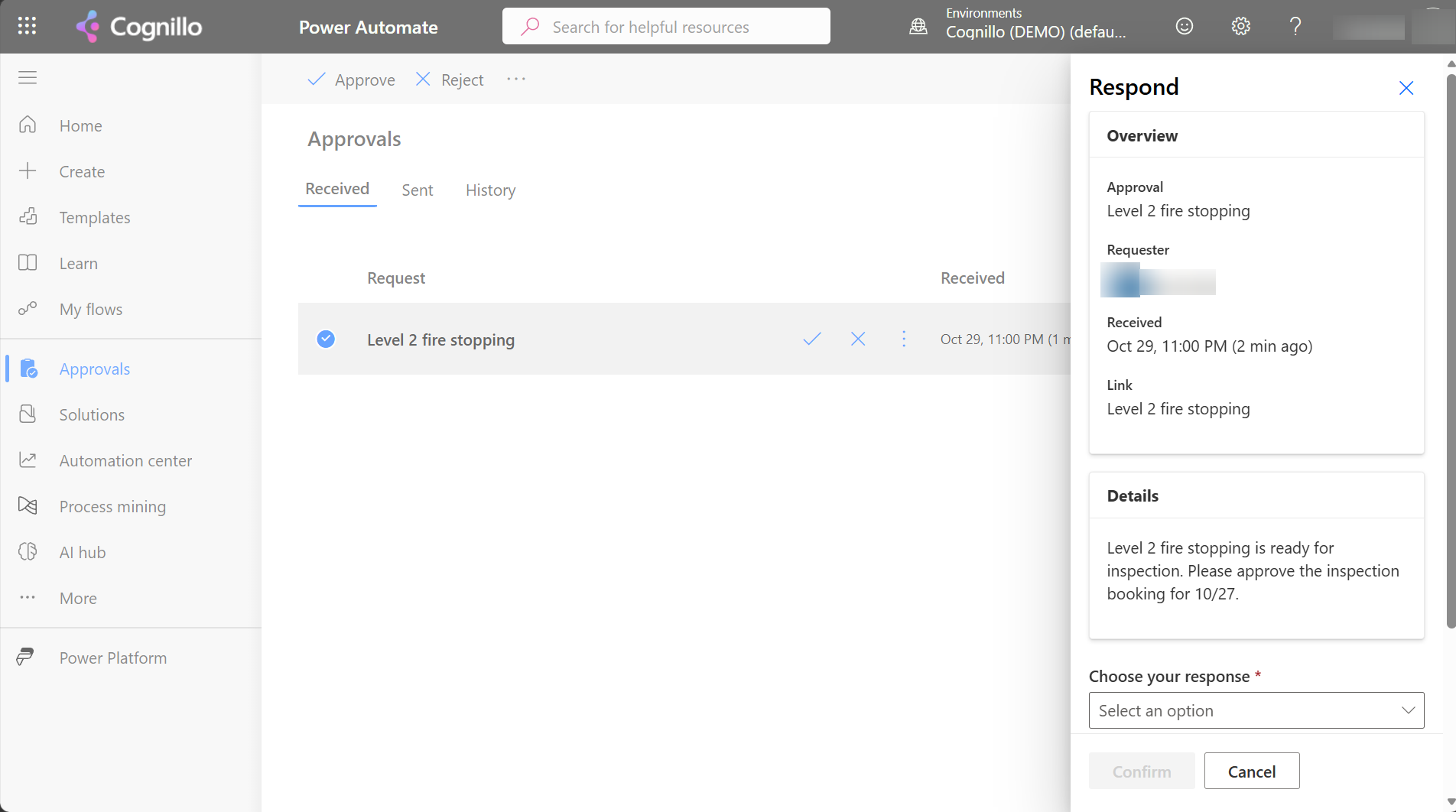
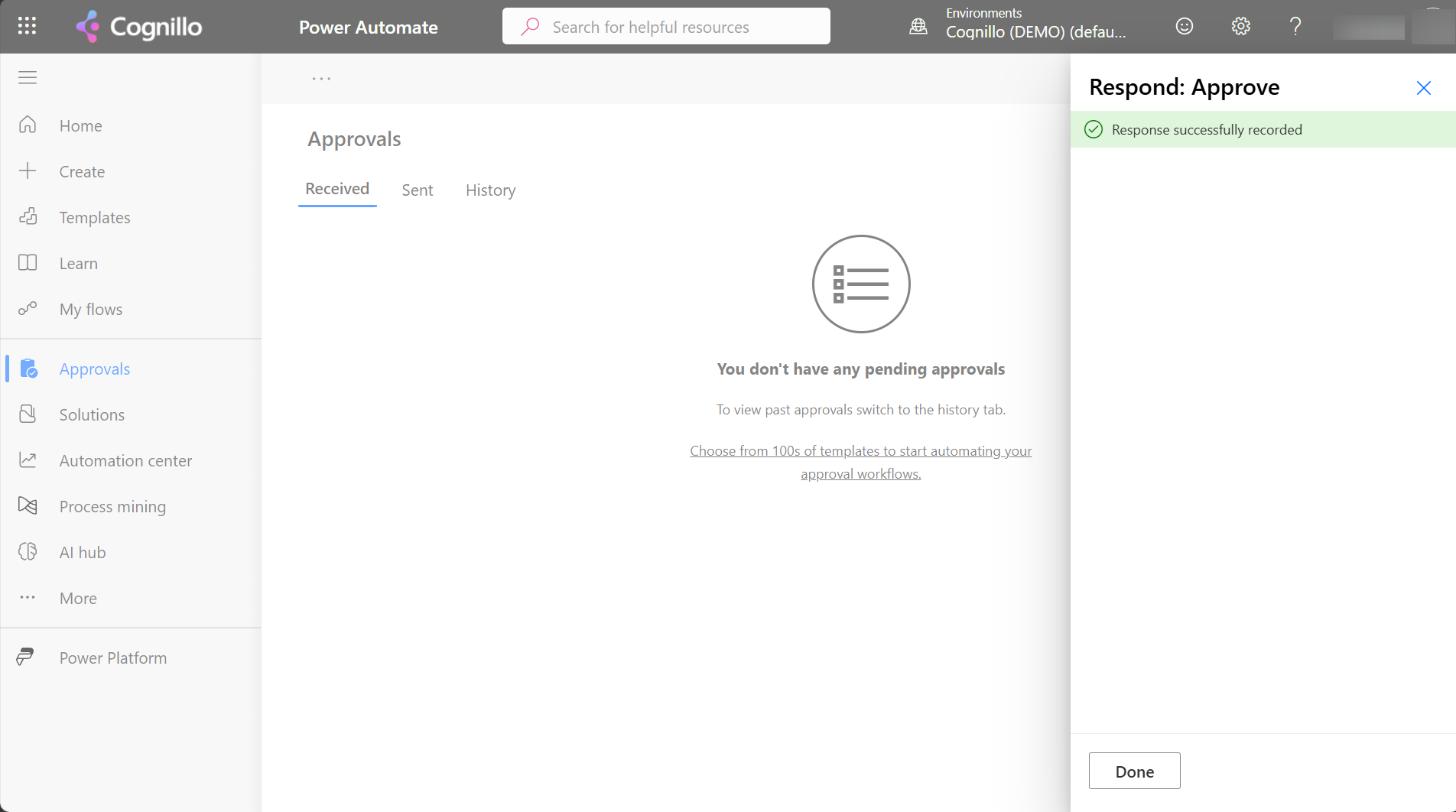
The request then appeared in Power Automate's Approvals page under Received. Approving it there took a few seconds, and Power Automate confirmed the response was recorded.
Use it when people ask for approval by hand on individual items. It has no rules: it doesn't start on its own when an item is added.
Option 2: An approval flow in Power Automate
When every new item needs approval, or the approver depends on a column, use a flow:
- Trigger: When an item is created (or created or modified, with a trigger condition on a Status column).
- Start and wait for an approval: type Approve/Reject - First to respond or Everyone must approve; Assigned to, Title and Details from the item; Item link from the trigger's Link to item.
- Condition: Outcome is equal to Approve.
- Update item in both branches to set Status and store the comments.
The Approvals action sends its own approval email, with Approve and Reject buttons, plus a Teams notification. You don't need an Outlook action for the request. Use Send an email (V2) only for the result message to the requester.
Things that trip people up:
- The Update item at the end triggers the flow again if the trigger is "created or modified". Add a trigger condition such as
@equals(triggerOutputs()?['body/Status/Value'], 'Submitted'). See update an item without an infinite loop. - Long approvals time out. A flow run ends after about a month, and the approval wait ends with it. Add a timeout and a reminder, or split long approvals into two flows.
- Approvers must be in your tenant (or guests), and need access to the item to open the link.
- The connection is the flow owner's. If they leave, the flow stops. Use a service account or add co-owners.
For document sign-off, the Request sign-off flow in a library's Automate menu is a ready-made version of this flow.
What about the old approval workflow?
SharePoint 2010 workflows are retired, and SharePoint 2013 workflows are retired in SharePoint Online too. Lists migrated with an "Approval - SharePoint 2010" workflow keep their columns and history, but the workflow doesn't run. Content approval (the Approval Status column with Approved, Pending and Rejected in Versioning settings) still works and is a different feature: it controls who can see drafts. See migrating workflows and InfoPath.
List pending approvals with PowerShell
To see which items are still waiting, read the approval column. Its internal name varies; check it first with Get-PnPField -List $List | Select Title, InternalName. This script is read-only and needs PnP PowerShell 2.x and your own Entra ID app registration.
$ClientId = "<your-app-id>"
$SiteUrl  = "https://contoso.sharepoint.com/sites/Projects"
$List     = "Inspection Requests"
$Column   = "Status"          # internal name of your approval or status column
$Waiting  = "Submitted"

Connect-PnPOnline -Url $SiteUrl -Interactive -ClientId $ClientId
Get-PnPListItem -List $List -PageSize 500 |
    Where-Object { "$($_[$Column])" -eq $Waiting } |
    ForEach-Object { [pscustomobject]@{ Id = $_.Id; Title = $_["Title"]; Modified = $_["Modified"] } } |
    Sort-Object Modified | Format-Table -AutoSize
Report approval status across lists with SharePoint Essentials Toolkit
Approvals live on items, list by list. The toolkit's Get inventory of item, files and page labels and metadata reads the columns you name across every list and site you pick, so one report shows the status of every item waiting for approval:
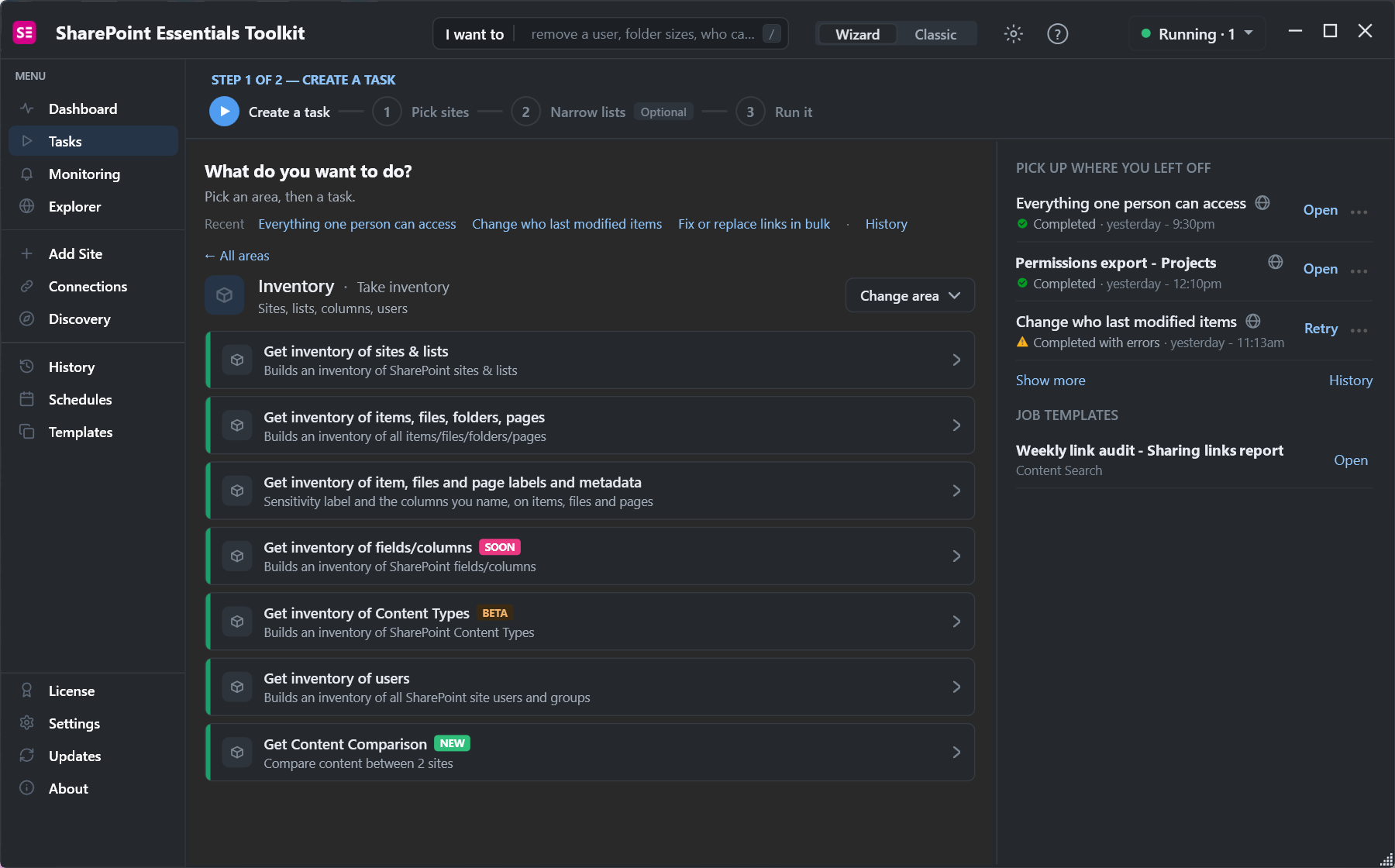
Group the result by the status column and export it to Excel for the weekly follow-up.
Frequently asked questions
Is the SharePoint approval workflow still available?
Not the classic one. SharePoint 2010 and 2013 workflows are retired in SharePoint Online. Use built-in list approvals or a Power Automate approval flow instead.
Does a Power Automate approval send an email?
Yes. Start and wait for an approval sends its own email with Approve and Reject buttons, and a Teams notification. An Outlook action is only needed for other messages.
Where do approvers respond?
In the email, in the Teams Approvals app, or on the Approvals page in Power Automate. All three record the same response.
Why does my approval flow run twice?
The Update item that writes the outcome edits the item, which fires a "created or modified" trigger again. Add a trigger condition on the status column.
What is the difference between content approval and list approvals?
Content approval hides drafts until an approver publishes them. List approvals and approval flows record a decision on an item without hiding it.
Report approval status across lists, free
SharePoint Essentials Toolkit Community Edition is free. Read the status columns you name across lists and sites in one report, on up to 20 sites per Microsoft 365 tenant. Get your free Community Edition license key.