Migrating from SharePoint 2013, 2016 or 2019 to SharePoint Online: What Replaces Classic Workflows and InfoPath
SharePoint 2010 and 2013 workflows don't run in SharePoint Online: 2010 workflows were retired years ago, and 2013 workflows are now retired too. Content migrates, but the workflows have to be rebuilt in Power Automate. InfoPath forms are also being retired: the InfoPath 2013 client is out of support, and Microsoft is removing InfoPath Forms Services from SharePoint Online, so rebuild forms in Power Apps or Microsoft Lists forms. Before migrating, inventory every list with workflows and every form library, then decide what to rebuild, replace or drop.
Published:
Last updated: 2026-11-06
What happens to each piece
| On premises | In SharePoint Online | Replace with |
|---|---|---|
| SharePoint 2010 workflows (out of the box and SharePoint Designer) | Retired; don't run | Power Automate |
| SharePoint 2013 workflows (Workflow Manager) | Retired; don't run | Power Automate |
| Approval, Collect Feedback, Three-state workflows | Don't run | List approvals, or an approval flow |
| InfoPath list forms | Being retired | Power Apps forms (Customize forms) or the default form |
| InfoPath form libraries (XML forms) | Being retired | Power Apps, Microsoft Forms or Lists forms; keep old XML as records |
| Classic publishing pages | Still work | Modern pages (PnP page transformation) |
| Farm solutions, timer jobs, event receivers | Not supported | SharePoint Framework, Azure Functions, webhooks |
Workflow history lists and task lists migrate as data, but they don't do anything: the workflow that used them doesn't run. Dates for InfoPath Forms Services removal in your tenant are in the Microsoft 365 Message center.
The order that works
- Inventory. List every workflow association, every InfoPath form, and the lists they belong to. Note who uses each one and how often it ran last year.
- Decide. Many old workflows only sent an email or set a status. Some are no longer used. Rebuild what's needed, replace approvals with list approvals, and drop the rest.
- Rebuild before cutover. Build the flows and apps against the migrated lists in a test copy, then switch them on after the final content sync.
- Migrate content. Lists, libraries, versions, metadata and permissions.
- Turn off the old. Make the on-premises lists read-only so nobody starts a workflow there after cutover.
The SharePoint Migration Tool can migrate some SharePoint Designer and out-of-the-box workflows to Power Automate flows. Check each one: they're a starting point, not finished flows.
What to build instead
- Approvals: list approvals or a Power Automate approval flow. See SharePoint approval workflows today.
- Reminders and status changes: scheduled or automated flows. See due-date reminders.
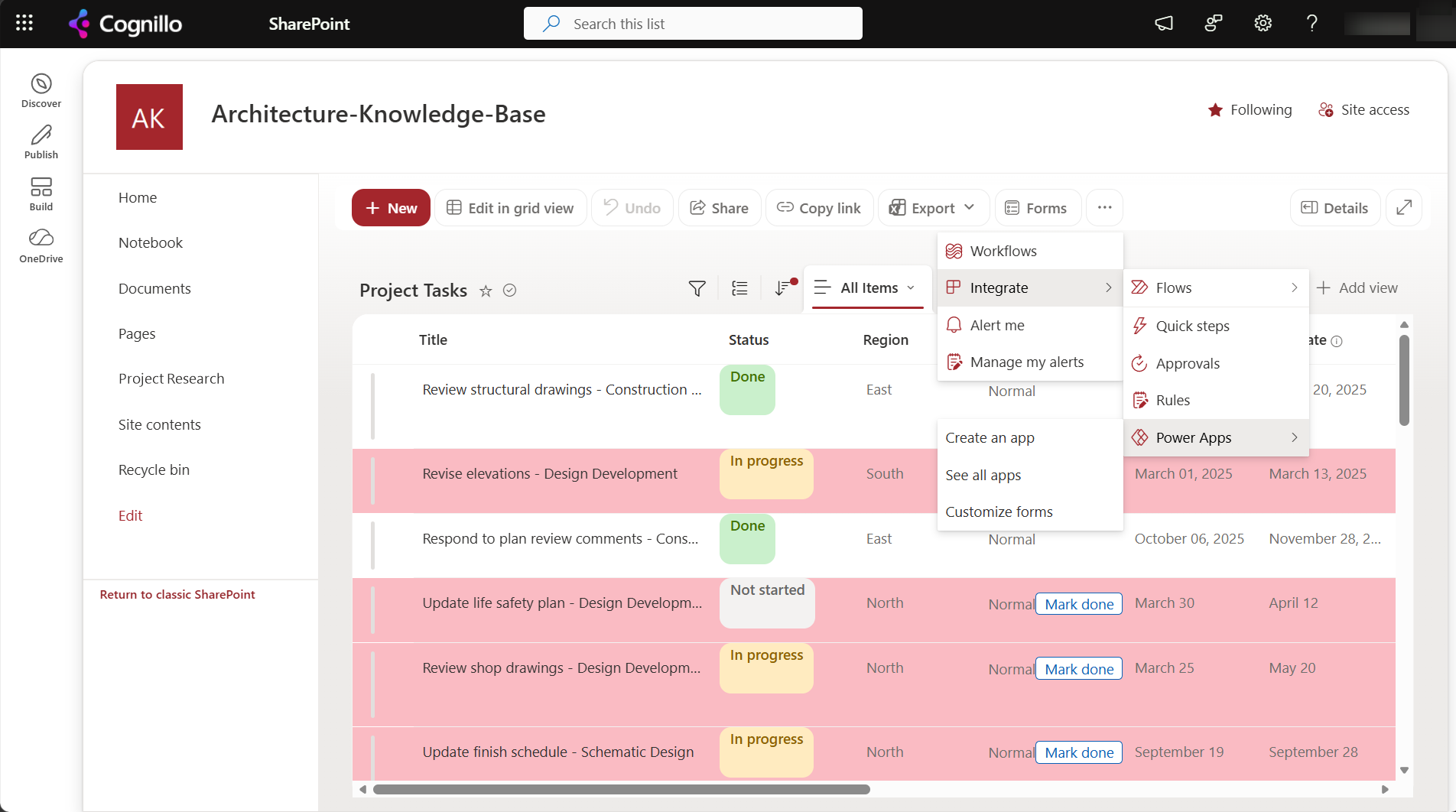
- Forms with rules: a Power Apps list form. See customizing list forms with Power Apps.
- Simple data entry: the default list form or a Lists form, with column validation and conditional formulas.
Find workflows and InfoPath forms with PowerShell
Run this on a SharePoint Server 2013, 2016 or 2019 farm in the SharePoint Management Shell. It's read-only, and writes every list with workflow associations or InfoPath forms to CSV.
Add-PSSnapin Microsoft.SharePoint.PowerShell -ErrorAction SilentlyContinue
$out = foreach ($site in Get-SPSite -Limit All) {
    foreach ($web in $site.AllWebs) {
        foreach ($list in $web.Lists) {
            $wf  = $list.WorkflowAssociations.Count
            $ip  = ($list.BaseTemplate -eq 115) -or ($list.ContentTypes | Where-Object { $_.ResourceFolder.Properties["_ipfs_infopathenabled"] -eq "True" })
            if ($wf -gt 0 -or $ip) {
                [pscustomobject]@{
                    Web       = $web.Url
                    List      = $list.Title
                    Items     = $list.ItemCount
                    Workflows = ($list.WorkflowAssociations | ForEach-Object Name) -join "; "
                    InfoPath  = [bool]$ip
                    Modified  = $list.LastItemModifiedDate
                }
            }
        }
        $web.Dispose()
    }
    $site.Dispose()
}
$out | Export-Csv .\workflows-infopath.csv -NoTypeInformation
"{0} lists with workflows or InfoPath" -f @($out).Count
SharePoint 2013 workflows aren't in WorkflowAssociations; they're in Workflow Manager. List them with the Workflow Services Manager in CSOM, or from SharePoint Designer per site. Template 115 is a form library.
Check before you copy with SharePoint Essentials Toolkit
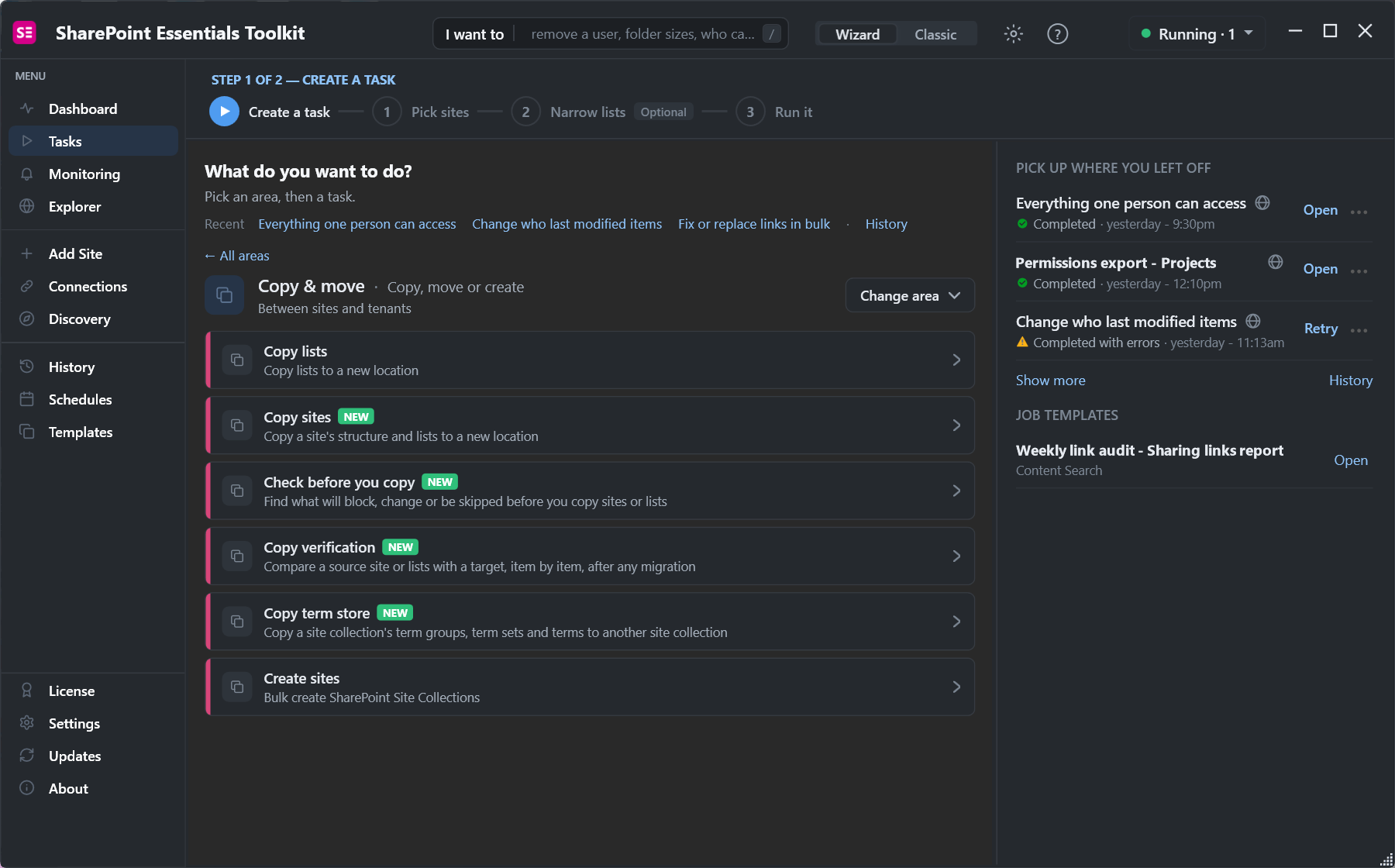
The toolkit's Copy & move area copies lists and sites from SharePoint Server to SharePoint Online, and between sites and tenants:
Check before you copy runs a migration assessment on the source before anything moves:
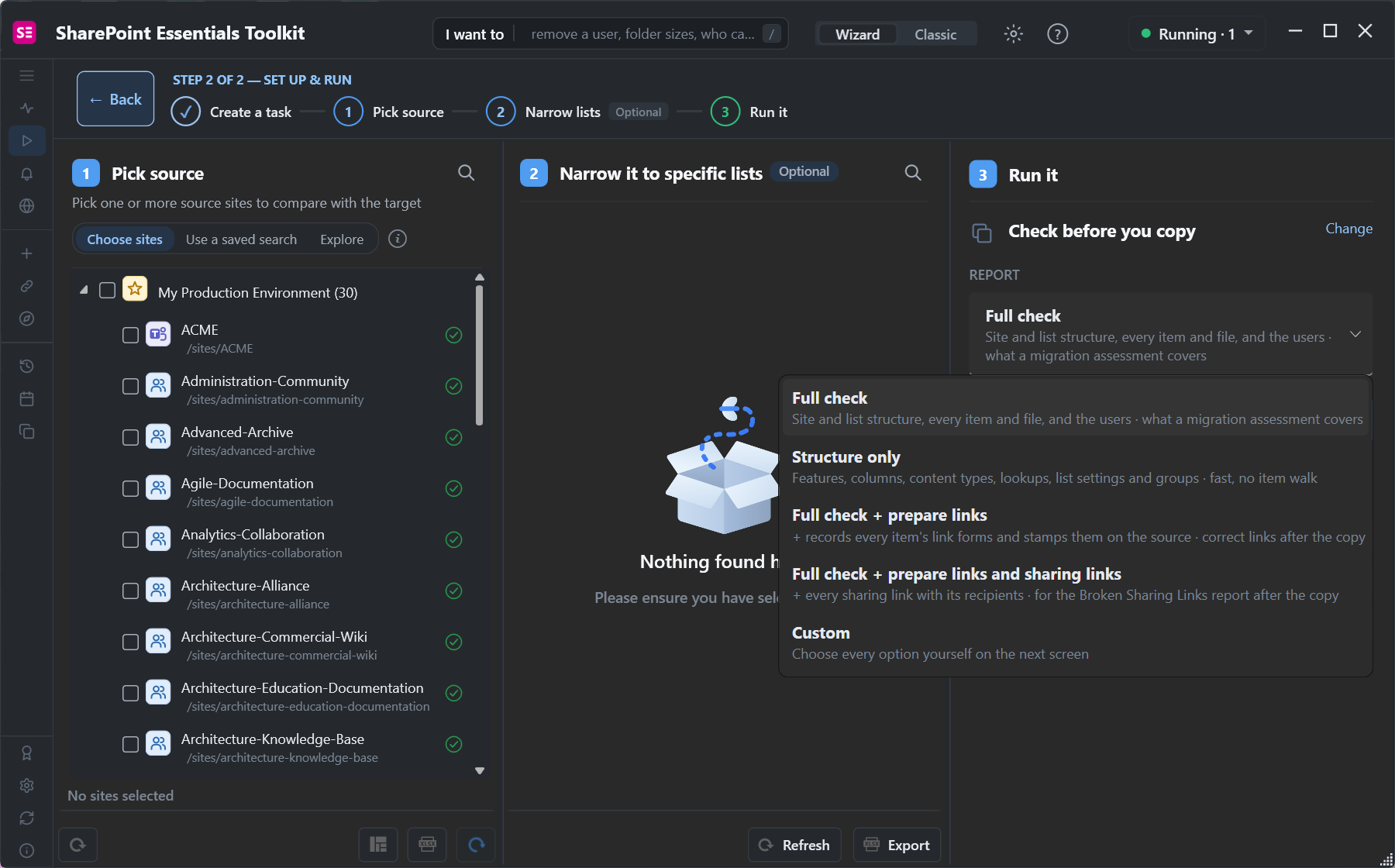
- It warns on every list with workflow associations, since workflows aren't copied, so the same report starts your rebuild list. 2013 workflows registered only in Workflow Manager need the separate check above.
- It flags list templates that don't carry over, such as workflow history, external lists, meeting workspaces and blogs.
- It checks columns, content types, lookups and users against the target before the copy.
- Prepare links records every item's link forms on the source, so links can be corrected after the move.
It doesn't detect InfoPath forms; use the script above for those. After the copy, Copy verification compares source and target item by item.
Flows stopped after someone left? See how to fix a Power Automate flow when the owner left.
Need an approval step? See how to build a SharePoint approval workflow in Power Automate.
Frequently asked questions
Do SharePoint 2013 workflows work in SharePoint Online?
No. SharePoint 2010 and 2013 workflows are retired in SharePoint Online. Rebuild them in Power Automate.
What replaces InfoPath in SharePoint Online?
Power Apps for list forms with rules, Microsoft Lists forms or the default form for simple entry, and Microsoft Forms for surveys.
Can the SharePoint Migration Tool migrate workflows?
It can convert some SharePoint Designer and out-of-the-box workflows to Power Automate flows. Review each one before relying on it.
Do workflow history lists migrate?
They migrate as data, but the workflows that wrote them don't run. Keep them as records or leave them behind.
How do I find workflows before migrating?
Inventory WorkflowAssociations on every list with PowerShell on the farm, list 2013 workflows from Workflow Manager, or run a migration pre-check that reports them.
Check your sites before you migrate, free
SharePoint Essentials Toolkit Community Edition is free. Find workflows, unsupported lists and missing columns before you copy, then verify the result, on up to 20 sites per Microsoft 365 tenant. Get your free Community Edition license key.