Customize a SharePoint List Form with Power Apps, and Avoid the 500 and 2,000 Row Delegation Limits
Open the list, choose Integrate, Power Apps, Customize forms. Power Apps opens a form app bound to that list; publish it to SharePoint and it replaces the new, edit and view forms. To undo it, go to List settings, Form settings, and choose Use the default SharePoint form. Delegation matters when the form or an app reads the list: non-delegable formulas such as Search(), in, or filters on calculated columns only see the first 500 rows by default (2,000 at most), with a delegation warning. Use delegable filters, such as StartsWith and = on indexed columns.
Published:
Last updated: 2026-11-06
Where Customize forms lives
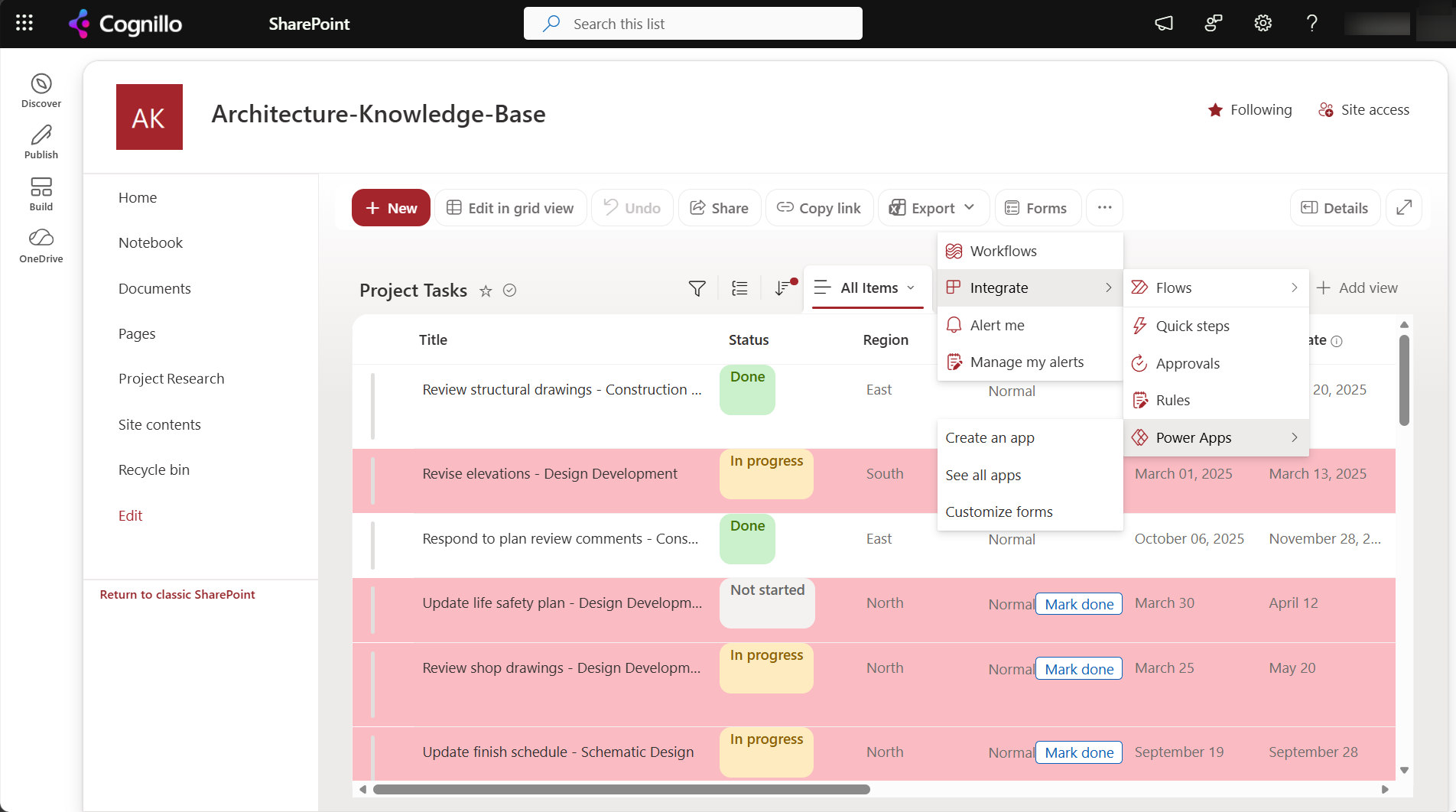
- Customize forms replaces the list's own new, edit and view forms with a Power Apps form. It's stored with the list.
- Create an app builds a separate canvas app with a gallery and a form, opened from Power Apps or Teams.
The first time someone opens Power Apps, they have to accept its terms. Users who only fill in the form don't need a Power Apps license beyond what Microsoft 365 includes, as long as the form uses standard connectors.
Customize, publish, revert
- Customize forms opens the editor with a SharePointForm1 control and a card per column.
- Change the layout, hide cards, add rules: for example set a card's
VisibletoDataCardValue_Status.Selected.Value = "Blocked". - Save, then Publish to SharePoint. Until you publish, users see the old form.
- To go back: List settings, Form settings, Use the default SharePoint form. The custom form is kept, so you can switch back to it.
Things to know: the form's OnSave must call SubmitForm(SharePointForm1); attachments need the Attachments card; and every column added to the list later has to be added to the form by hand.
Delegation: why a gallery stops at 500 rows
Power Apps sends delegable formulas to SharePoint, which filters the whole list. Non-delegable formulas download the first rows and filter them in the app. That limit is the Data row limit in the app's settings: 500 by default, 2,000 at most. Anything past it is silently left out, and the formula gets a delegation warning in the editor.
| Formula | Delegable on SharePoint |
|---|---|
Filter(Tasks, Status.Value = "Blocked") | Yes |
Filter(Tasks, StartsWith(Title, txtSearch.Text)) | Yes |
Filter(Tasks, DueDate < Today()) | Yes, for date columns |
Search(Tasks, txtSearch.Text, "Title") | No |
Filter(Tasks, txtSearch.Text in Title) | No |
Filter(Tasks, TaskKey = "T-00001") on a calculated column | No |
CountRows(Tasks) | No: counts up to the row limit |
Filter(Tasks, ID > 1000) | No: only = is delegable on ID |
Fixes, in order of preference:
- Rewrite the formula to a delegable one: StartsWith instead of Search, and filters on stored columns instead of calculated ones.
- Filter first, then search:
Search(Filter(Tasks, Region.Value = "North"), txtSearch.Text, "Title")searches only what the delegable filter returned, which works if that is under the row limit. - Index the columns you filter on. On lists over 5,000 items, a delegable filter on an unindexed column can still fail with the list view threshold. See the 5,000-item threshold.
- Raise the data row limit to 2,000 only as a stopgap. It makes the app slower and still misses rows on larger lists.
Forms themselves load one item, so delegation affects them only through drop-downs and lookups that read another large list.
Find large lists with PowerShell
Every list over 2,000 items needs delegable formulas in any app that reads it. This read-only script lists them. It needs PnP PowerShell 2.x and your own Entra ID app registration.
$ClientId = "<your-app-id>"
$SiteUrl  = "https://contoso.sharepoint.com/sites/Projects"

Connect-PnPOnline -Url $SiteUrl -Interactive -ClientId $ClientId
Get-PnPList | Where-Object { -not $_.Hidden -and $_.ItemCount -gt 500 } |
    Select-Object Title, ItemCount,
        @{ n = 'Risk'; e = { if ($_.ItemCount -gt 5000) { 'Over threshold' } elseif ($_.ItemCount -gt 2000) { 'Over 2,000' } else { 'Over 500' } } } |
    Sort-Object ItemCount -Descending | Format-Table -AutoSize
Find the lists that need delegable formulas with SharePoint Essentials Toolkit
Before building apps on a site, check which lists are big. The toolkit's list inventory shows item counts for every list on every site you pick:
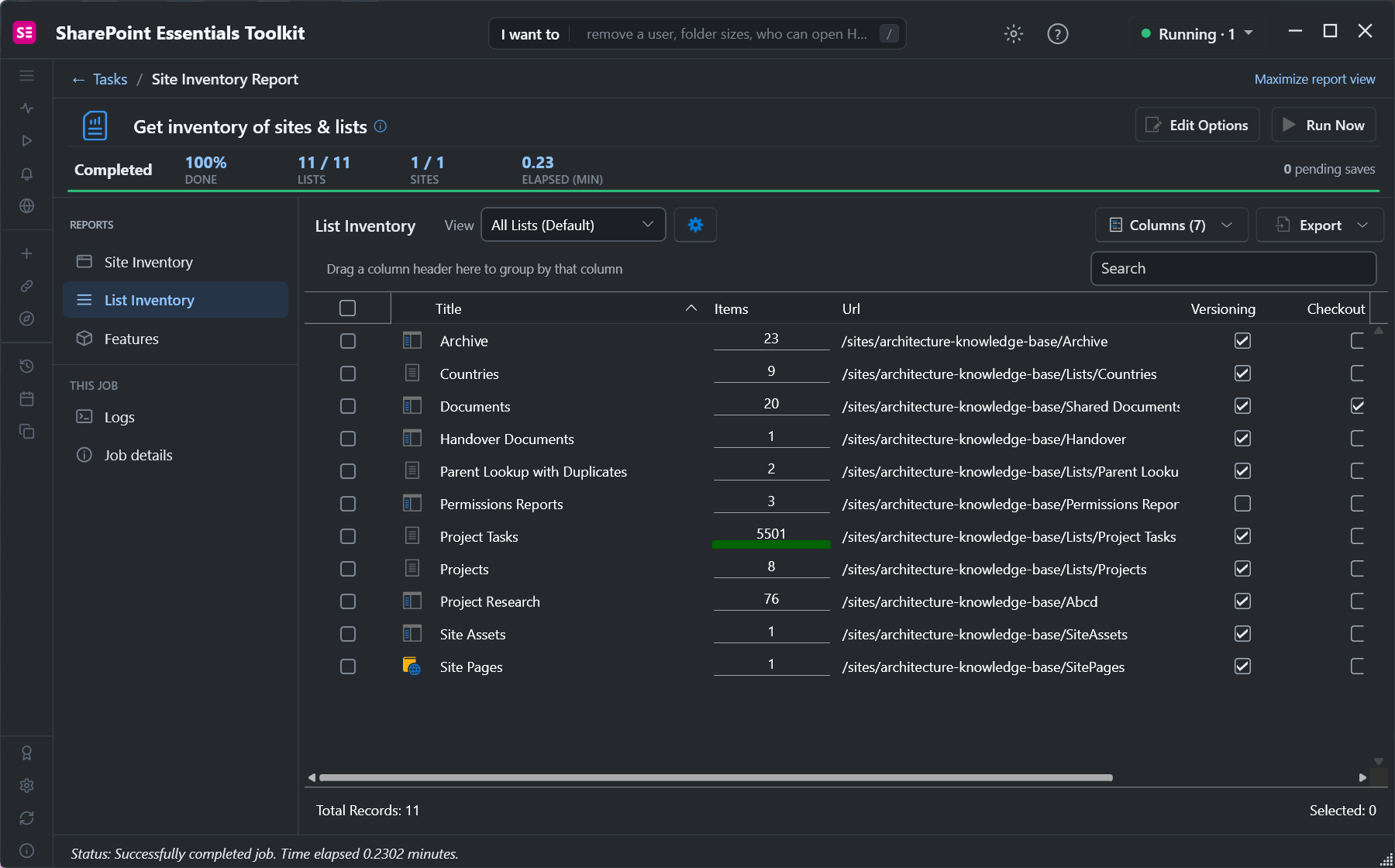
Sort by item count, export it, and give it to the app makers along with the indexed columns they can filter on.
Need an approval step? See how to build a SharePoint approval workflow in Power Automate.
Need due-date reminders? See how to send SharePoint due-date reminders with a scheduled flow.
Frequently asked questions
How do I customize a SharePoint list form with Power Apps?
Open the list, choose Integrate, Power Apps, Customize forms, edit the form, then Save and Publish to SharePoint.
How do I go back to the default SharePoint form?
List settings, Form settings, Use the default SharePoint form. The custom form is kept, so you can switch back later.
What is the Power Apps 500 item limit?
The data row limit for non-delegable formulas. Power Apps only filters the first 500 rows in the app, or up to 2,000 if you raise the limit.
Is Search() delegable on SharePoint?
No. Use StartsWith in a Filter, or narrow the list with a delegable Filter first and then Search the result.
Do Power Apps list forms have delegation problems?
The form loads one item, so not directly. Drop-downs and lookups that read another large list can hit the row limit.
Know which lists are too big for simple formulas, free
SharePoint Essentials Toolkit Community Edition is free. Inventory every list with its item count across sites before you build apps on them, on up to 20 sites per Microsoft 365 tenant. Get your free Community Edition license key.