How to Find Everything Shared With "Everyone" in SharePoint
To find everything shared with Everyone in SharePoint, you need to check every site, list, folder and file for four kinds of broad access: the Everyone claim, Everyone except external users, All authenticated users, and Anyone or organization links. SharePoint shows these one object at a time. The free Sites and content open to everyone report in SharePoint Essentials Toolkit checks them all in one run and says where each grant comes from.
Published:
Last updated: 2026-11-06
What "Everyone" means in SharePoint
| Access | Who it reaches |
|---|---|
| Everyone | Every signed-in account, including guests |
| Everyone except external users | Every account in your tenant except guests (spo-grid-all-users) |
| All authenticated users | A legacy claim for every signed-in account |
| Anyone link | Anyone who has the link, signed in or not |
| People in your organization link | Every account in your tenant who has the link |
Lists, folders and files inherit from the site, so one grant to a site's Visitors group can open hundreds of locations. Copilot answers from anything the person asking can open, which is why this is the first check when you prepare SharePoint for Copilot.
The built-in way, and its limits
- Check Permissions. In Site permissions > Advanced permissions settings, check Everyone except external users. It covers one site, list or item at a time.
- Data access governance reports. In the SharePoint admin center, the Everyone except external users report lists sites tenant-wide. It needs SharePoint Advanced Management or a Copilot license, reports per site, and can be up to 48 hours old.
Neither lists the folders and files inside a site that have their own permissions, which is where most surprises are.
Find it all with SharePoint Essentials Toolkit (free)
Community Edition is free on up to 20 site collections per tenant. This run checks /sites/architecture-knowledge-base, a project site with about 10,000 items.
1. Pick the task
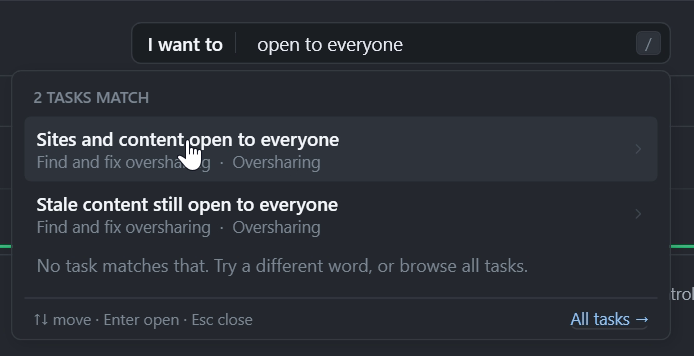
In I want to, type open to everyone and pick Sites and content open to everyone.
2. Pick sites and run
Pick the sites, click Next, and check the summary: it scans each site and every list and library in it, and changes nothing. Click Run Now.

All 10,215 items, including those with unique permissions, were checked in 1.8 minutes.
3. Read the report
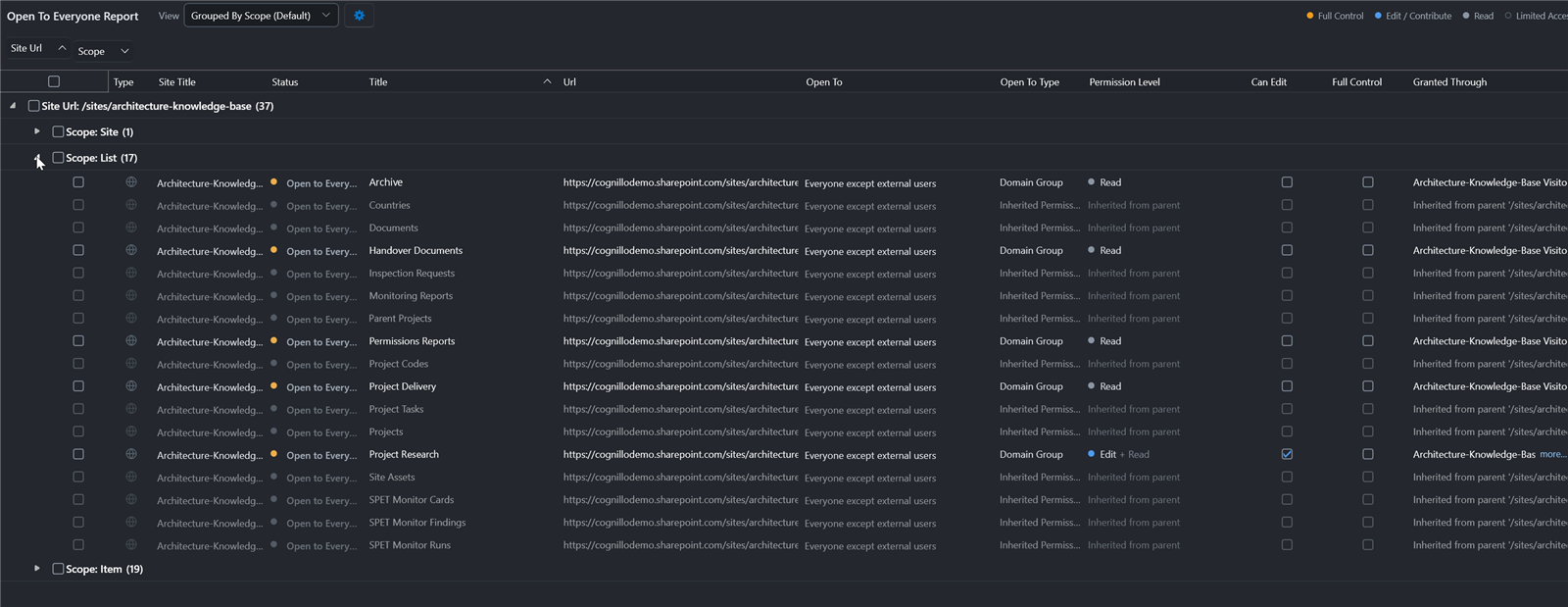
Everyone except external users could reach 37 locations: the site, 17 lists and libraries, and 19 items. Each row shows who it's open to, the permission level, whether it can edit, and where the access comes from. Bold rows have their own permissions; gray rows inherit them.
4. See where the access comes from
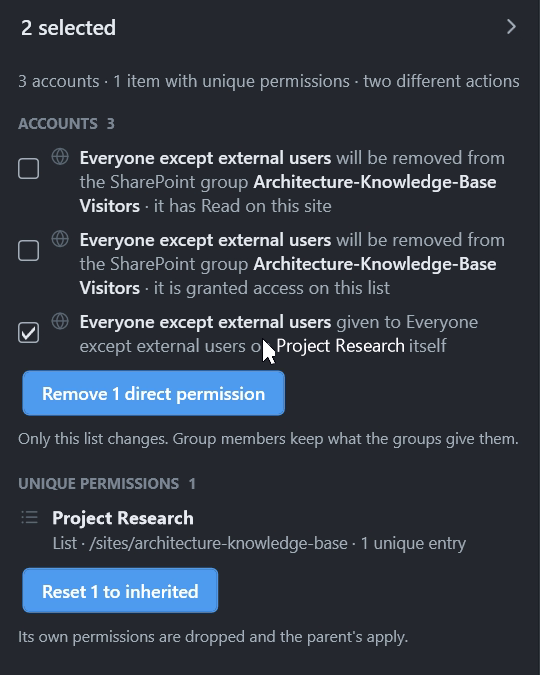
Tick a row to open the Actions panel. It splits the access into its sources: here a membership of the Visitors group, which explains every inherited row, and a direct Edit grant on one library.
Export the report to Excel or CSV for a review, or email it on a schedule so new grants show up. To remove the access, follow how to clean up Everyone except external users; two changes closed all 37 locations in that run. For links, see how to remove anonymous sharing links in bulk.
Tips
- Fix Edit first. Broad Edit or Contribute lets anyone change or delete files; the Can Edit column shows those rows.
- Turn on group expansion to catch Everyone nested inside SharePoint or Entra ID groups.
- Leave intentional ones. An intranet home or policy library may be meant for everyone. Note it and move on.
Comparing tools for this? See the best SharePoint governance tools for 2027.
Frequently asked questions
What counts as shared with Everyone in SharePoint?
Four kinds of access: the Everyone claim, Everyone except external users, All authenticated users, and sharing links that work for anyone or for everyone in your organization. Each one opens content to far more people than a named group, and Copilot can surface any of it to anyone who can open it.
Can I find content shared with Everyone in the SharePoint admin center?
Partly. The data access governance report for Everyone except external users lists sites where it has access, but it needs SharePoint Advanced Management or a Copilot license, gives site-level counts, and can be up to 48 hours old. It doesn't list the folders and files inside a site.
How do I find overshared files in SharePoint for free?
Run Sites and content open to everyone in SharePoint Essentials Toolkit Community Edition. It is free on up to 20 site collections per tenant, checks every list, folder and file including items with unique permissions, and shows who each one is open to, the permission level and where the access comes from.
Does the report change any permissions?
No. The report only reads. When you want to remove access, you select rows and use the Actions panel, which lists every change for review before anything happens and logs each one in History so it can be undone.
Find everything shared with Everyone, free
SharePoint Essentials Toolkit Community Edition is free on up to 20 site collections per Microsoft 365 tenant. See every site, list, folder and file open to everyone, and where the access comes from. Get your free Community Edition license key.