How to Remove Anonymous Sharing Links in Bulk in SharePoint
To remove anonymous (Anyone) sharing links in bulk, first list every link across your sites, then select the Anyone links and remove them together. SharePoint itself removes links one file at a time. PnP PowerShell can loop through a library, and SharePoint Essentials Toolkit, a free tool, lists every link on the sites you pick and removes the ones you select after a review.
Published:
Last updated: 2026-11-06
Before you start
- Turning Anyone links off doesn't delete them. The tenant and site sharing settings stop new Anyone links, and existing ones stop working while the setting is off, but they come back if it's turned on again. See how external sharing settings work.
- Removing a link can't be undone. Anyone who still needs the file needs a new link. If you're unsure, set an expiry instead.
- The file and people's own permissions don't change. Only the link stops working.
Option 1: PowerShell
PnP PowerShell lists links with Get-PnPFileSharingLink and removes them with Remove-PnPFileSharingLink. This lists the Anyone links in one library; uncomment the last line to remove them.
Connect-PnPOnline -Url "https://contoso.sharepoint.com/sites/projects" -Interactive -ClientId "your-app-id"
$files = Get-PnPFileInFolder -FolderSiteRelativeUrl "Shared Documents" -Recurse -ExcludeSystemFolders
foreach ($file in $files) {
    $links = Get-PnPFileSharingLink -Identity $file.ServerRelativeUrl | Where-Object { $_.Link.Scope -eq "anonymous" }
    foreach ($link in $links) {
        Write-Host "$($file.ServerRelativeUrl)  $($link.Link.WebUrl)"
        # Remove-PnPFileSharingLink -FileUrl $file.ServerRelativeUrl -Identity $link.Id -Force
    }
}
What to know: this covers files in one library; folders, list items and other sites need more loops. Large libraries are slow and get throttled, and there's no review step or undo, so export the list before you remove anything.
Option 2: SharePoint Essentials Toolkit (free)
Community Edition is free on up to 20 site collections per tenant. The demo tenant below has Anyone links turned off, so the links shown are organization links; with Anyone links the steps are the same, and you pick Anyone in the Link Scope column.
1. Pick the task
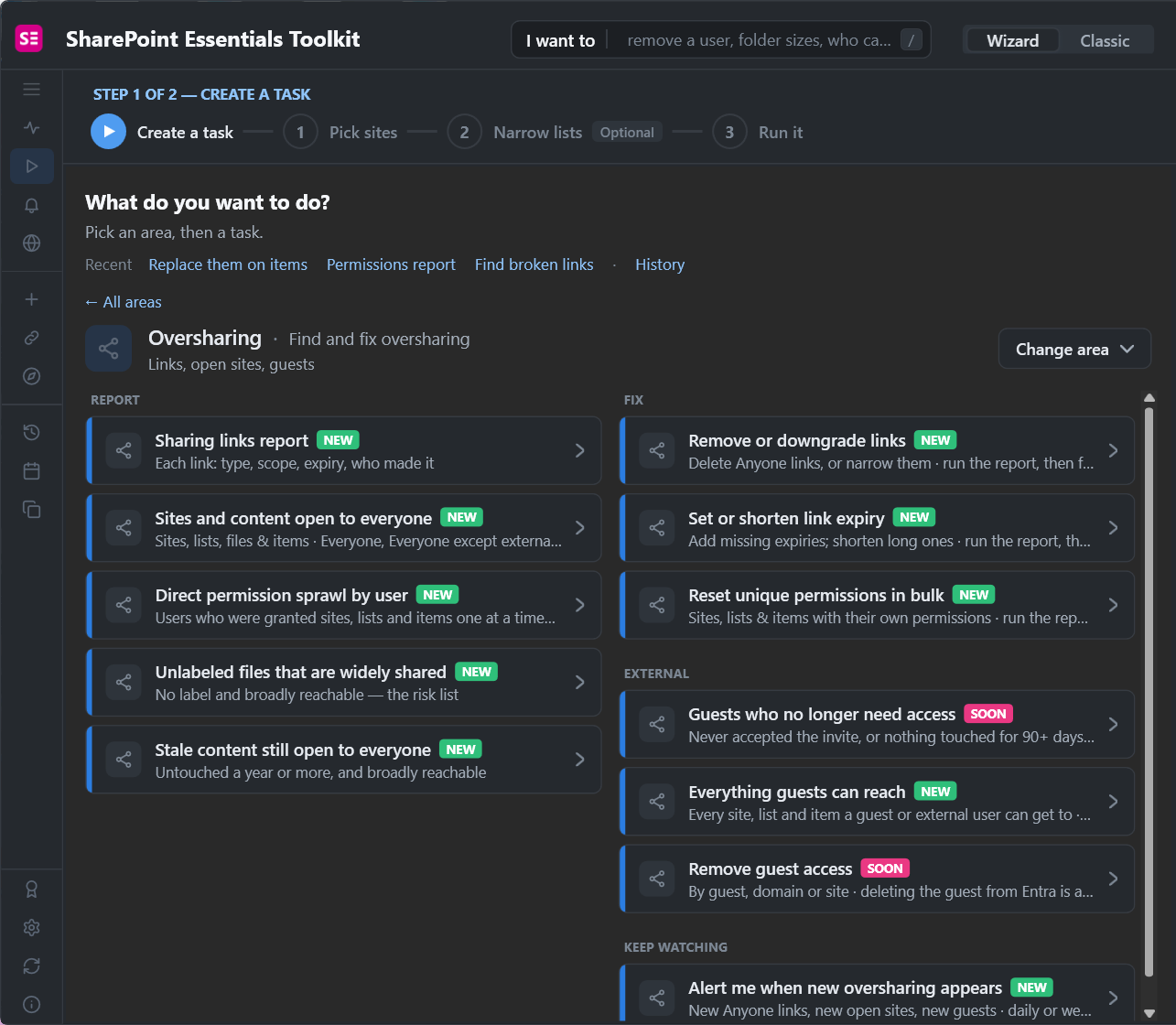
Open the Oversharing area and pick Remove or downgrade links, or Sharing links report if you want to look first. Both open the same report.
2. Run the sharing links report
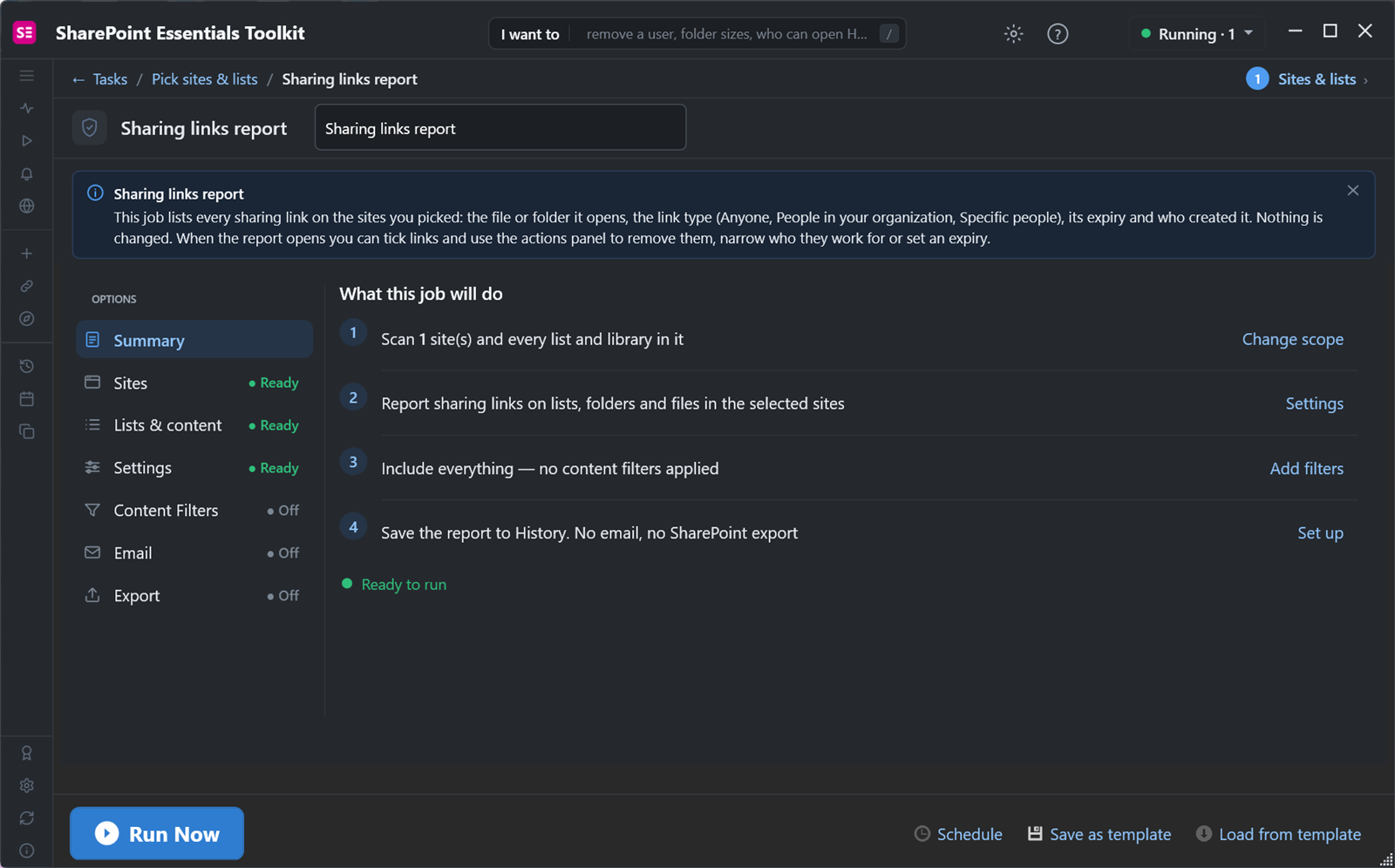
Pick the sites and check the summary: it lists every sharing link on the files and folders in those sites, and changes nothing. Click Run Now.
3. Filter to Anyone links
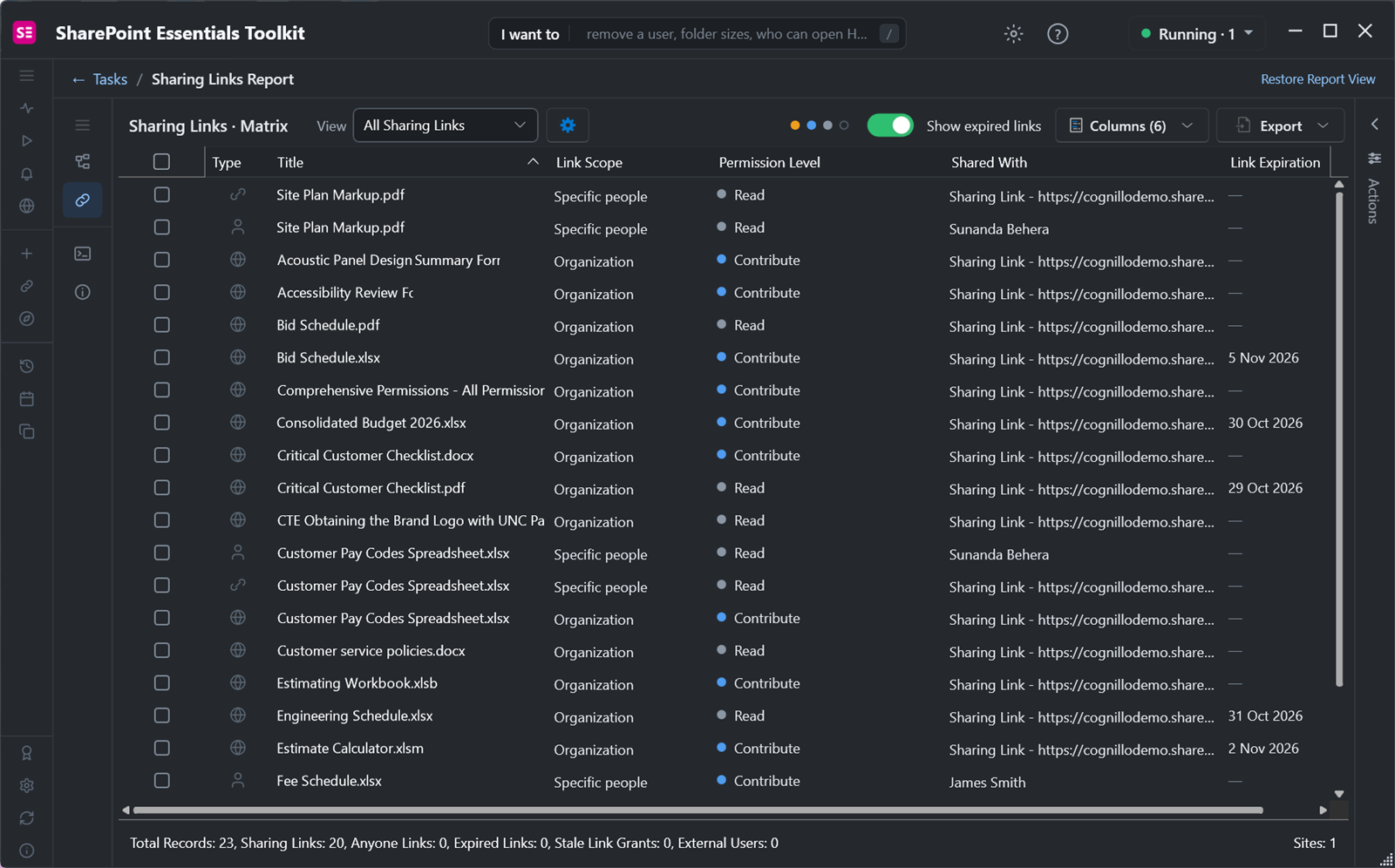
The report has one row per link: the file, link scope, permission, who it's shared with and expiry. The footer counts sharing links, Anyone links, expired links and external users. Filter or sort Link Scope to Anyone.
4. Select the links and choose Remove the links
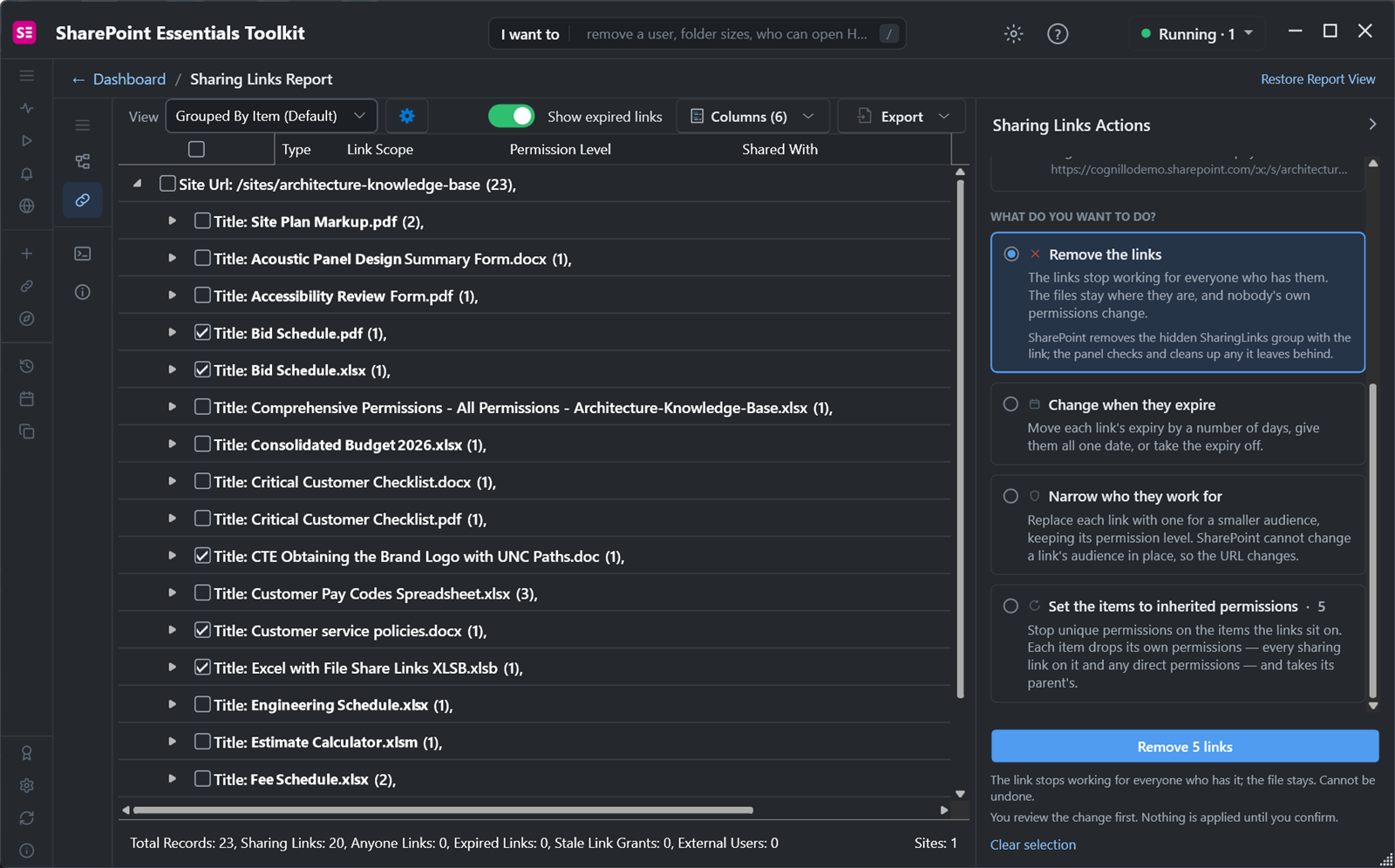
Tick the links, or tick a file or the site row to select all its links. In Sharing Links Actions, choose Remove the links. The panel explains the effect and also cleans up the hidden sharing group SharePoint leaves behind.
5. Review and apply
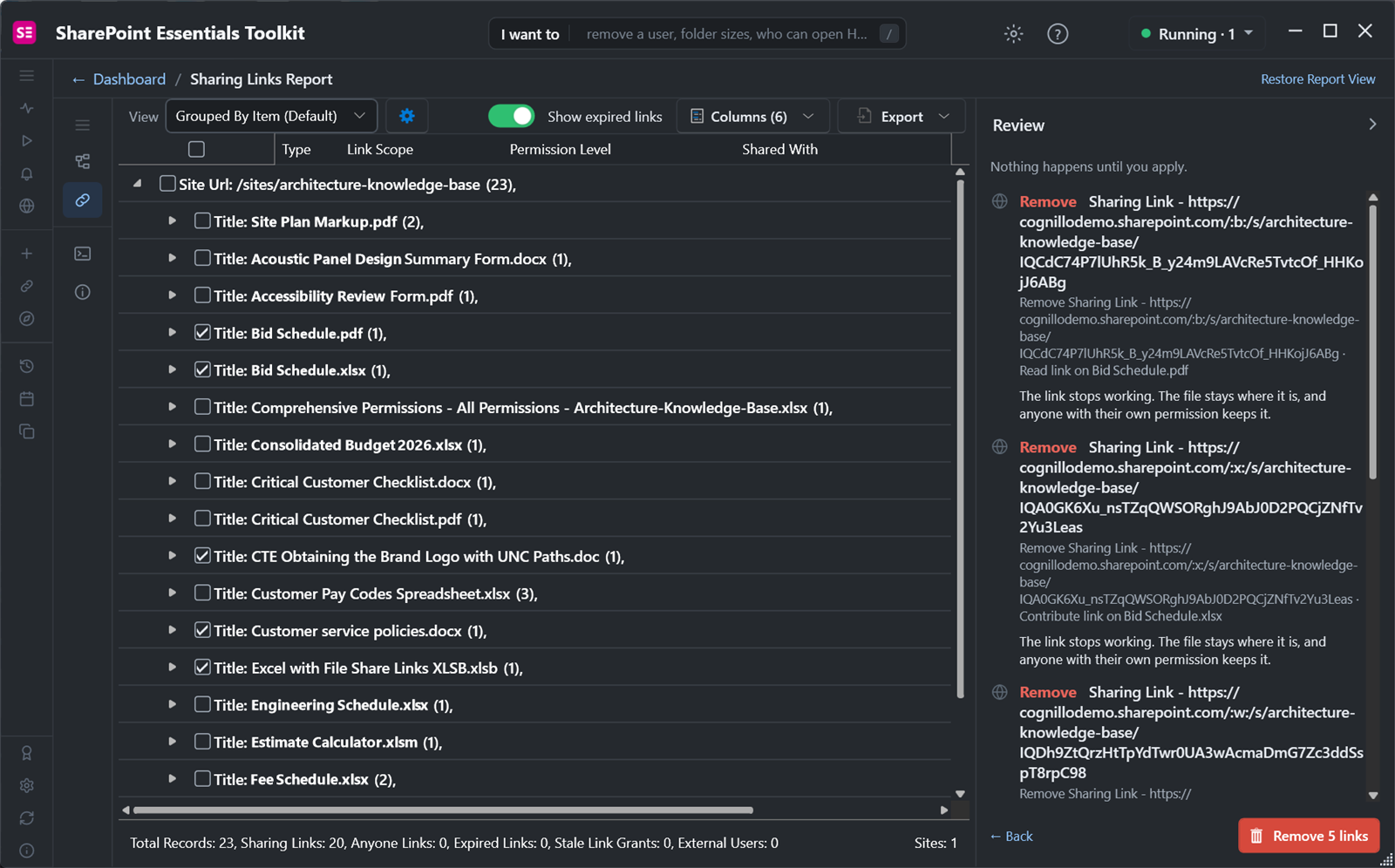
The review lists every link that will stop working, with the file it's on. Nothing happens until you click Remove 5 links.
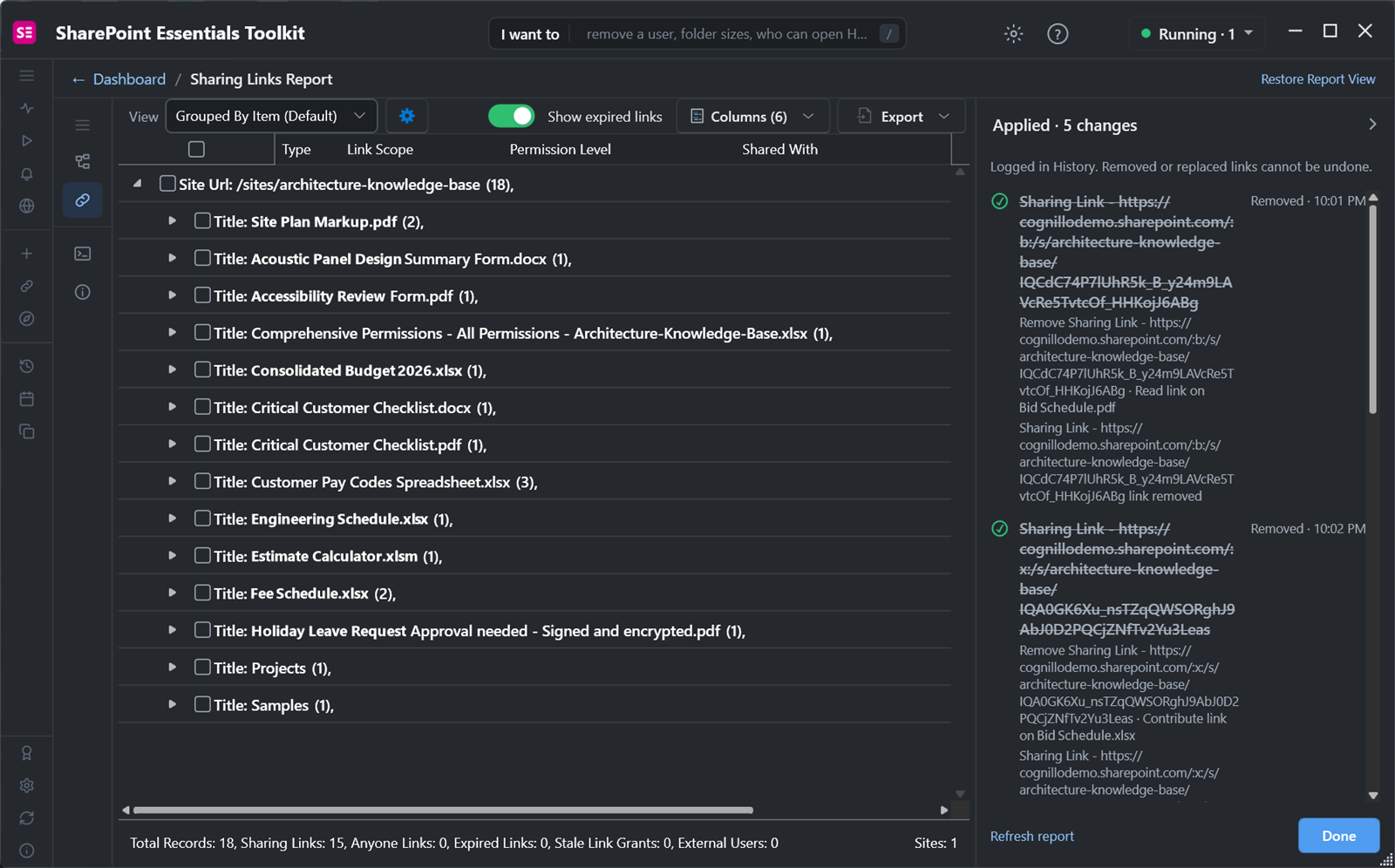
The five links were removed, and the report dropped from 23 records to 18. Each removal is logged in History.
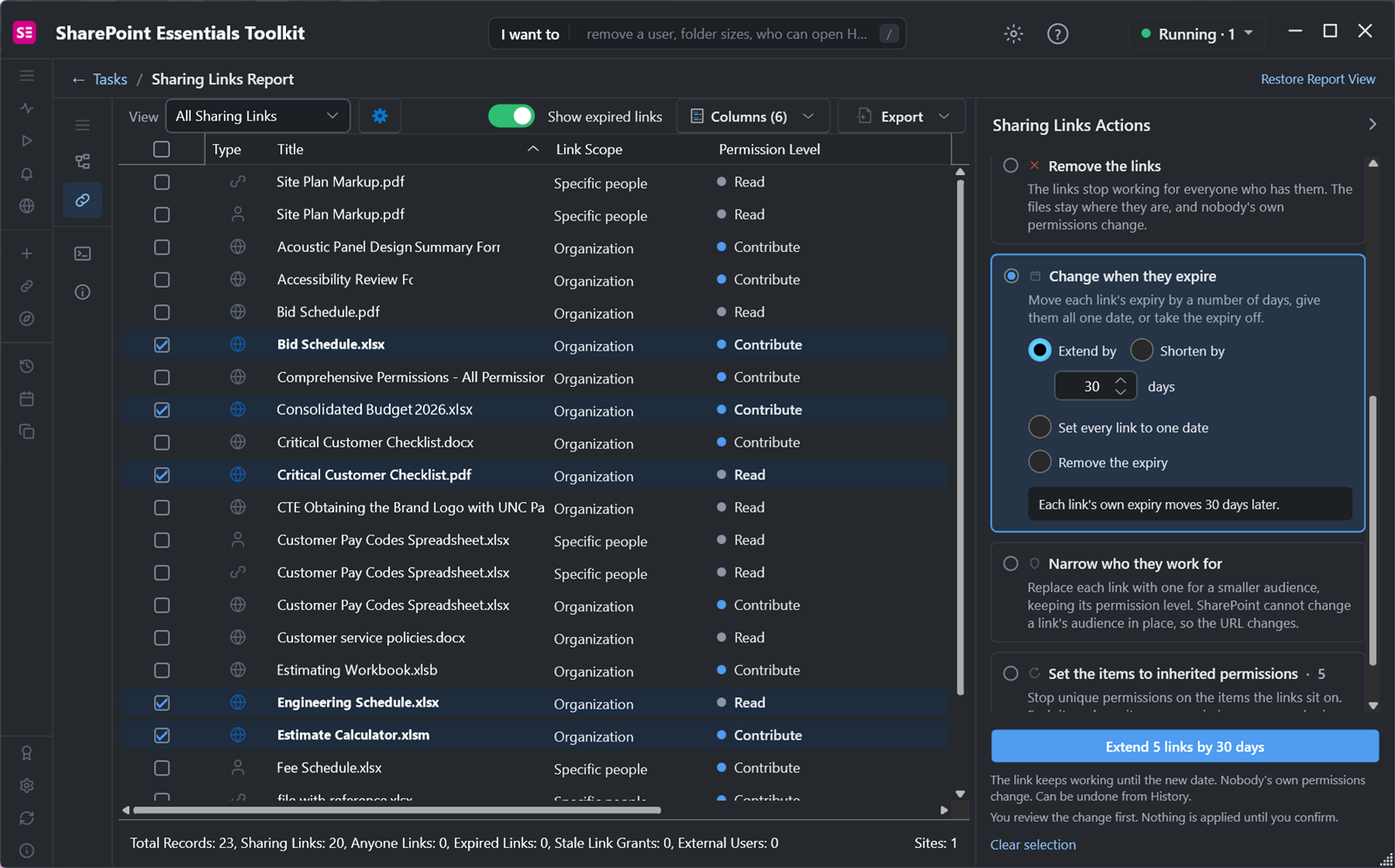
Not ready to remove? Expire them instead
Choose Change when they expire to give each link an expiry, move it by a number of days or set one date for all of them. The link keeps working until then, and the change can be undone from History.
On Community Edition each Apply makes up to 10 changes, so larger cleanups take a few passes; Enterprise has no cap. For narrowing links and resetting permissions too, see the longer guide to cleaning up sharing links. To find other broad access, see how to find everything shared with Everyone, and for a tool comparison, the best SharePoint governance tools for 2027.
Frequently asked questions
Does turning off Anyone links remove existing links?
No. Turning Anyone links off in the tenant or site sharing settings stops new ones, and existing Anyone links stop working while the setting is off. The links still exist, though, and work again if the setting is turned back on. To get rid of them for good, remove them.
Can I remove all Anyone links in SharePoint at once?
Not from SharePoint itself, which removes links one file at a time in Manage access. PnP PowerShell can loop through a library and remove them. SharePoint Essentials Toolkit lists every link across the sites you pick, and you select the Anyone links and remove them together after a review.
Can a removed sharing link be restored?
No. Once a link is removed, its URL stops working for good, and anyone who still needs the file needs a new link. If you aren't sure, set an expiry date instead; an expiry change can be undone from History in SharePoint Essentials Toolkit.
Is removing sharing links in bulk free?
Yes, within limits. SharePoint Essentials Toolkit Community Edition is free on up to 20 site collections per tenant. The sharing links report has no limits, and each Apply from the actions panel makes up to 10 changes. Enterprise removes the cap.
Remove anonymous sharing links for free
SharePoint Essentials Toolkit Community Edition is free on up to 20 site collections per Microsoft 365 tenant. List every sharing link, then remove, narrow or expire them with a review first. Get your free Community Edition license key.