The Best SharePoint Governance Tools for 2027: Features, Prices and Limits
The best SharePoint governance tool for 2027 depends on what you need to govern. For item-level permissions, sharing links and Copilot readiness on SharePoint, SharePoint Essentials Toolkit covers the most capabilities in our table and is free on up to 20 site collections. For tenant-wide policies, provisioning and lifecycle across Teams and Microsoft 365, ShareGate Protect, Syskit Point, AvePoint, Orchestry, Rencore and CoreView are stronger. If you have a Copilot license, Microsoft's SharePoint Advanced Management may be enough for site-level work.
Published:
Last updated: 2026-11-06
The short list
| Tool | Best for | Starting price (published) |
|---|---|---|
| Microsoft built-in (admin center, SharePoint Advanced Management, Purview) | Site-level baselines and Copilot controls if you already own the licenses | Included; SharePoint Advanced Management comes with one Copilot license |
| SharePoint Essentials Toolkit | Item-level permissions, sharing links, oversharing and Copilot readiness, with fixes and undo | Free on 20 site collections; paid editions for more sites |
| ShareGate Protect | Oversharing, guests and inactive workspaces across Teams, SharePoint and OneDrive | Quote, per licensed user per year |
| Syskit Point | Permissions plus governance automation, with list prices | €10 per user per year, 100-user minimum |
| AvePoint Policies and Insights | Sensitivity-aware risk and policy drift, including Google Drive | Quote; partners list about $2.69 to $4.84 per user per month |
| Orchestry | Workspace provisioning and lifecycle for end users | $2,499 per tenant per year (Starter) |
| Rencore Governance | Policy-driven governance across Microsoft 365, Power Platform and agents | $0.55 per user per month (Essentials) |
| CoreView | Large and multi-tenant Microsoft 365 operations, with SharePoint as an add-on | Quote, per licensed identity |
Feature comparison: 36 SharePoint governance capabilities
The table lists each capability once, grouped by job. "Yes" means it's on the vendor's published feature list; a plan name means it needs that plan or add-on; a dash means it isn't on the published list as of November 2026, so ask the vendor if it matters to you. Scroll sideways on a small screen.
| Capability | SharePoint Essentials Toolkit Community (free) | Microsoft built-in | ShareGate Protect | Syskit Point | AvePoint Policies and Insights | Orchestry | Rencore Governance | CoreView |
|---|---|---|---|---|---|---|---|---|
| Permissions | ||||||||
| SharePoint permissions report down to file and item level | Yes | Check Permissions, one object at a time; per-site counts in data access governance reports (SAM) | Yes | Yes | Yes | Permissions reporting (Starter) | Add-on (Files and Folders) | Add-on (Control for SharePoint) |
| Everything one person can access | Yes | Check Permissions, one site at a time | Yes | Yes | Yes | — | — | Yes |
| Expand nested SharePoint and Entra ID groups | Yes | — | — | Yes | Yes | — | — | — |
| Full Control and site admin audit | Yes | Per site | — | — | — | — | — | — |
| Sites with too few owners | Yes | Site ownership policy (SAM) | Yes | Yes | — | Health checks | Policy monitoring | — |
| Orphaned users report | Yes | — | — | Yes | Yes | — | — | — |
| Remove or replace one person's access everywhere | Enterprise | — | Yes | Yes | Yes | — | — | Yes |
| Clean up orphaned users | Enterprise | — | — | Governance plan | Yes | — | — | — |
| Sharing and oversharing | ||||||||
| SharePoint sharing links report, every link on every file | Yes | Manage access, one file at a time; per-site counts (SAM) | Yes | Yes | Yes | Professional | Add-on (Files and Folders) | Add-on (Control for SharePoint) |
| Content shared with Everyone or Everyone except external users, item level | Yes | Site level (data access governance report, SAM) | Yes | — | — | — | — | — |
| Remove, narrow or expire sharing links in bulk | 10 changes per Apply (unlimited in Enterprise) | PowerShell | Yes | Yes | Yes | Professional | — | Add-on (Control for SharePoint) |
| Guests and external users report | Yes | Admin center and Entra ID | Yes | Yes | Yes | Yes | Yes | Yes |
| Unlabeled or sensitive files that are widely shared | Yes | Purview DSPM data risk assessments (E5) | — | — | Yes | — | — | — |
| Stale content still open to everyone | Yes | Purview DSPM (items not accessed in 3 years) | Inactive workspaces | — | — | — | — | — |
| Apply sensitivity labels in bulk | 10 changes per Apply (unlimited in Enterprise) | Auto-labeling policies (E5) | — | — | — | — | — | — |
| Copilot readiness and policy | ||||||||
| Copilot readiness reports | Yes | SAM and Purview DSPM | Yes | Yes | Yes | Yes | Premium | Yes |
| Keep Copilot out of sites (Restricted Content Discovery, restricted access control) | — (use Microsoft's controls) | Yes (SAM) | — | — | — | — | — | — |
| Site access reviews by owners | — | Yes (SAM) | — | Governance plan | Yes | Professional | Premium | Yes |
| Inactive site and lifecycle policies | — | Yes (SAM) | Yes | Governance plan | Yes | Professional | Professional | — |
| Policy drift detection and auto-revert | — | — | Yes | Governance plan | Yes | — | Professional | Yes (configuration) |
| Self-service site provisioning with templates | Bulk create sites (Enterprise) | — | — | Governance plan | — | Professional | Premium | — |
| Monitoring | ||||||||
| Audit log reports: activity, user activity, sign-ins | Yes | Purview Audit (180 days on Standard) | — | Security plan | Yes | — | Yes | Add-on |
| Scheduled reports by email | Yes | — | — | Security plan | Yes | — | — | — |
| Alerts on new oversharing | Yes | — | — | Security plan | Yes | — | Yes | Yes |
| Undo changes from history | Yes | — | — | — | Revert policy drift | — | — | Yes (configuration and identity) |
| Content, storage and links | ||||||||
| Site, list, column and content type inventory | Yes | Active sites export | Yes | Yes | — | Workspace reporting | Yes | Yes |
| Storage and version history report | Yes | Storage metrics, per site | — | Yes | — | — | Professional | — |
| Trim versions, check in, recycle or archive files in bulk | 10 changes per Apply (unlimited in Enterprise) | Version history limits per site or tenant | — | Governance plan | — | Enterprise (file-level archival) | Professional | — |
| Broken links report and fix | Report free; fix lists of up to 100 items | — | — | — | — | — | — | — |
| Bulk edit metadata | Enterprise | — | — | — | — | — | — | — |
| Content search across sites | Yes | Microsoft Search; Purview eDiscovery | — | — | — | — | — | — |
| Migration | ||||||||
| Copy sites and lists with versions and permissions | Yes | — | ShareGate Migrate (separate product) | — | AvePoint Fly (separate product) | — | — | — |
| Verify a copy against its source | Yes | — | — | — | — | — | — | — |
| Platform | ||||||||
| Workloads beyond SharePoint (Teams, Exchange, Power Platform) | — (SharePoint focus) | Yes | Yes | Yes | Yes | Yes | Yes | Yes |
| Where it runs | Windows desktop app; reports stay on your PC | Microsoft 365 | SaaS | SaaS (Enterprise in your Azure) | SaaS | SaaS | SaaS (self-hosting add-on) | SaaS |
| Free option | Free forever on 20 site collections | Included with your licenses | Free trial | 21-day trial | 30-day trial | Free trial | 14-day trial | — |
SharePoint Essentials Toolkit has an entry on 31 of the 36 rows, more than any other column (Syskit Point is next with 24), and 27 of those work in the free Community Edition. The five rows where it has nothing need a service running in your tenant or reach beyond SharePoint: owner access reviews, lifecycle policies, drift revert, keeping Copilot out of sites, and Teams, Exchange and Power Platform. That's where Microsoft's own controls and the SaaS tools earn their place.
Price, best fit and limits for each tool
Prices are the vendor's published list prices, or a named reseller's where the vendor quotes only. Most SaaS tools charge per licensed Microsoft 365 user, so for a 1,000-user tenant multiply the per-user figure by 1,000.
Microsoft built-in: admin center, SharePoint Advanced Management and Purview
- Price: the SharePoint admin center is included. SharePoint Advanced Management (SAM) turns on for the tenant when at least one user has a Microsoft 365 Copilot license, or with the SAM Plan 1 add-on. Purview DSPM data risk assessments and auto-labeling need E5 or E5 Compliance.
- Best fit: tenant-wide baselines, site ownership and inactive site policies, site access reviews, and Copilot controls such as Restricted Content Discovery. No third-party tool can keep Copilot out of a site the way these can.
- Limits: the data access governance reports give counts per site, not lists of files, and the data can be up to 48 hours old. DSPM's default assessment covers the top 100 sites by usage each week. Removing a link or a grant is done one file at a time, or with PowerShell, with no undo.
SharePoint Essentials Toolkit
- Price: Community Edition is free on up to 20 site collections per Microsoft 365 tenant and never expires. Professional and Enterprise add sites; see pricing.
- Best fit: SharePoint admins and consultants who need item-level answers and the fix in the same place: permissions, sharing links, content open to everyone, unlabeled files that are widely shared, orphaned users, broken links and site copies. Every report is free at full depth, results are live when you run them, and every change is logged in History with undo.
- Limits: it's a Windows desktop app, not a service, so there are no owner access reviews, lifecycle policies or self-service requests. It covers SharePoint, not Teams settings, Exchange or Power Platform. On Community, fixes from a report apply up to 10 changes at a time, and removing or replacing accounts in bulk needs Enterprise.
ShareGate Protect
- Price: annual subscription quoted on licensed Microsoft 365 users, guests excluded. A German reseller lists one admin seat at €1,753.55 per year. Resellers note Protect stopped being included with ShareGate Migrate Pro and Enterprise on April 1, 2026.
- Best fit: IT teams that want a single SaaS view of oversharing, guests, inactive workspaces and ownership gaps across Teams, SharePoint, OneDrive and Entra ID, with bulk actions and an audit trail.
- Limits: pricing is quote-only, and reviewers on Gartner Peer Insights mention a large price increase on renewal. Migration is a separate product.
Syskit Point
- Price: €10, €20 or €30 per user per year for the Management, Security and Governance plans, each with a 100-user minimum. Enterprise is custom and starts at 1,000 users.
- Best fit: mid-size tenants that want file-level permissions reports, sharing link cleanup and, on Governance, automated permissions cleanup, access reviews and provisioning, with public list prices.
- Limits: auditing and scheduled reports start on Security; lifecycle and access reviews need Governance. Power Platform and license optimization are add-ons.
AvePoint Policies and Insights
- Price: quote. Partner listings show about $2.69 to $4.84 per user per month, and the UK G-Cloud listing shows £0.90 per user per month for Policies alone.
- Best fit: larger organizations that want risk ranked by sensitivity labels and sensitive information types, policies that revert drift, and the same view for Google Drive.
- Limits: it's part of a broad platform, so scope and price depend on the bundle. Copying sites is a separate product (Fly).
Orchestry
- Price: Starter is $2,499 per tenant per year with unlimited users; Professional starts at $4,999 and Enterprise at $7,499 per year, priced on licensed users.
- Best fit: organizations that want end users to request workspaces from templates, with reviews, archiving and guest automation.
- Limits: Starter is reporting and recommendations; sharing link automation and reviews need Professional, and OneDrive reporting needs Enterprise.
Rencore Governance
- Price: $0.55, $1.10 and $1.65 per user per month for Essentials, Professional and Premium on Capterra's listing; Rencore's pricing page quotes on request, and Enterprise is quoted.
- Best fit: governance teams that write policies across Microsoft 365, Power Platform, Copilot Studio and agents, from more than 250 templates.
- Limits: permission reports are in Premium, and file and folder permissions need the Files and Folders add-on.
CoreView
- Price: quote, per licensed identity, with no per-admin fees. SharePoint file and folder control is the Control for SharePoint add-on, launched in June 2026.
- Best fit: large or multi-tenant organizations that run Entra ID, Exchange, Intune and configuration backup from one console and want SharePoint in the same place.
- Limits: SharePoint is an add-on to a wider platform, and G2 lists no free trial.
PnP PowerShell
- Price: free and open source.
- Best fit: admins who script, for one-off checks and automation.
- Limits: you write and maintain the scripts, item-level scans on large sites are slow and get throttled, and there's no undo.
When Microsoft's built-in tools are enough
You may not need a third-party tool at all if one of these is true:
- You have a handful of sites. Check Permissions and Manage access are slow, but on ten sites with few unique permissions they're manageable.
- You only need to stop new Anyone links. Turn them off or require expiry in the tenant or site sharing settings. Existing links stop working while the setting is off, though they still exist.
- You have at least one Copilot license and site-level answers are enough. SAM gives you data access governance reports, site access reviews, Restricted Content Discovery, restricted access control and inactive site policies at no extra cost.
- You have E5. Purview DSPM data risk assessments, auto-labeling and DLP for Copilot cover sensitive content at scale.
The gaps show up when you need a list of the actual files, not counts per site; when you need to remove hundreds of links, not one; when a 48-hour-old snapshot isn't good enough to prove a fix; and when you want to undo a change. That's where a third-party tool pays for itself, and where a free one may be all you need.
SharePoint permissions report tool: what to compare
When you evaluate a SharePoint permissions report tool, check four things:
- Depth. Does it read every list, folder and file with unique permissions, or stop at the site?
- Where access comes from. Does it say whether access is direct, through a SharePoint group, a nested Entra ID group or a sharing link?
- Freshness. Is it live when you run it, or a snapshot from a crawl?
- Fix in place. Can you remove access from the report, review it first and undo it?
See our SharePoint permissions report guide and the free SharePoint permissions tools compared.
Find overshared files in SharePoint
To find overshared files in SharePoint, look for content granted to Everyone, Everyone except external users or All authenticated users; Anyone and organization links; and sensitive files without a label that many people can reach. In SharePoint Essentials Toolkit, Sites and content open to everyone lists each one, with the permission level and the group the access comes through.
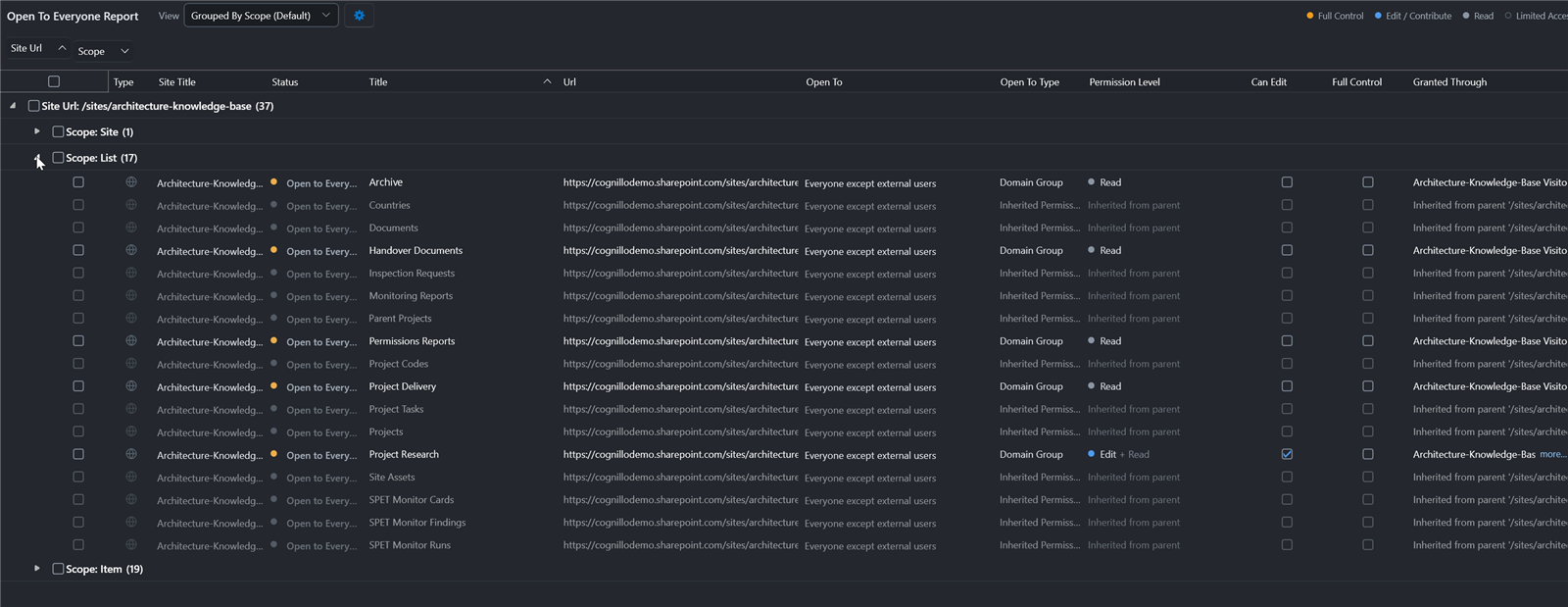
Step by step: How to find everything shared with "Everyone" in SharePoint. To remove it, see how to clean up Everyone except external users.
SharePoint sharing links report
A SharePoint sharing links report should list every link on every file and folder, with its type (Anyone, people in your organization or specific people), permission, expiry and creator. SharePoint shows these one file at a time; the data access governance report gives counts per site. The toolkit's Sharing links report lists each link across the sites you pick, free, and you can remove, narrow or expire links from the same screen.
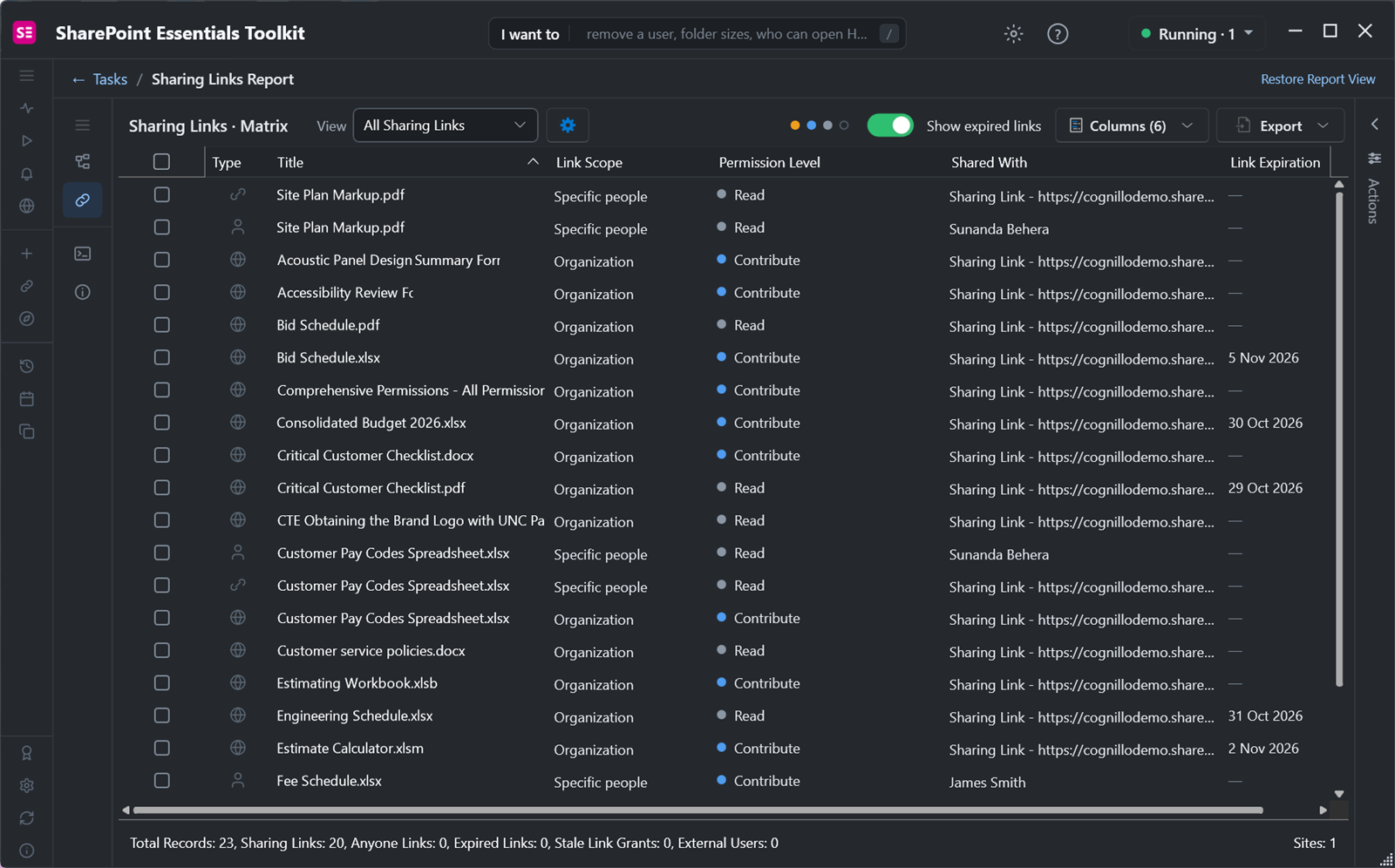
Step by step: How to remove anonymous sharing links in bulk, and the longer guide to cleaning up sharing links.
Prepare SharePoint for Copilot
Copilot answers from anything the person asking can open, so preparing SharePoint for Copilot means fixing broad access first. A practical order:
- Remove Everyone except external users where it isn't intended, starting with Edit.
- Remove or expire Anyone links, and narrow organization links on sensitive files.
- Label sensitive files, starting with the unlabeled ones that many people can open.
- Fix sites with fewer than two owners, so someone can answer for the access.
- For sites you can't clean up in time, use Restricted Content Discovery or restricted access control from SAM.
- Rerun the reports on a schedule so new oversharing shows up.
Microsoft's oversharing blueprint for Copilot follows the same pattern. See also Copilot readiness: find overshared SharePoint files and Copilot oversharing and Restricted SharePoint Search.
How to choose
- Start free. Run the free reports on your 20 most important sites first. You'll know how big the problem is before you talk to a vendor.
- If you need owner reviews, lifecycle policies or self-service provisioning, shortlist Syskit Point, Orchestry, Rencore or ShareGate Protect, and compare quotes for your user count.
- If sensitivity and policy drift matter most, look at AvePoint, or Purview if you have E5.
- If you run many tenants or all of Microsoft 365 from one console, look at CoreView.
- If you need item-level evidence and fixes on SharePoint, SharePoint Essentials Toolkit does it free on 20 site collections, and it works alongside any of the above.
Frequently asked questions
What is the best SharePoint permissions report tool?
It depends on scope. For item-level reports on a few sites, SharePoint Essentials Toolkit Community Edition is free on up to 20 site collections and reports every site, list, folder and file. For tenant-wide SaaS reporting with policies, Syskit Point, ShareGate Protect and AvePoint Policies and Insights are strong paid options. Microsoft's Check Permissions works for one object at a time.
How do I find overshared files in SharePoint?
Look for three things: content granted to Everyone, Everyone except external users or All authenticated users; Anyone and organization sharing links; and sensitive files without a label that many people can open. Microsoft's data access governance reports show this per site if you have SharePoint Advanced Management. A tool such as SharePoint Essentials Toolkit lists each file and where its access comes from.
Is there a free SharePoint sharing links report?
Yes. SharePoint Essentials Toolkit Community Edition runs a sharing links report free on up to 20 site collections per tenant, listing each link with its type, permission, expiry and creator. PnP PowerShell can also list links file by file. Microsoft's data access governance sharing links report gives counts per site and needs SharePoint Advanced Management.
How do I prepare SharePoint for Copilot?
Find and fix broad access before you turn Copilot on: remove Everyone except external users where it isn't needed, remove or expire Anyone links, label sensitive files, and fix sites with too few owners. Then use Restricted Content Discovery or restricted access control from SharePoint Advanced Management for sites you can't clean up in time, and rerun the reports on a schedule.
When are Microsoft's built-in SharePoint governance tools enough?
They're enough when you have a small number of sites, when site-level answers are good enough, or when you have a Copilot license, which turns on SharePoint Advanced Management for the tenant. They fall short when you need item-level lists across many sites, bulk link cleanup, live results instead of snapshots up to 48 hours old, or undo.
Is SharePoint Essentials Toolkit free?
Yes. Community Edition is free on up to 20 site collections per Microsoft 365 tenant and never expires. Every report runs at full depth, including permissions, sharing links, open to everyone and Copilot readiness. Fixes from a report apply up to 10 changes at a time; Enterprise removes that cap and adds bulk account and cleanup tasks.
Try the free SharePoint governance tool
SharePoint Essentials Toolkit Community Edition is free on up to 20 site collections per Microsoft 365 tenant, with no expiry. Run permissions, sharing links, open to everyone and Copilot readiness reports at full depth, and fix what you find with undo. Get your free Community Edition license key.