Automatically Create a SharePoint Folder Structure with Power Automate (Tested)
Use the SharePoint "Create new folder" action with a path such as Projects/@{Title}/01 Drawings. It creates every missing level in one call, so you don't need one action per level, and running it again for a folder that already exists succeeds without making a duplicate. Trigger it from "When an item is created" on a Projects list, and put one Create new folder per subfolder, or loop over a list of subfolder names. Keep names free of characters SharePoint doesn't allow.
Published:
Last updated: 2026-11-06
What we tested
A Create new folder action in Handover Documents with the folder path Projects/Northgate Transit Hub/01 Drawings. None of the three folders existed.
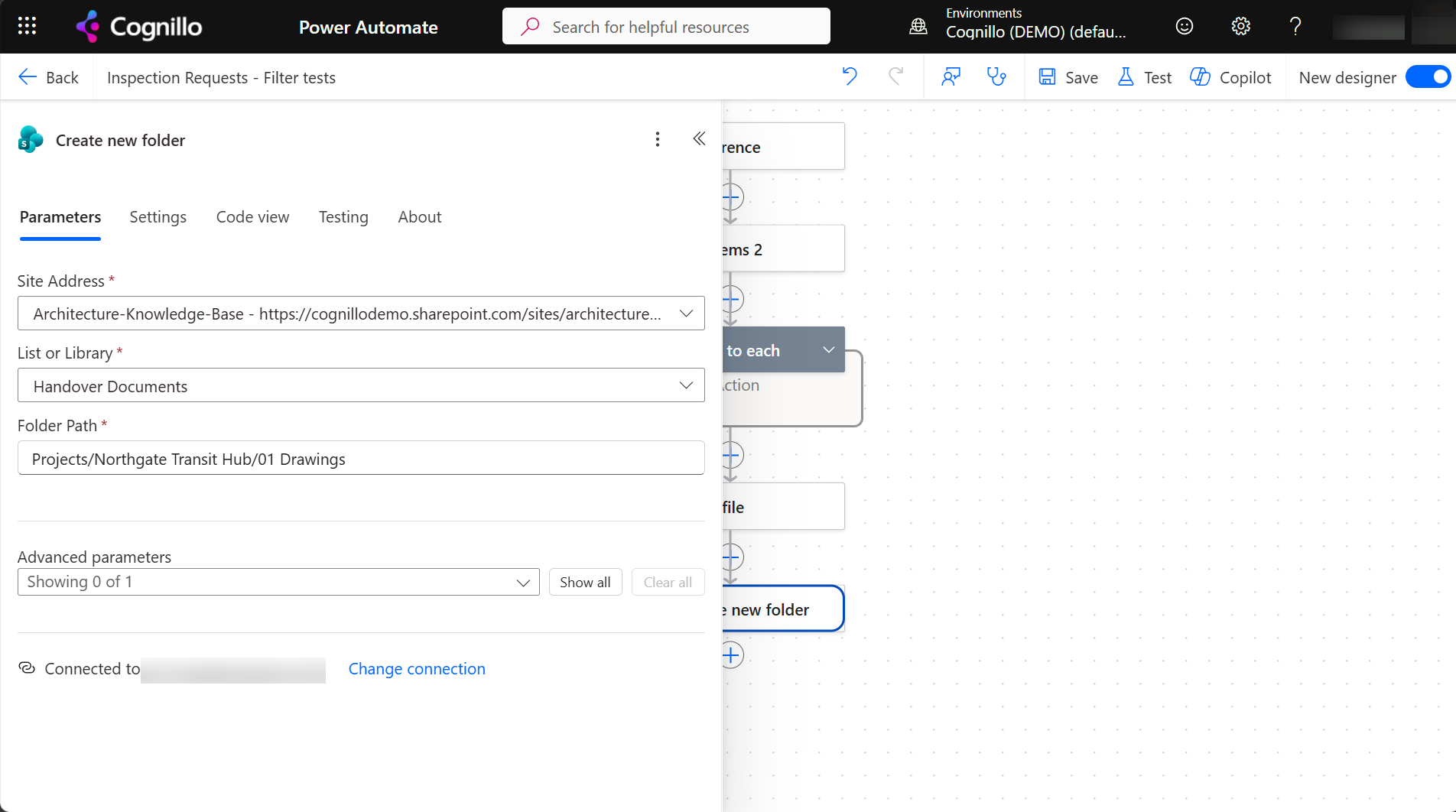
- First run: all three levels were created by the one action.
- Second run: succeeded, and there was still one Northgate Transit Hub folder with one 01 Drawings inside it.
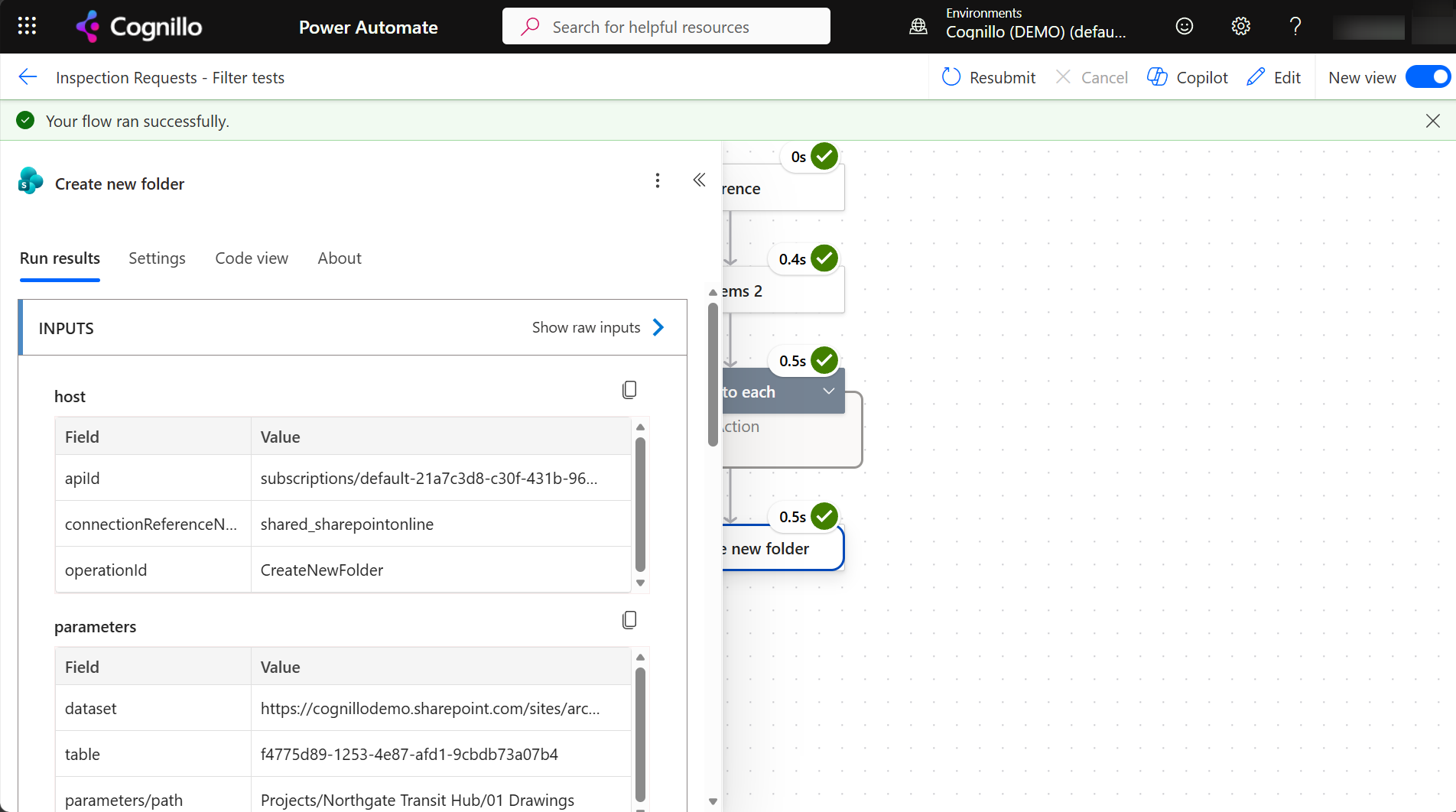
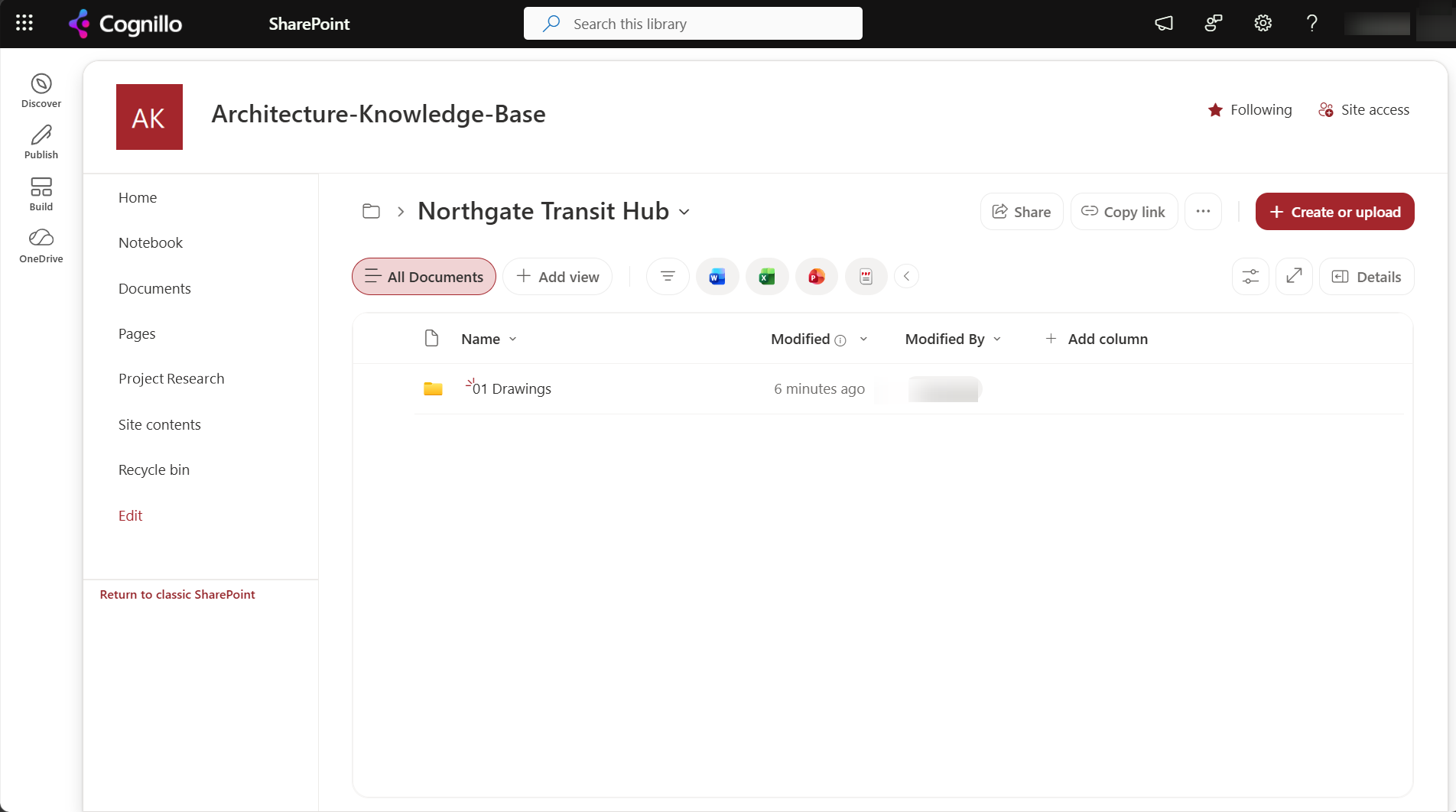
That makes the action safe to rerun, which matters when a trigger fires twice or a run is resubmitted.
The flow
- Trigger: "When an item is created" on a Projects list. Use "created", not "created or modified", so editing the project doesn't rerun it.
- Compose a clean folder name from the title, without characters SharePoint rejects:
trim(replace(replace(replace(triggerOutputs()?['body/Title'],'/','-'),':','-'),'"',''))
- Initialize variable
Subfolders(Array):["01 Drawings","02 Contracts","03 Correspondence","04 Photos","05 Handover"]
- Apply to each over
Subfolders, with Create new folder and the pathProjects/@{outputs('Compose')}/@{item()}. - Optional: Update item on the project with a link to the folder. That's an edit, so keep the trigger on "created" to avoid a loop.
To keep the subfolder list editable without changing the flow, store it in a small "Folder Template" list and read it with Get items.
Things to watch
- Folder names. SharePoint rejects some characters and names. Replace them in the Compose step instead of letting the run fail.
- Deep paths. The full decoded path, including the site URL and file names that come later, has a length limit. Keep project folder names short.
- Permissions per folder. Folders inherit the library's permissions. Breaking inheritance on each project folder is possible with an HTTP request to SharePoint, but many unique permissions are hard to manage; consider one library per client instead.
- Metadata instead of folders. If people mostly filter by project or phase, a Project column and views may serve better than folders.
Create the structure with PowerShell
For a one-time setup across existing projects, PnP PowerShell's Resolve-PnPFolder creates a path and all missing levels, and does nothing if it exists. It needs PnP PowerShell 2.x and your own Entra ID app registration; nothing is created until you set $WhatIf = $false.
$ClientId   = "<your-app-id>"
$SiteUrl    = "https://contoso.sharepoint.com/sites/Projects"
$Library    = "Handover"            # library URL name, not title
$Projects   = @("Northgate Transit Hub", "Harbor Point Library Renovation")
$Subfolders = @("01 Drawings", "02 Contracts", "03 Correspondence", "04 Photos", "05 Handover")
$WhatIf     = $true

Connect-PnPOnline -Url $SiteUrl -Interactive -ClientId $ClientId
foreach ($p in $Projects) {
    foreach ($s in $Subfolders) {
        $path = "$Library/Projects/$p/$s"
        if ($WhatIf) { "WhatIf: $path" } else { Resolve-PnPFolder -SiteRelativePath $path | Out-Null; "Created or found: $path" }
    }
}
Create sites, libraries and structure in bulk with SharePoint Essentials Toolkit
When each project gets its own site rather than its own folder, the toolkit's Create sites task (in Copy & move) builds site collections from an Excel sheet:
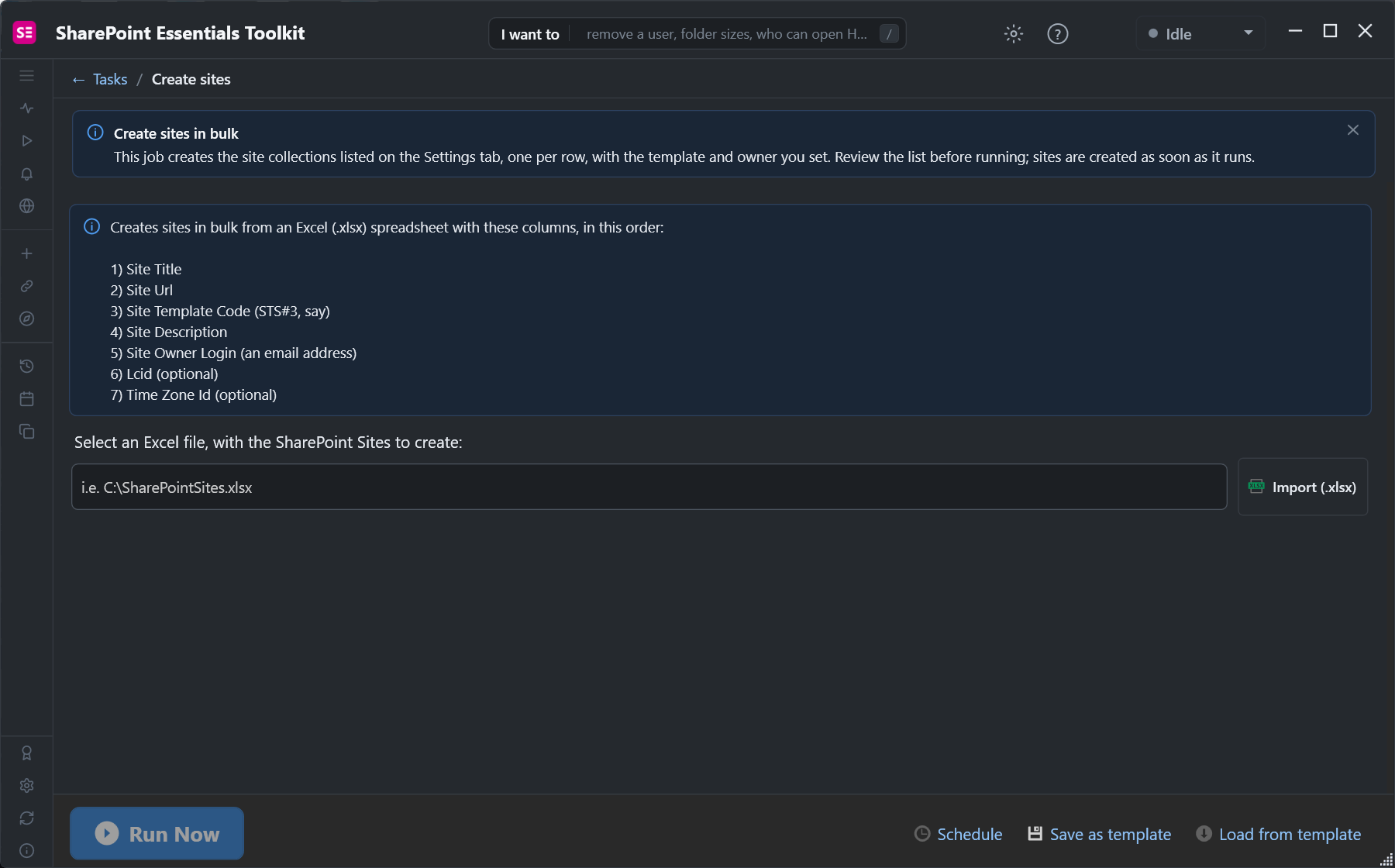
Set up one template site with the libraries and folders you want, then use Copy lists to copy those libraries, folders included, to each new site. See bulk creating sites, libraries and columns.
Need to pull specific list items into a flow? See Power Automate Get Items filter query examples.
Frequently asked questions
Does Create new folder create parent folders?
Yes. In our test one Create new folder with Projects/Northgate Transit Hub/01 Drawings created all three levels.
What happens if the folder already exists?
In our test the action succeeded and no duplicate folder was made, so the step is safe to run again.
How do I create several subfolders?
Put the names in an array variable or a small list, then use Apply to each with one Create new folder per name.
Why does Create new folder fail on some project names?
The name contains characters SharePoint rejects, or the path is too long. Clean the name with replace() in a Compose step first.
Should I use folders or metadata for projects?
Folders suit permission boundaries and sync. Metadata columns and views suit filtering. Many teams use one folder per project and columns for the rest.
Build site and library structures in bulk, free
SharePoint Essentials Toolkit Community Edition is free. Create sites from Excel and copy template libraries with their folders, on up to 20 sites per Microsoft 365 tenant. Get your free Community Edition license key.